
Telephony & Others
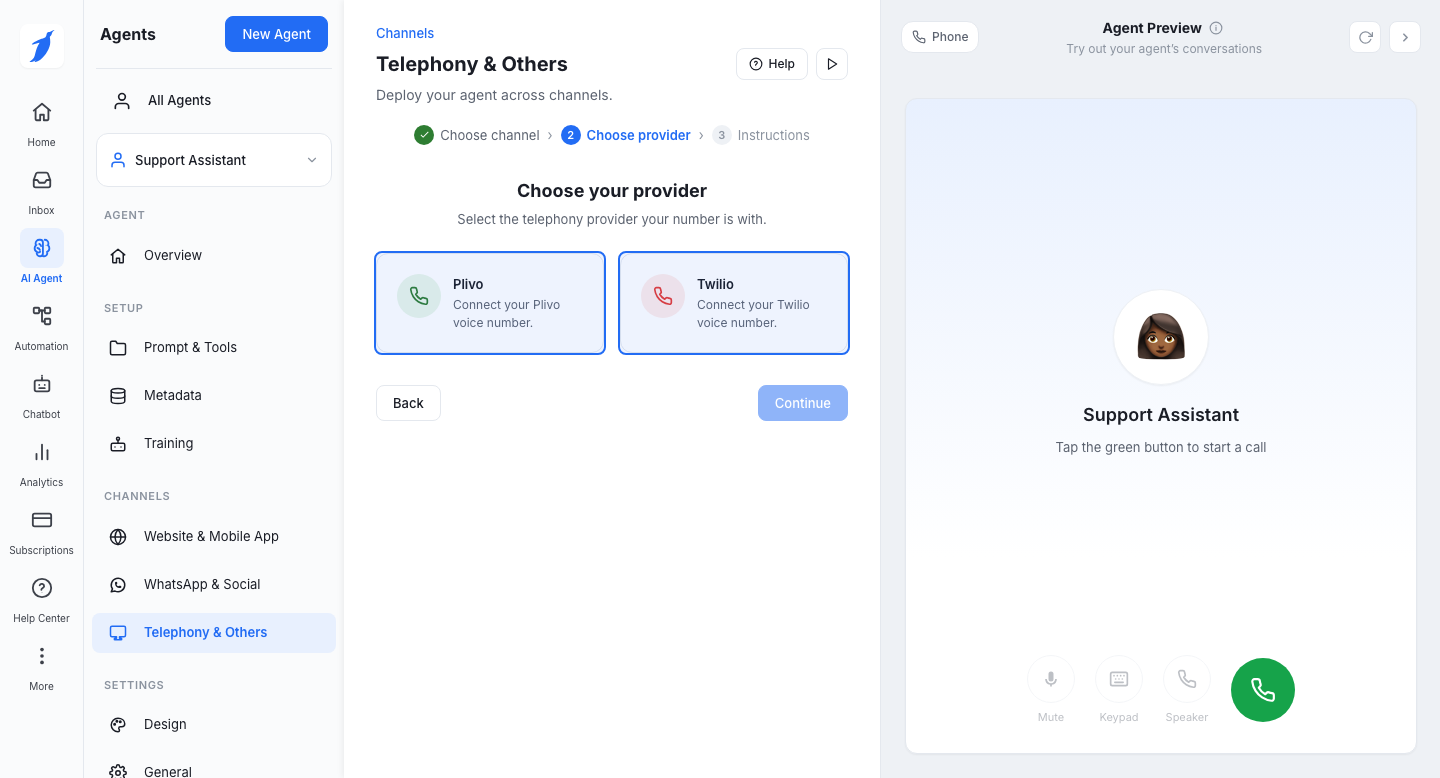
Connecting a phone number lets customers call your AI agent and talk to it. You choose a provider, either Plivo or Twilio, and then choose how to connect: let BotPenguin set it up, set it up yourself, or use a number that is already connected.
Prerequisites
An AI agent that is set up, with a voice provider and a transcription provider chosen in Advanced AI. See Tune your AI agent with Advanced AI settings.
An active account with Plivo or Twilio. Their calling charges apply. [CHECK: the old page says BotPenguin charges no installation fee. Confirm before keeping this.]
Your provider details, which depend on the way you connect (see each option below).
For Use an existing number: a number already connected under the same provider.
Key definitions
Provider
The company that gives you the phone number, Plivo or Twilio.
Account SID or Auth ID
The identifier of your provider account.
Auth token
A secret key that goes with the SID or Auth ID. Keep it private.
SIP trunk
The connection that carries calls between your provider and BotPenguin.
Trunk name
The name for the SIP trunk BotPenguin creates in your provider account.
Termination URI
The SIP address from your provider where calls end.
Outbound transport
The protocol that carries outgoing call signals: UDP, TCP or TLS.
Steps
Open Telephony & Others under Channels in the AI Agent sidebar.
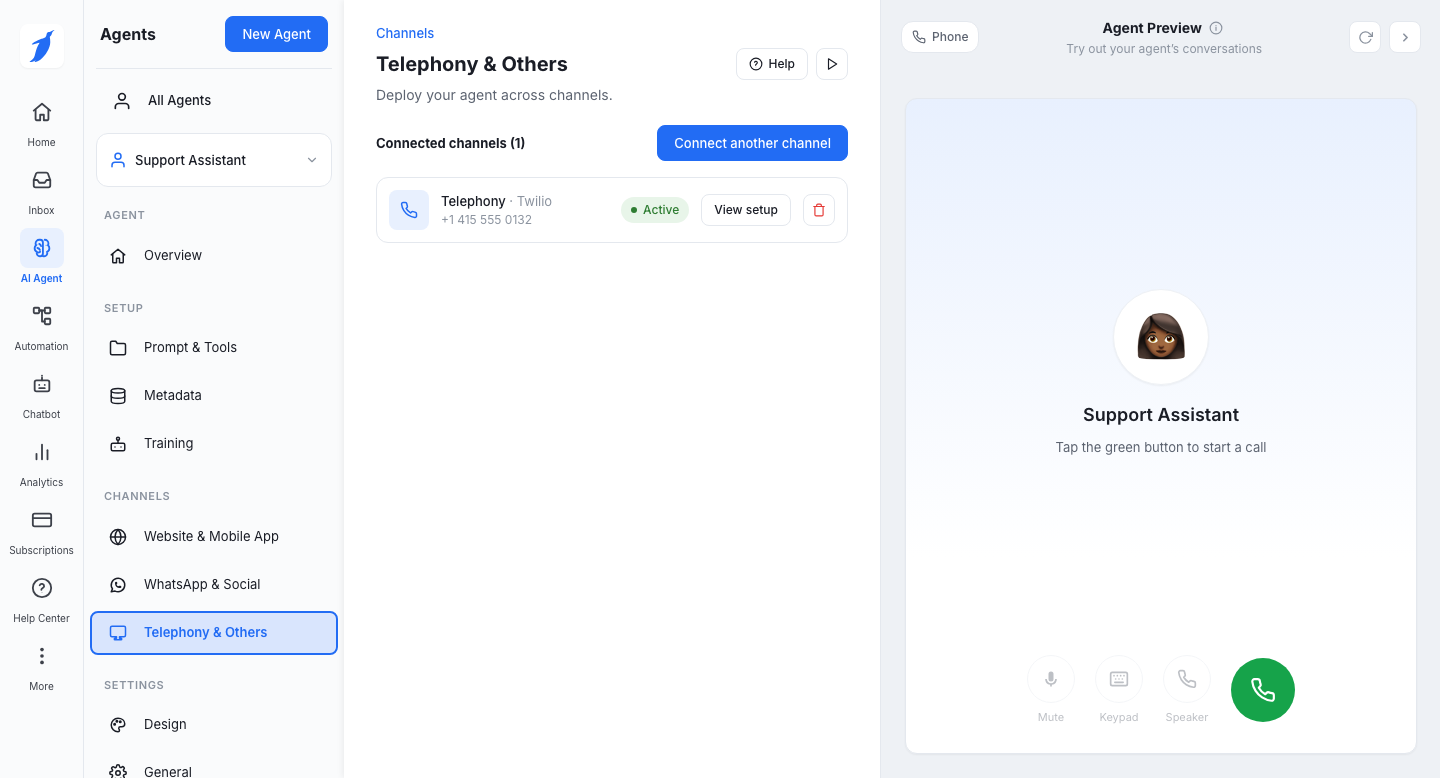
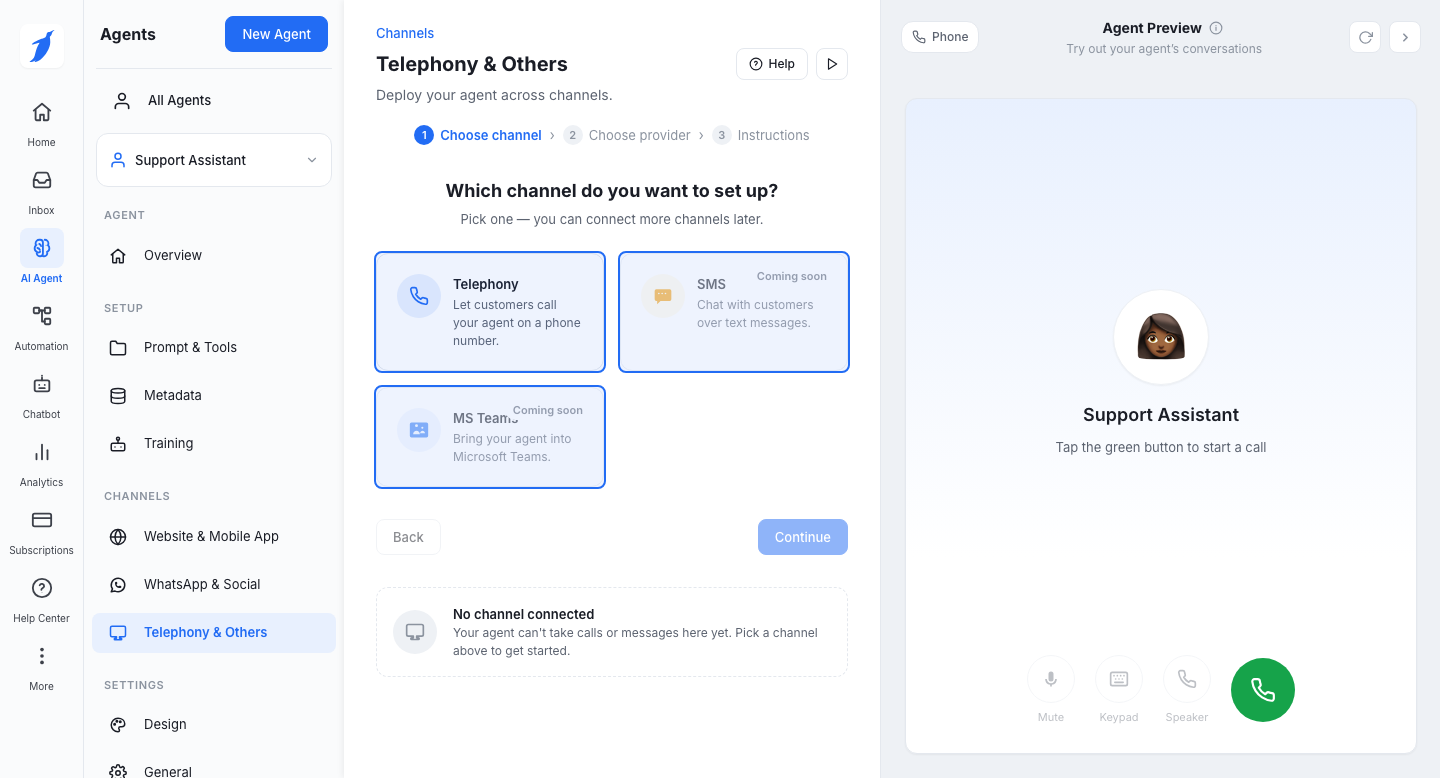
Click Connect another channel. On Choose channel, click Telephony. SMS and MS Teams are also shown, but they are not ready yet.
On Choose provider, click Plivo or Twilio. This example uses Twilio.
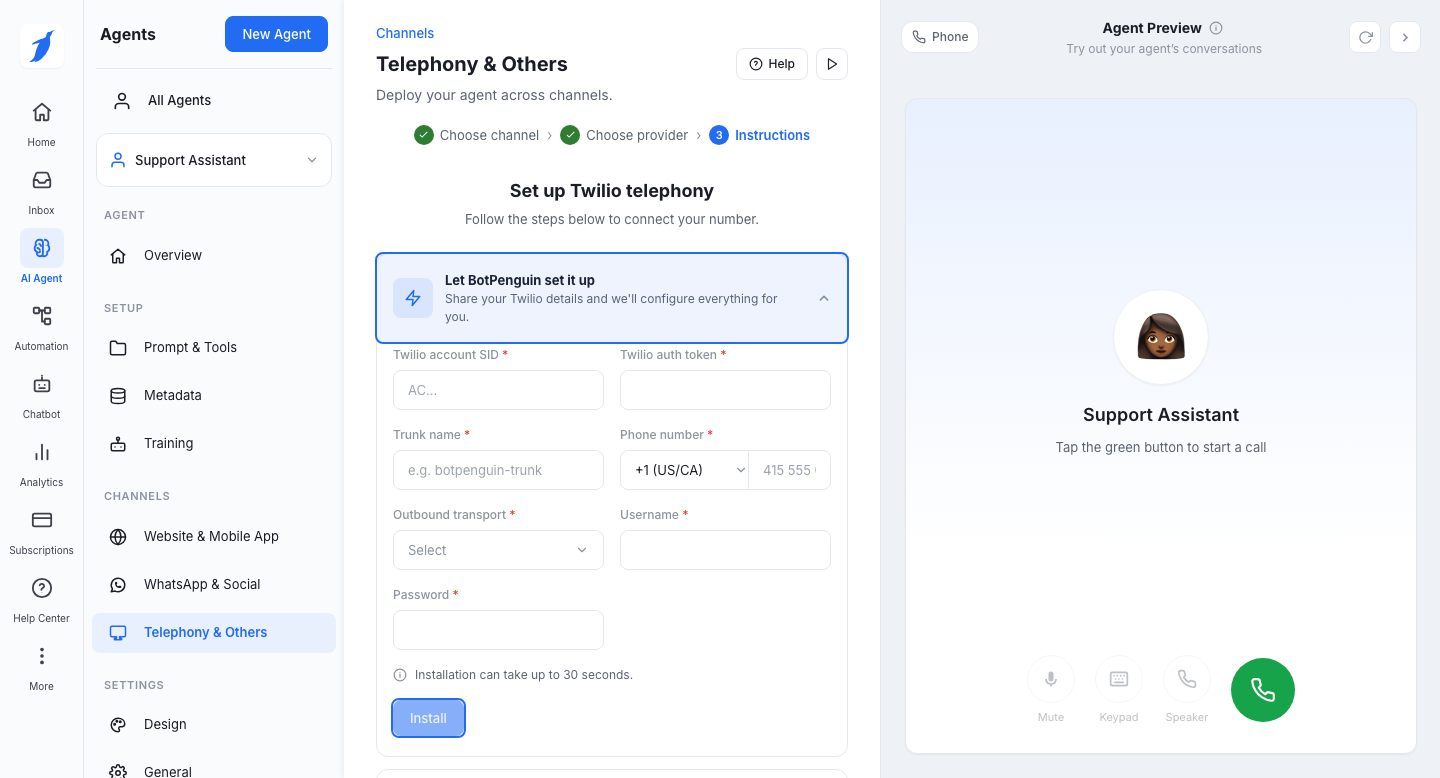
On the Instructions step, choose one of three ways to connect. Only one is open at a time. Follow the option you need.
Option 1: Let BotPenguin set it up
BotPenguin creates and sets up the SIP trunk for you.
Open Let BotPenguin set it up. Fill in all the fields: the Account SID (Auth ID for Plivo), the Auth token, a Trunk name, the Phone number with its country code, the Outbound transport, and a Username and Password for the new trunk.
Click Install. Setup can take up to 30 seconds.
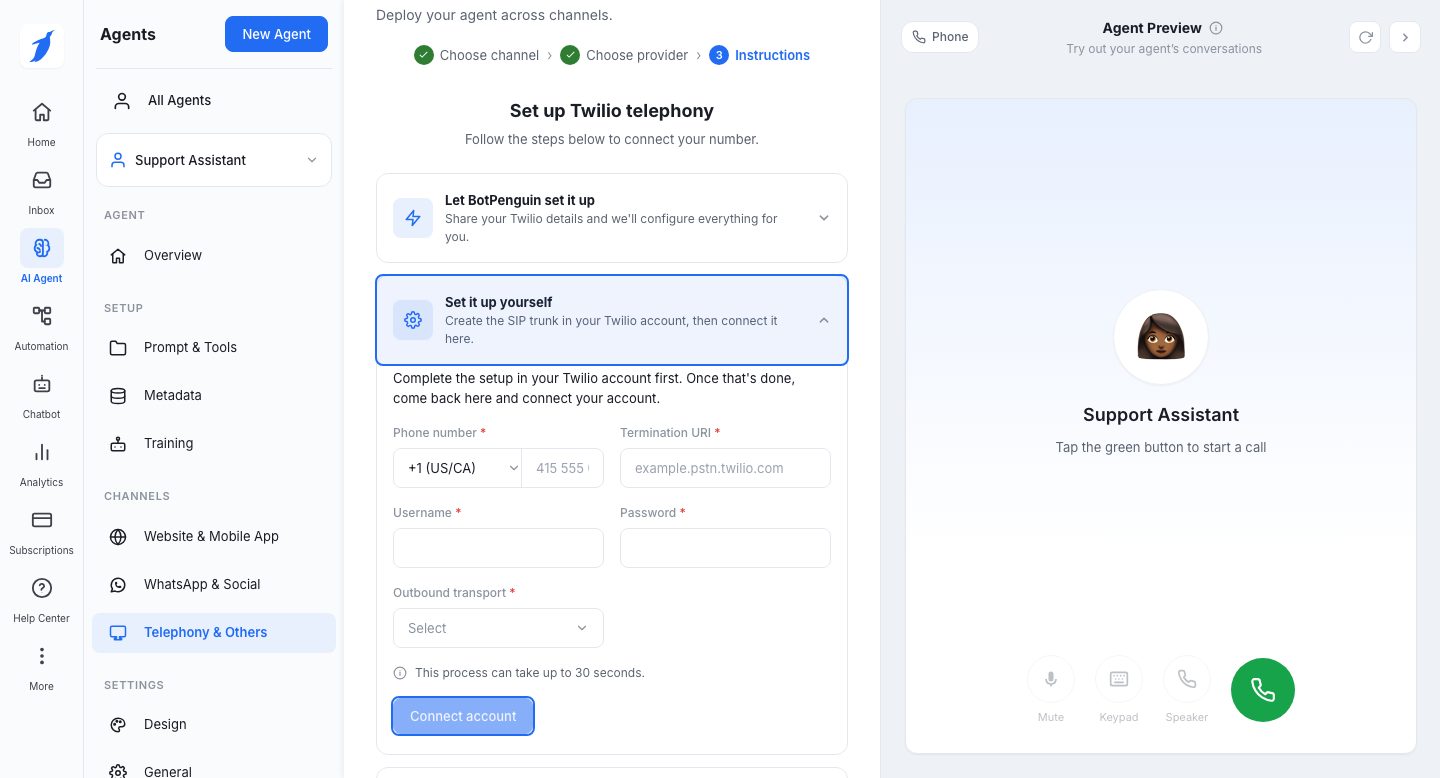
Option 2: Set it up yourself
Use this if you already created a SIP trunk in your provider account.
Open Set it up yourself. Fill in the Phone number, the Termination URI, the Username, the Password and the Outbound transport.
Click Connect account.
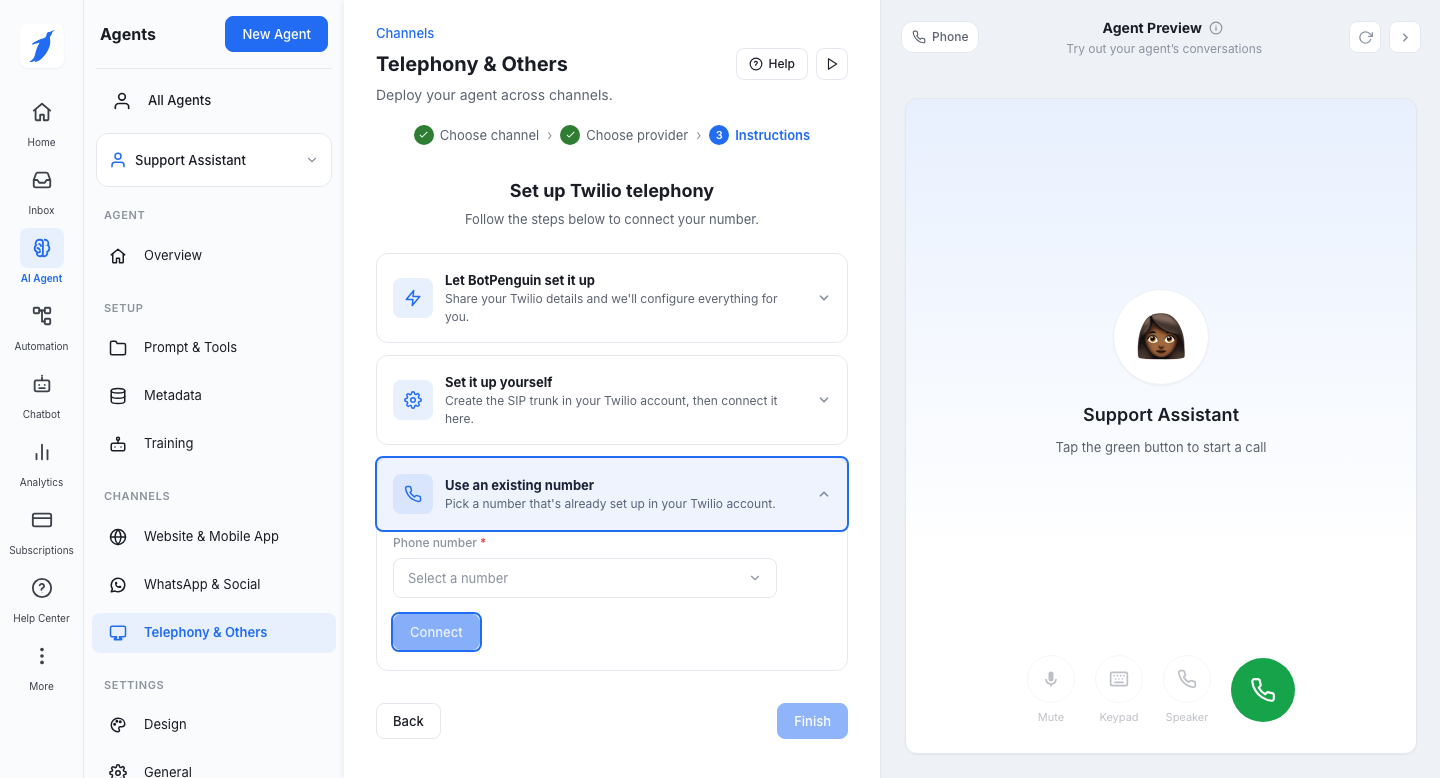
Option 3: Use an existing number
Use this if a number is already connected under the same provider.
Open Use an existing number. Pick the number from the Phone number list.
Click Connect.
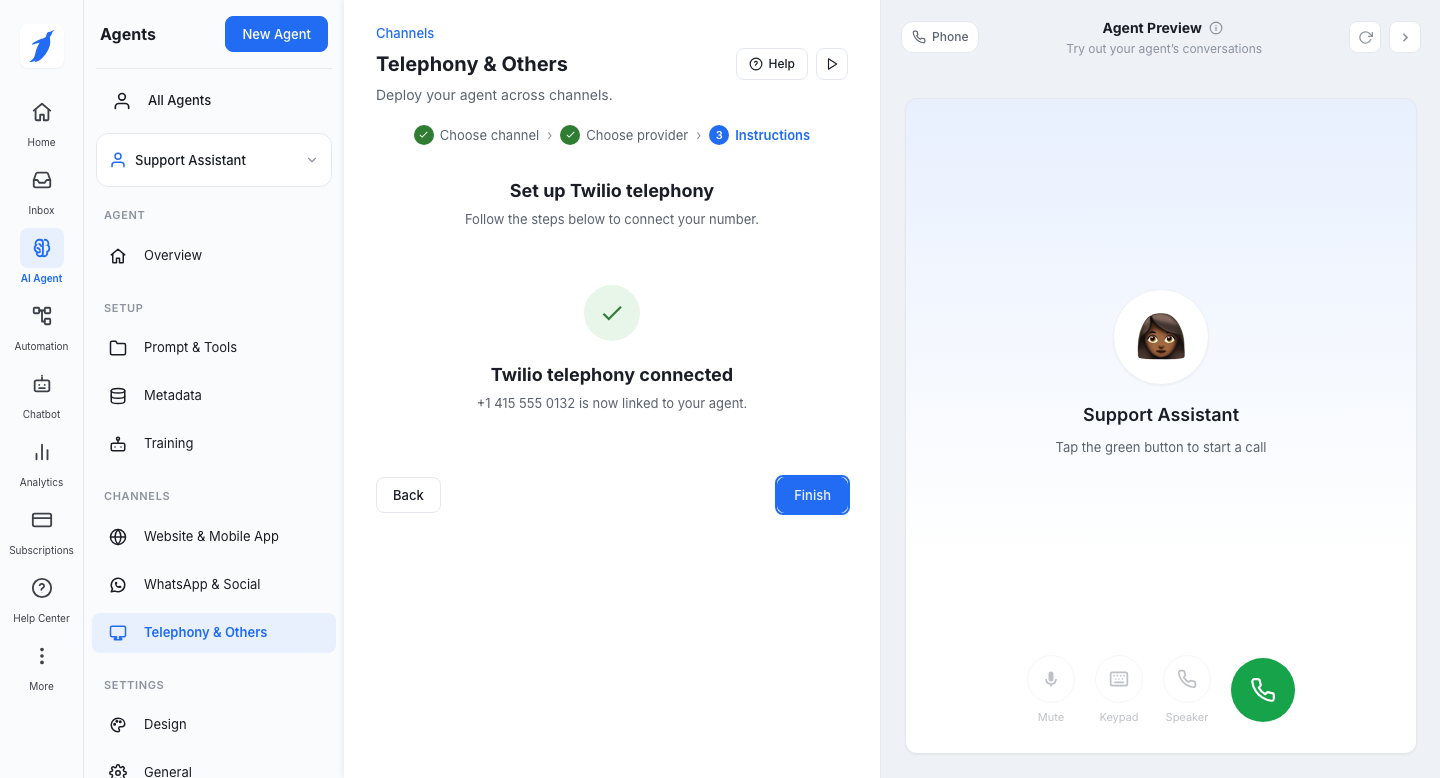
When it works
A confirmation shows "[Provider] telephony connected" and the number you linked. Click Finish.
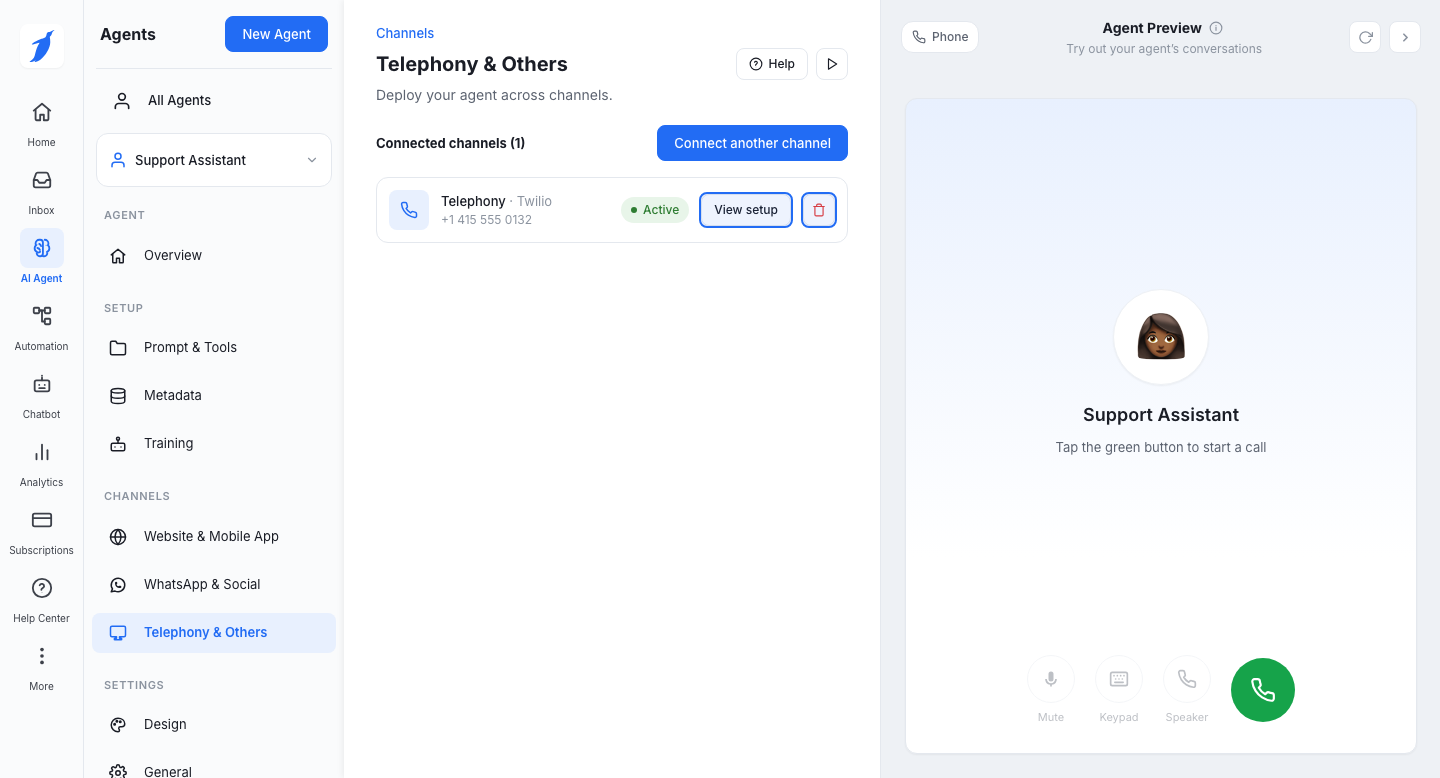
Manage your phone channel
Back on Telephony & Others, the Connected channels list shows each number with its provider and an Active status. Click View setup to open the instructions for that channel again. Click Disconnect to remove it. Click Connect another channel to add another number. Use Start call to test your agent.
[CHECK: the PRD says to select Telephony and then click Continue. The prototype moves to the next step as soon as you click a card. Confirm the final behaviour.]
[CHECK: the PRD says SMS and MS Teams show "Coming soon" and cannot be clicked. The prototype does not show a Coming soon label. Confirm.]
[CHECK: the old page lists Account ID, Auth Token, Trunk Name, Phone Number, Username and Password for the BotPenguin option, and says Install Myself needs only Phone Number, Termination URL, Username and Password. The PRD and the prototype add Outbound transport to both. The text follows the PRD.]
[CHECK: the old page says to complete the Plivo or Twilio integration in More → Integrations before you use an existing number. Confirm where integrations live.]
[CHECK: the old page covers voice call settings (Voice Mode, noise cancellation, silence timeout, maximum call time, interruptions) and call tools (transfer to a live agent, end call). Confirm whether a Voice Bot doc is planned and move them there.]
Common errors
Support
Still not working? Write to us at support@botpenguin.com. We will reach out to you within 24 hours.