
group assignment
The Group Assignment tool lets your AI agent put a contact in a contact group, move it or take it out. You add it on the Prompt & Tools page, choose which actions the agent may use, and tell the agent when to use it.
Prerequisites
An AI agent. See Create your first AI Agent.
Edit access to AI Agents. [CHECK: permissions are not part of the PRD. Confirm the role needed.]
Key definitions
Tool
Something your agent can use to take an action.
Action
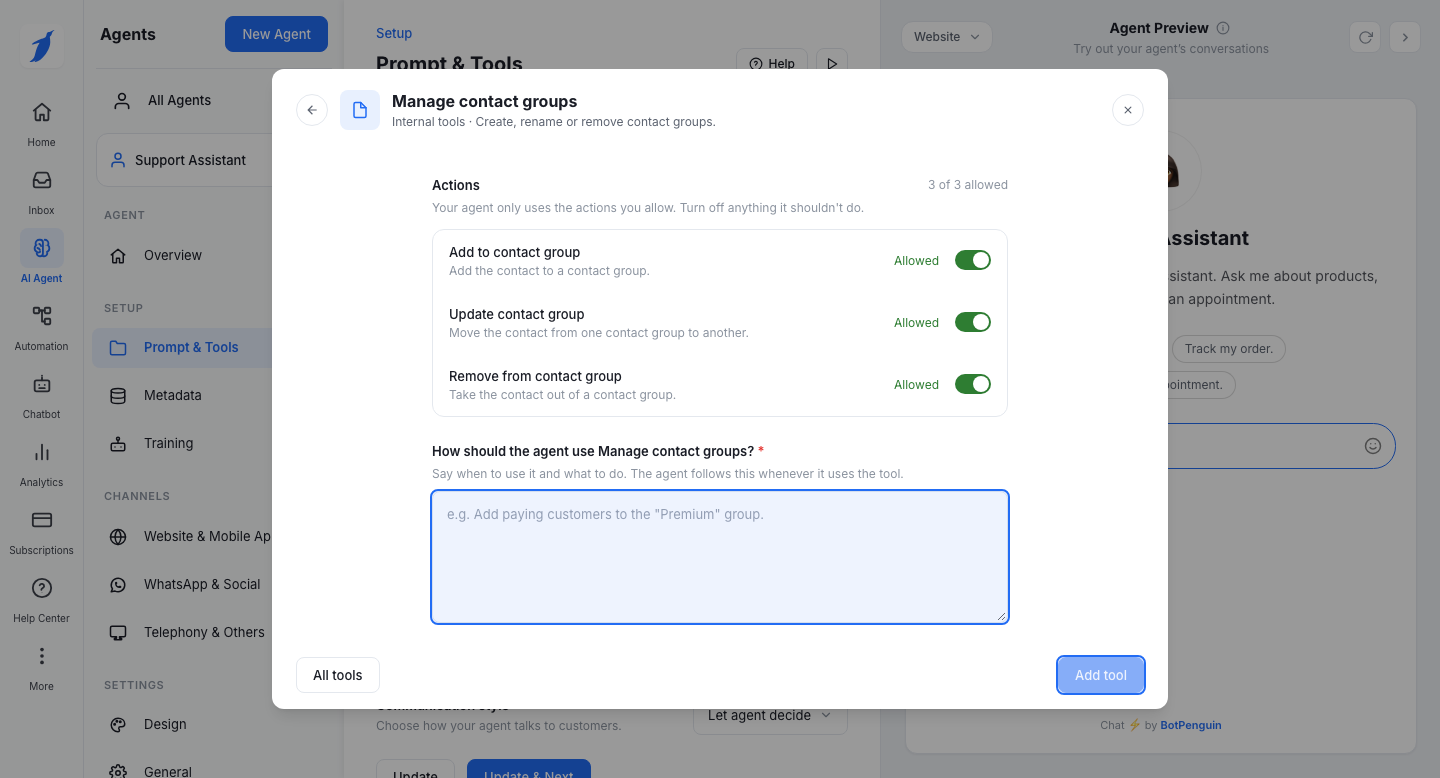
One thing a tool can do. You turn each action on or off with Allowed.
Usage instructions
Your words that tell the agent when to use the tool and what to do.
What the Group Assignment tool can do
Assign group
Adds the contact to a group.
Update group
Moves the contact from one group to another.
Remove group
Takes the contact out of a group.
The agent uses the contact groups you created in the Inbox.
Steps
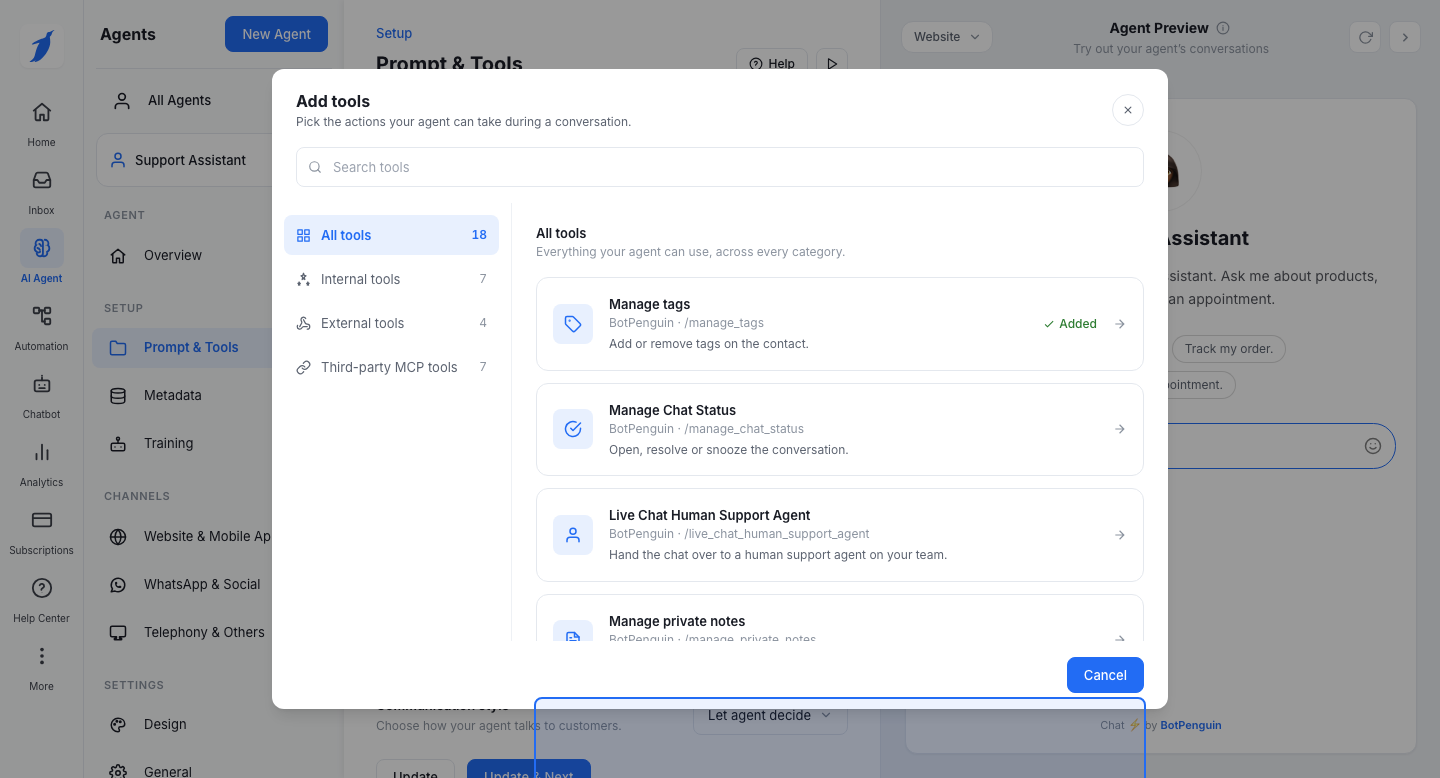
Open Prompt & Tools under Setup in the AI Agent sidebar. Click Add tool. In the Add tools window, find Group Assignment. You can search for it, or look under Internal tools. Click it.
Turn on the actions you want the agent to use. A counter shows how many are allowed. The agent uses only the actions that are allowed. Under "How should the agent use Group Assignment?", write when the agent should use the tool and what it should do. This is required.
Click Save changes. The tool now shows under Connected tools with an Active label. Click Done to close the window, then click Update to save the page.
Example usage instructions
Add paying customers to the "Premium" group.
Write your own in the same way: say when to use the tool, then what to do.
Change or remove the tool
Under Connected tools, click the gear icon to open the tool's settings again. Click the delete icon to remove it. You are asked to confirm. Deleting removes the tool and its usage instructions from the agent.
Common errors
[CHECK: the PRD lists the actions and inputs of this tool but not its screen text, limits or error messages. Confirm these with the dev team before publishing.]
[CHECK: existing customers have the old settings of this tool moved into the agent prompt, with the right action turned on. Confirm what customers should know about this move.]
[CHECK: the prototype names this tool "Manage contact groups". The PRD names it "Group Assignment". Confirm the name customers see.]
Support
Still not working? Write to us at support@botpenguin.com. We will reach out to you within 24 hours.