
manage private notes
The Manage private notes tool lets your AI agent write, edit or delete internal notes that only your team can see. You add it on the Prompt & Tools page, choose which actions the agent may use, and tell the agent when to use it.
Prerequisites
An AI agent. See Create your first AI Agent.
Edit access to AI Agents. [CHECK: permissions are not part of the PRD. Confirm the role needed.]
Key definitions
Tool
Something your agent can use to take an action.
Action
One thing a tool can do. You turn each action on or off with Allowed.
Usage instructions
Your words that tell the agent when to use the tool and what to do.
What the Manage private notes tool can do
Add note
Writes a new private note on the chat.
Update note
Edits a note that was already written.
Delete note
Deletes a private note.
Steps
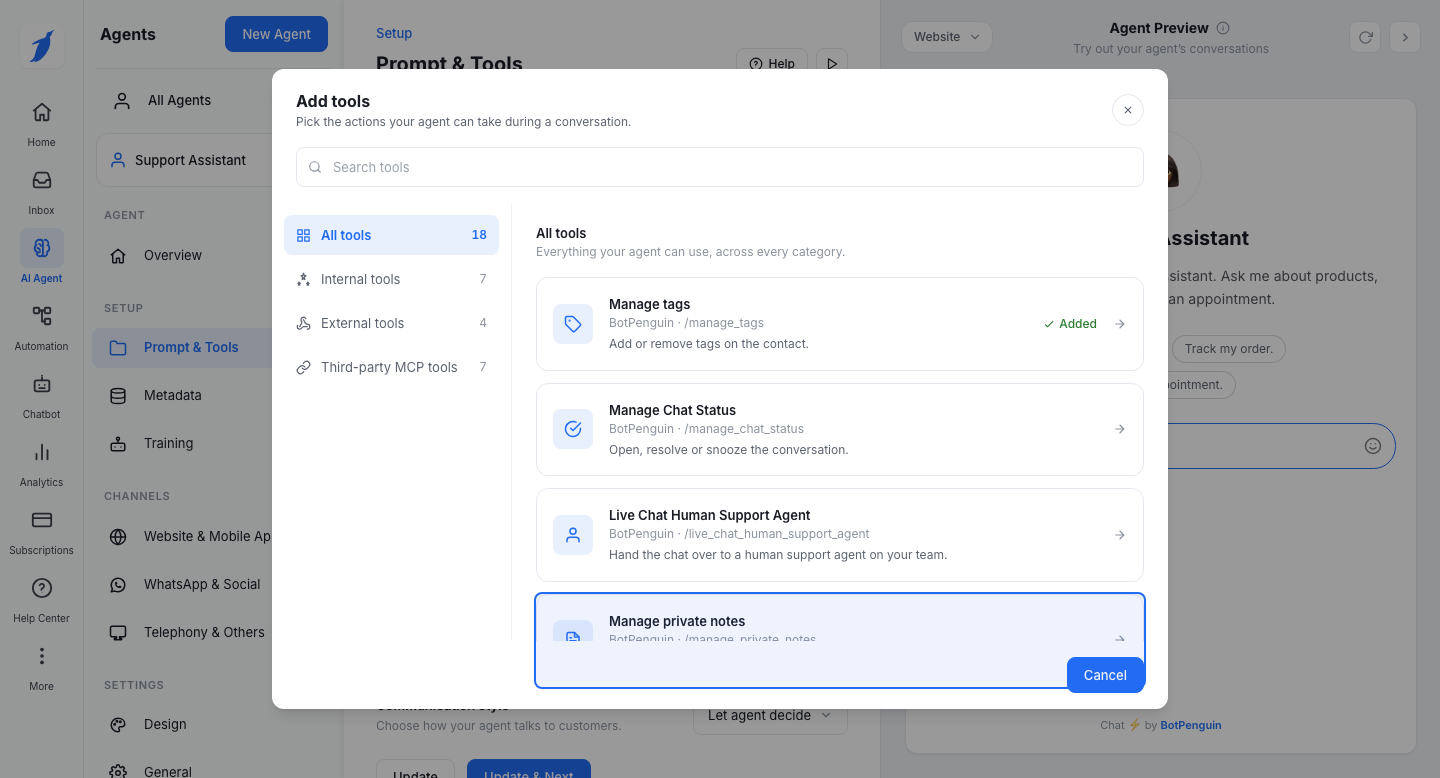
Open Prompt & Tools under Setup in the AI Agent sidebar. Click Add tool. In the Add tools window, find Manage private notes. You can search for it, or look under Internal tools. Click it.
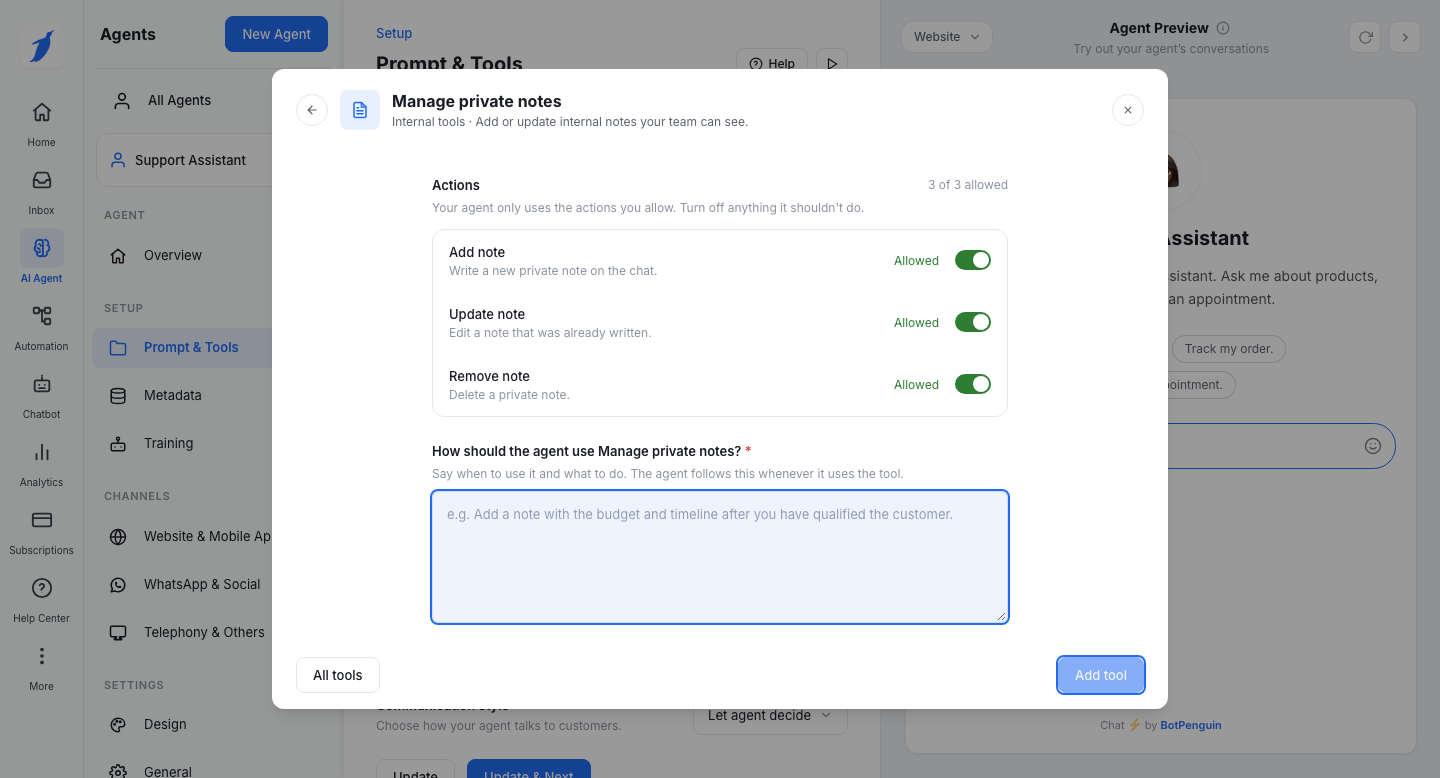
Turn on the actions you want the agent to use. A counter shows how many are allowed. The agent uses only the actions that are allowed. Under "How should the agent use Manage private notes?", write when the agent should use the tool and what it should do. This is required.
Click Save changes. The tool now shows under Connected tools with an Active label. Click Done to close the window, then click Update to save the page.
Example usage instructions
Add a note with the budget and timeline after you have qualified the customer.
Write your own in the same way: say when to use the tool, then what to do.
Change or remove the tool
Under Connected tools, click the gear icon to open the tool's settings again. Click the delete icon to remove it. You are asked to confirm. Deleting removes the tool and its usage instructions from the agent.
Common errors
[CHECK: the PRD lists the actions and inputs of this tool but not its screen text, limits or error messages. Confirm these with the dev team before publishing.]
[CHECK: existing customers have the old settings of this tool moved into the agent prompt, with the right action turned on. Confirm what customers should know about this move.]
Support
Still not working? Write to us at support@botpenguin.com. We will reach out to you within 24 hours.