
Train Your AI Agent
Training is how your AI agent learns about your business. It answers from the sources you add, so the better the sources, the better the answers. You can add websites, files, spreadsheets, FAQs and short text snippets. The Un-answered Questions tab then shows what the agent could not answer, so you know what to add next.
Prerequisites
An AI agent. See Create your first AI Agent.
Content to train on, for example your website address, a PDF or a list of common questions. [CHECK: confirm the plan and role needed.]
Sample data only. The screens in this guide use the sample company Acme Inc.
Key definitions
Training source
A place your agent learns from, such as a website or a file.
Re-sync
Read a website again so the agent has the latest content.
FAQ
A question with the answer you want the agent to give.
Snippet
A short piece of text, such as a policy or product details.
Un-answered question
A customer question the agent could not answer correctly.
Open Training
Click Training under Setup in the AI Agent sidebar.
The page opens on Overview. Key analytics shows how many Web URLs, Files, Snippets and FAQs your agent has. Training data lists everything you added. Click Add training data to add more.
Use the tabs to work on one source type: Website, File Upload, Google Sheets, FAQ's, Snippets, Un-answered Questions and Other Sources.
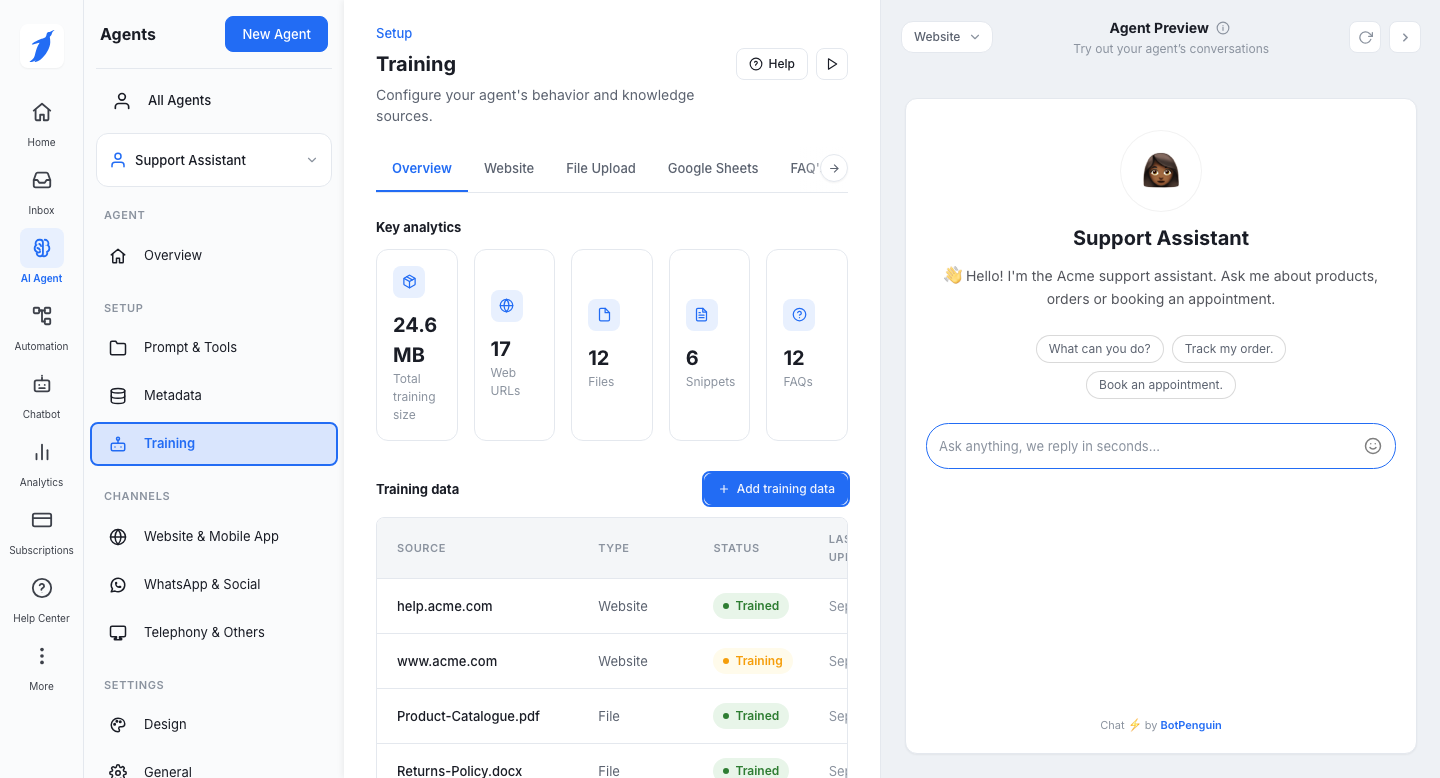
Add training data
Click Add training data.
On Source, choose how you want to train your agent.
On Details, fill in the details for that source.
Click Add and train. A Confirmation screen shows that training has started, then that it is complete.
Train on a website
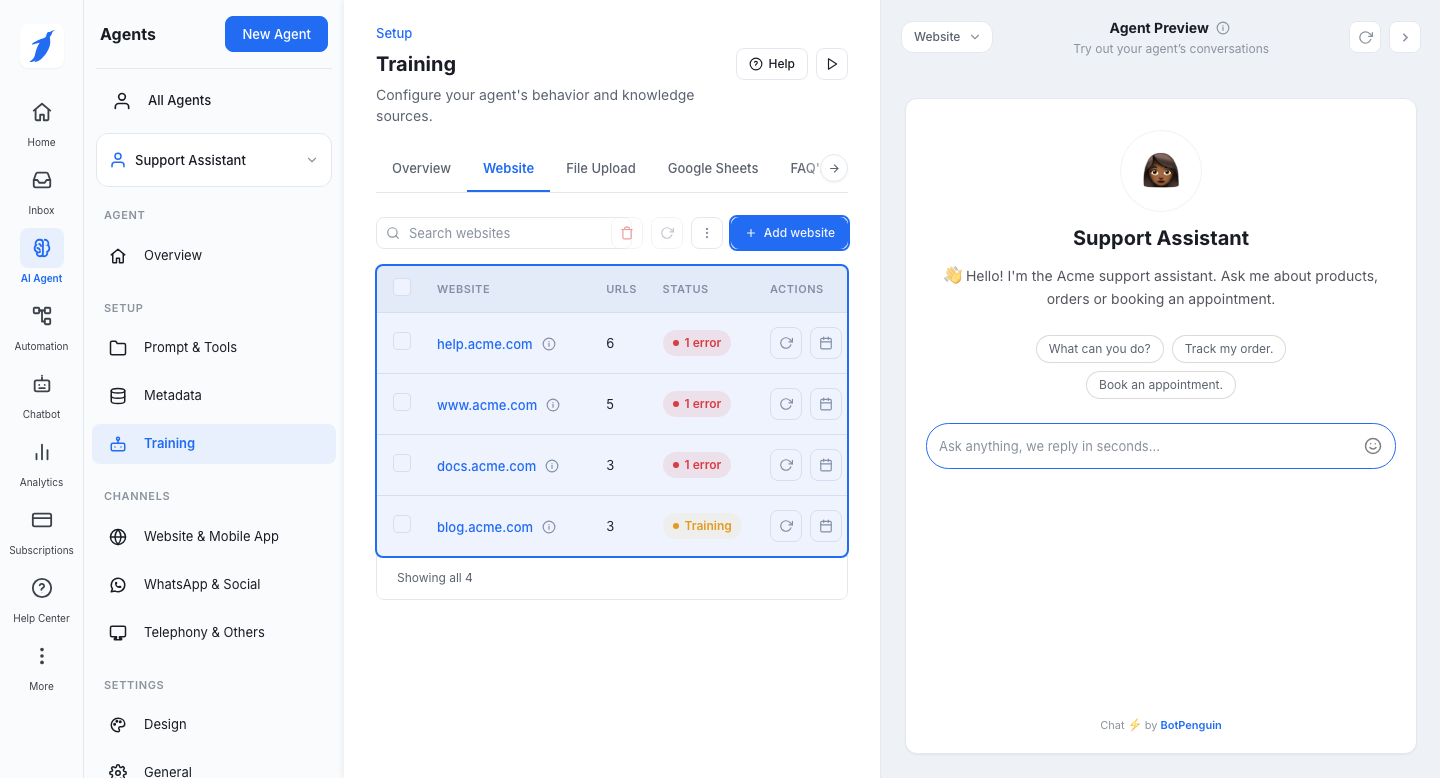
Click the Website tab. The table lists each website, how many URLs it has, its status and its actions.
Click Add website. Choose The full website to read every page it can find, or Specific URLs only to read just the pages you list.
Enter the website address and click Add and train.
To refresh a website after it changes, click Re-sync. Use Reschedule to set when it re-syncs. Use the first icon in the row to see the pages it read.
Train on files
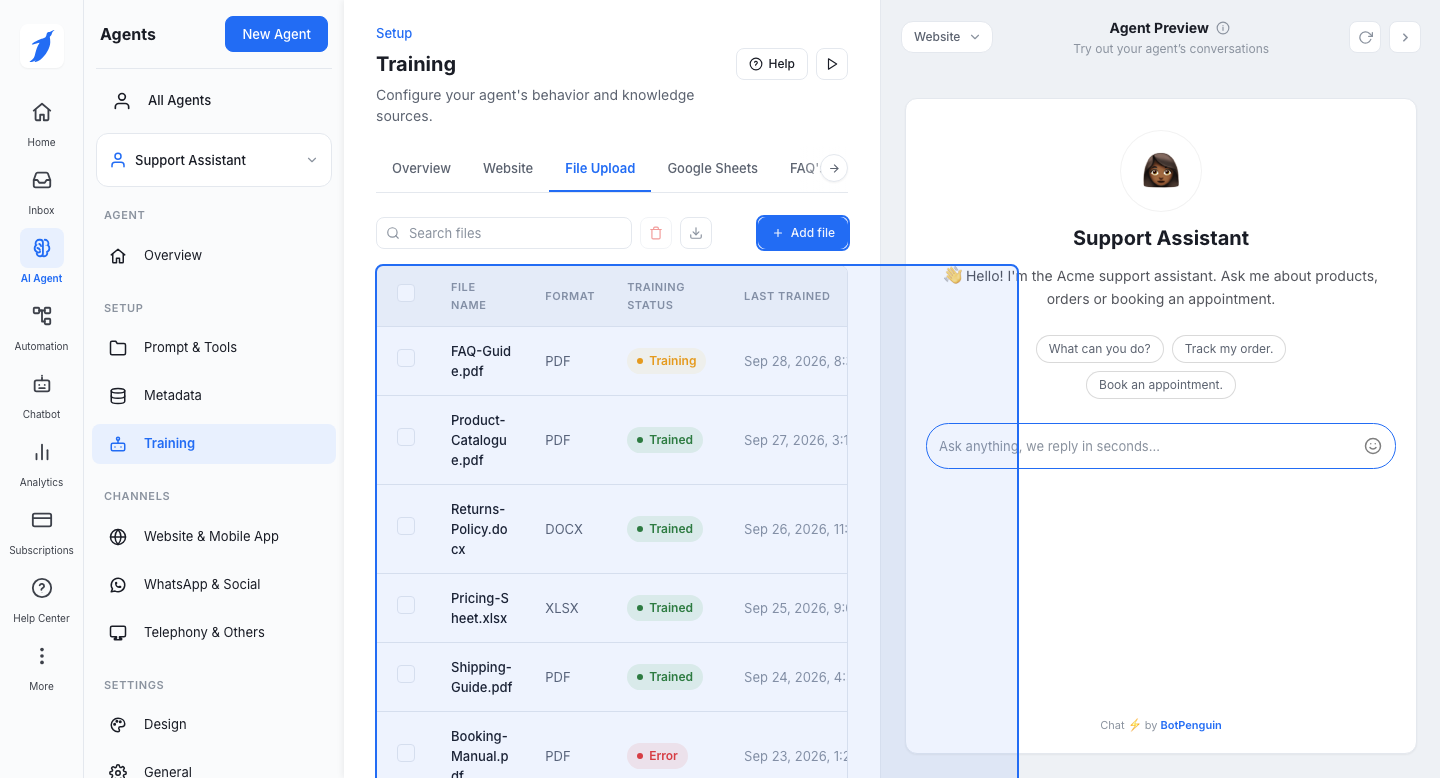
Click the File Upload tab. The table shows each file's name, format, training status and when it was last trained.
Click Add file. Choose Upload a file to pick a file from your computer, or Use a file link to paste the web address of the file.
Click Add and train. Wait until the status shows that training is complete before you test.
Use the icons in the Actions column to download or delete a file.
Train on Google Sheets
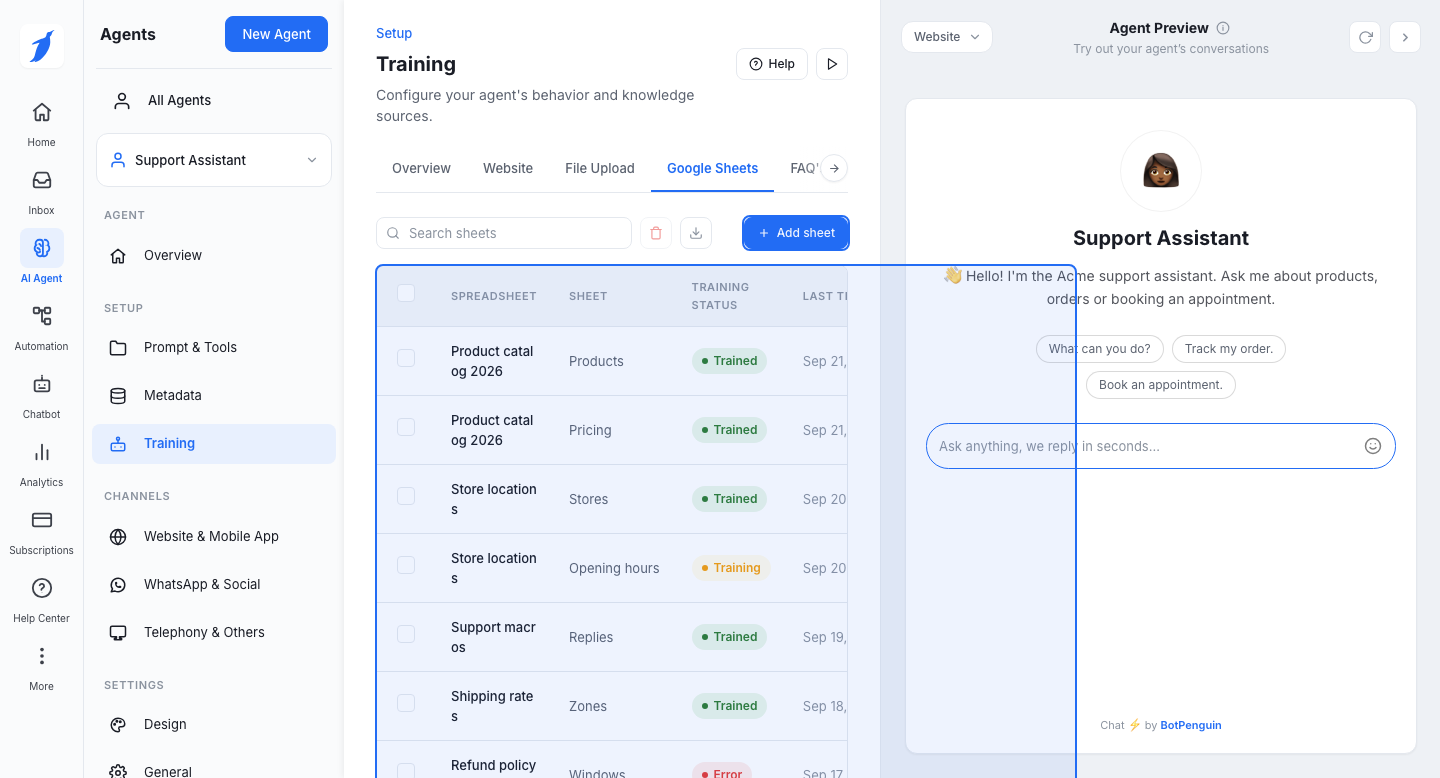
Click the Google Sheets tab. The table shows each spreadsheet, the sheet name and its training status.
Click Add sheet, choose your Google account and pick the sheet.
Click Add and train.
Train on FAQs
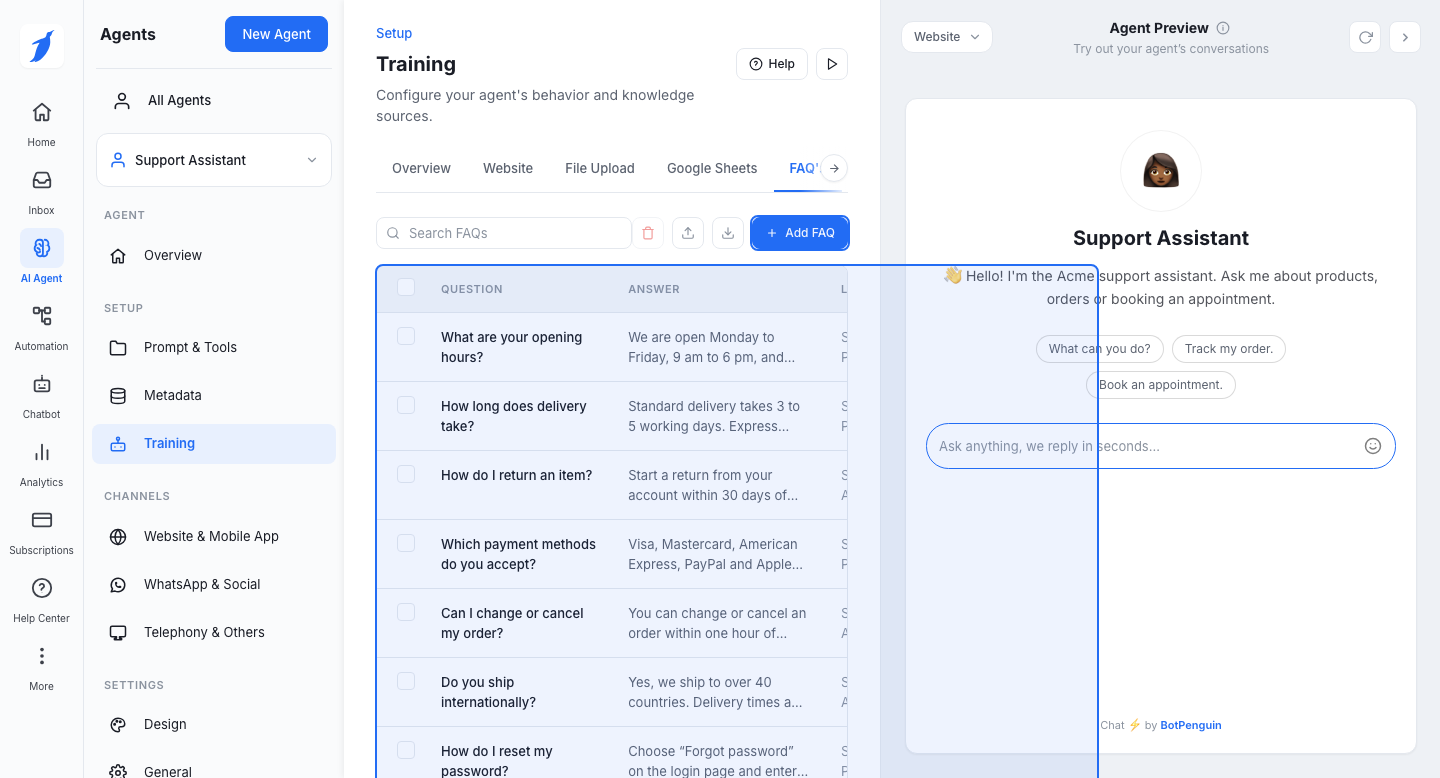
Click the FAQ's tab. The table shows each question, its answer and when it was last updated.
Click Add FAQ. Choose One by one to type a question and its answer, or Upload in bulk to import many from a spreadsheet.
Click Add and train.
Use Download all as CSV to back up your FAQs. Use Upload CSV to add many at once.
Train on snippets
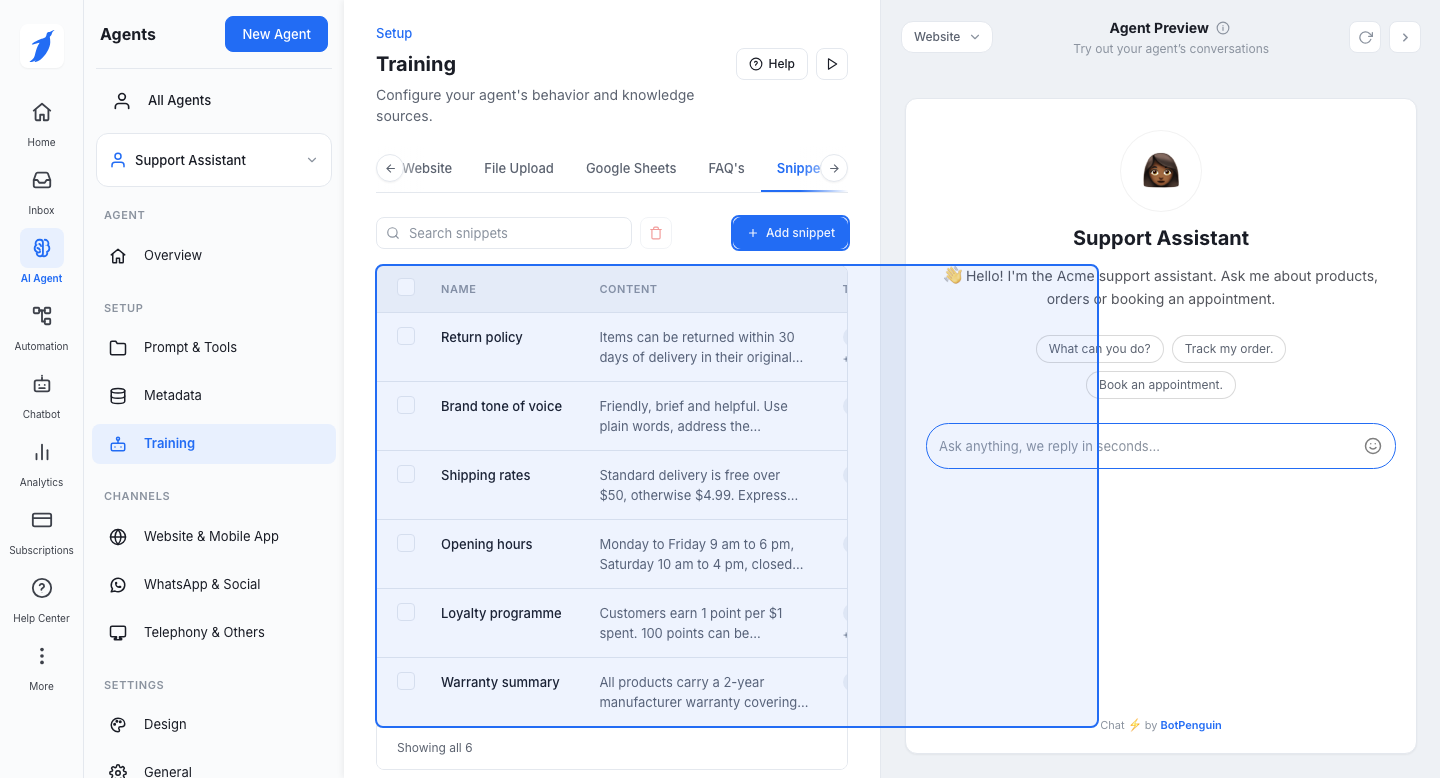
Click the Snippets tab. The table shows each snippet's name, content and tags.
Click Add snippet. Type a name, add a tag that says what it is about, for example Returns, and paste the text your agent should know.
Click Add and train.
Review un-answered questions
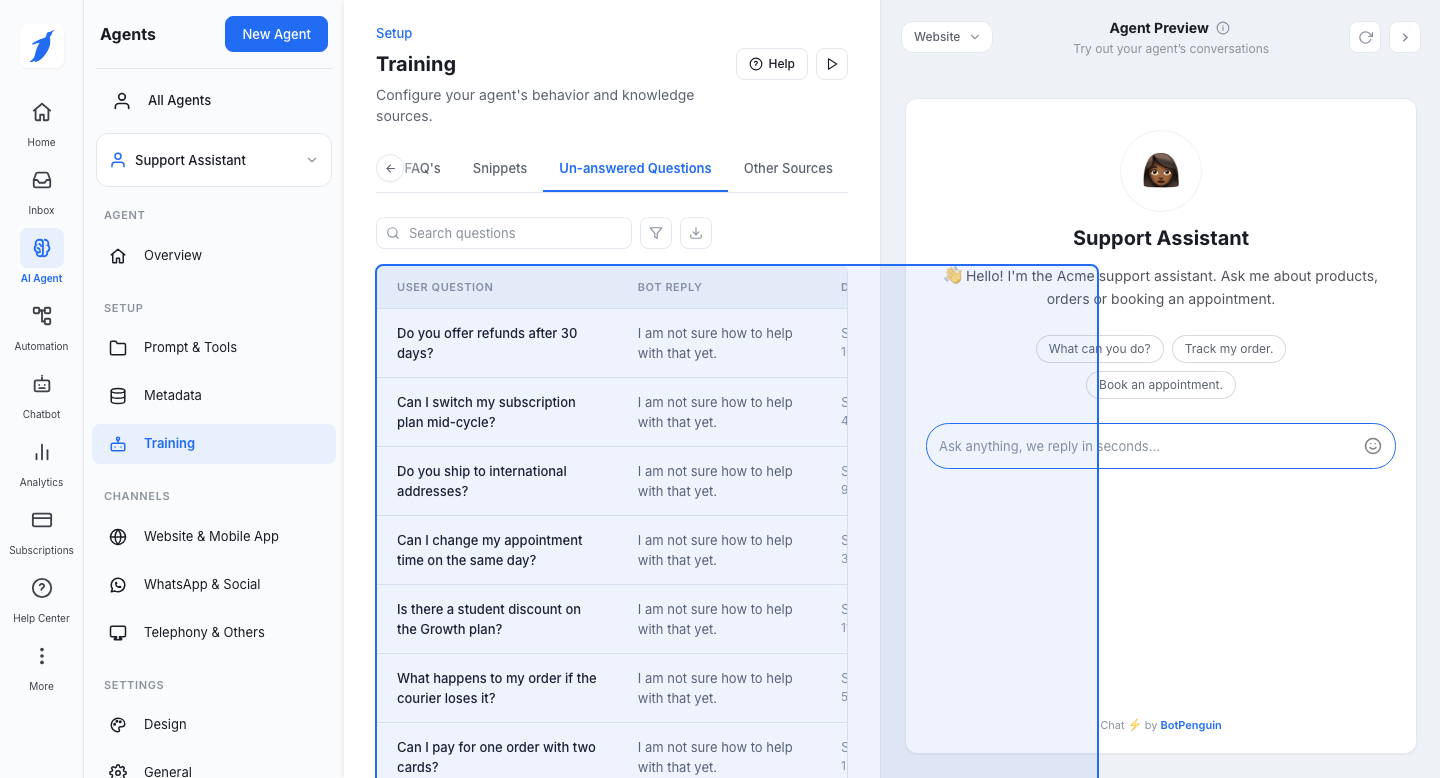
Click the Un-answered Questions tab. The table lists questions your agent could not answer, with the reply it gave and the date.
Use Search questions to find one, and Filter by date to look at a period.
Click Create a FAQ on a row to turn that question into an FAQ. Type the answer you want, and the agent learns it.
Click Export unanswered questions to share the list with your team.
Other sources
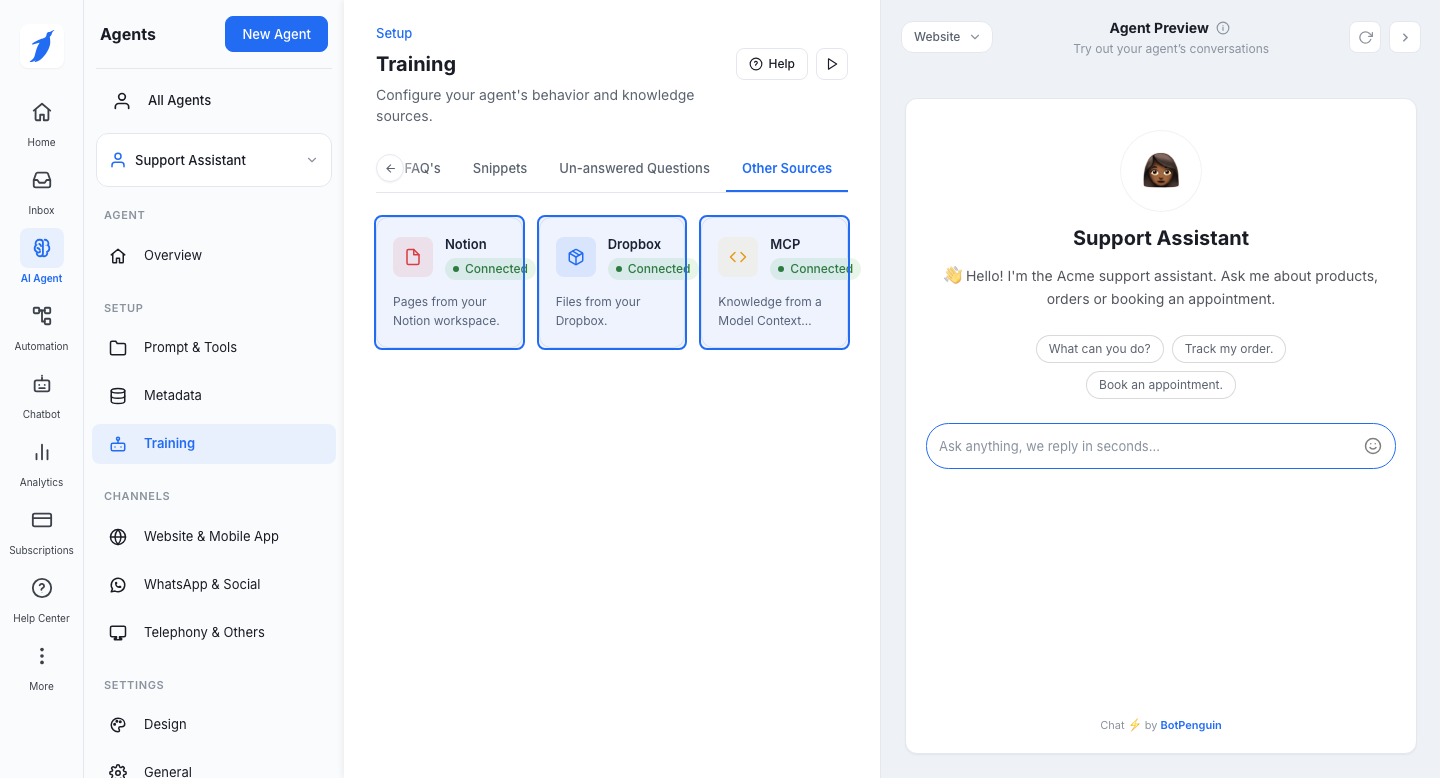
Click Other Sources to connect Notion, Dropbox or an MCP server. Notion and Dropbox read pages or files from your workspace. MCP connects a Model Context Protocol server as a source of knowledge.
Keep your agent up to date
Re-sync a website after you change it.
Replace files that are out of date.
Review Un-answered Questions often and turn repeat questions into FAQs.
Test your agent in the Agent Preview after each change.
[CHECK: the old pages describe Website import preferences (Scan Full Page, Scan Single Page, Scan JSON Only) and a "Train on Images as well" option. The prototype offers The full website and Specific URLs only. Confirm the options on the real screen.]
[CHECK: the old pages list these file types: PDF, DOC, DOCX, PPTX, TXT, CSV, XLS, XLSX and an RSS feed. The prototype shows PDF, DOCX, XLSX, CSV and PPTX. Confirm the supported types and any size limit.]
[CHECK: the old FAQs page uses categories. The prototype lists FAQs in one table with no categories. Confirm.]
[CHECK: the old Un-answered Questions page says entries cannot be deleted. The prototype has a delete icon on each row. Confirm.]
[CHECK: each source type will get its own page later. Add links when they are published.]
Common errors
Support
Still not working? Write to us at support@botpenguin.com. We will reach out to you within 24 hours.