> For the complete documentation index, see [llms.txt](https://help.botpenguin.com/llms.txt). Markdown versions of documentation pages are available by appending `.md` to page URLs; this page is available as [Markdown](https://help.botpenguin.com/ai-agents/creating-ai-agents-in-botpenguin/install-ai-agents/install-agent-on-whatsapp.md).
# Install Agent on Whatsapp
This section contains essential information and step-by-step guidance for installing and connecting your Agent with WhatsApp inside BotPenguin.
### What is Install Agent – WhatsApp?
Installing an Agent on WhatsApp allows you to automate conversations, manage customer queries, and deploy AI-powered interactions directly on your WhatsApp Business account.
Once connected, your Agent can handle messages, automate workflows, and improve response efficiency on WhatsApp.
***
### Benefits of Install Agent – WhatsApp
* 🚀 Automate customer conversations on WhatsApp instantly
* 🤖 Deploy AI-powered responses for better engagement
* 📲 Manage chats centrally from BotPenguin Inbox
* 🔄 Enable scalable customer support operations
* 💬 Improve response time and customer satisfaction
***
### How to Use Install Agent on Whatsapp
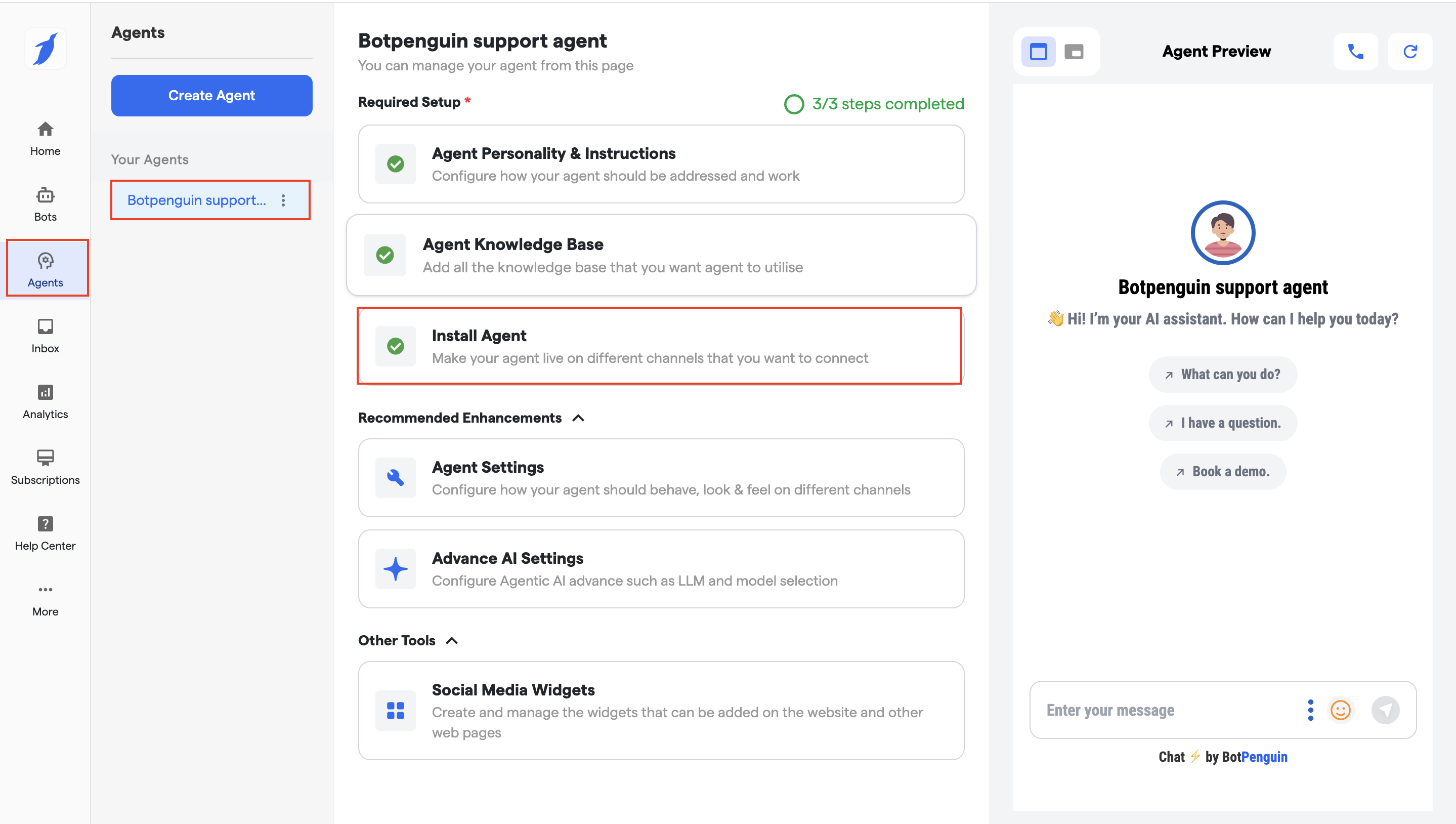
1. Go to the **“Agent”** section from the left sidebar.
2. Select the agent you want to install.
3. Click on the **“Install Agent”** button.
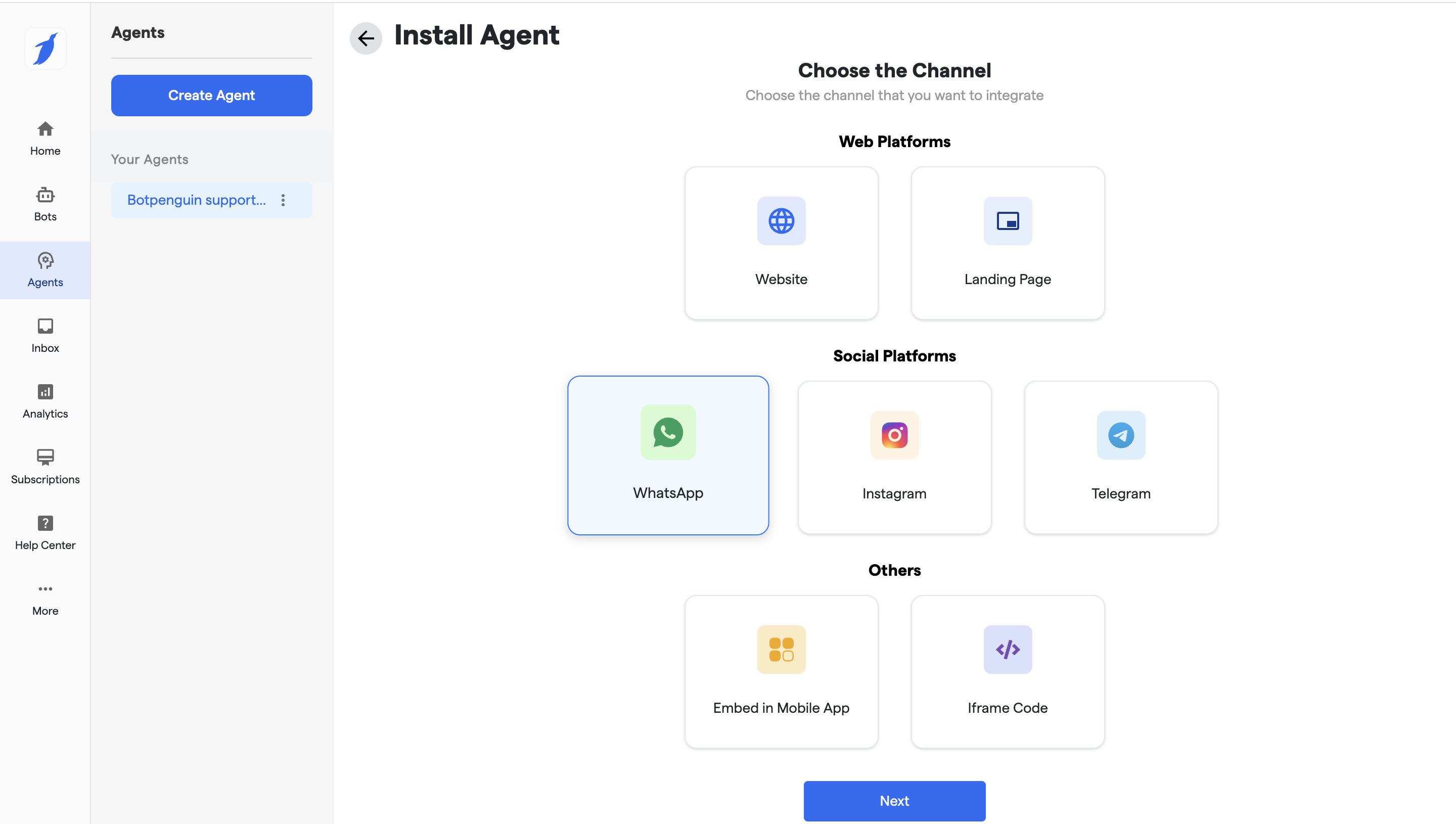
4. Select **“Whatsapp”** and click **“Next”**.
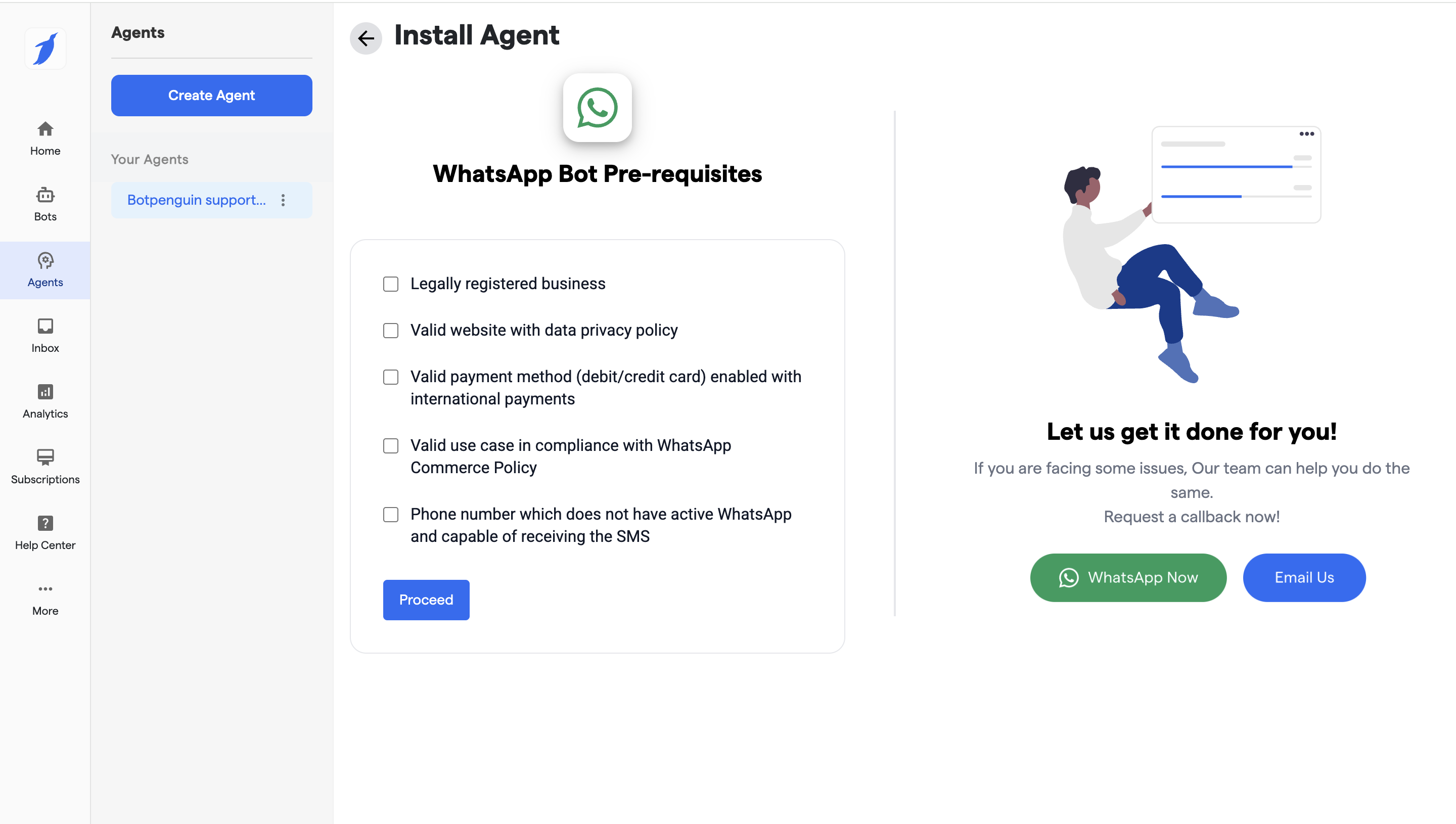
5. Select all the WhatsApp prerequisites by checking all the required boxes.
6. Click on **“Proceed”**.
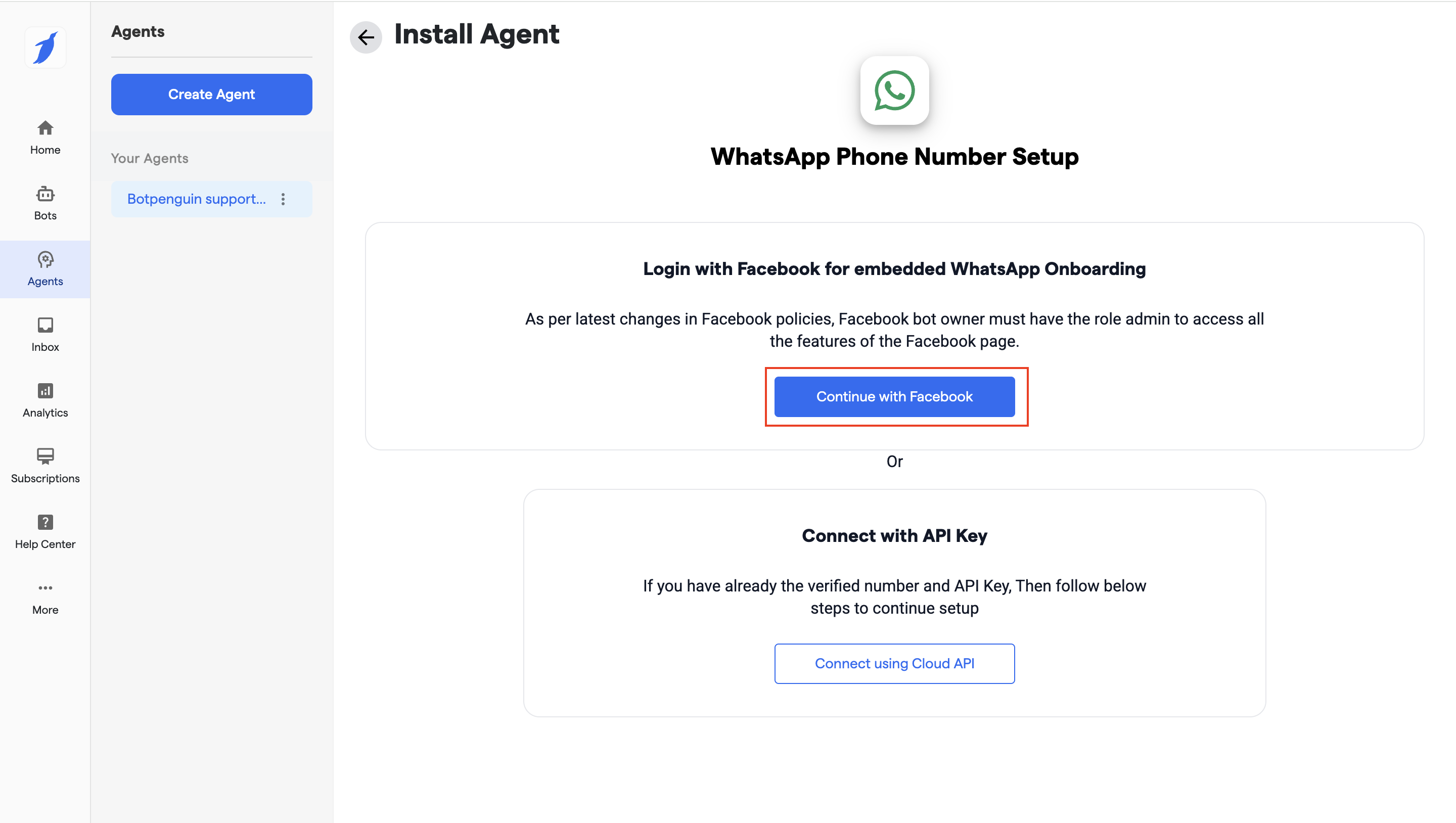
7. Click on **“Connect with Facebook”** to begin Meta onboarding.
> ⚠️ Make sure pop-ups are enabled in your browser.
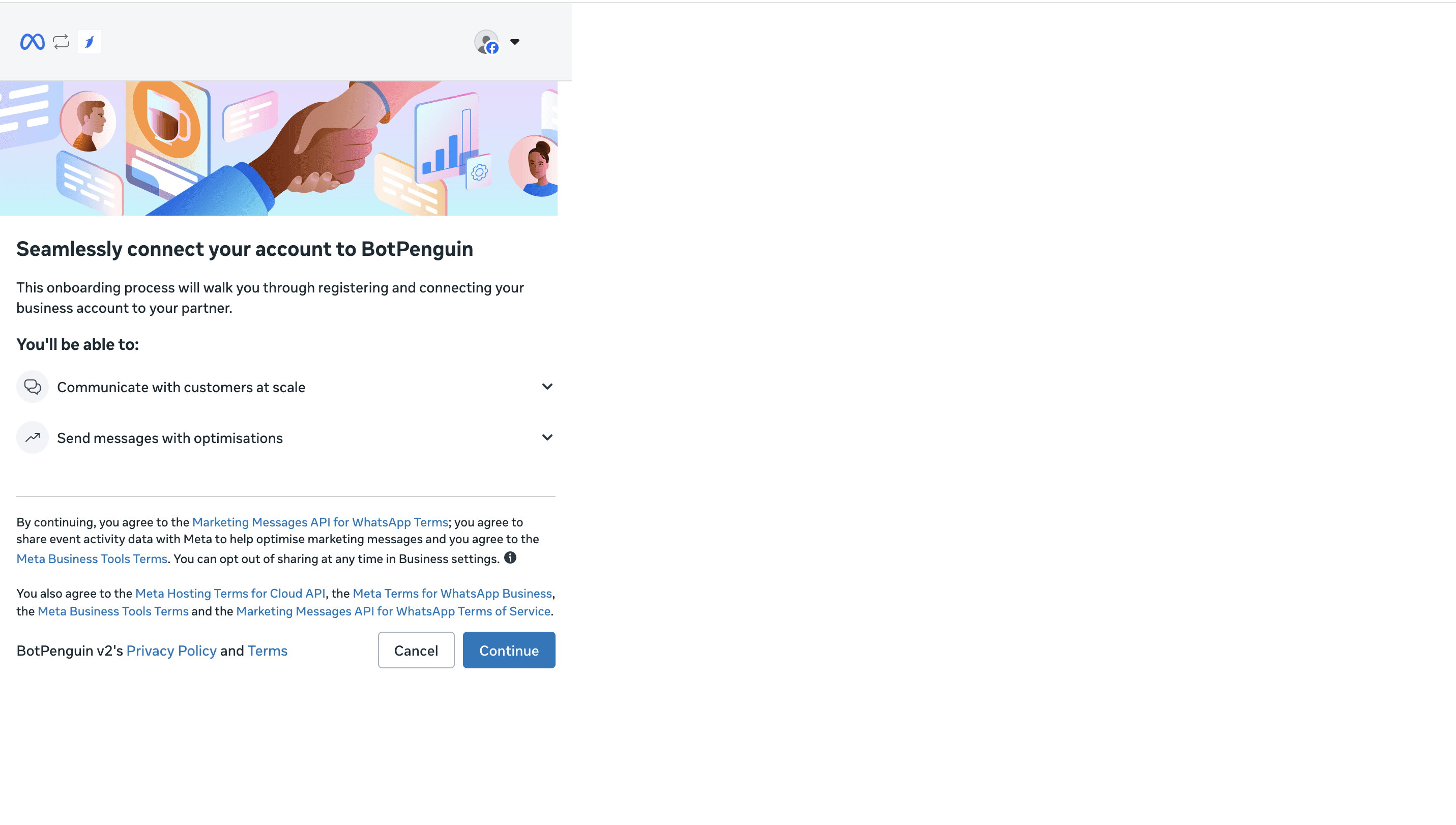
8. Click on Continue.
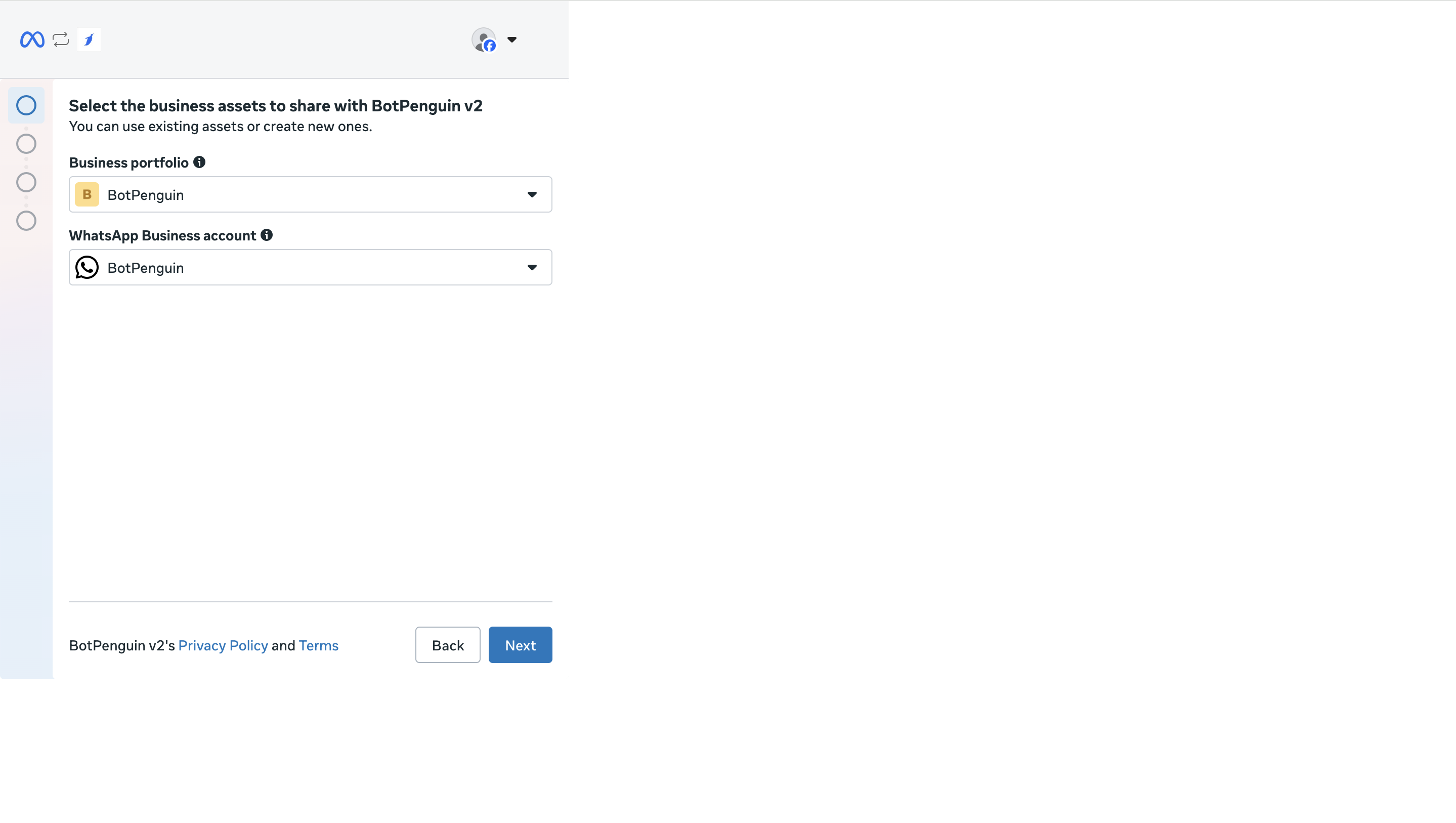
9. Select your Business Assets and clicck on next button.
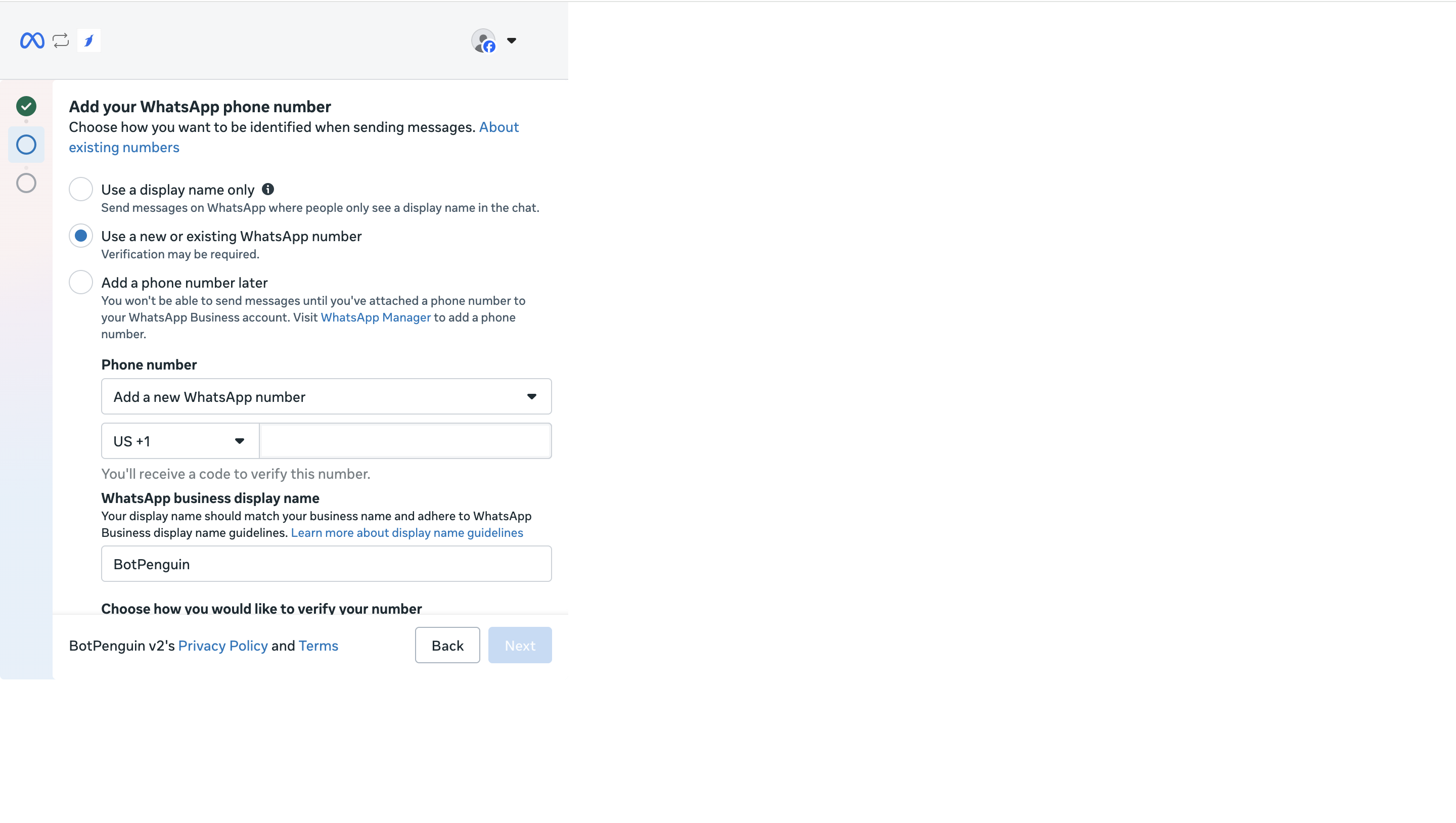
10. Click on " Use a new or existing Whatsapp Number" option.
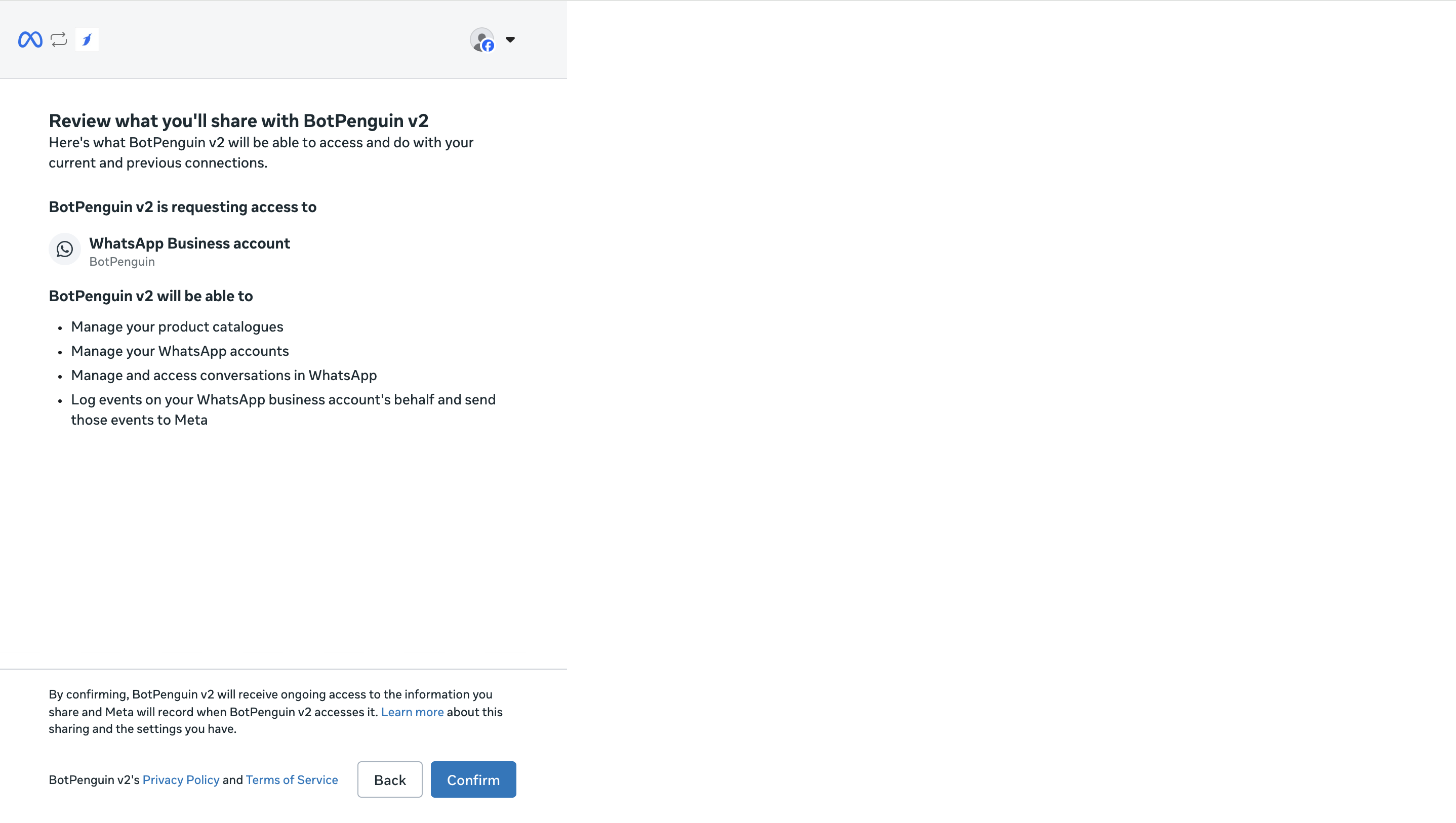
11. Review what you will be sharing and click on **"Confirm"** button.
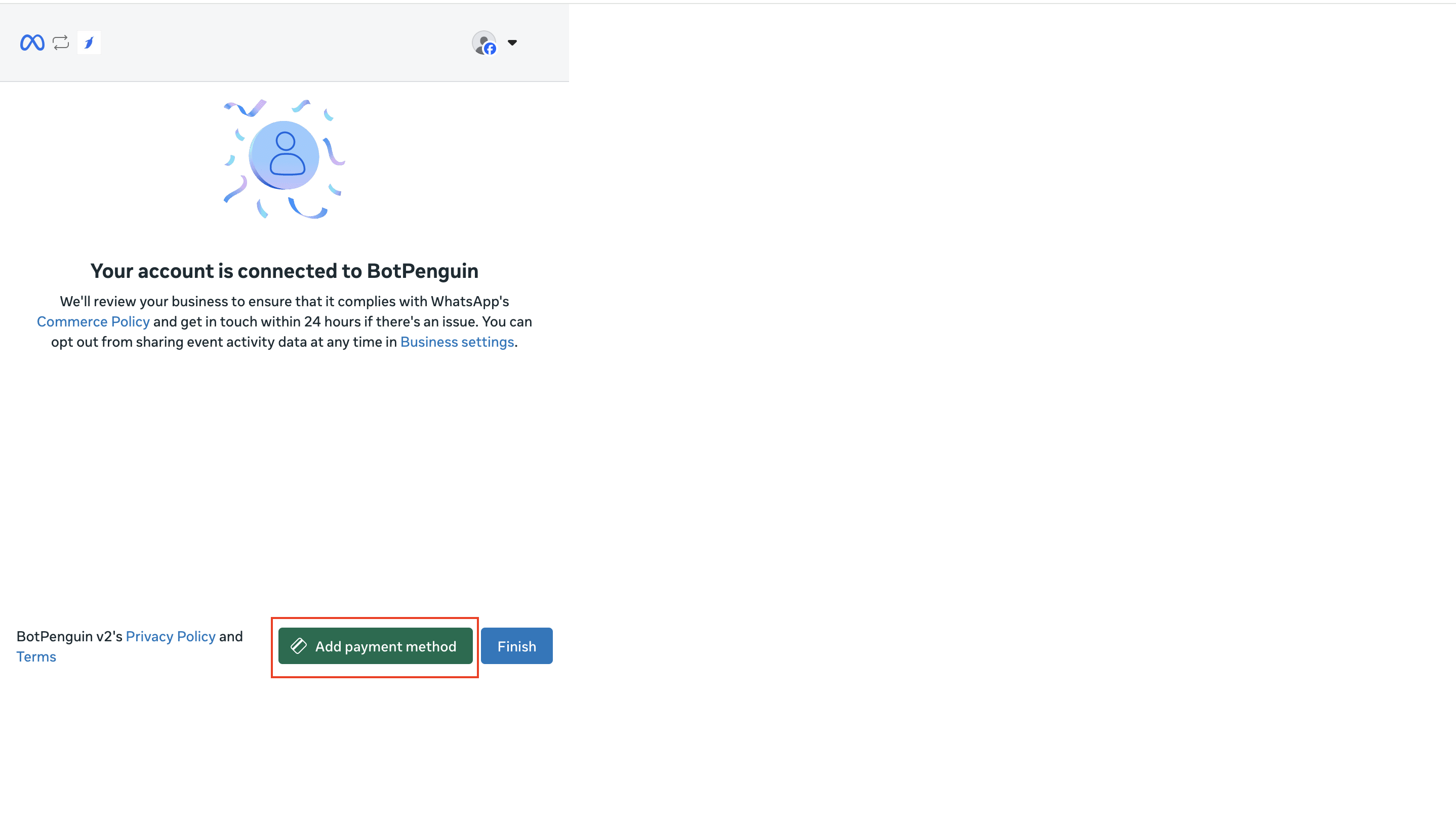
12. Click on **"Add a payment method"** option.
13. In the "Meta Business Manager," locate and click on the "Payment Setting" button for your WhatsApp Account.
Payment Setting
#### Navigate to Billing and Payments Page
14. On the "Billing and Payments" page, click on the "Add Payment Method" option to add a new payment method.
Manage Payment Method
#### Select Payment Method Type
15. Choose the payment method type that you want to use for your WhatsApp account.
Select Payment Method Type
#### Enter Payment Details
16. Enter the necessary payment details based on the selected payment method.
Enter Payment Details
#### Verify Payment Method
17. Once you have entered the payment details, proceed with the verification process.
#### Update Business Information
18. After successful verification, make any necessary updates to your business information.
19. You have successfully updated the payment method on your WhatsApp account.
### Completion Line
🎉 Congratulations, you have successfully completed this section! You're one step closer to mastering BotPenguin.
### FAQs
Why am I unable to see the "Connect with Facebook" option?
Ensure that you have selected all the required prerequisites. Also, check that your browser pop-ups are not blocked.
Do I need a Facebook Business Manager account?
Yes. A verified Facebook Business Manager account is required to connect WhatsApp Business API.
What happens if I disconnect the WhatsApp account?
Your Agent will stop receiving and sending WhatsApp messages until the account is reconnected.
### Support Prompt
If you still have questions for our team, write to us at [**support@botpenguin.com**](mailto:support@botpenguin.com). We’ll get back to you within 48 hours.