
Auto Replies
An auto reply answers comments on your posts for you. When someone comments, your AI agent can reply to the comment, send them a direct message, or do both. It helps you keep up with comments around the clock. Auto replies work on Instagram and Facebook. Replies to direct messages that people send you are handled in the Inbox, not here.
Prerequisites
An AI agent that is connected to Instagram or Facebook. See Install your AI agent.
The posts you want to reply on, published on that account.
For replies written by the AI agent: enough AI credits. [CHECK: the PRD says AI replies use AI credits. The old Instagram page says an AI platform must be connected to the bot. Confirm which one applies.]
Permission to create, read and delete auto replies. [CHECK: the PRD adds a permission for Automations → Auto Reply (read, write, delete). Confirm the role names.]
[CHECK: availability. The PRD says Auto Replies in the new Automation menu is behind a feature flag that is off by default. Confirm that it is live before you publish.]
Key Definitions
Auto reply (rule)
One set of settings that decides which comments get a reply, and what the reply is.
Media type
The kind of content a comment is on: post, reel, story or live.
Include keywords
Words a comment must contain to get a reply.
Exclude keywords
Words that stop a reply, even if an include keyword is there.
Reply mode
Who writes the reply: you, or the AI agent.
Create An Auto Reply
Click Automation in the left menu, then click Auto Replies in the sidebar. Click Create auto reply.
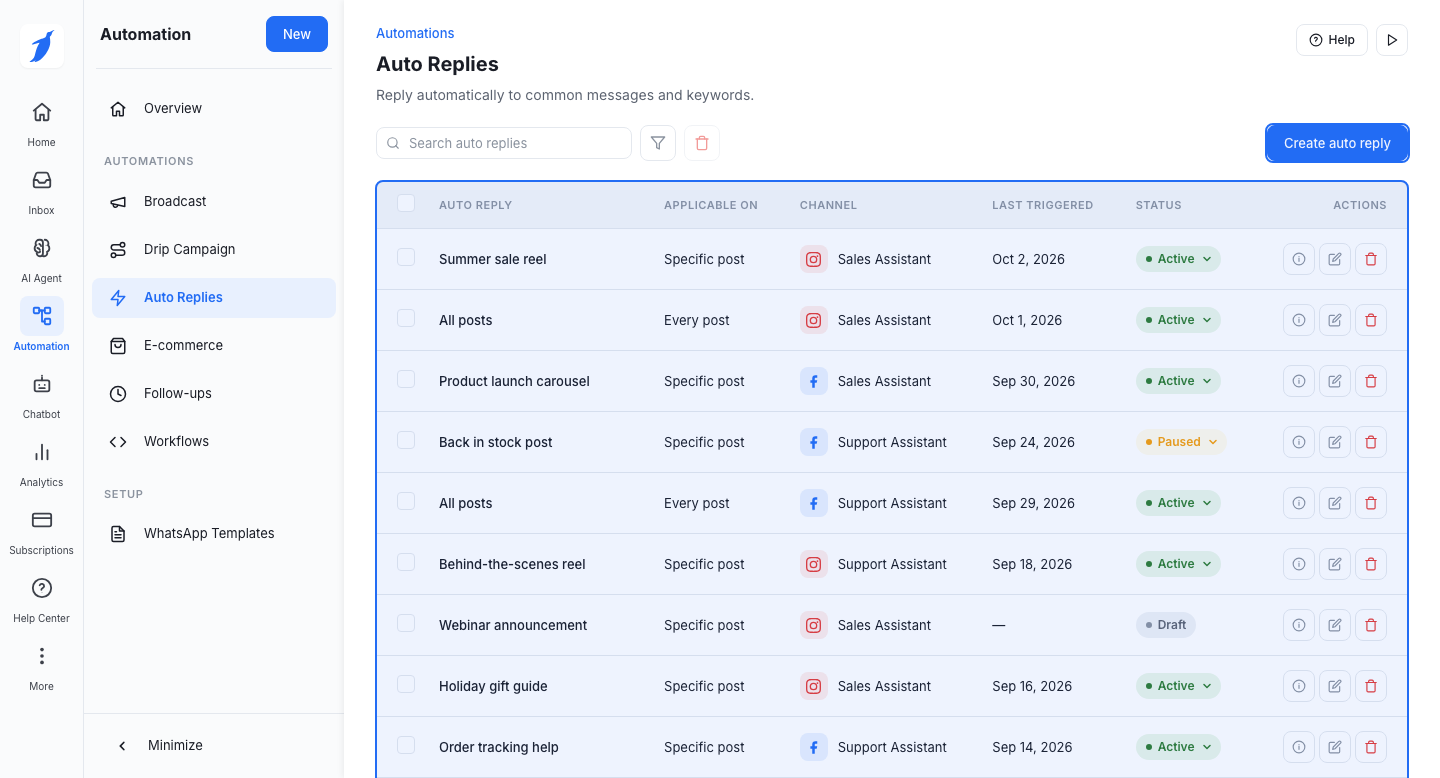
On Setup, type an Auto reply name. It must be unique in your account, and only your team sees it. Choose the AI agent. Only agents connected to Instagram or Facebook are listed. The channel shows next. Then choose what to reply to: Post, Reel, Story or Live on Instagram. Facebook has Posts only. Click Continue.
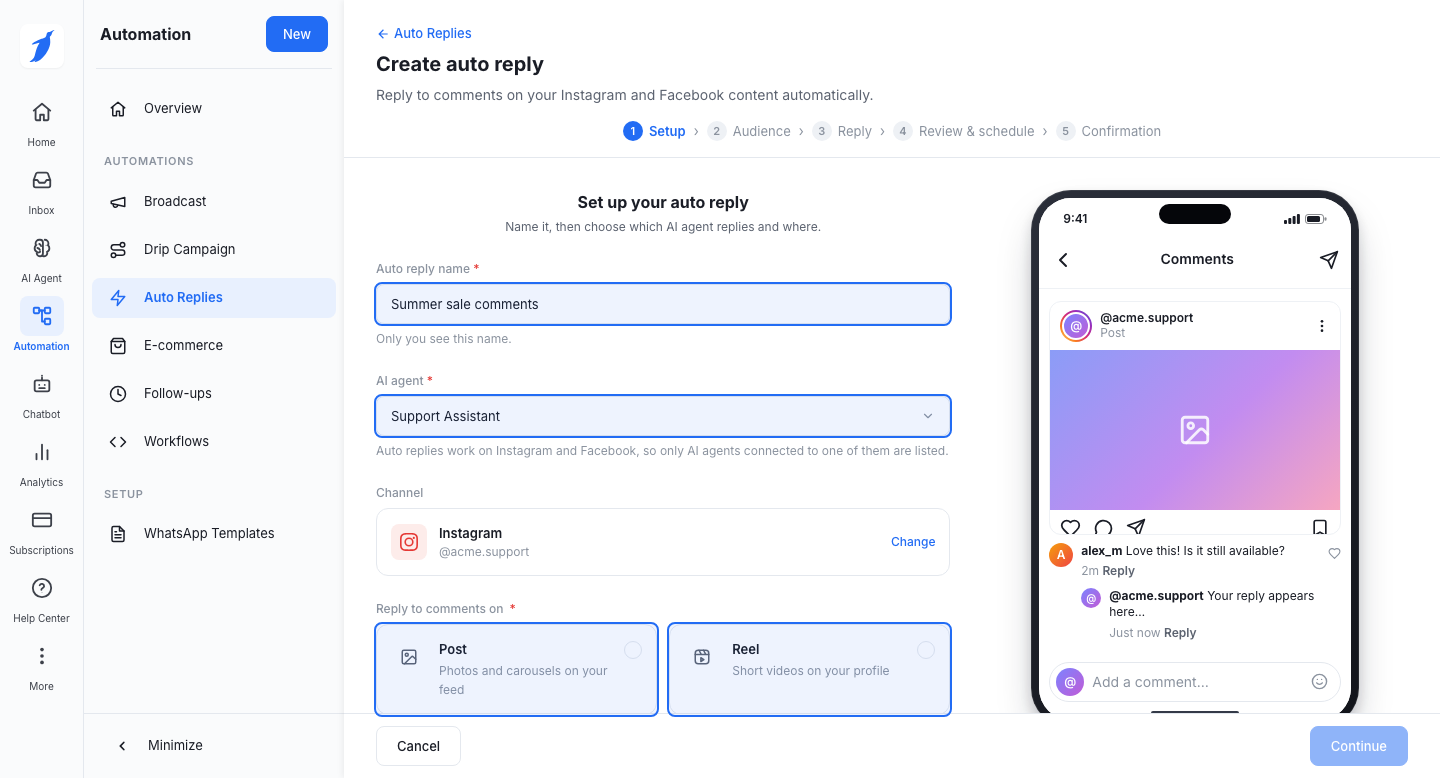
On Audience, choose Apply to: all posts of that type, or specific posts. For specific posts, pick them from the list. You can search, and click View more to load more. Pick at least one. Then choose Reply to: all comments, or only comments with keywords. For keywords, type a word in Include keywords and press Enter. You can also add Exclude keywords. Click Continue.
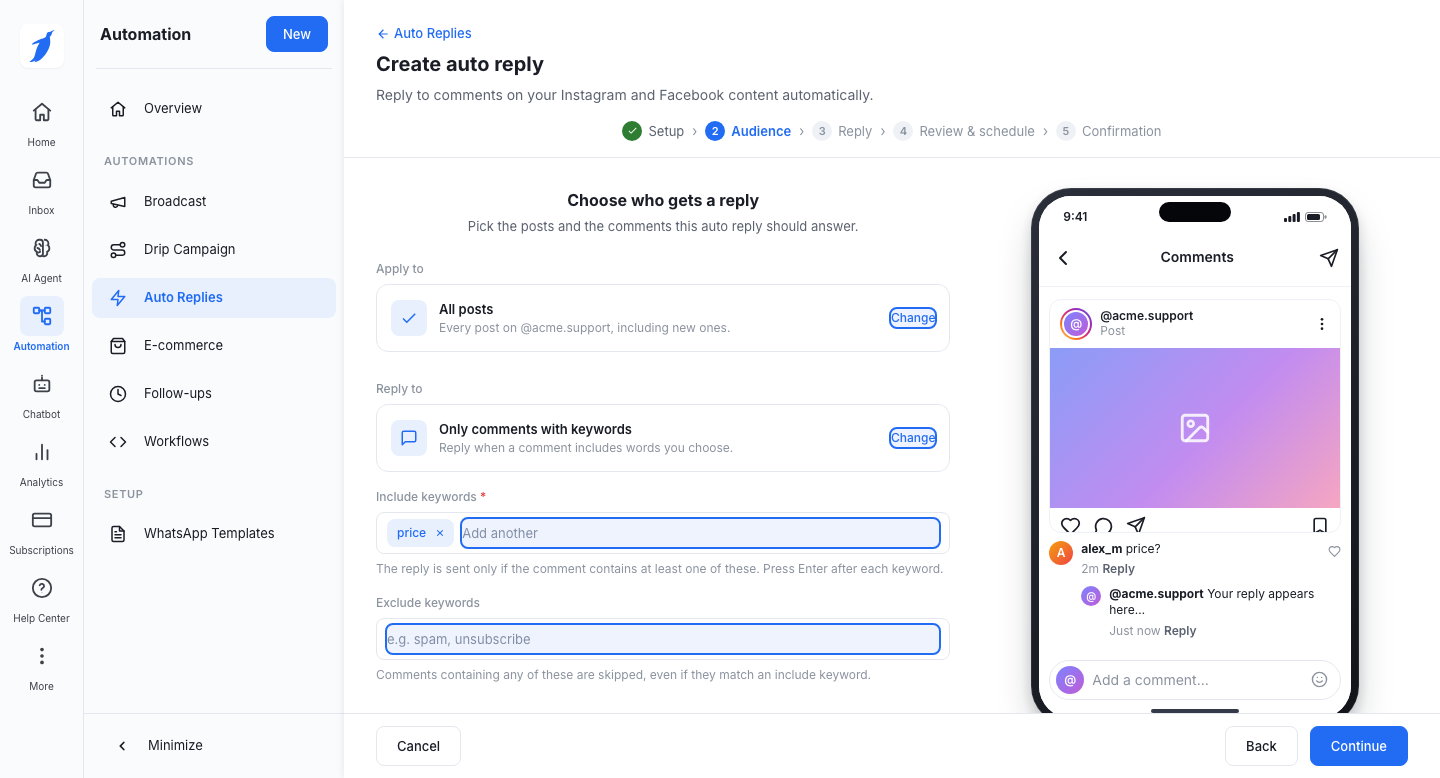
On Reply, choose the Reply mode: Custom message, or Let the AI agent handle it. Choose Send the reply as: a reply to the comment, a direct message, or both. Write the message, or the instructions for the AI agent. Click Continue.
On Review & schedule, choose Start now or Schedule for later. For later, pick a date and a time. Past times cannot be picked. Check the three summary cards: Setup, Audience and Reply. Click Edit on a card to change it.
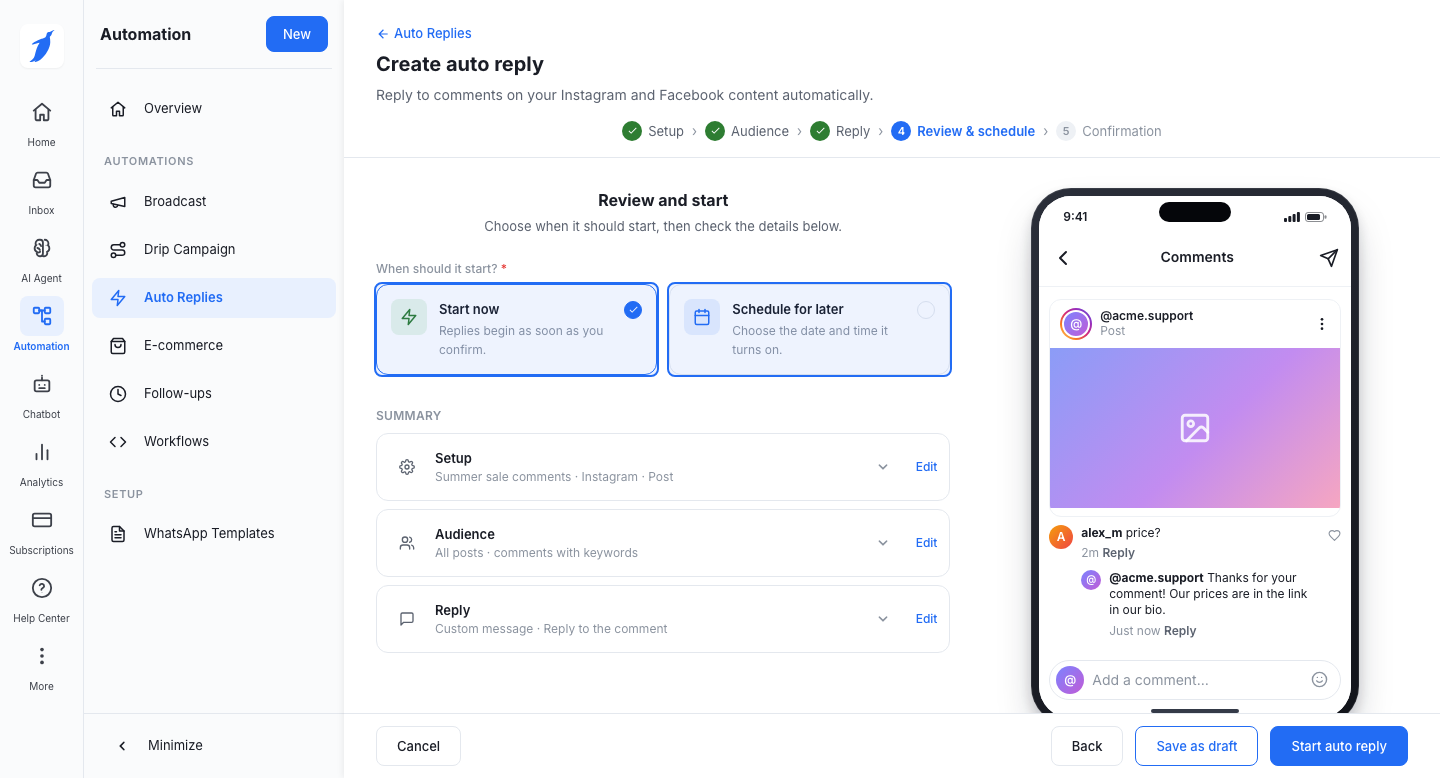
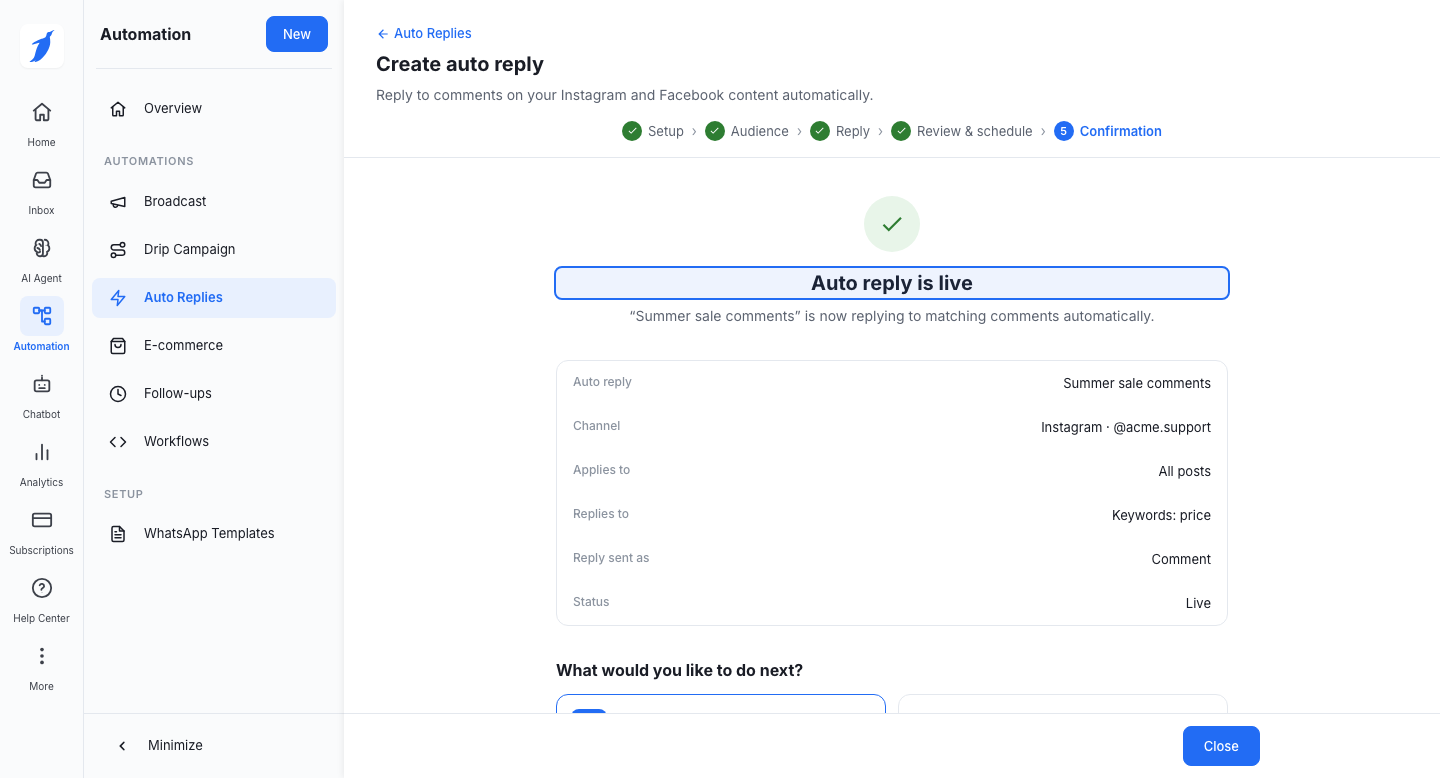
Click Start auto reply. If you chose later, click Schedule auto reply. Or click Save as draft to finish later. The Confirmation step shows what you created. Choose See all auto replies, Go to Inbox or Create another auto reply, or click Close.
[CHECK: the prototype's content choices on the Setup step are Post, Reel, Story and Live. Confirm that Facebook shows Post only.]
[CHECK: if the account has too few credits for AI replies, the PRD says an error shows and the rule is not created. Confirm the message.]
What You Write In The Reply
Custom message
Reply to the comment
A message of up to 1000 characters.
Custom message
Direct message
A message of up to 1000 characters.
Custom message
Comment and direct message both
A comment reply and a direct message, each up to 1000 characters.
Let the AI agent handle it
Any
Instructions for the AI agent, up to 2000 characters. One box covers the comment reply and the direct message.
The AI agent reads each comment and the post before it replies. In the instructions, describe the tone and what it should say or avoid. If you change the reply mode, the text that still fits is kept.
[CHECK: the old Instagram page lets you add a second, alternate reply and tag the commenter with a user name placeholder. The PRD does not mention them. Confirm.]
How A Comment Is Matched
A rule replies to a new comment only when all four settings match.
Channel
It comes from the connected Instagram or Facebook account of the rule.
Content type
It is on that type of content.
Applied to
All: it is on any post of that type. Specific: it is on one of the posts you picked.
Which comments
All: any text. Keywords: it has an include keyword and no exclude keyword. Upper and lower case do not matter.
The rule must be Active. Paused, Draft and Scheduled rules do not reply. A scheduled rule starts at its start time.
If more than one rule matches a comment, only one reply is sent. The most specific rule wins: specific posts over all posts, then keywords over all comments. If still tied, the older rule wins.
Each comment gets at most one comment reply and one direct message.
Comments written by your own account, and replies sent by rules, are ignored. This stops loops.
If the reply is a direct message, the contact is added to the AI agent's contacts. When the contact answers, the AI agent answers as usual.
If the AI agent cannot answer, nothing is sent.
If another rule already covers the same channel, content type and trigger on any of the same posts, an error shows and you cannot continue.
If a post was deleted on the platform, the rule shows "Post unavailable" and sends nothing for that post.
Manage Your Auto Replies
The list shows the rule name, where it applies (for example "All posts" or "2 specific posts"), the channel with the AI agent, when it was last triggered, and the status. Search by rule name or post name, filter, and use the icons in the Actions column.
Active
A dropdown
Choose Paused. No new replies are sent. Comments that come while it is paused are not answered later.
Paused
A dropdown
Choose Active. Replies start for new comments only.
Scheduled
Plain text
Edit or delete it.
Draft
Plain text
Open it with Edit to finish and start it.
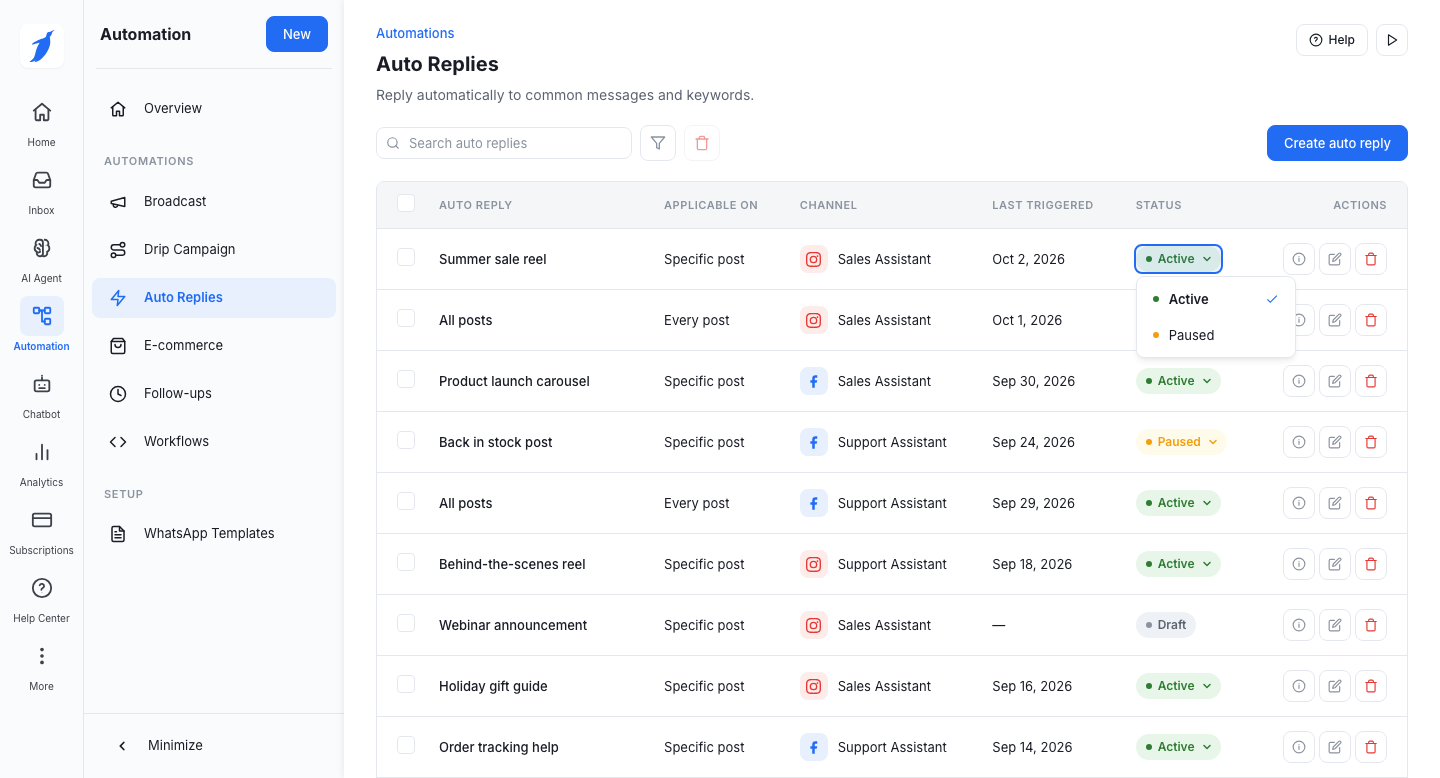
Last triggered shows the date and time of the last reply. It shows a dash if the rule has not replied yet.
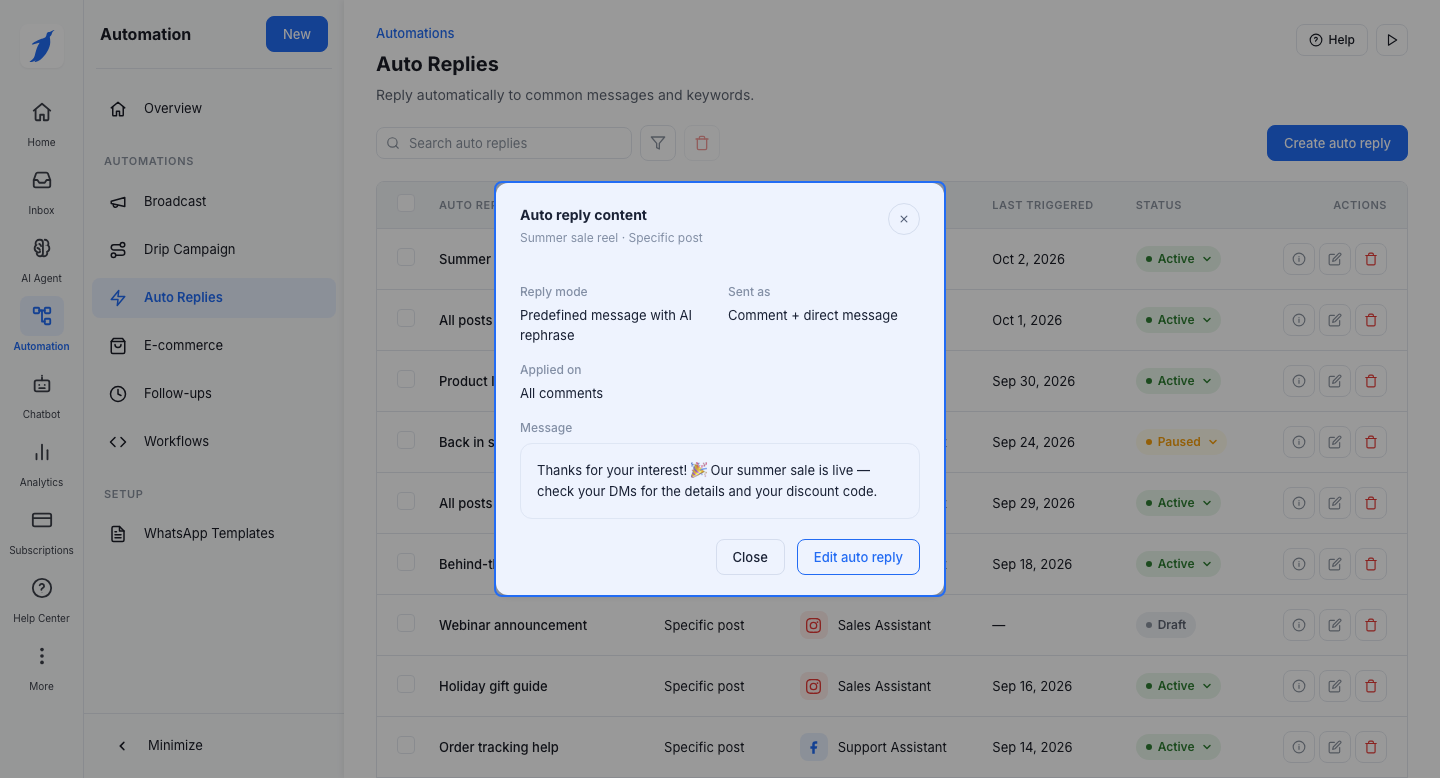
View details: opens the Auto reply content window. It shows the reply mode, how it is sent, where it applies and the message (or the AI instructions for the AI agent). Click Close, or Edit auto reply to change it.
Edit: the same journey opens with your saved values. You cannot change the AI agent or the channel. A draft can be fully changed, and the last step offers Save as draft and Start auto reply. Changing the content type clears the Audience step. Changes apply to new comments only, and replies already sent do not change. A paused rule stays paused.
Delete: you are asked to confirm. The rule is removed and stops replying. You can also select several rules and delete them together. There is no bulk pause.
If a status change fails, the old status stays and an error shows.
[CHECK: the PRD says a rule that was started from an existing chatbot setup gets a name made from the post name, and becomes a rule with one post. Confirm what customers with old rules see.]
Common Errors
Related Articles
Automations
Send a Broadcast
Create a Drip Campaign
Install your AI agent
Support
Still not working? Write to us at support@botpenguin.com. We will reach out to you within 24 hours.