
Broadcasts
A broadcast sends one message, once, to a list of contacts. Use it for announcements, offers and reminders. It helps marketing and support teams who need to reach many customers quickly. Each broadcast is tied to an AI agent and one of its channels: WhatsApp, Instagram, Facebook or Telegram.
Prerequisites
An AI agent that is connected to the channel you want. See Install your AI agent.
For WhatsApp: at least one approved template. See Create a WhatsApp Template.
For WhatsApp, a list of contacts as a CSV file, a contact group, or a Google Sheet. For Instagram, Facebook and Telegram, a contact group.
A Google account, if you use a Google Sheet.
Permission to create, read and delete broadcasts. [CHECK: the PRD adds a permission for Automations → Broadcasts (read, write, delete). Confirm the role names.]
[CHECK: availability. The PRD says Broadcasts in the new Automation menu is behind a feature flag that is off by default. Confirm that it is live before you publish.]
Key Definitions
Smart retry
An option that tries again to send messages that failed for a short-term reason, up to 3 times.
Audience
The contacts who receive the broadcast.
Template variable
A blank in a WhatsApp template, such as {{1}}, that is filled in for each contact.
Fallback value
The text used when a contact has no value for a variable.
Insights
The report of how a broadcast was delivered.
Create A Broadcast
Click Automation in the left menu, then click Broadcast in the sidebar. Click Create broadcast.
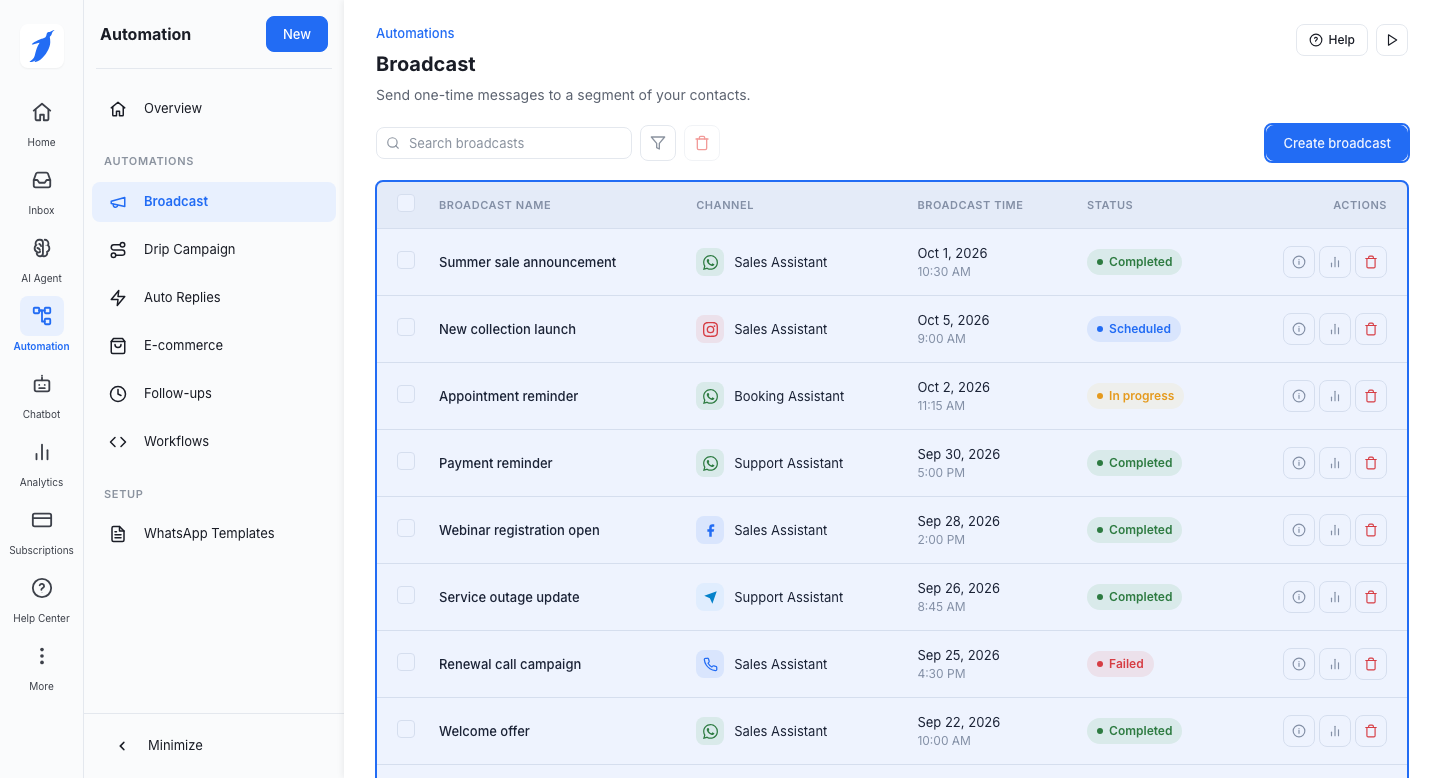
On Setup, type a Broadcast name. The name must be unique in your account, and only your team sees it. Choose the AI agent. Then choose the channel. Only channels connected to that agent can be picked. For WhatsApp, choose how to send: Marketing Messages API or Cloud API. Turn on Smart retry if you want failed messages to be tried again. Click Continue.
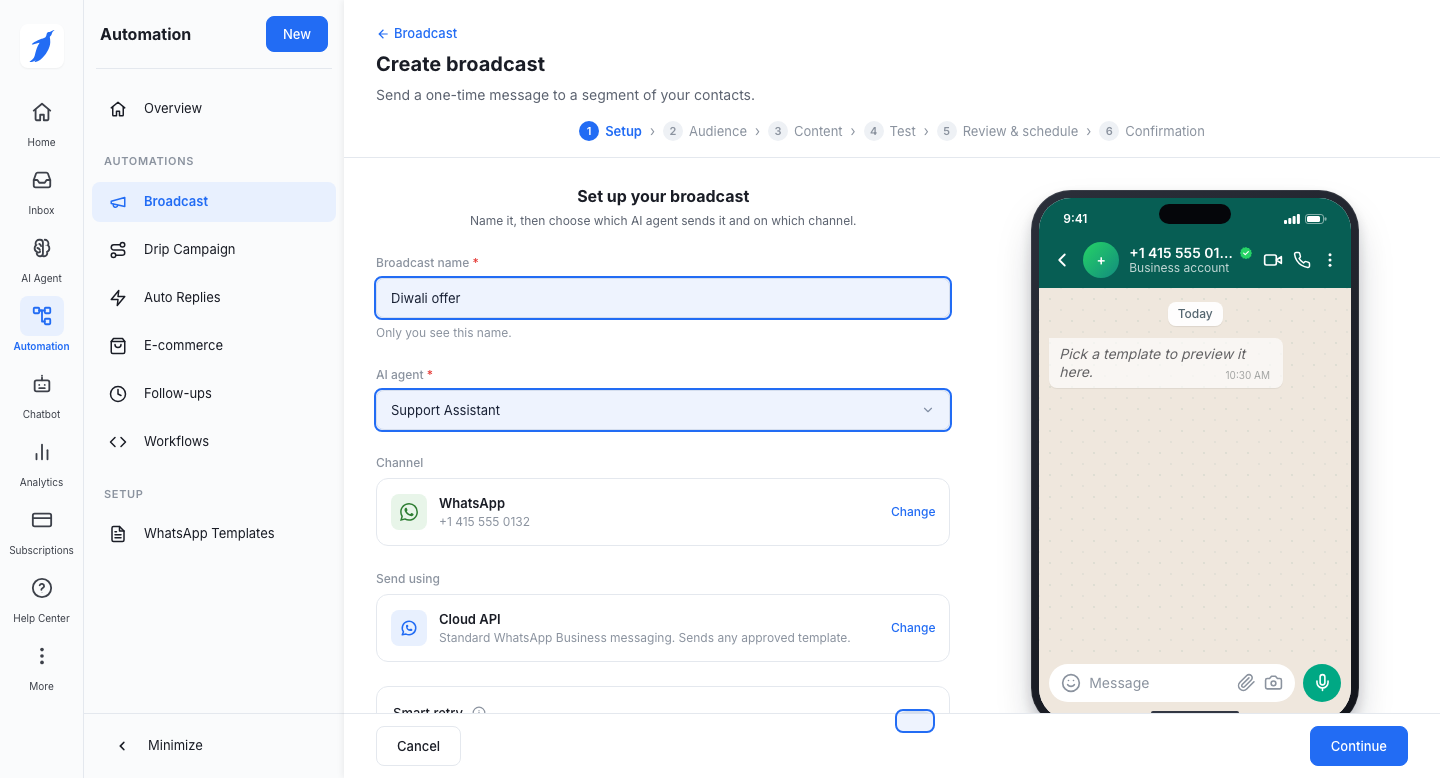
On Audience, choose where your contacts come from. This example uses CSV file. Upload your file, or use the sample file. Match the columns: Phone number is required. You can match other columns to contact details. Turn on Add these people to my contacts if you want to save them. It is off by default. Click Continue.
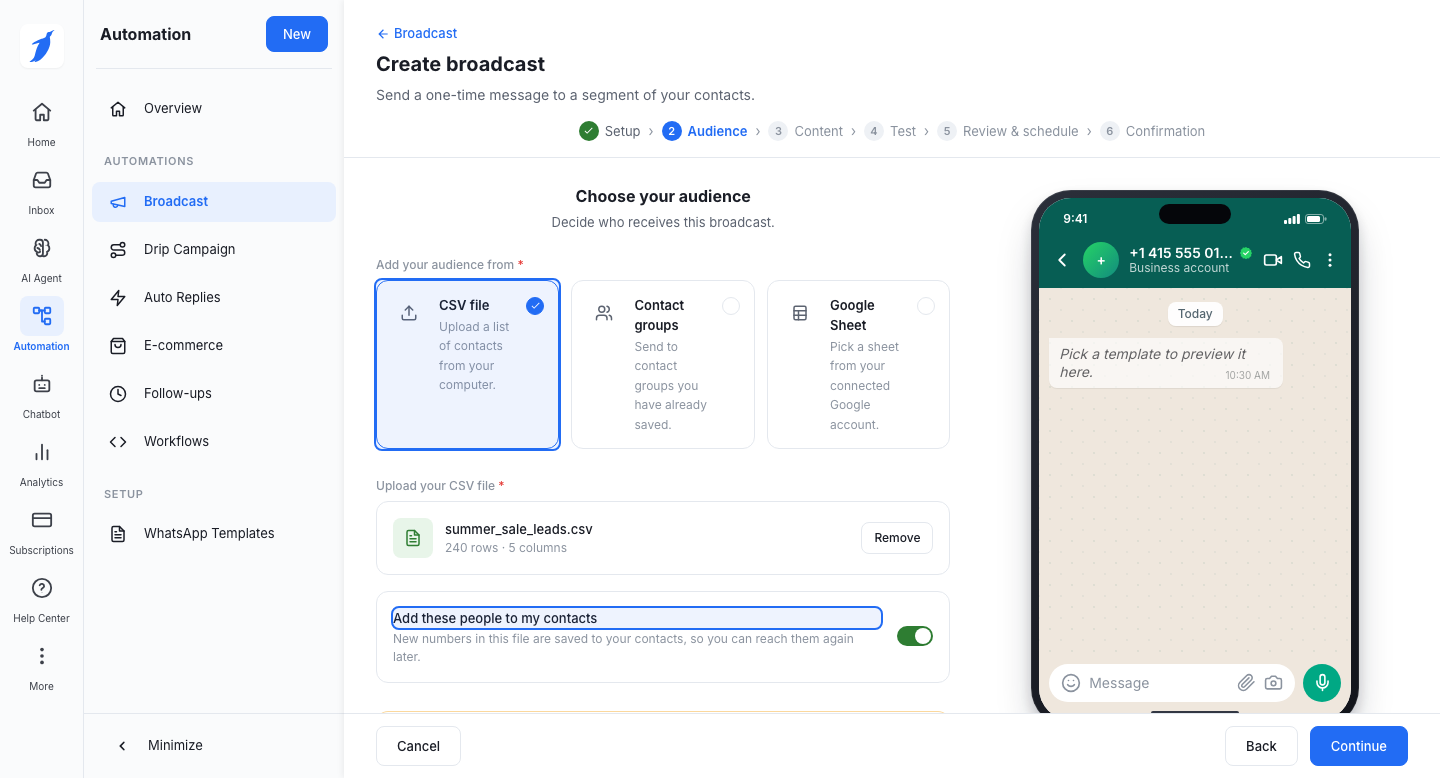
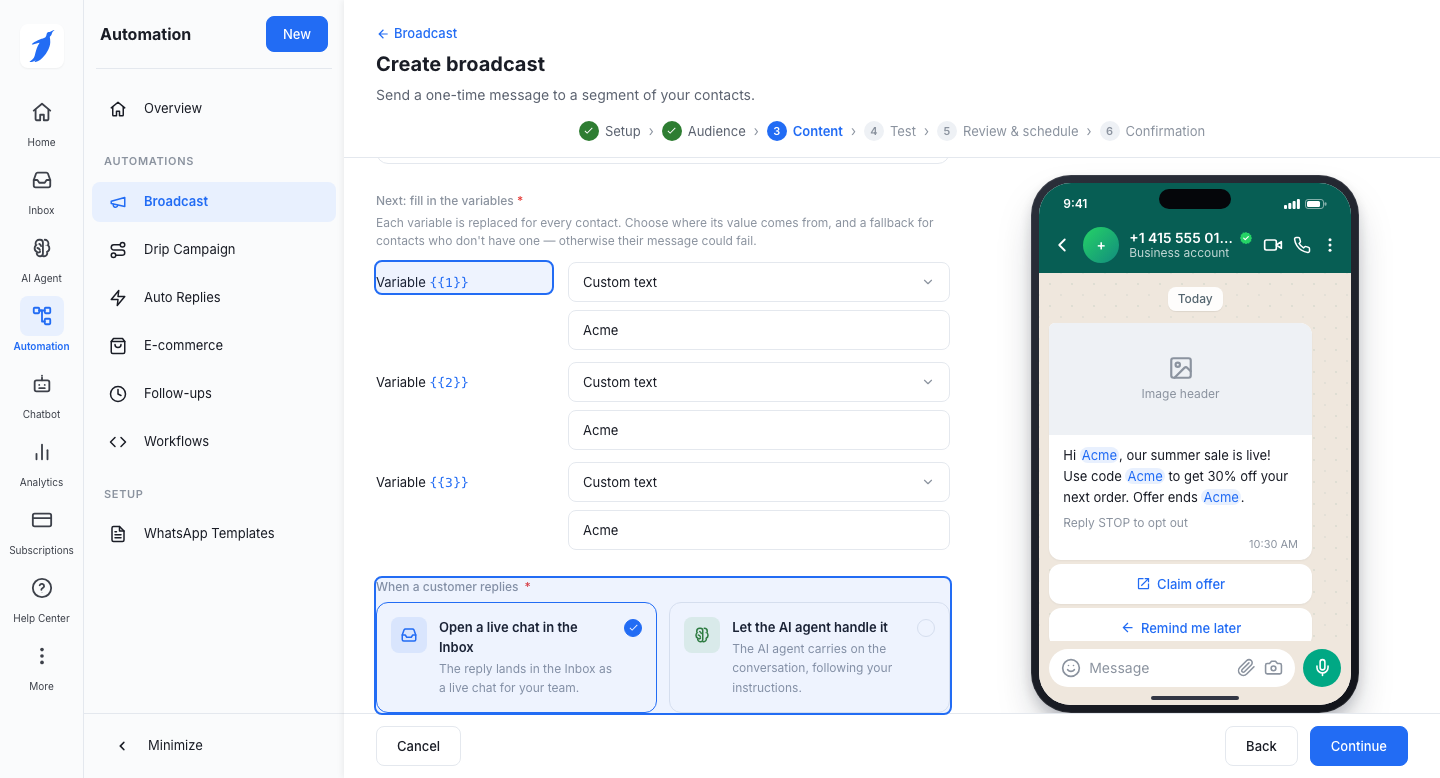
On Content, choose what to send. On WhatsApp, pick an approved template. You can search for one and preview it. Fill in each variable: choose where its value comes from, and add a fallback value. Then choose what happens when a customer replies. Click Continue.
On Test, type a mobile number and send a test message. This step is for WhatsApp only, and it is optional. Click Continue.
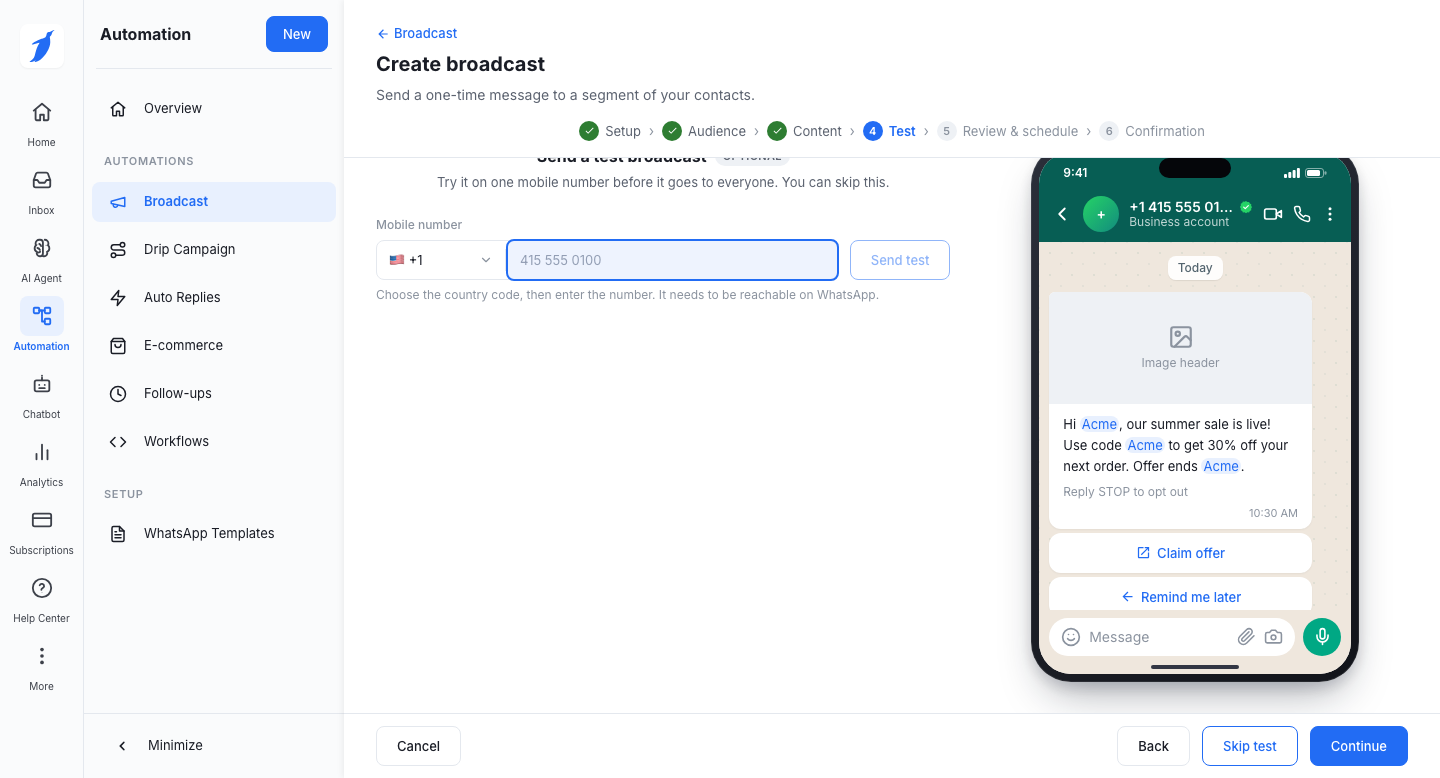
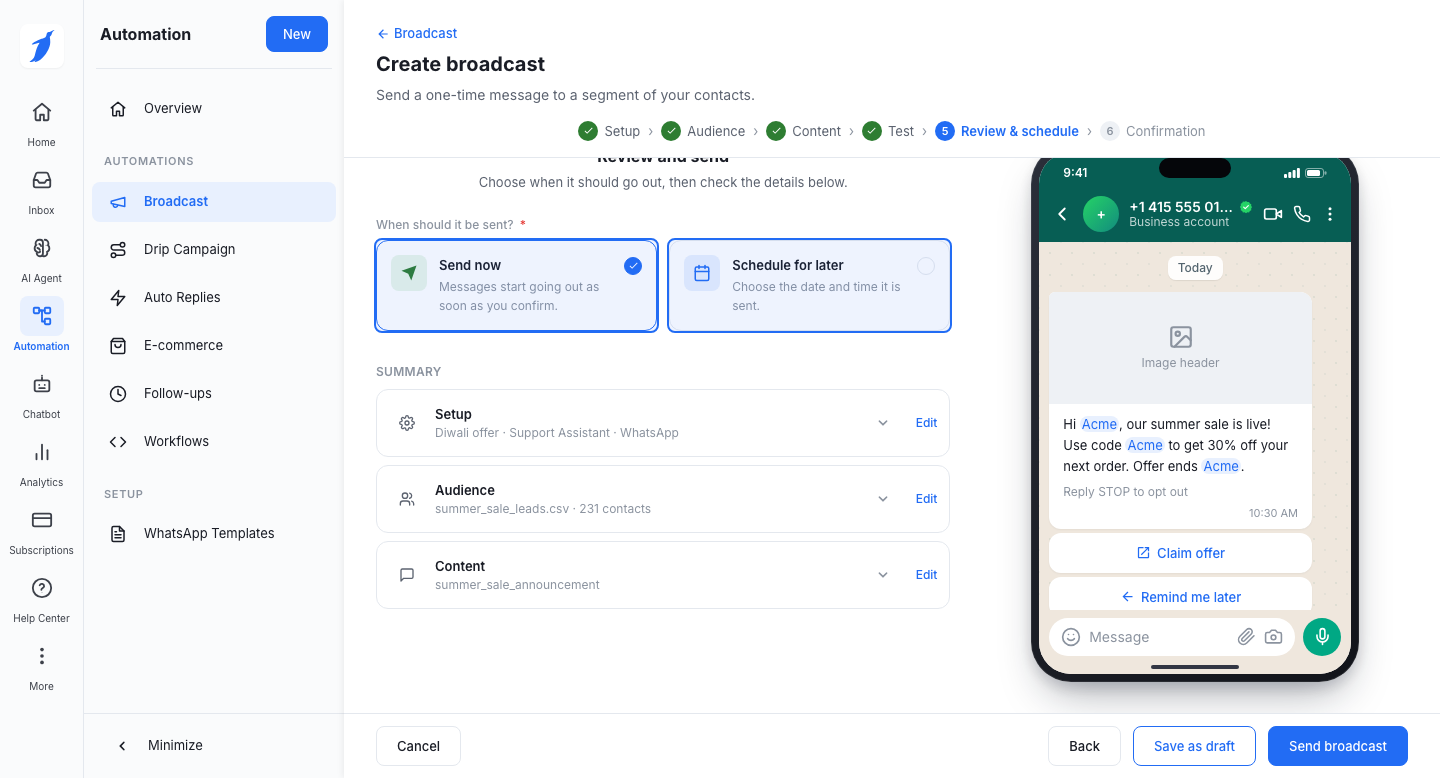
On Review & schedule, choose Send now or Schedule for later. For later, pick a date and a time. Past times cannot be picked. Check the summary. Click Send broadcast. Or click Save as draft to finish later.
The Confirmation step shows a summary: the name, channel, audience, start time, reply setting and Smart retry. Choose what to do next: Create another broadcast or See all broadcasts, or click Close.
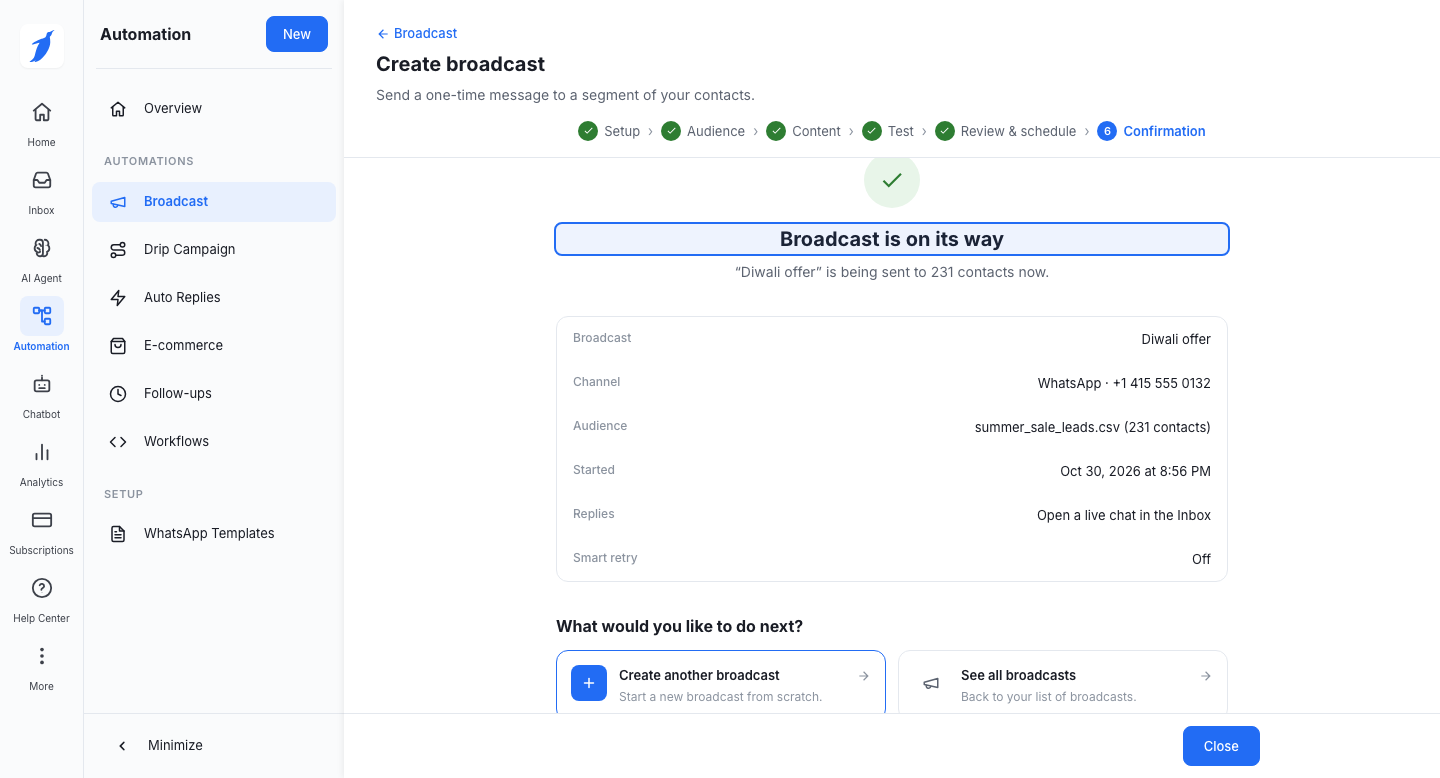
A broadcast you send now starts in the background, and shows In Progress in the list. A broadcast you schedule shows Scheduled. A broadcast you save as a draft shows Draft.
What Each Channel Supports
Audience
CSV file, Contact groups or Google Sheet
Contact groups only
Content
An approved template, with variables
A message you write
Send using
Marketing Messages API or Cloud API
Not asked
Test message
Yes, optional
No
Retry from Insights
Yes, for failed rows
Not in this phase
[CHECK: for Instagram, Facebook and Telegram, the PRD says the content step has two options, but it lists only one: write a custom message. The acceptance criteria also mention a read-only welcome message. This guide says you write a message. Confirm the options and what the screen shows.]
[CHECK: the old Instagram and Facebook broadcast pages say a contact must have messaged within the last 24 hours to receive a broadcast, and that Instagram and Facebook restrict promotional messages. The PRD says reply behaviour follows each channel's messaging window, to be confirmed. Confirm what to tell customers.]
Audience Options
CSV file
Upload a file. Download the sample file first. Put your data from row 2, one contact for each row, with unique phone numbers. The file can be up to 20 MB. Match the Phone number column.
Contact groups
Pick one or more groups. Empty groups cannot be picked. You can also create a new group, and it is picked after you save it.
All channels
Google Sheet
Click Connect Google account and sign in. Pick the spreadsheet. Pick the Phone number column and the country code (prefix) column.
If you switch the option, your earlier choice is cleared after you confirm. A wrong file type, a file over 20 MB, an empty file or a missing phone column shows an error and keeps you on this step.
Manage Your Broadcasts
The Broadcast list shows the name, channel (with the AI agent), broadcast time and status of each broadcast.
Draft
Saved, not started.
Scheduled
It will start at the time you chose.
In Progress
It is sending now.
Completed
All messages were processed.
Use the icons in the Actions column:
View details (the i icon): shows the status, channel, AI agent, who it was sent to, the content, when it was sent and Smart retry. Click View analytics to open Insights.
View analytics: opens Insights.
Edit: a draft or scheduled broadcast can be edited. A scheduled broadcast cannot be edited in the last 5 minutes before it starts. A broadcast that is in progress, completed or failed cannot be edited.
Delete: asks you to confirm.
You can also search by name, filter by status, and delete several broadcasts at once with the delete icon in the toolbar.
[CHECK: the PRD says Edit is available for draft and scheduled broadcasts. The prototype's list shows View details, View analytics and Delete, and no Edit icon. Confirm.]
Read The Insights
Click View analytics to see how a broadcast was delivered. Click the back arrow to return to the list.
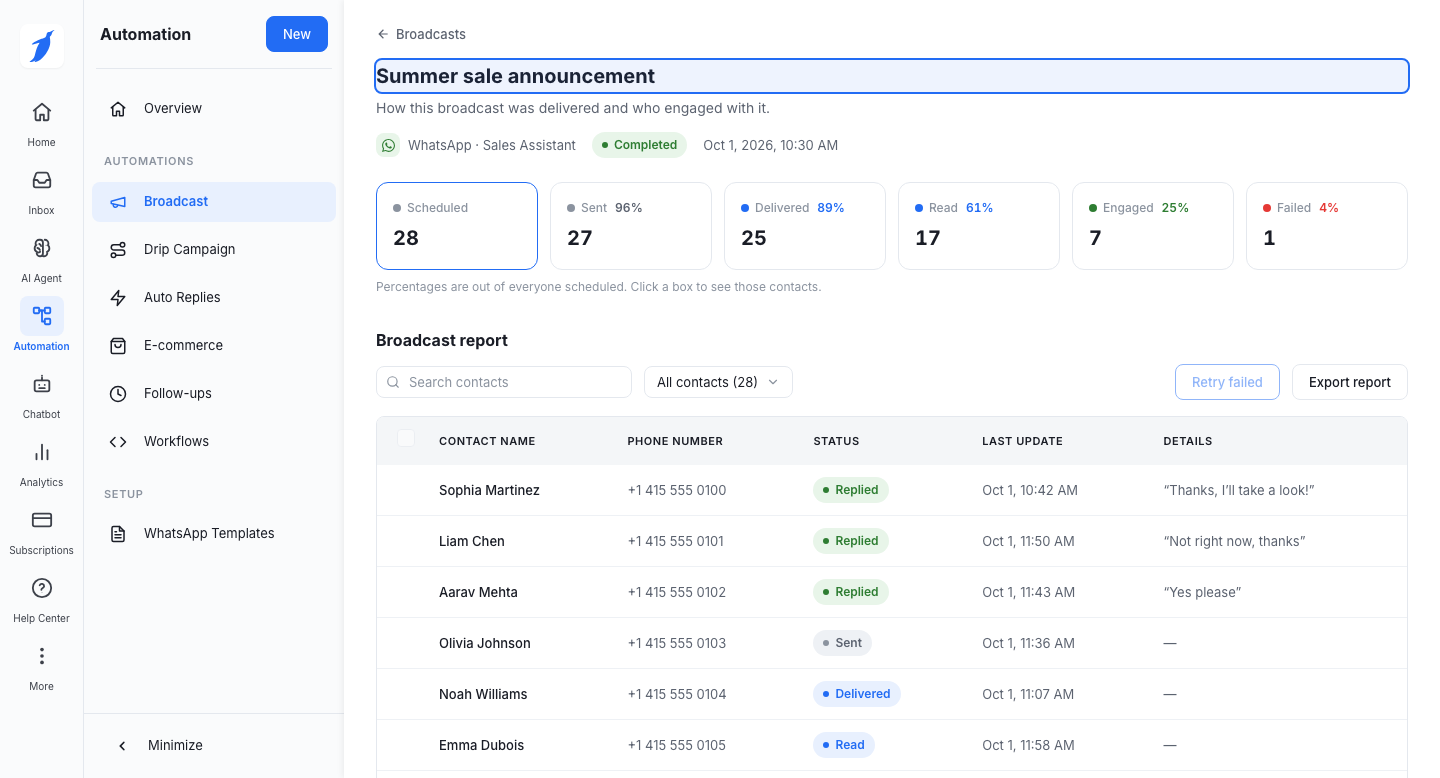
Summary cards: Total Contacts, Sent, Failed, Delivered and Read.
A table of recipients with the number, status, status code and message. Numbers can be masked for roles without access to contacts.
Search by phone number. Filter by Read, Failed, Sent or Delivered.
Retry (the refresh icon) is available on Failed rows only. You can also retry in bulk: all Failed rows, by status, or selected numbers. A retry creates a new entry named "[name] (Retry)". You cannot retry while the original is still sending.
Download exports the filtered list as a CSV file.
Instagram, Facebook and Telegram
Total Recipients, Sent, Failed, Delivered, Read, Replied
Total Recipients, Sent, Failed, Read, Replied
Telegram
Total Recipients, Sent, Failed, Replied
A card that a channel does not report is not shown. Below the cards, a Failed contacts table lists the contacts that failed, with the reason. You can search it and download it as a CSV file. Retry is not available for these channels. If no contact failed, you see "No failed contacts".
[CHECK: the prototype's report page is called "Broadcast report". It shows the cards All contacts, Sent, Delivered, Read, Failed and Engaged, a table with Contact name, Status and Last update, and an Export report button. The PRD describes other cards and columns, and retry. Confirm the final names.]
[CHECK: how each metric is measured (Sent, Failed, Delivered, Read, Replied) is still to be confirmed by the dev team for every channel.]
When A Broadcast Cannot Send
The AI agent is deleted or unpublished
Its scheduled broadcasts pause and show "Agent deleted".
The channel is disconnected, or the template is no longer available, before the send time
The broadcast is marked Failed, with the reason shown in Insights.
A number or channel ID is not valid, or the contact has opted out
That contact is skipped and counted as Failed, with the reason.
WhatsApp's messaging limit is reached
The remaining contacts are marked Failed with WhatsApp's error, so you can try again later.
Common Errors
Related Articles
Automations
Create a WhatsApp Template
Create a Drip Campaign
Create an Auto Reply
Support
Still not working? Write to us at support@botpenguin.com. We will reach out to you within 24 hours.