
Drip Campaigns
A drip campaign sends a series of messages over time. Each contact who joins the drip gets the messages one after another, at the times you set. It helps you onboard new customers, nurture leads and follow up after an event, without sending each message by hand. A drip works on WhatsApp, Instagram, Facebook and Telegram, and is tied to an AI agent.
Prerequisites
An AI agent that is connected to the channel you want.
For WhatsApp: approved templates for each message. See Create a WhatsApp Template.
Contacts or groups to enroll. For groups, create them first in the Inbox.
Permission to create, view, pause, edit and delete drips. [CHECK: the PRD says existing drip permissions apply. Confirm the role names.]
[CHECK: availability. The PRD says Drip Campaigns in the new Automation menu is behind a feature flag that is off by default. Confirm that it is live before you publish.]
Key Definitions
Enrol
Add a contact to the drip, so they start to get its messages.
Schedule
One message in the drip, with its content and its timing.
Send after
The wait before a message is sent. It is counted from the message before it.
Exit criteria
The rule that decides when a contact leaves the drip.
Create A Drip Campaign
Click Automation in the left menu, then click Drip Campaign in the sidebar. Click Create drip campaign.
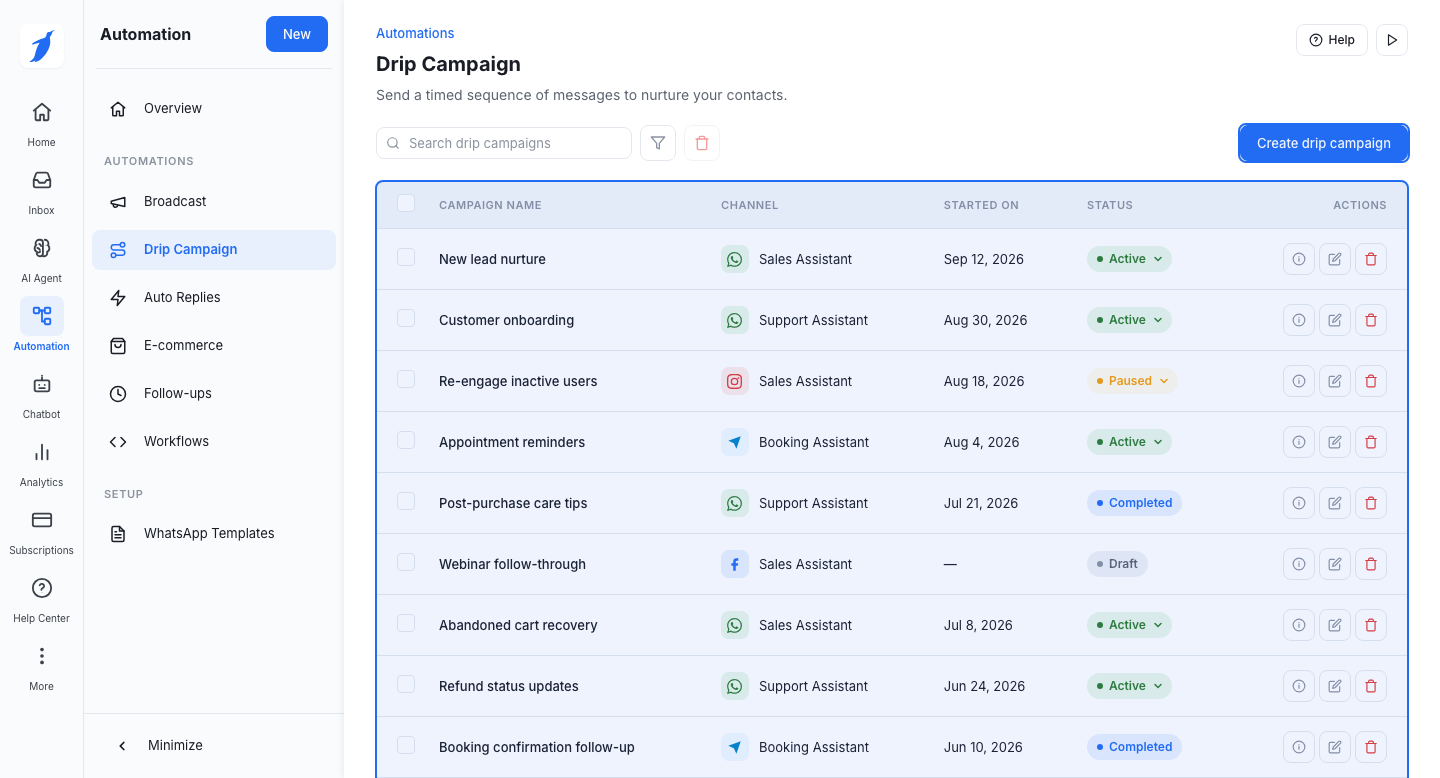
On Setup, type a Drip campaign name. It must be unique in your account. Choose the AI agent, then the channel. Only channels connected to the agent can be picked. Then choose who the drip is for. The options depend on the channel (see the table below).
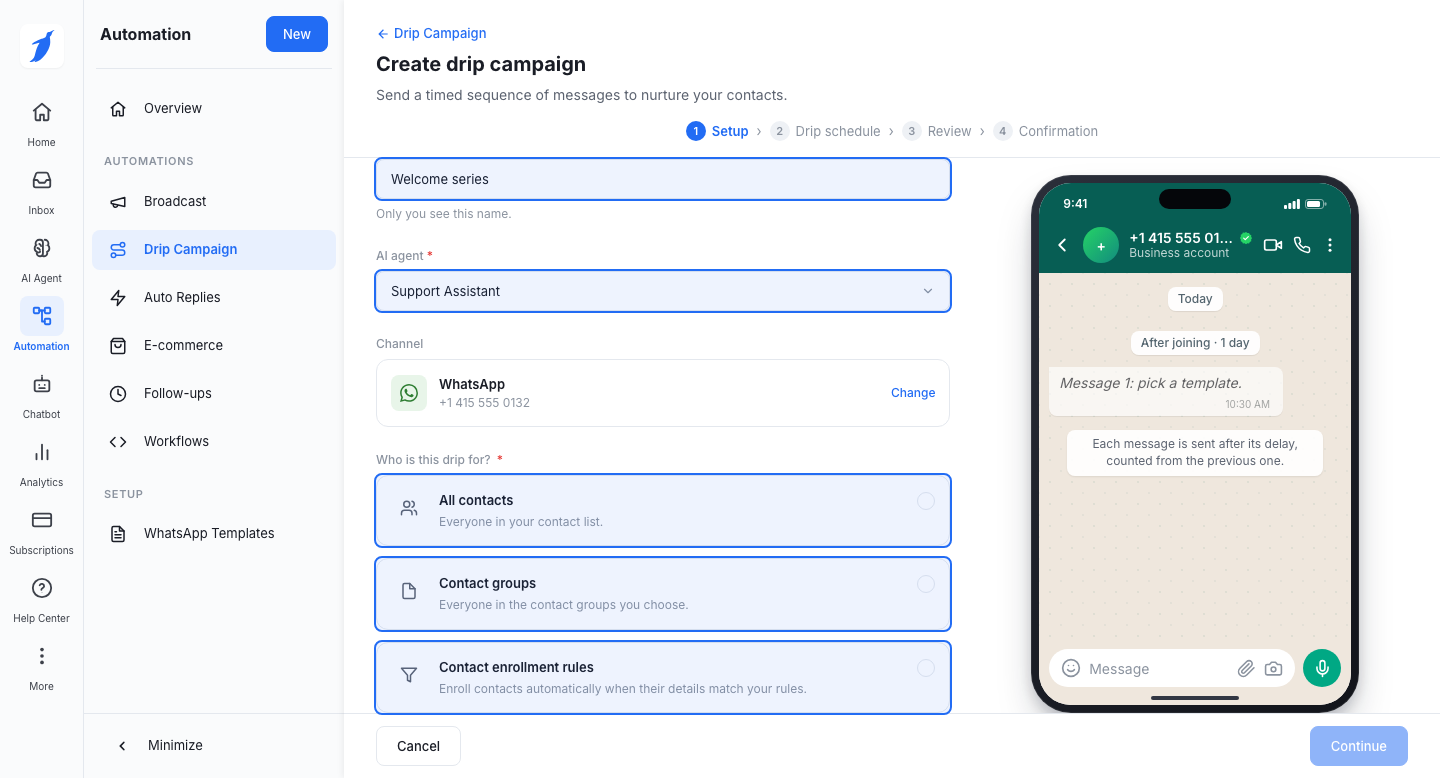
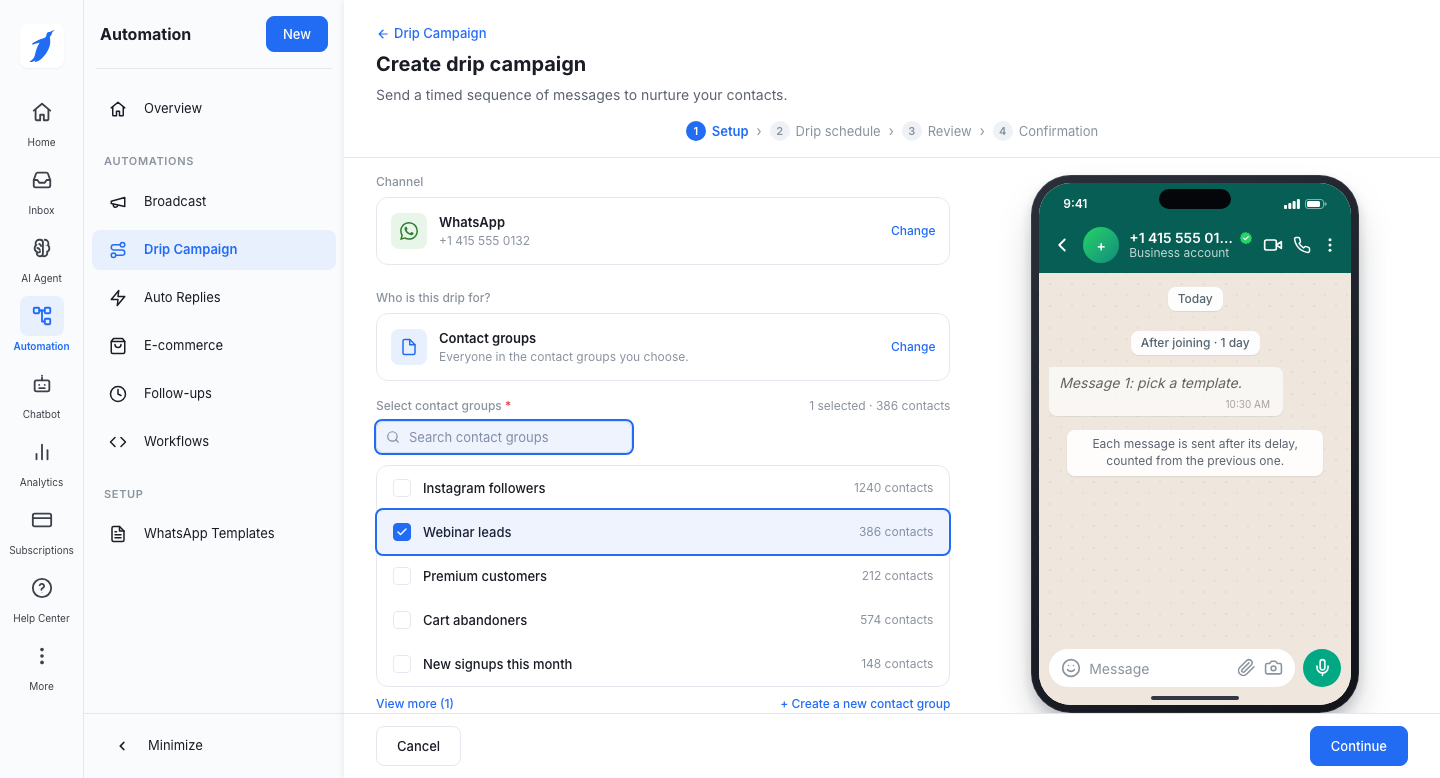
If you choose Contact groups, pick one or more groups. Each group shows its number of contacts. Click Continue.
On Drip schedule, choose when the drip starts: Pick a date and time, or Start as soon as it's created. Then set each message. Choose how long to wait (Send after, in minutes, hours or days) and choose the content. On WhatsApp, pick an approved template and fill in each variable and its fallback value. Click Add schedule to add another message. The first message is always shown, and at least one is needed.
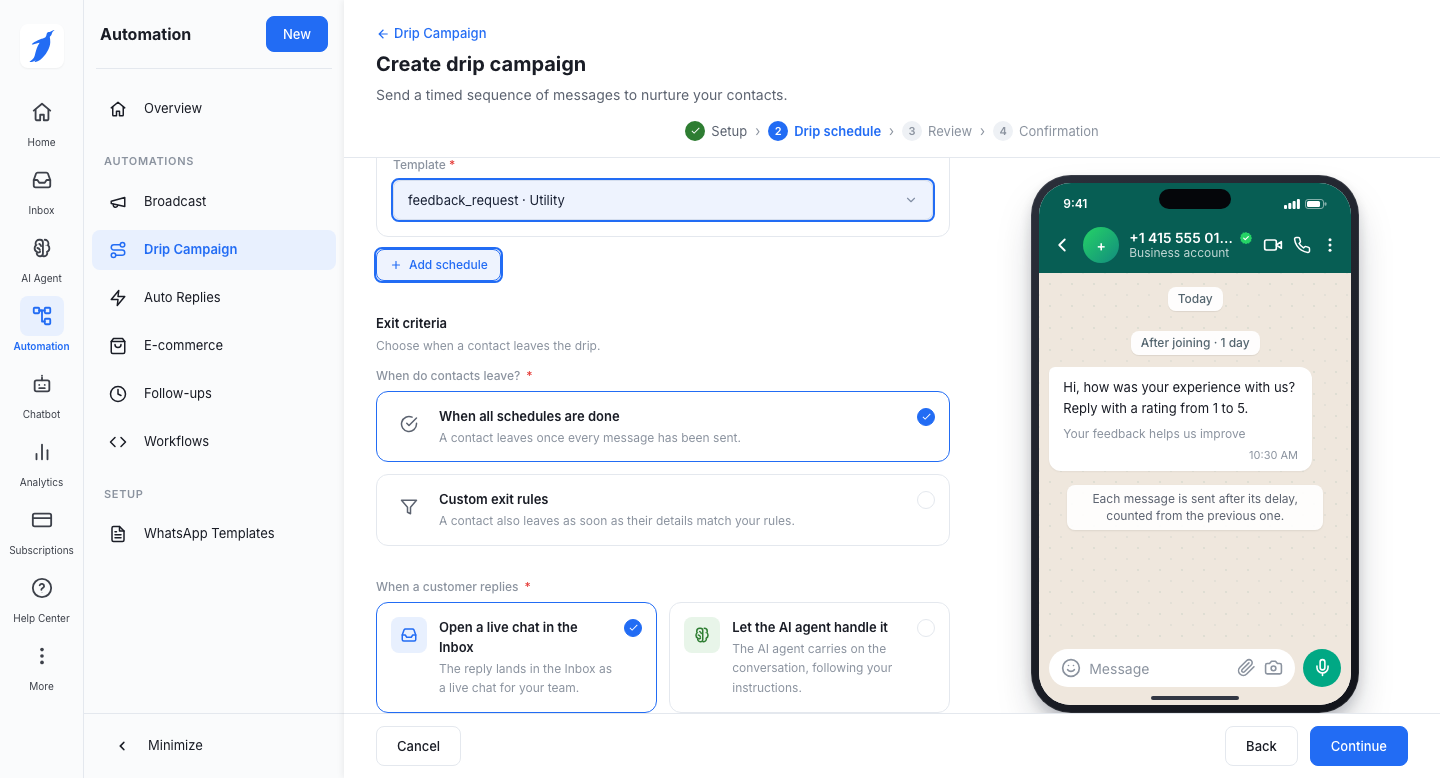
Under Exit criteria, choose when contacts leave the drip: When all schedules are done (the default), or Custom exit rules. With a custom rule, a contact also leaves when their contact details match the rule.
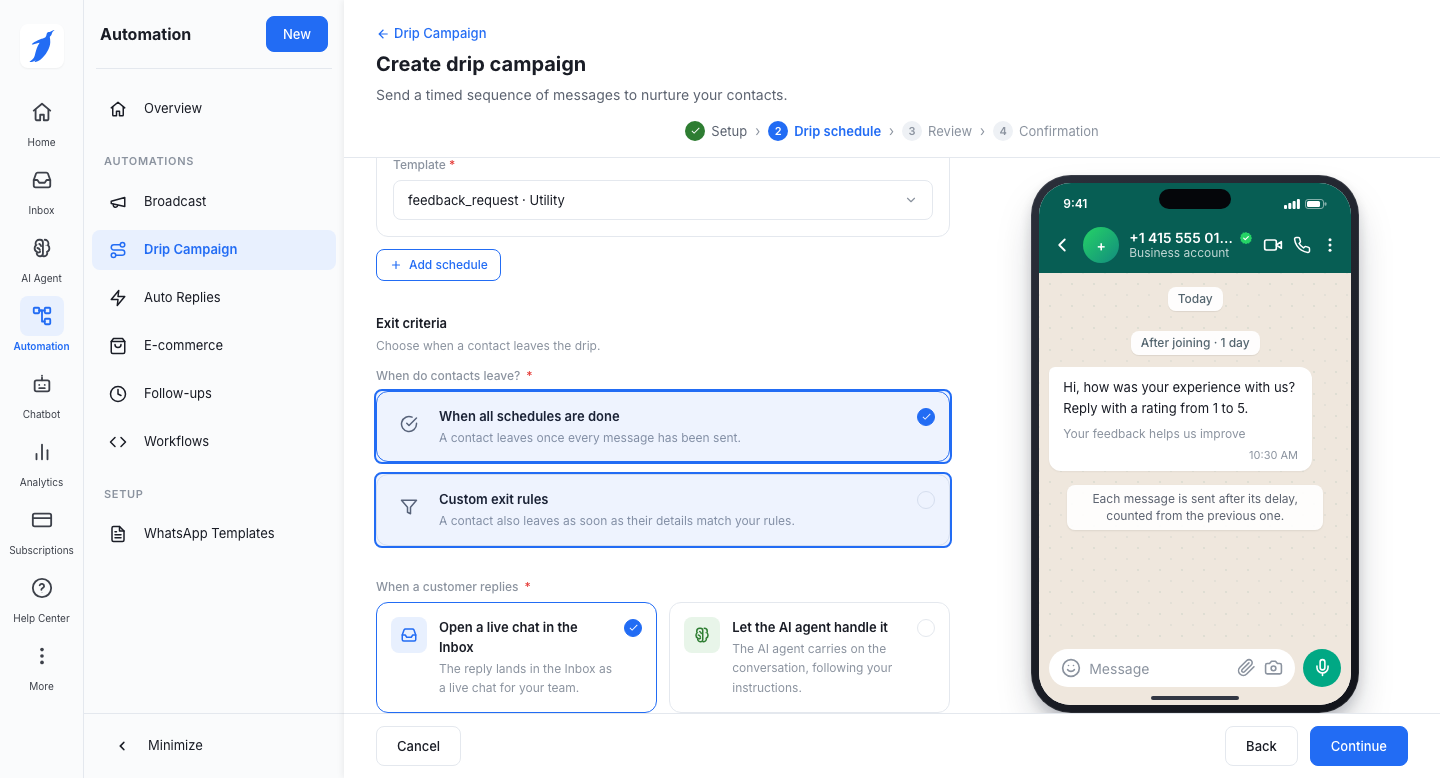
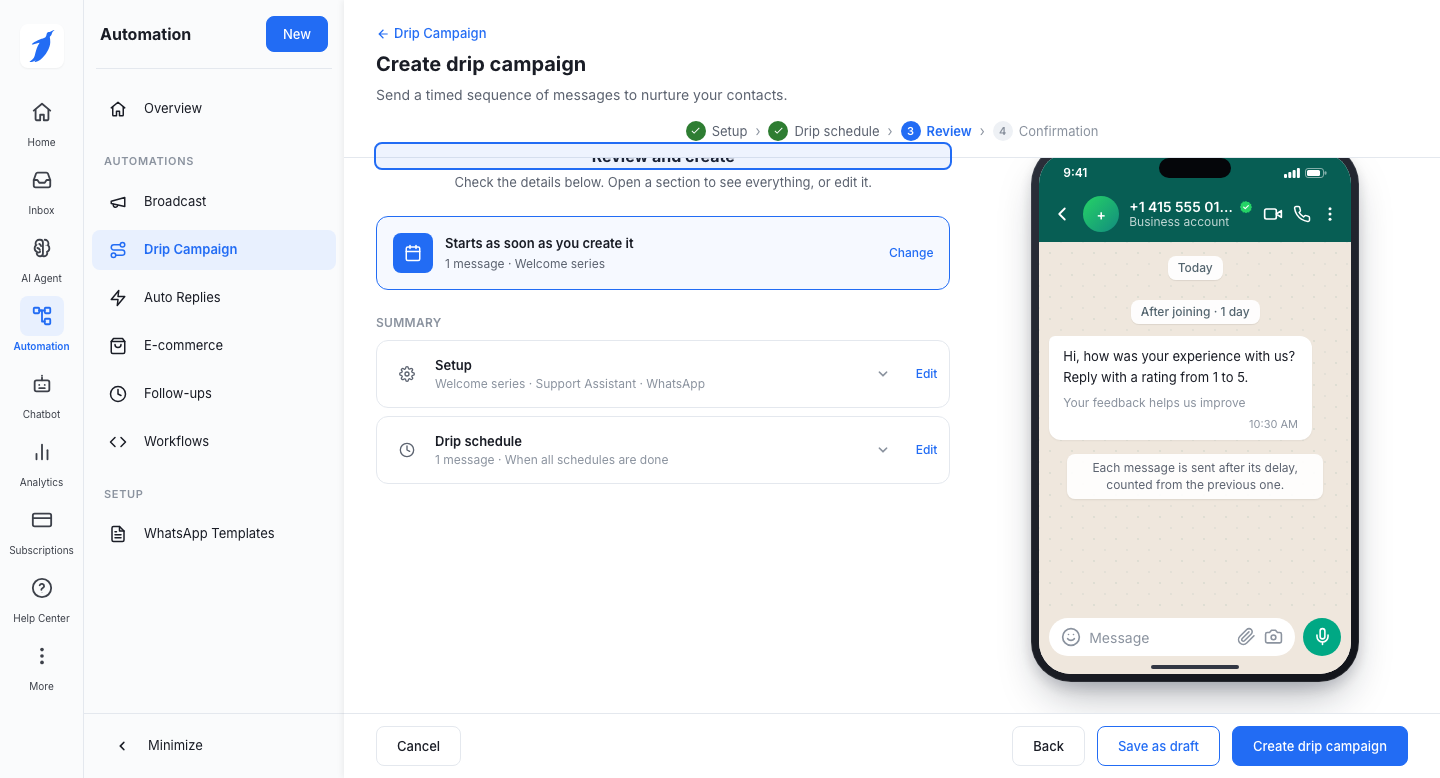
Click Continue. On Review, check the summary of the setup, the audience, the schedule and the exit rule. Open a section to see everything, or change it. Click Create drip campaign.
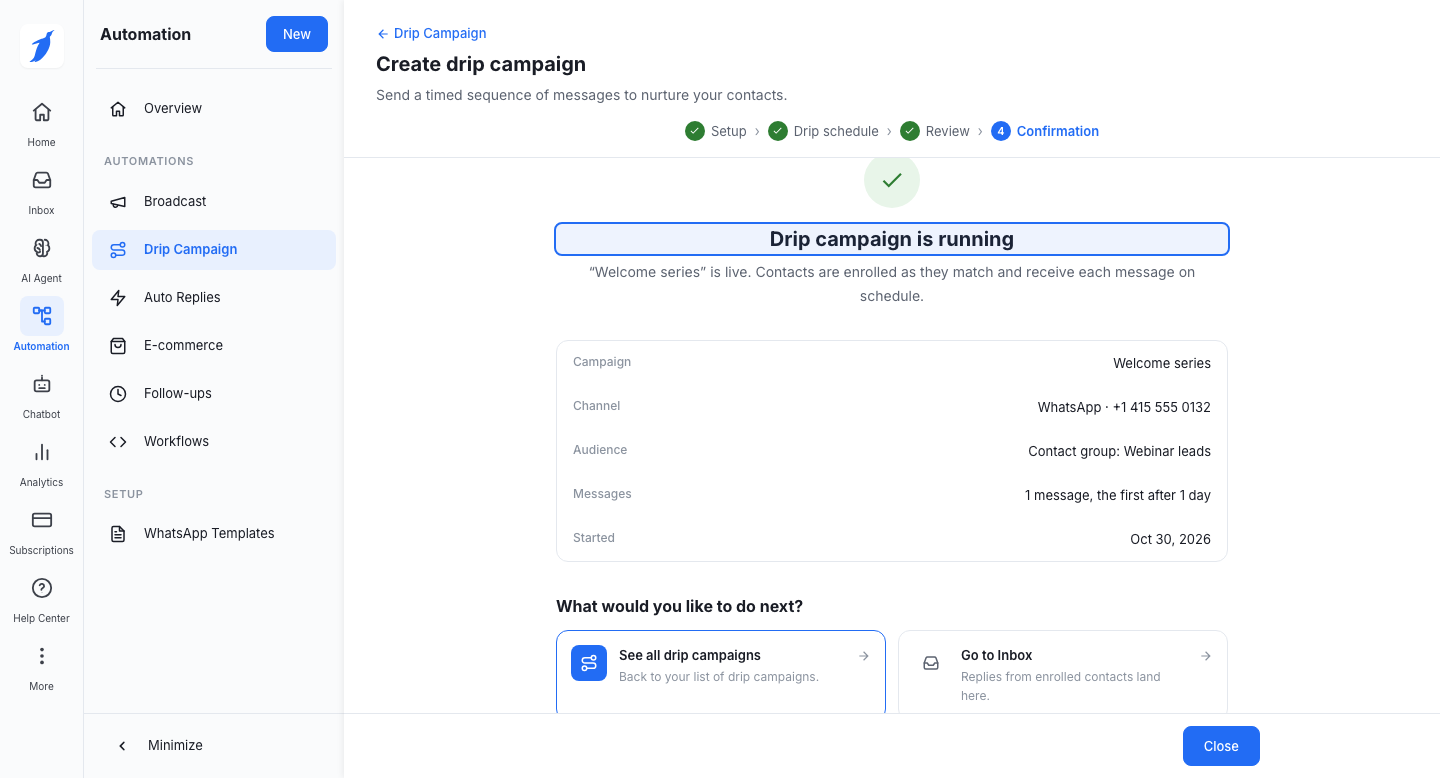
The Confirmation step shows what you created. Choose what to do next: See all drip campaigns, Go to Inbox, Create another drip campaign or Manage contact groups. The drip is saved as Active and appears in the list.
[CHECK: the PRD lets you save a drip as a draft before you create it. Confirm that the Review step has a Save as draft button.]
[CHECK: the prototype asks "what happens when a customer replies" at the end of the schedule step, with a live chat in the Inbox or the AI agent. The PRD says a reply setting for a drip is out of scope, and that the AI agent handles replies as normal. Confirm.]
Who Is The Drip For?
All Contacts
Yes
No
No
No
Nothing. Every current contact is enrolled when the drip starts.
New Subscriber
No
Yes
Yes
Yes
Nothing. A contact is enrolled when they subscribe after the drip is created.
Groups
Yes
Yes
Yes
Yes
One or more groups, and a start date.
Contact Enrolment Rules
Yes
No
No
No
One or more rows of Contact attribute, Relation and Value. A contact is enrolled when all rows match.
Appointment Reminder
Yes
Yes
Yes
No
Whether messages are timed from the Appointment date or the Booking date.
If the group is empty, or no contact matches the rules, you see a warning with the count (0). You can still create the drip.
[CHECK: the prototype shows All contacts, Contact groups and Contact enrollment rules for a WhatsApp AI agent. It does not show Appointment Reminder or New Subscriber for that channel. The table above follows the PRD. Confirm each option on the screen for every channel.]
[CHECK: the PRD says Groups needs a start date on all channels. The assumptions say it stays optional on WhatsApp. Confirm.]
Messages In The Drip
WhatsApp: each message uses an approved template. You fill in a value and a fallback for each variable.
Instagram, Facebook and Telegram: each message is the AI agent's welcome message, shown read-only, or a message you write.
Timing: Send after is a number plus Minutes, Hours or Days, counted from the message before it. The first message counts from enrolment, or from the start date for groups.
Appointment Reminder: choose Before or After, then a number and a unit, counted from the appointment or booking time.
Summary: the schedule shows the total length of the drip, for example "3 messages over 2 days".
Instagram and Facebook: these channels only allow replies within a messaging window after the contact's last message. If a wait is longer than the window, a warning shows: "This message may not be delivered if the contact has not messaged recently." You can still create the drip.
[CHECK: the Instagram and Facebook messaging window is assumed to be 24 hours. The dev team still needs to confirm.]
[CHECK: the old WhatsApp drip page says a drip can have up to 5 schedules, and that the drip checks for due messages every 5 minutes, so a message can arrive up to 5 minutes late. The PRD does not say this. Confirm.]
Manage Your Drips
The list shows the name, channel (with the AI agent), the start date and the status of each drip. Search by name, filter by status, and use the icons in the Actions column.
Active
A dropdown
Choose Pause.
Paused
A dropdown
Choose Active.
Completed
Plain text
Nothing. You can only delete it.
Draft
Plain text
Edit or delete it.
Failed
Plain text
As before.
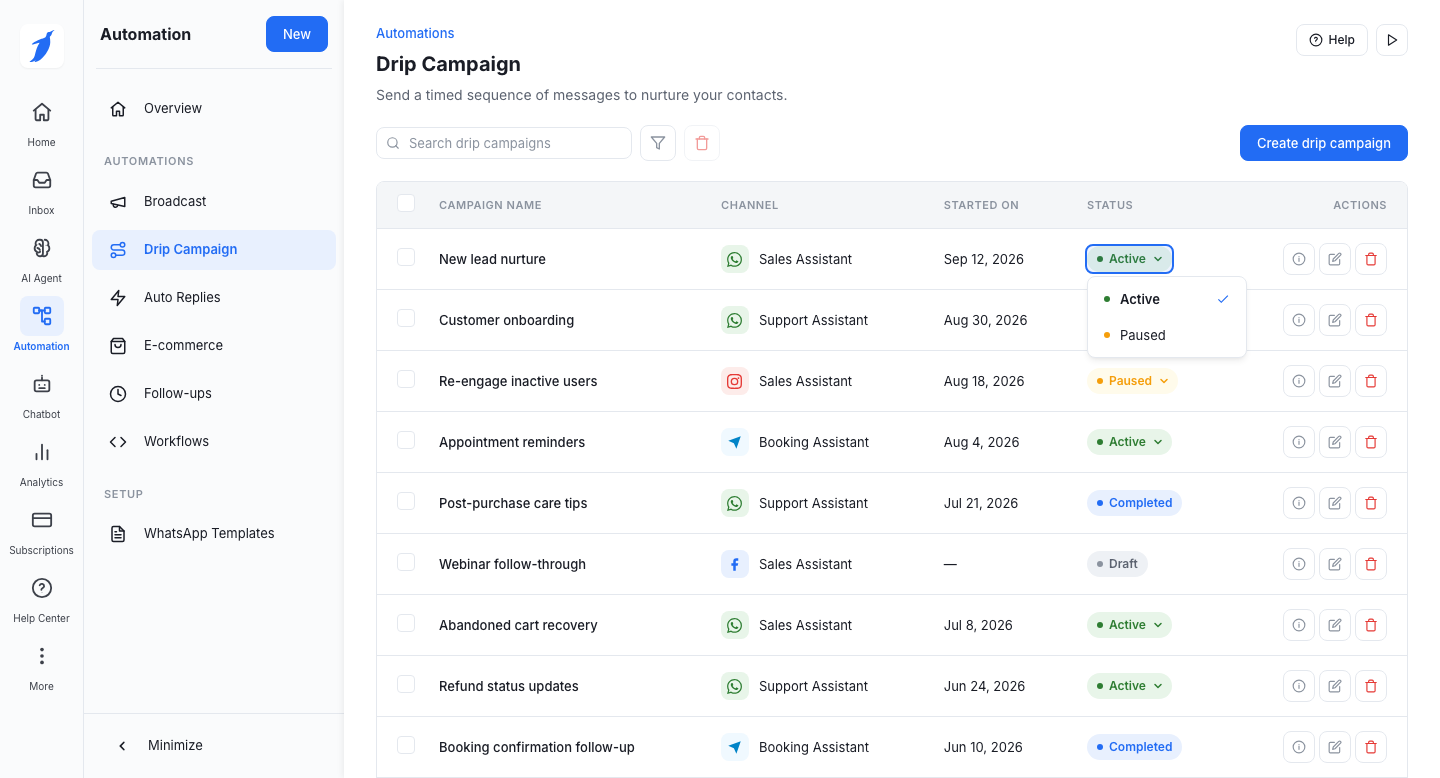
Pause. No new messages are sent, and contacts stay where they are in the drip. The status changes to Paused. If the system paused a drip, for example because the channel was disconnected, a note shows the reason. If you try to make it Active before the cause is fixed, the reason shows and the drip stays Paused.
Active again. Sending continues. Messages that came due while the drip was paused are sent right away. No confirmation is needed.
Edit. Click the edit icon. The same journey opens with your saved values.
You can change the name, the steps and the exit criteria. You cannot change the channel, the AI agent or who the drip is for.
A message already sent to a contact is not sent again. Contacts already in the drip get the updated remaining messages.
You can remove a step that some contacts have not reached yet. You cannot remove a step that every contact has already passed.
Before you save, a note says: "Changes apply only to messages that are not sent yet."
A paused drip can be edited and stays paused.
Delete. You are asked to confirm. The drip stops, contacts in it leave it, and messages already sent stay in the chat history. You can also select several drips and delete them together. There is no bulk pause.
View details (the i icon) shows the status, channel, AI agent, audience, template and start date.
If a message fails to send, the drip does not stop. It goes on to the next step. An older drip with "Segment" under Applied On is the same as Groups and shows as Groups.
[CHECK: the PRD repeats the pause, edit and delete rules twice in the same section. The text above merges them. Confirm that nothing was lost.]
[CHECK: the PRD says exit rules are checked before each message is sent, not the moment a contact detail changes. Confirm before you tell customers.]
[CHECK: the old Facebook drip page says a live drip cannot be edited. The PRD says it can. This guide follows the PRD.]
Common Errors
Related Articles
Automations
Send a Broadcast
Create a WhatsApp Template
Create an Auto Reply
Support
Still not working? Write to us at support@botpenguin.com. We will reach out to you within 24 hours.