
WhatsApp Templates
A WhatsApp template is a message format that WhatsApp has approved. Broadcasts and Drip Campaigns on WhatsApp can only send approved templates. You build a template in three steps (Template, Content and CTA), preview it as you go, and then send it for review. This guide also explains what each choice turns on or off.
Prerequisites
A WhatsApp number connected to an AI agent. Without one, the page shows "Connect a WhatsApp number to create templates" and Create template stays off. See Connect WhatsApp, Instagram, Facebook and Telegram.
For a Catalog template: a catalog connected to your WhatsApp number.
Permission to create, read and delete templates. [CHECK: the PRD adds a permission for Automations → Setup → WhatsApp Templates (read, write, delete). Confirm the role names.]
[CHECK: availability. The PRD says WhatsApp Templates in the new Automation menu is behind a feature flag that is off by default. Confirm that it is live before you publish.]
Key Definitions
Category
The purpose of the template: Marketing, Utility or Authentication.
Template type
The kind of template inside a category, for example Custom or Catalog.
Format
Regular (one message) or Carousel (cards you scroll through).
Variable
A blank in the template that is filled in for each contact.
Sample value
An example for a variable. WhatsApp uses it to review your template.
CTA
A button in the message, such as Call phone number or Visit website.
Create A Template
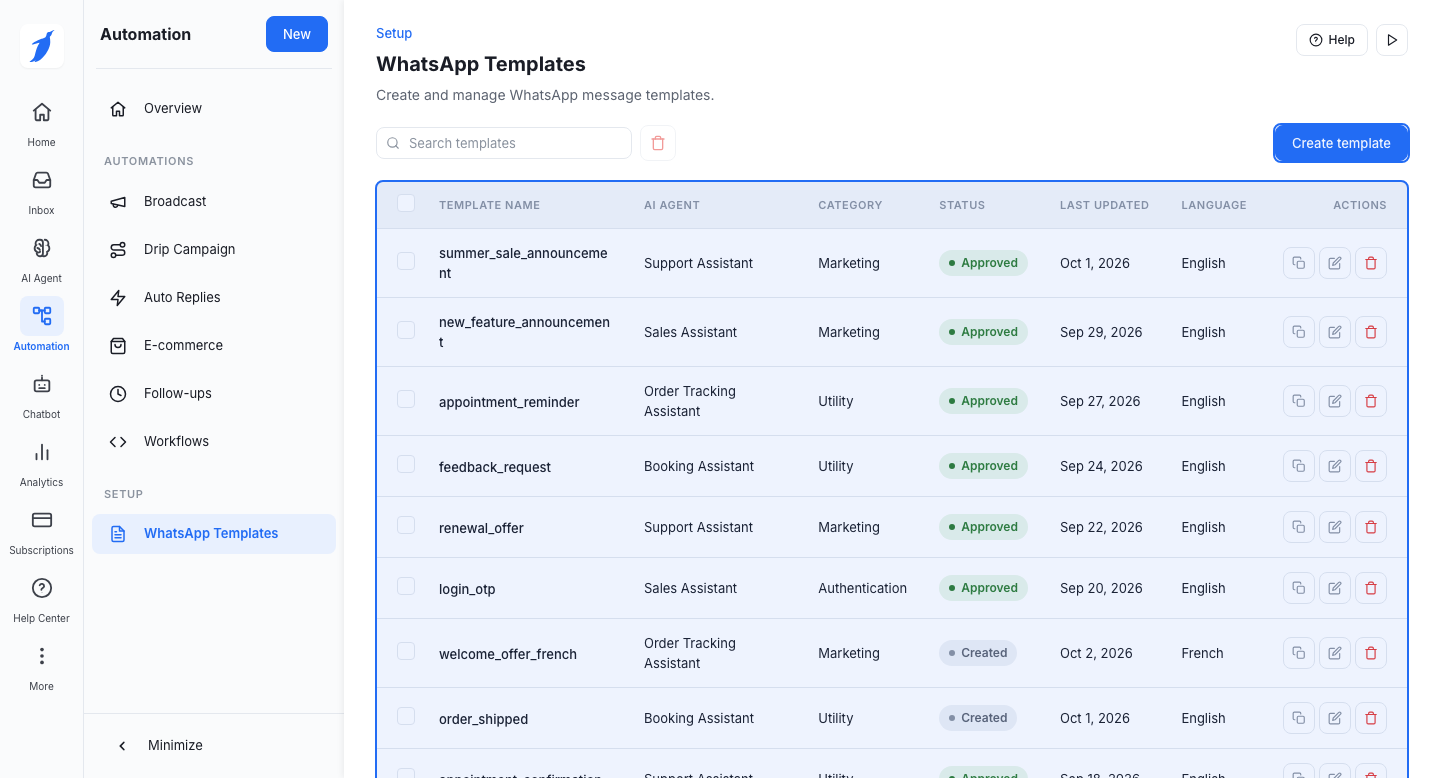
Click Automation in the left menu, then click WhatsApp Templates under Setup. Click Create template.
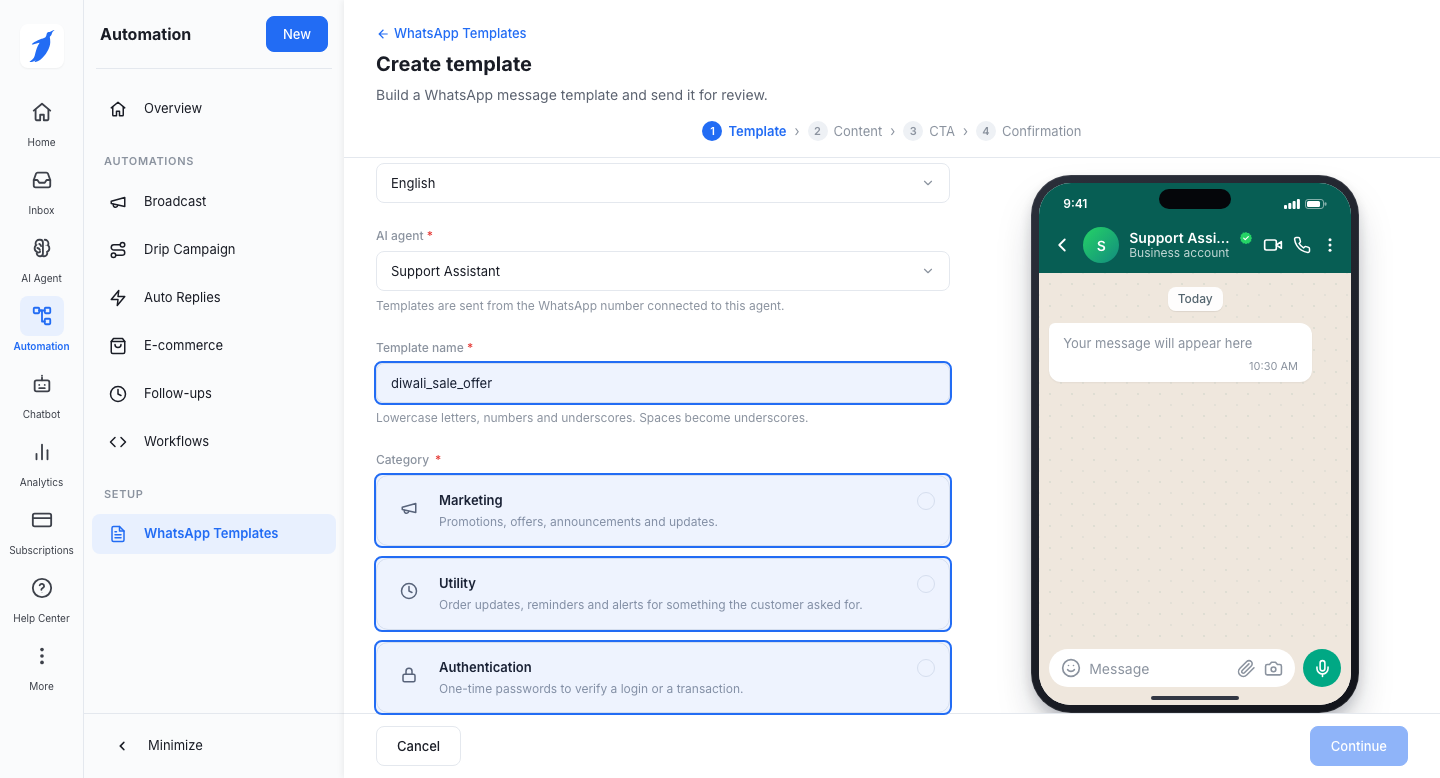
On the Template step, type the Template name. Use lowercase letters, numbers and underscores. Spaces become underscores. The name can be up to 512 characters and must be unique for the same language. Choose the Language. The default is English. Choose the AI agent. Templates are sent from the WhatsApp number connected to that agent. Then choose the Category.
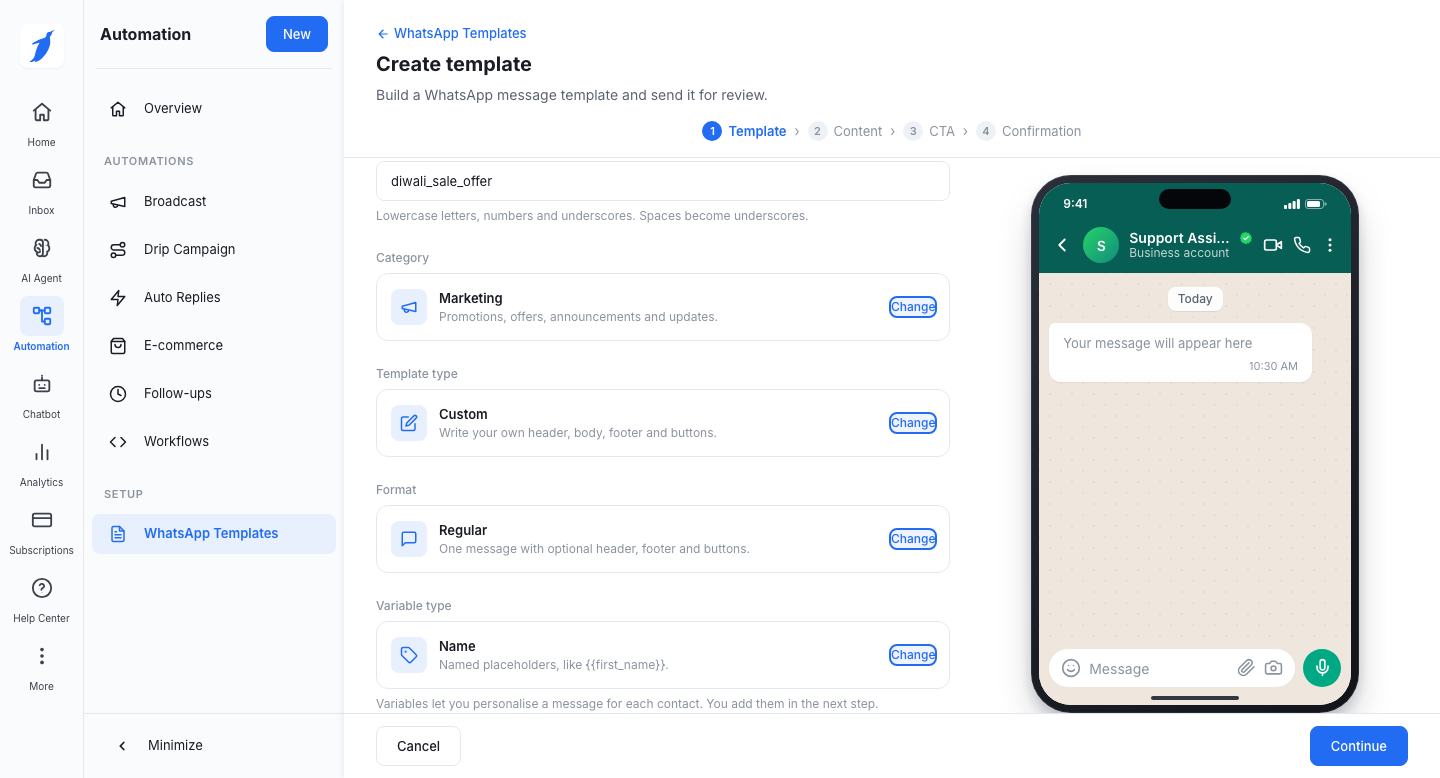
Choose the Template type and the Format, and the Variable type if it is asked. The choices depend on the category (see the table below). A choice that has only one option is picked for you and locked, with a short note. Click Change on any choice to pick again. Click Continue.
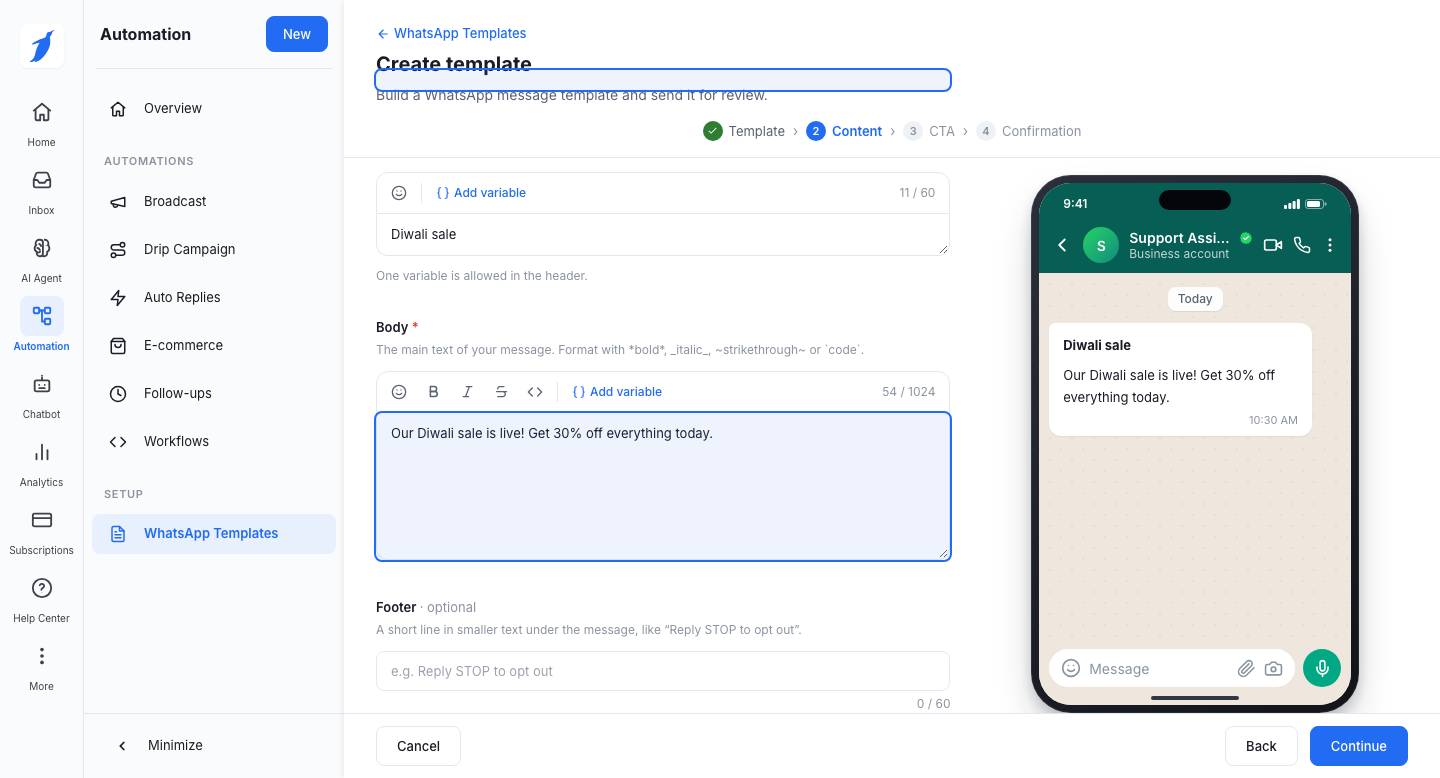
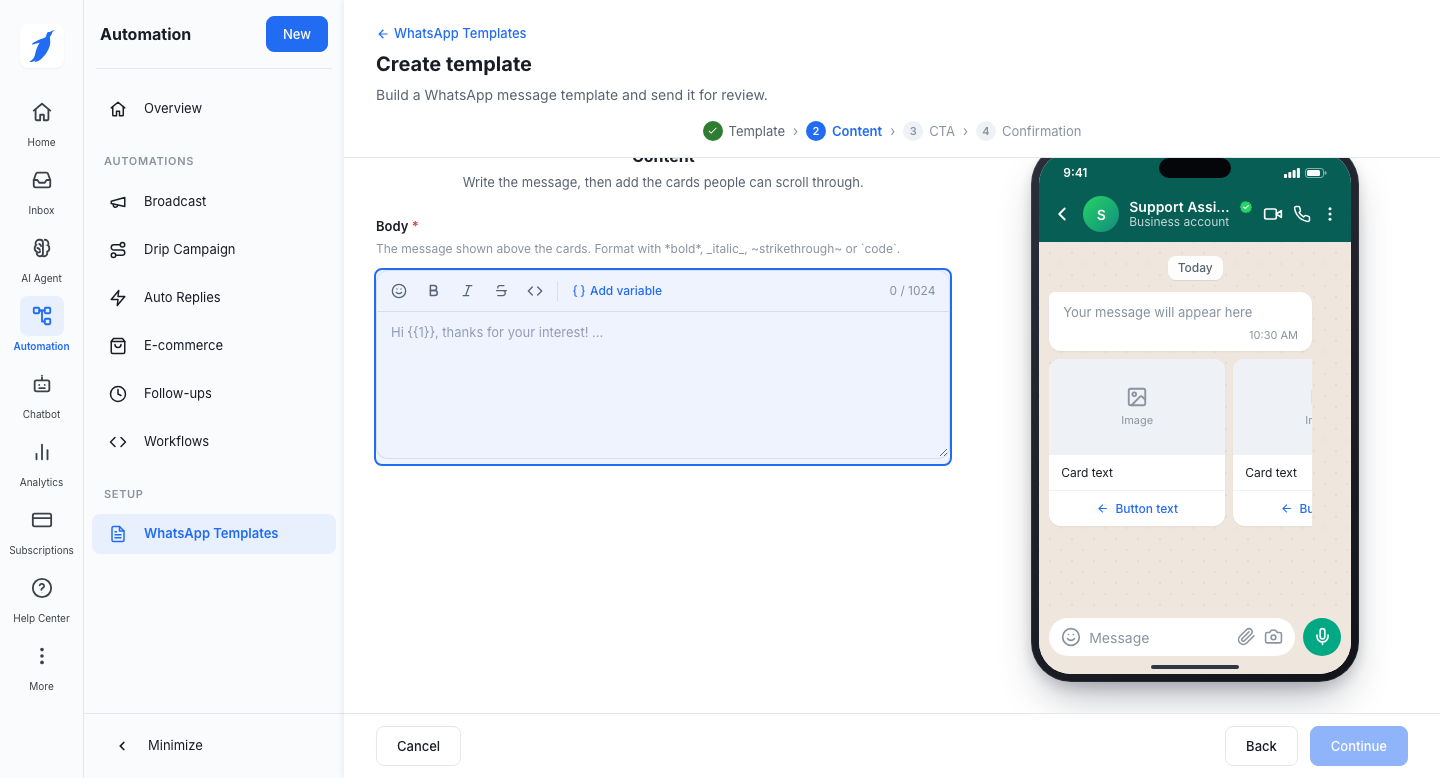
On the Content step, choose the header, then write the body and the footer. The phone preview on the right updates as you type. Which parts are on or off depends on your choices (see the table below). Click Continue.
On the CTA step, click Add button to add buttons. The menu has two groups: Call to action (Call phone number, Visit website, Copy offer code) and Quick reply. A button that reached its limit is greyed out with the reason. Remove a button with the bin icon.
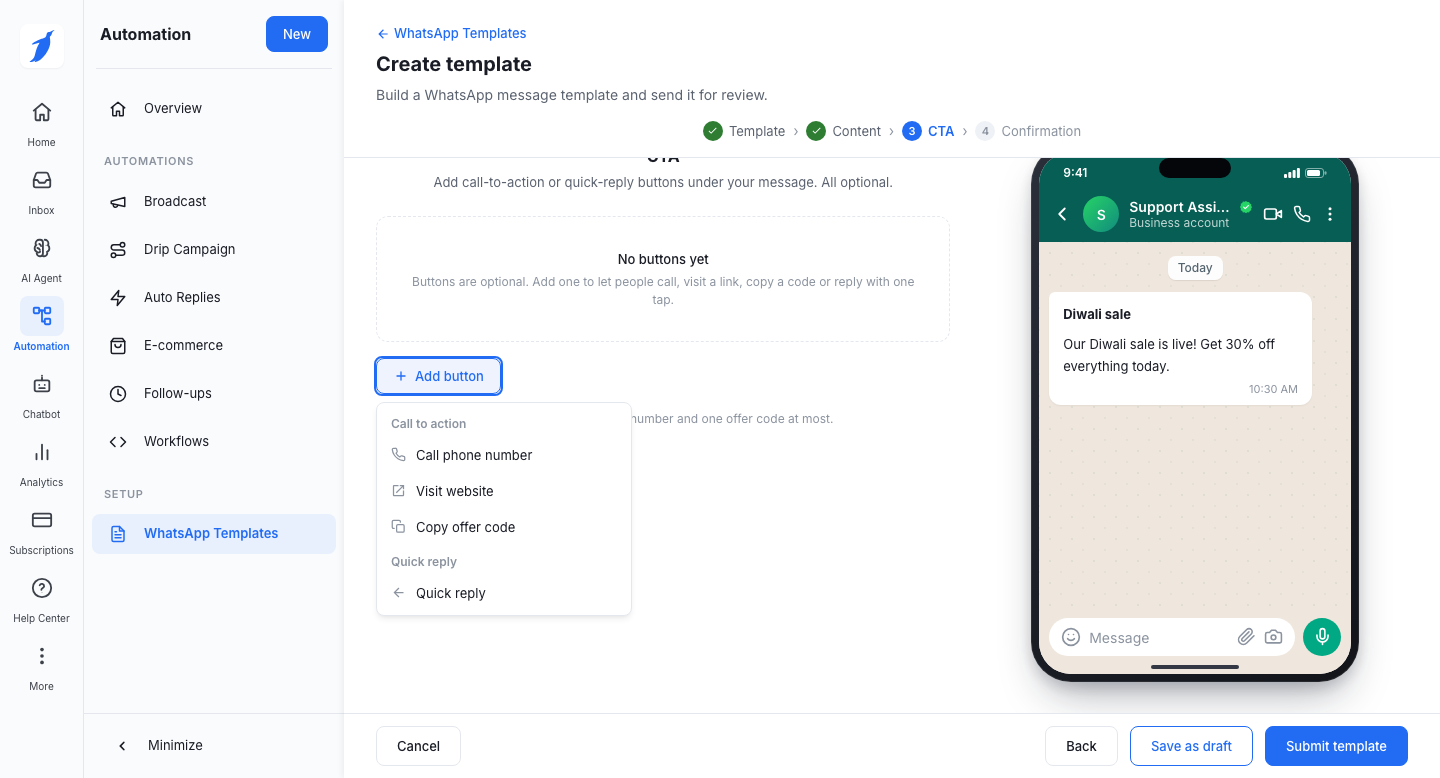
Click Submit template to send the template to WhatsApp for review. The status changes to Pending, and you see "Template submitted for review". Or click Save as draft to finish later. You see "Saved as a draft", and the status is Created. Submit stays off until every required field, sample value and sample file is valid.
If you click Cancel and you entered something, you are asked to confirm. If you click Back, what you entered is kept.
[CHECK: the PRD says the journey has three steps. The prototype's stepper also shows a fourth step, Confirmation. Confirm.]
[CHECK: the PRD says a template belongs to the WhatsApp account (WABA) and is managed at account level. The prototype list has an AI Agent column, and the first step asks you to choose an AI agent. Confirm which one is right and how to explain it.]
[CHECK: the PRD says reviews can take up to 24 hours. The old template pages say "a few hours to 1 to 2 business days", and "up to 48 business hours". Confirm what to tell customers.]
What Each Choice Turns On
Marketing
Custom, Catalog or Calling permission request
Custom: Regular or Carousel. Catalog: Regular or Carousel. Calling permission request: Regular only.
Number, such as {{1}}, or Name, such as {{first_name}}. The default is Number.
Utility
Custom only. It is picked for you.
Regular only. It is picked for you.
Number or Name
Authentication
One-time password only. It is picked for you.
Regular only. It is picked for you.
Not asked. The only variable is the code.
If you change the Category, the template type, the format and everything after it are cleared. If you change the Template type or Format, steps 2 and 3 are cleared. You are asked to confirm first if you already entered content. If you change the Variable type while the body has variables, you are asked to confirm and the variables are cleared.
What Is On Or Off For Each Combination
A part that is "Off" still shows greyed out, with a short reason such as "Comes from your catalog". You cannot click it.
1
Marketing, Custom, Regular
Optional: None, Text, Image, Video, Document or Location
Required. Up to 1024 characters. Variables allowed.
Optional. Up to 60 characters. Text only.
Not available
Optional, up to 10: Call phone number, Visit website, Copy offer code, Quick reply
2
Marketing, Custom, Carousel
Off. Each card has its own media.
Required. Up to 1024 characters. Variables allowed.
Off
2 to 10 cards you add
1 or 2 buttons on each card. Same types on every card.
3
Marketing, Catalog, Regular
Off. The product image comes from your catalog.
Required. Up to 1024 characters.
Optional. Up to 60 characters.
Not available
A fixed "View catalog" button. Nothing to set up.
4
Marketing, Catalog, Carousel
Off. It comes from your catalog.
Required. Up to 1024 characters.
Off
Product cards come from your catalog when the message is sent.
A fixed "View product" button on each card. Nothing to set up.
5
Marketing, Calling permission request, Regular
Off
Required. Up to 1024 characters.
Optional
Not available
None. WhatsApp adds the call prompt by itself.
6
Utility, Custom, Regular
Optional: None, Text, Image, Video, Document or Location
Required. Up to 1024 characters. Variables allowed.
Optional. Up to 60 characters.
Not available
Optional, up to 10: Call phone number, Visit website, Copy offer code, Quick reply (custom reply only)
7
Authentication, One-time password, Regular
Off
Fixed by WhatsApp: "[code] is your verification code." You cannot edit it.
Optional line for when the code expires
Not available
A fixed "Copy code" button. Nothing to set up.
In rows 3, 4, 5 and 7, the CTA step shows a note instead of the Add button, for example "The product image and the View catalog button come from your catalog. There are no buttons to set up." A "marketing opt-out" quick reply is only for Marketing templates in rows 1 and 2. For a Catalog template, if no catalog is connected to your number, you see "Connect a catalog to use this type" and Continue stays off.
[CHECK: the PRD says the footer for a Calling permission request template is optional, and marks it "Dev to confirm". Confirm.]
Header, Body And Footer
Header: None
Nothing. This is the default.
Header: Text
Text up to 60 characters. One variable is allowed, and it needs a sample value.
Header: Image
A sample image (PNG or JPG, up to 5 MB).
Header: Video
A sample video.
Header: Document
A sample document.
Header: Location
Nothing here. You give the location when the message is sent.
Body
Text up to 1024 characters, with a counter. You can add an emoji, bold, italic, strikethrough, code and a variable.
Footer
One line of text up to 60 characters, with a counter. Text only, with no variables.
If you change the header type, what you entered for the old type is cleared.
With Number variables, each new variable is {{1}}, {{2}} and so on. With Name variables, you type a name in lowercase letters, numbers and underscores. Each name must be unique.
Each variable needs a Sample value, which you type below the editor. The phone preview shows your sample values. If you delete a variable from the body, its sample field is removed and the numbers are renumbered.
[CHECK: the PRD gives no file size limit for sample video and document headers. Confirm.]
Buttons
Call phone number
Button text (default "Call us"), country code and phone number
1 for each template
Visit website
Button text, URL type and a website address that starts with https
2 for each template
Visit website, dynamic
The same, plus a variable at the end of the link, for example /offers/{{1}}. A sample value is needed.
Counts as a website button
Copy offer code
A sample offer code. The button always reads "Copy offer code". The sample is shown only to WhatsApp for review.
1 for each template
Quick reply, custom
Button text
Up to 10 buttons in total
Quick reply, marketing opt-out
Button text. It lets people stop getting marketing messages from you.
Marketing templates only
For a Carousel (row 2), you pick the button setup once, with one or two buttons. The types are Quick reply, Visit website and Call phone number. Each card then asks for its own values. All cards have the same number and types of buttons.
Carousel And One-Time Password
Carousel. Write the body first. It shows above the cards. Under it, add 2 to 10 cards with Add card. You can remove a card while at least 2 remain. Each card has a media type (Image or Video), a sample file and Card text of up to 160 characters. All cards use the same media type. If you change it on one card, all cards change, after you confirm.
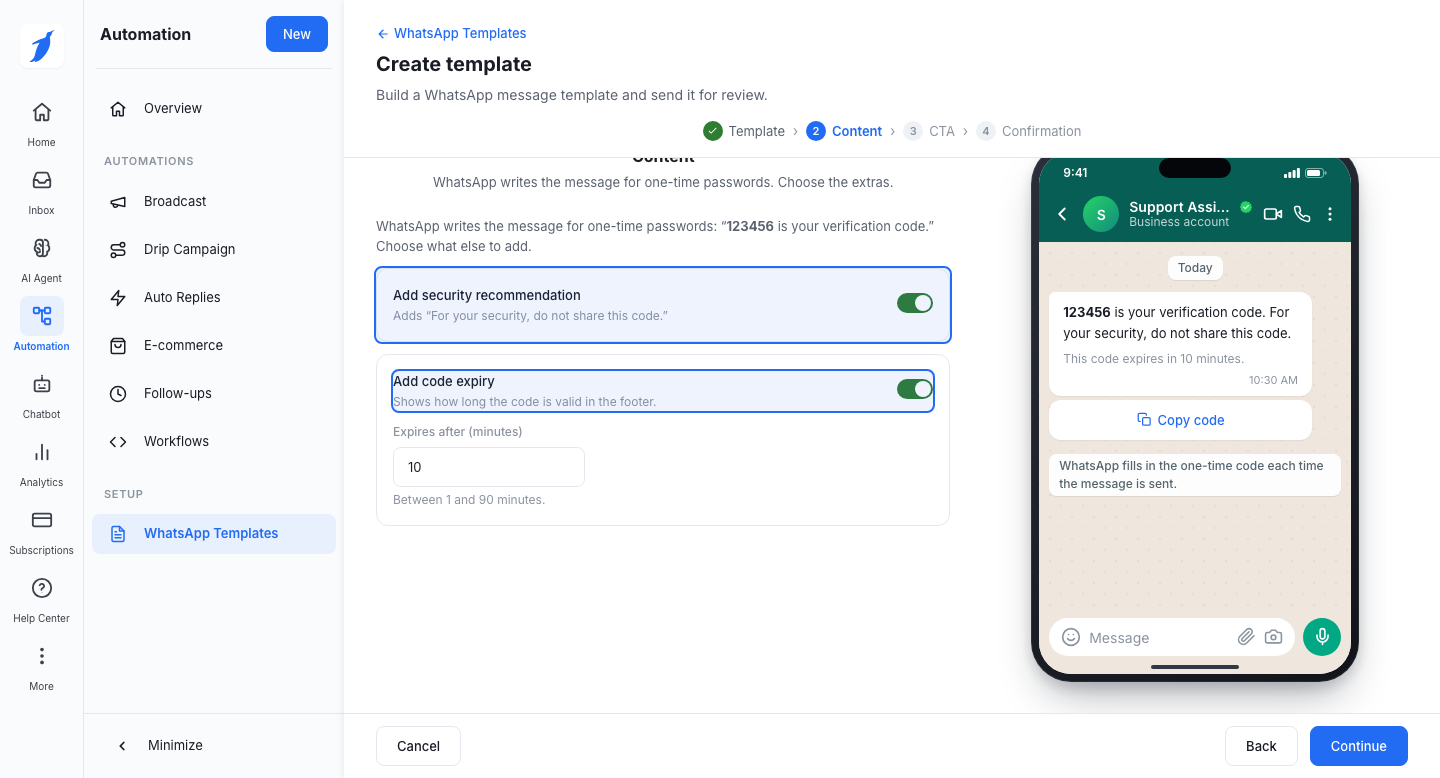
One-time password. WhatsApp writes the message: "[code] is your verification code." You cannot edit it. You choose two extras, both on by default:
Add security recommendation: adds "For your security, do not share this code."
Add code expiry: shows how long the code is valid in the footer. Set "Expires after (minutes)" between 1 and 90. The default is 10.
The preview shows the message and the Copy code button.
[CHECK: the PRD says Card text is required in the design, but WhatsApp treats it as optional. Confirm.]
Template Statuses
Created (draft)
Saved here. Not sent to WhatsApp.
Yes
Yes. Everything can be changed. Save as draft and Submit template are available.
Yes
No
Pending
Sent to WhatsApp. No answer yet.
Yes
No. Edit shows "Meta is reviewing this template".
Yes
No
Approved
WhatsApp approved it.
Yes
View only. Every field is locked.
Yes. If a scheduled or running broadcast or drip uses it, a warning shows first.
Yes
Rejected
WhatsApp did not approve it.
Yes, with the reason
View only, with the reason shown at the top. Every field is locked.
Yes
No
If WhatsApp changes the category of a template after review, for example from Utility to Marketing, the template shows the new category and a notice. If WhatsApp pauses or disables an approved template, for example for low quality, it shows as Rejected with the reason.
[CHECK: the PRD says a paused or disabled approved template shows as Rejected, and marks it "Dev to confirm".]
[CHECK: one assumption in the PRD says that while an edited Approved template is Pending, it cannot be used in new broadcasts or drips. Another rule says an Approved template is view only and cannot be edited. These two do not agree. Confirm whether an Approved template can be edited at all.]
[CHECK: in the prototype, the edit icon on an Approved template does nothing. The PRD says it opens the saved setup with every field locked, with a banner that says the template is Approved and cannot be edited. Confirm.]
Manage Your Templates
The list shows the template name, AI agent, category, status, last updated date, language and actions. It is sorted with the newest first. Search by template name. If nothing matches, you see "No templates match".
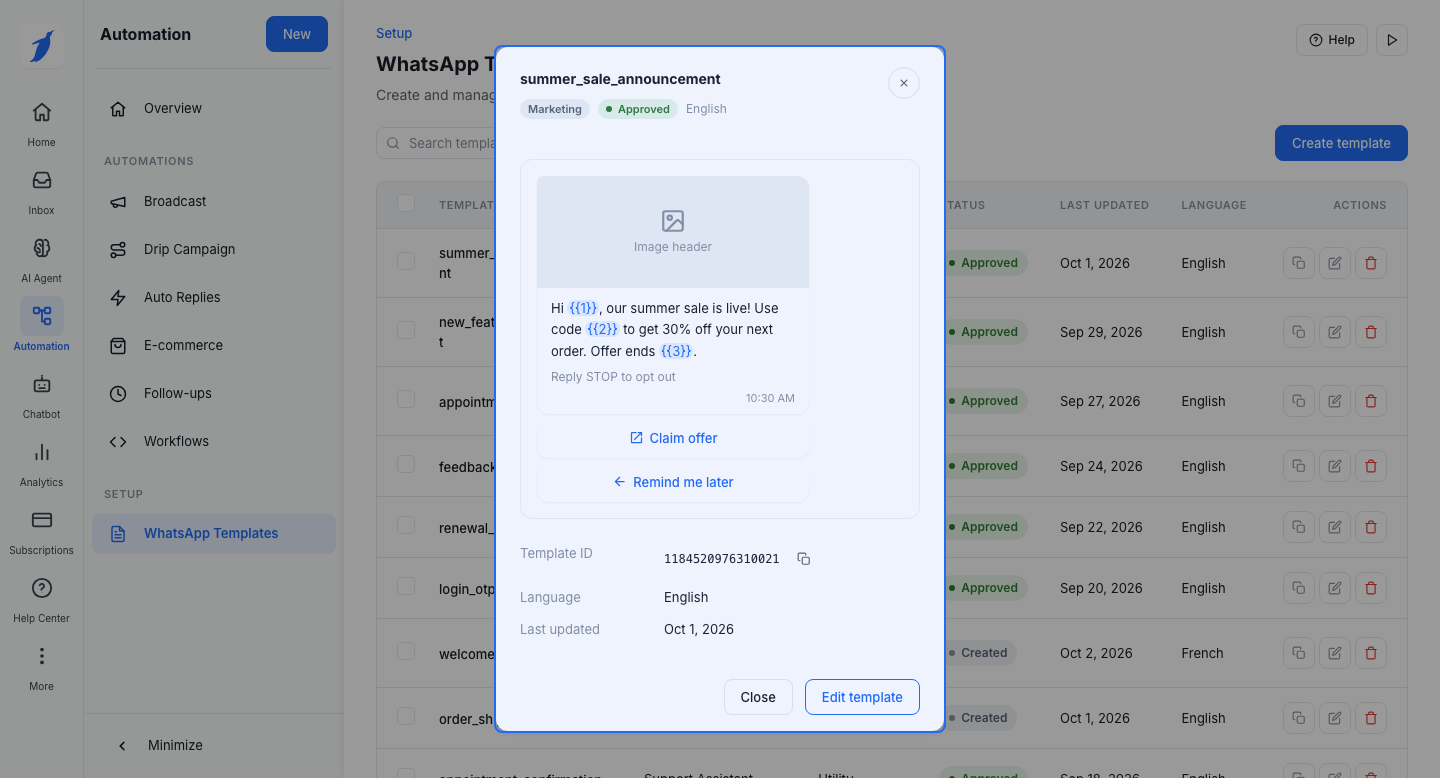
Click a template name, or the preview icon, to read the template. You see its content, category, status, language and last updated date. You can close it, or click Edit template.
Copy ID copies the ID of the template.
Edit: a draft opens with every field open. Approved and Rejected templates open view only. A Pending template cannot be edited.
Delete: you are asked "Delete [name]? This cannot be undone." If an approved template is used by a scheduled or sending broadcast, or by an active drip, you also see "This template is used by [automation]. Are you sure you want to proceed?". Broadcasts and drips that already finished keep the template name in their history. After you confirm, the template is removed here and at WhatsApp, for that language only.
Delete several: select the rows, click the bin in the toolbar and confirm with the count. Templates that are blocked are skipped and listed after the others are deleted.
Use it: only approved templates show in the template pickers of Broadcasts and Drips, with their category and language.
Why WhatsApp Might Reject A Template
The category does not fit the content.
Promotional content in a Utility or Authentication template.
A missing sample value or sample file.
The header, the body and the category do not match.
Pick the category that matches what you send, give a realistic sample for every variable and every media file, and check that URLs and phone numbers are valid.
[CHECK: the PRD says to show WhatsApp's reason for a rejection in the product. The old pages list common reasons. Confirm that the list above is correct and complete.]
Common Errors
Related Articles
Automations
Send a Broadcast
Create a Drip Campaign
Connect WhatsApp, Instagram, Facebook and Telegram
Support
Still not working? Write to us at support@botpenguin.com. We will reach out to you within 24 hours.