> For the complete documentation index, see [llms.txt](https://help.botpenguin.com/llms.txt). Markdown versions of documentation pages are available by appending `.md` to page URLs; this page is available as [Markdown](https://help.botpenguin.com/bots/creating-your-first-chatbot.md).
# Creating Your First Chatbot
This section contains essential information and usage guidelines for understanding and creating chatbots inside BotPenguin.
### What is Chatbot Description?
The **Chatbot Description** provides a clear understanding of BotPenguin’s AI-powered conversational assistant. It explains how BotPenguin chatbots automate interactions, offer instant support, capture user data, and guide customers across multiple digital channels—without manual involvement.
Chatbots built using BotPenguin leverage advanced NLP to understand intent, respond accurately, and deliver smooth, personalized conversations across websites, WhatsApp, Facebook, Instagram, Telegram, MS Teams, and SMS.
***
### How to Use Chatbot Description
Below is the step-by-step guide to creating your chatbot inside BotPenguin.
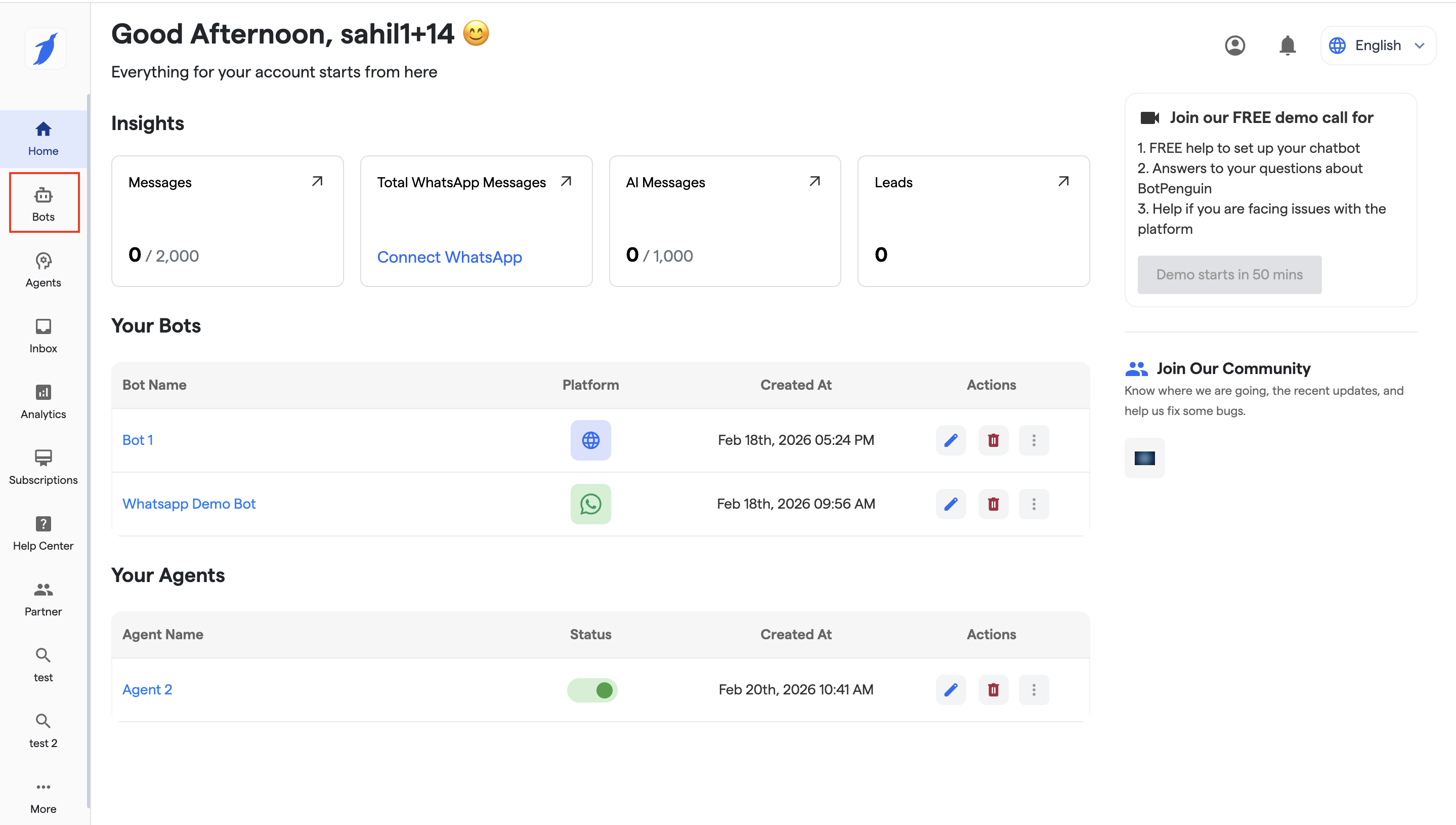
1. **Open the Bots Section**
From the left sidebar, click on **“Bots”**.
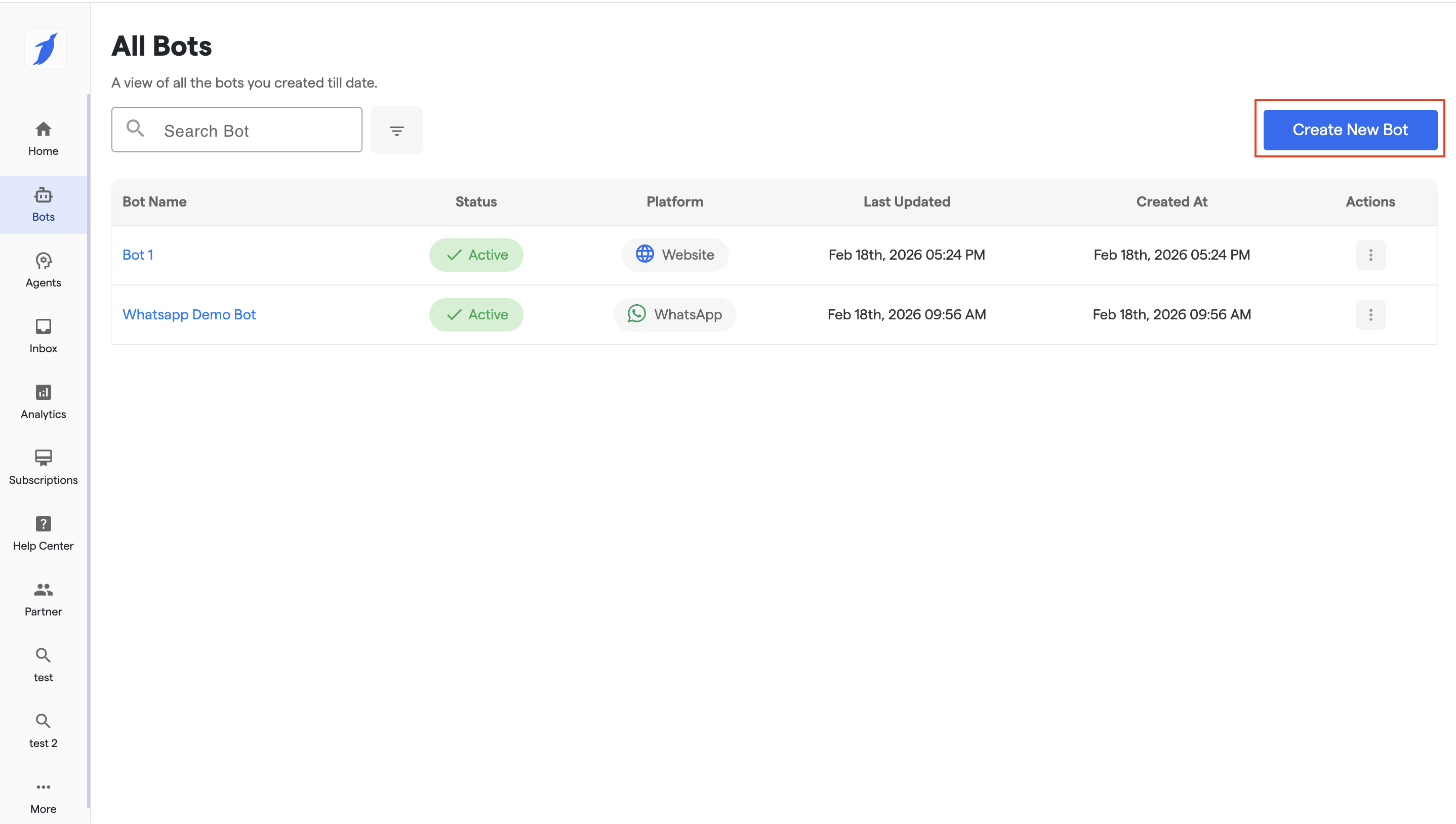
2. **Create a New Bot**
Click on **“Create New Bot”** to start building a new chatbot.
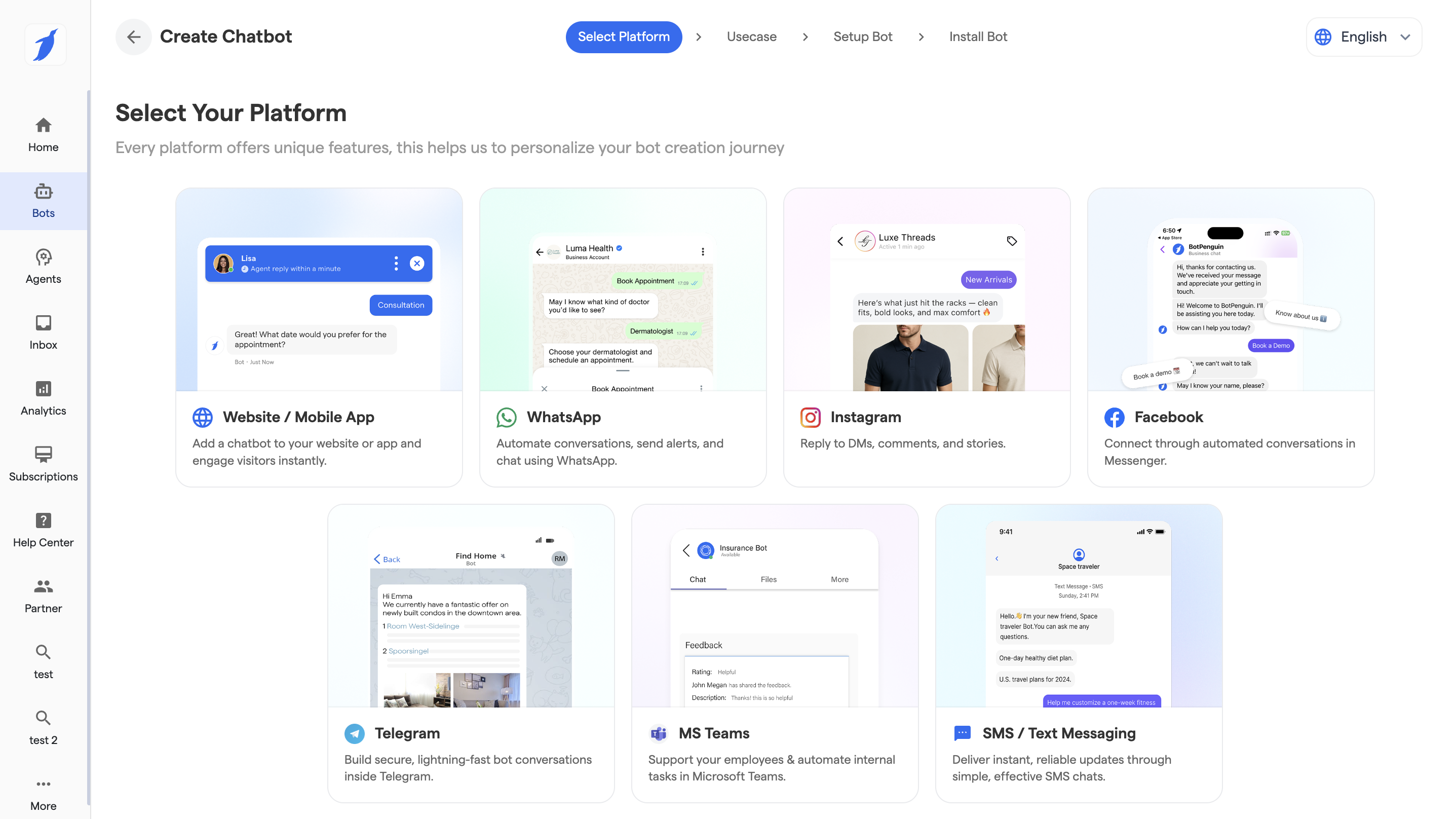
3. **Select Chatbot Platform**
Choose the type of bot you want to connect with (Website, WhatsApp, Facebook, Instagram, Telegram, MS Teams, SMS).
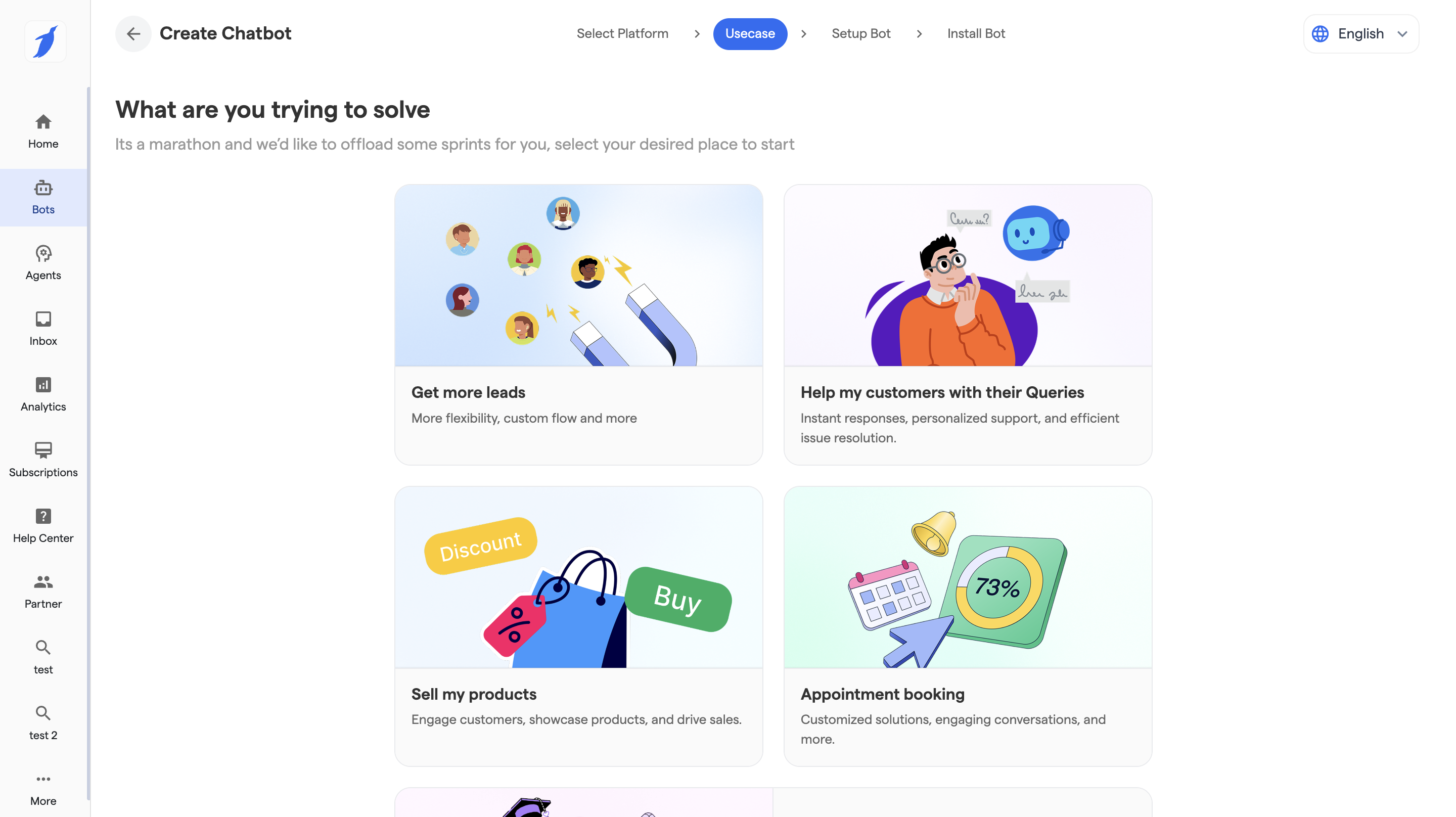
4. Select the Usecase of the Chatbot and accordingly it will apply the Chatflow to the Chatbot.
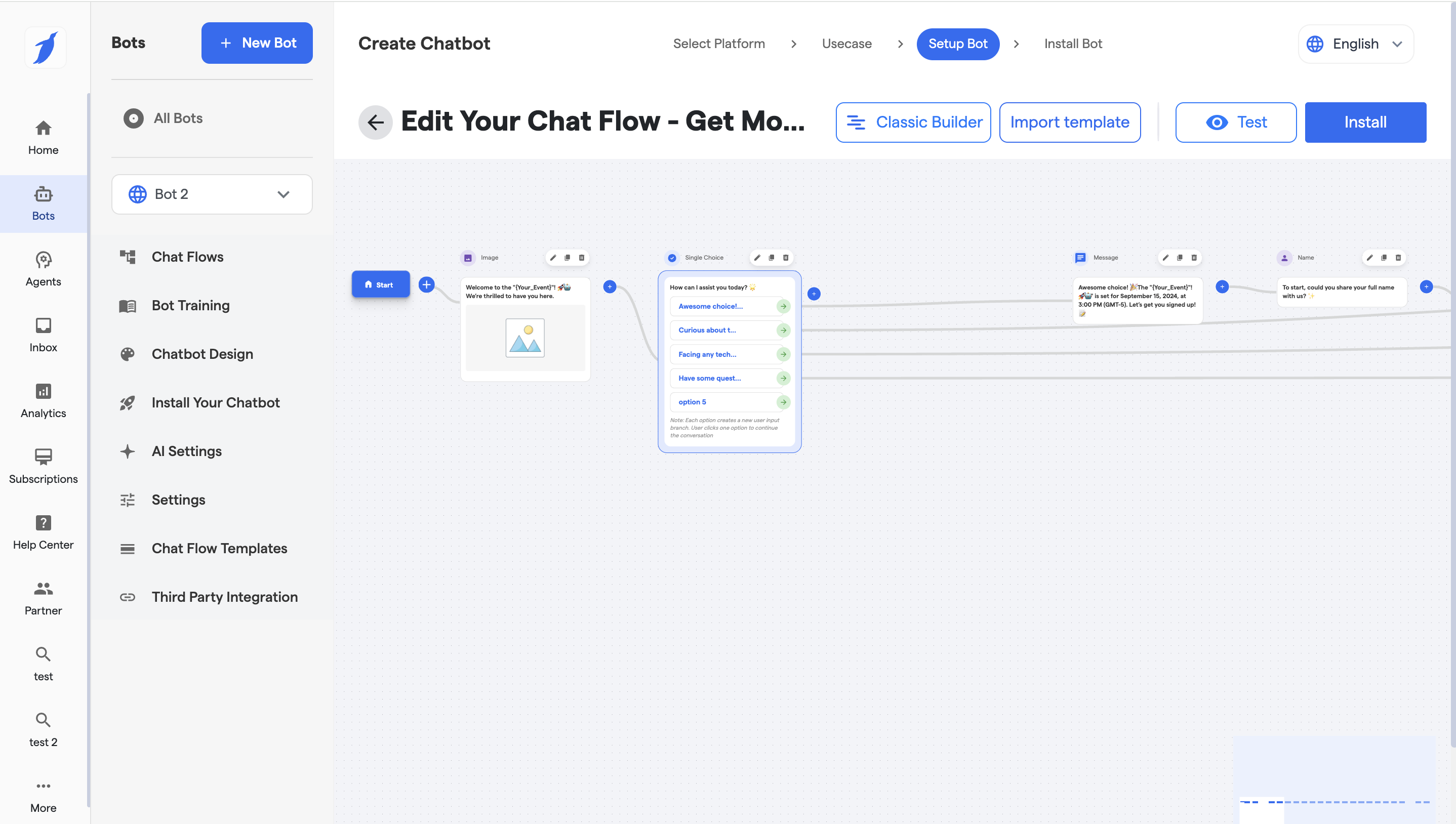
5. Configure the chatflow.
{% content-ref url="/pages/nuiO2nimOcOqzV7cNUcH" %}
[Website Manage Chatflow](/bots/website-mobile-app-bot/website-manage-chatflow.md)
{% endcontent-ref %}
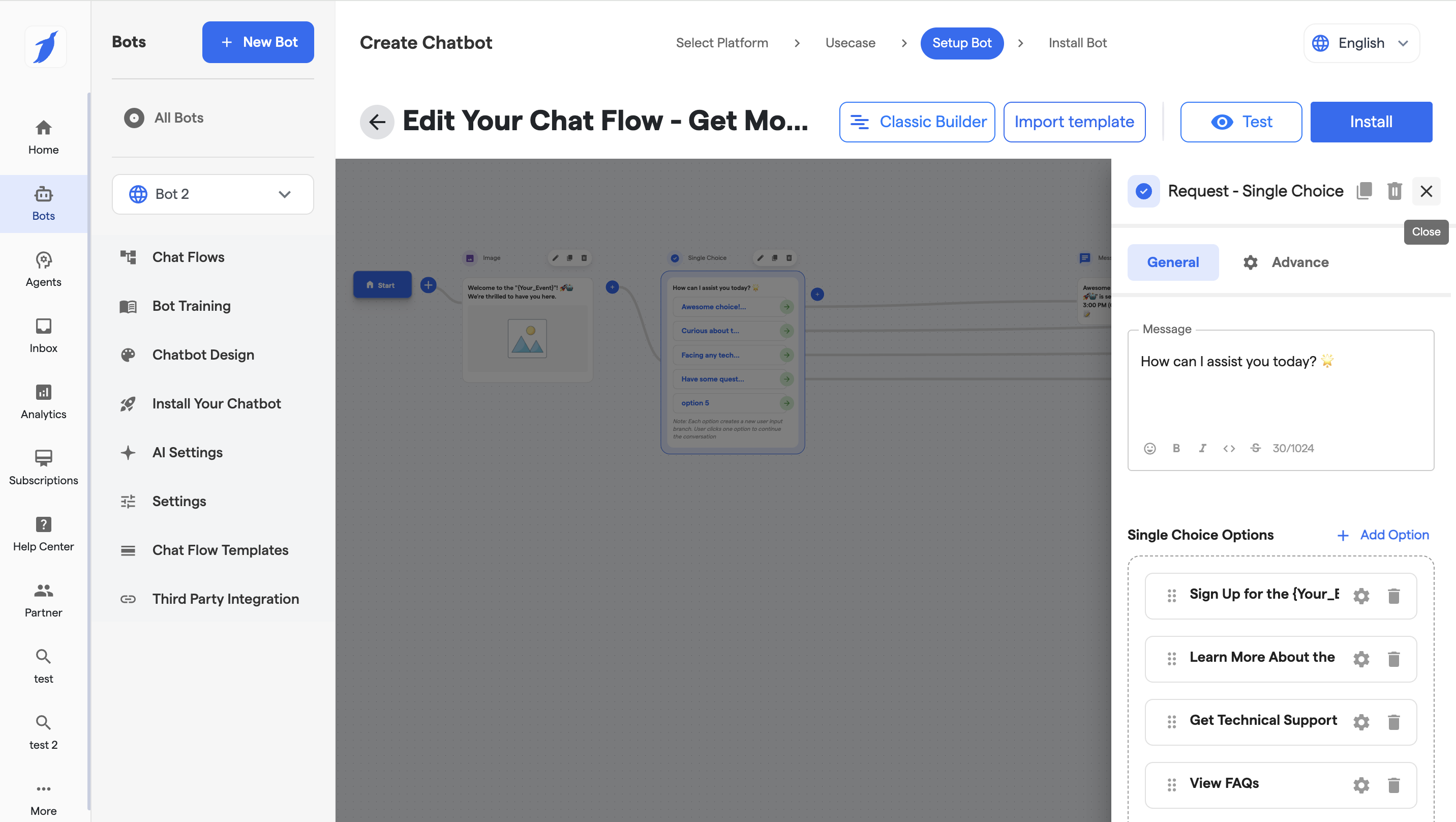
6. Double Click on the Component to open the Configure window of the particular Component.
7. Configure the General and Advance settings of the particular component.
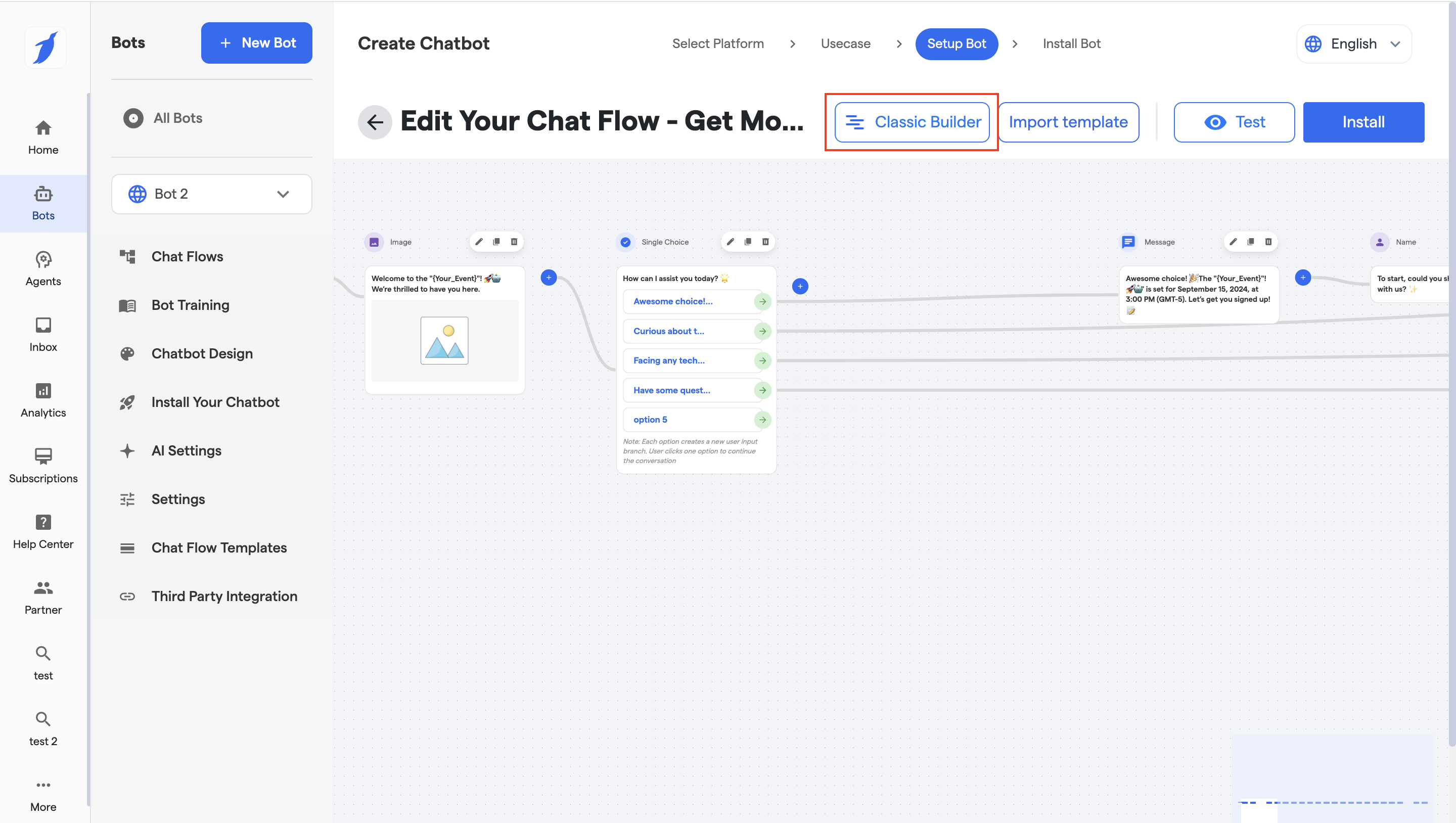
8. Click on Classic Builder button to switch to Classic mode.
9. And the mode will be switched to classic.
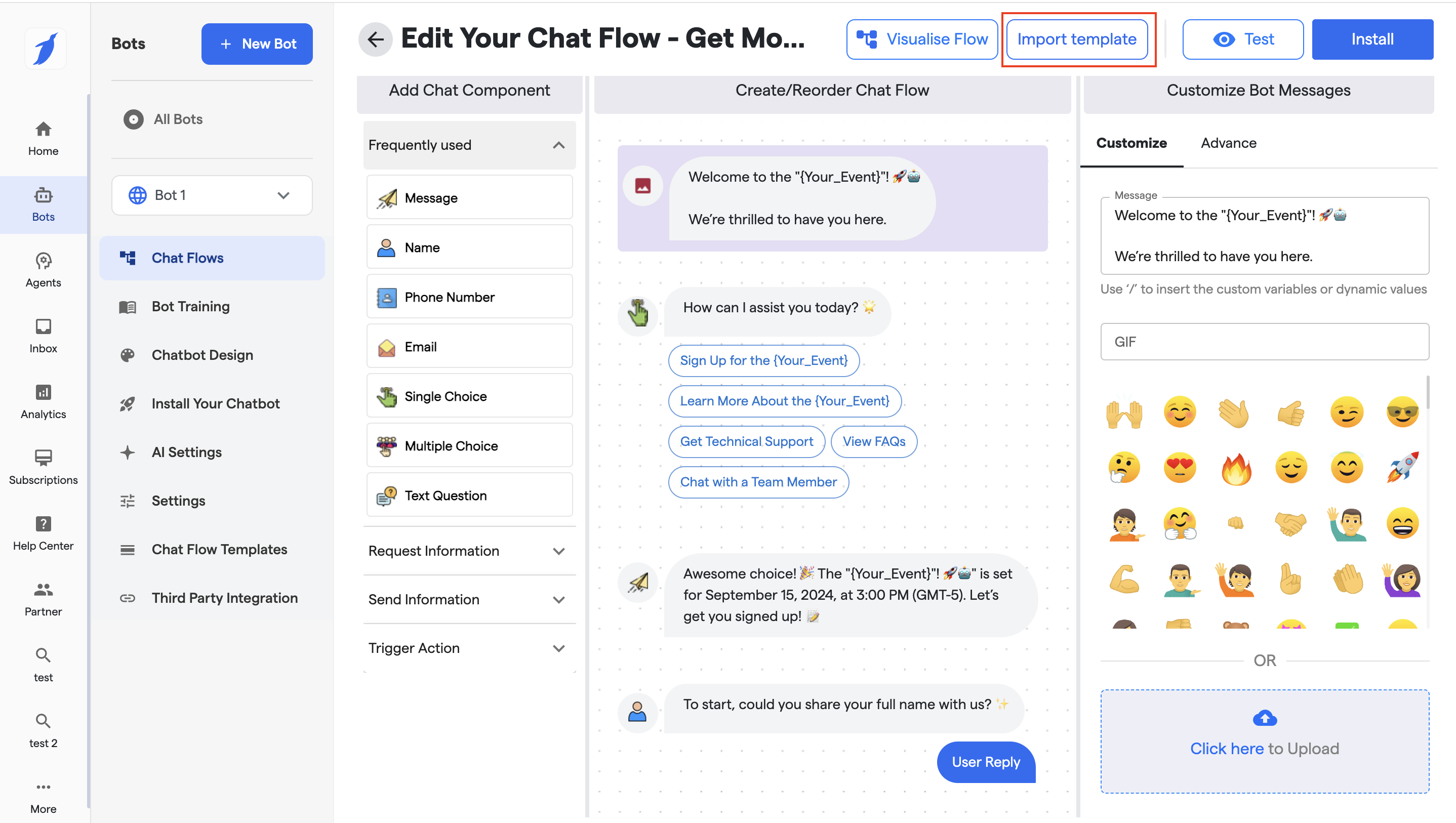
10. Click on Import Template button to import the existing Chat Templates into your Chatflow or create new one from the scratch.
You may select from existing templates or skip this step to build your bot from scratch.
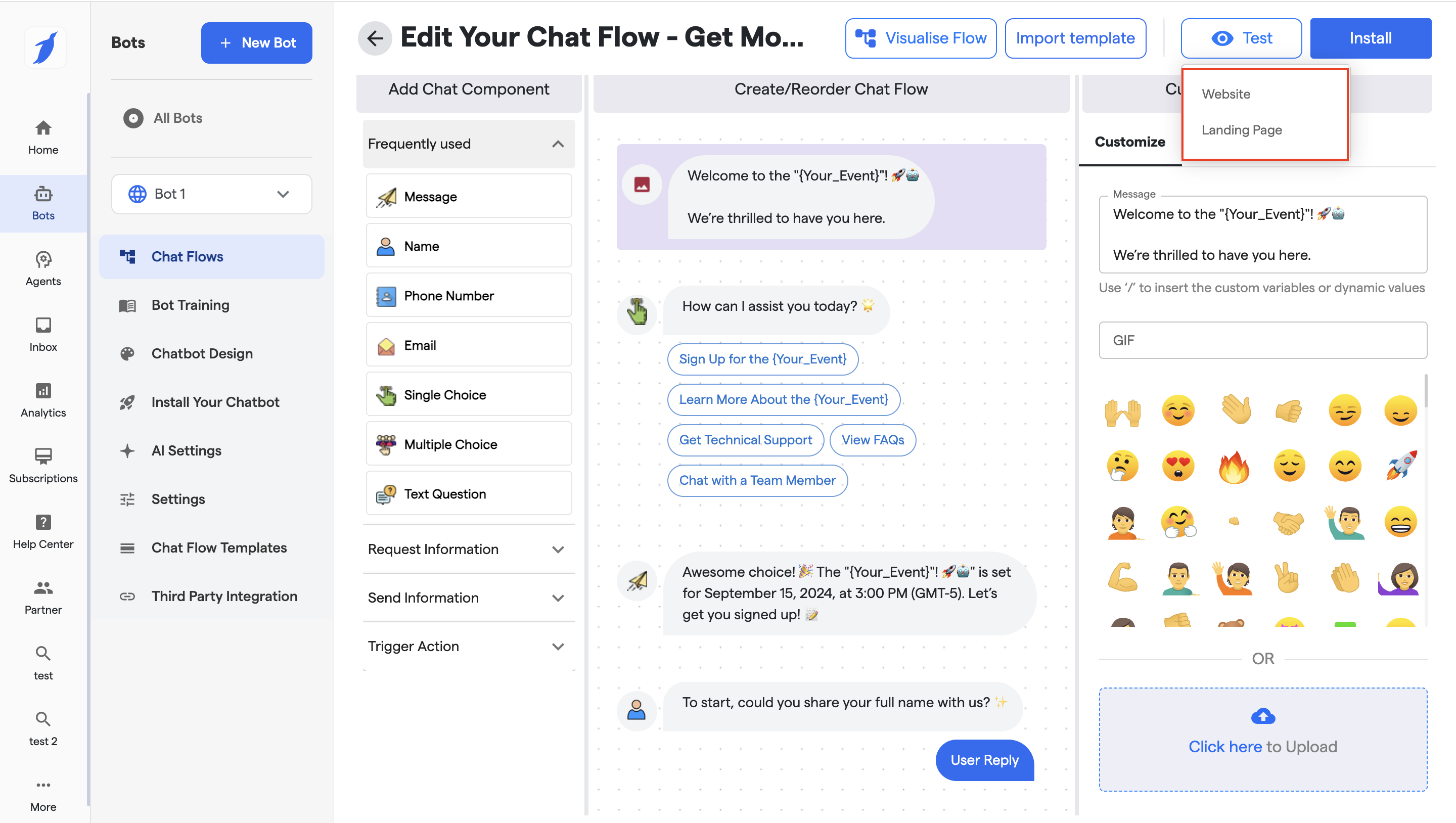
11. Click on **"Test"** button to test your chatflow on website or Landing Page.
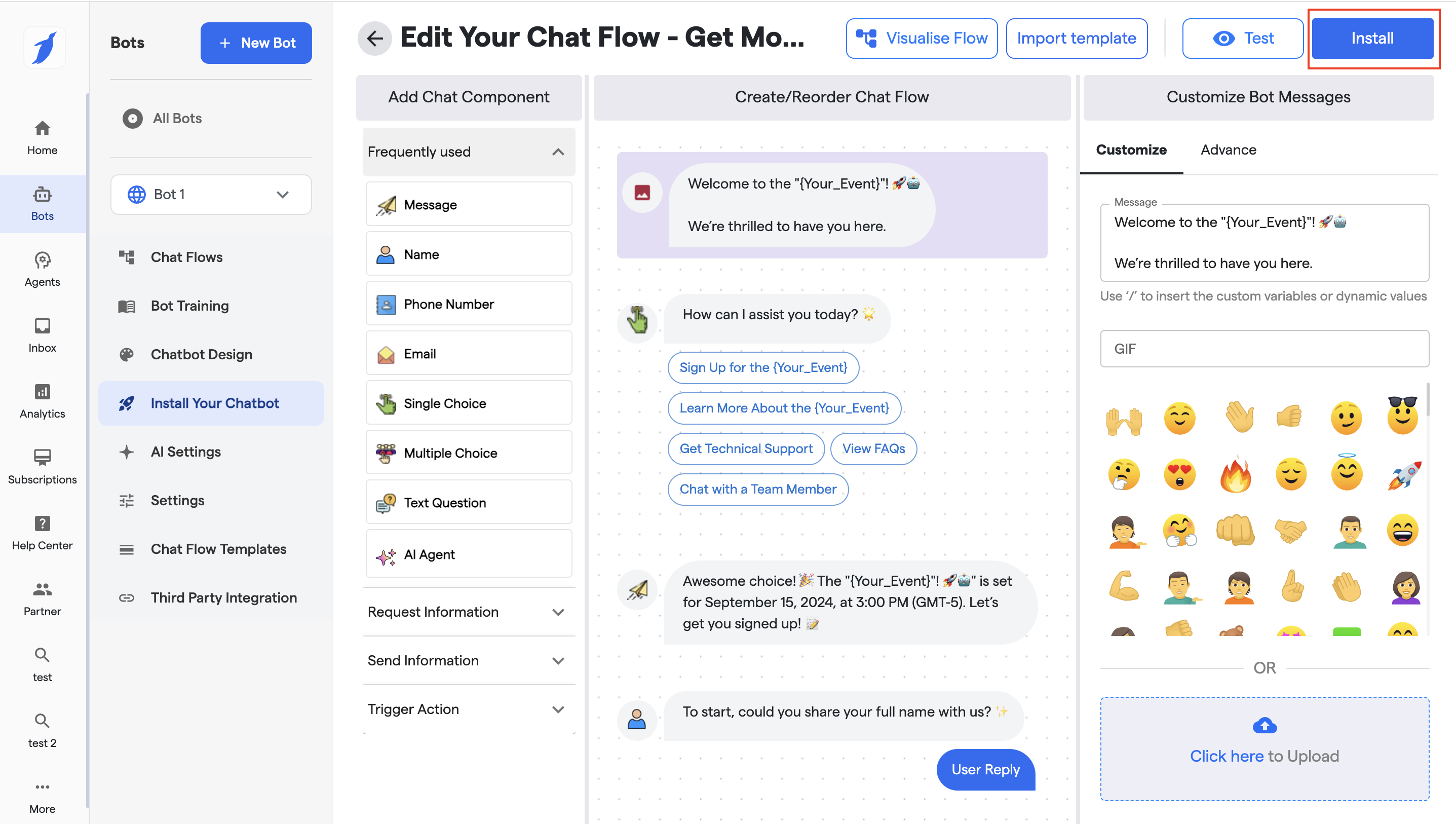
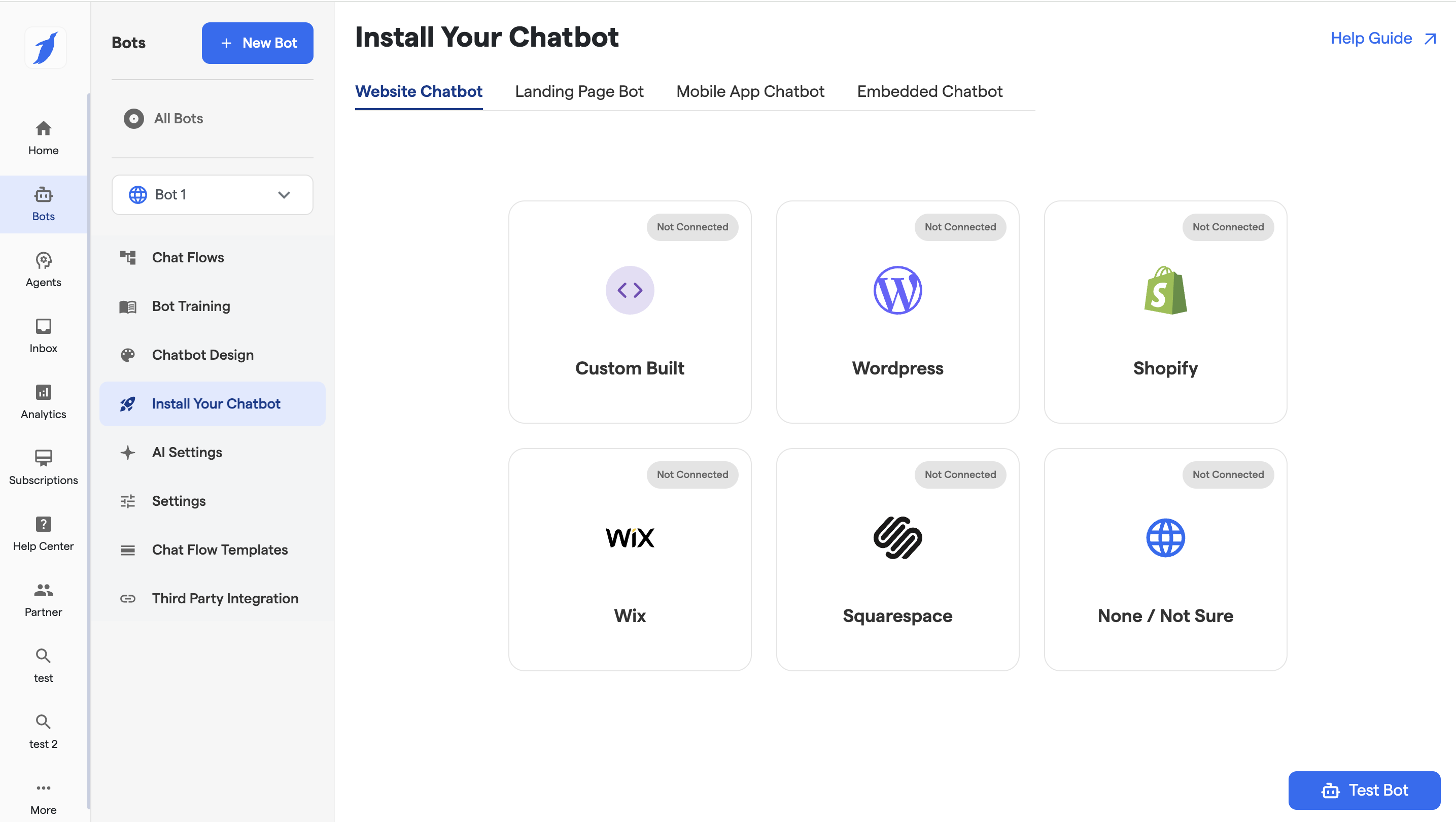
12. Click on Install button to install the Chatbot on different platforms.
{% content-ref url="/pages/csiixZSVstiKVMrWcI0f" %}
[Website Chatbot Setup and installation](/bots/website-mobile-app-bot/website-chatbot-setup-and-installation.md)
{% endcontent-ref %}
13. **Navigate to Your Created Chatbot**
Navigate to the chatbot you just created. BotPenguin organizes all bots clearly so you can find yours easily.
***
🎉 **Congratulations, you have successfully completed this section! You're one step closer to mastering BotPenguin.**
**Let's Take you to different bots**
Navigate to the specific chatbot you want to make; we have it sorted out.
{% content-ref url="/pages/cNiqD0T2LWWw1Mhj9Fuc" %}
[Website & Mobile App Chatbot](/bots/website-mobile-app-bot.md)
{% endcontent-ref %}
{% content-ref url="/pages/7aa674tex06UpOx7vym3" %}
[WhatsApp Chatbot](/bots/whatsapp-bot.md)
{% endcontent-ref %}
{% content-ref url="/pages/3Ciom2ThG4Y6Xib0KXke" %}
[Instagram Chatbot](/bots/instagram-bot.md)
{% endcontent-ref %}
{% content-ref url="/pages/1RzVS6nCKpIDjUWtrP60" %}
[Facebook Chatbot](/bots/facebook-bot.md)
{% endcontent-ref %}
{% content-ref url="/pages/OeYeIEoU4odYNySyEoSO" %}
[Telegram Chatbot](/bots/telegram-bot.md)
{% endcontent-ref %}
{% content-ref url="/pages/RV7OGf3oSYc69tfAsFmr" %}
[MS Teams Chatbot](/bots/ms-teams-bot.md)
{% endcontent-ref %}
{% content-ref url="/pages/Q7CLwIPOiercFl7yt23W" %}
[SMS Chatbot](/bots/sms-bot.md)
{% endcontent-ref %}