> For the complete documentation index, see [llms.txt](https://help.botpenguin.com/llms.txt). Markdown versions of documentation pages are available by appending `.md` to page URLs; this page is available as [Markdown](https://help.botpenguin.com/bots/facebook-bot/bot-setup.md).
# Bot Setup
This section contains essential information and usage guidelines for managing Facebook bot setup inside BotPenguin.
When should you use this?
Use this feature when:
* You want to automate conversations on Facebook Messenger
* You need to engage users through your Facebook business pages
* You are trying to generate leads and manage customer interactions at scale
***
### What is Bot Setup?
Bot Setup is the process of creating and connecting your Facebook bot with BotPenguin.
It allows you to automate conversations on Facebook Messenger, enabling instant responses, engagement, and lead capture directly from your Facebook business page.
***
### Benefits of Bot Setup
* 🚀 Enables real-time automated responses on Facebook Messenger
* ⏱️ Reduces manual effort in handling customer queries
* 🎯 Improves engagement through instant replies and automation
* 🔄 Ensures consistent communication across users
* 📈 Helps capture and convert leads efficiently
***
### Expected Outcome
After setting this up:
* Your Facebook bot will be successfully connected to your business page
* You will be able to automate conversations and responses
* Users will experience faster and more consistent engagement
> 💡 Tip: After setup, configure auto-replies and campaigns to fully utilize your Facebook bot.
***
### How to Create Your Facebook Chatbot
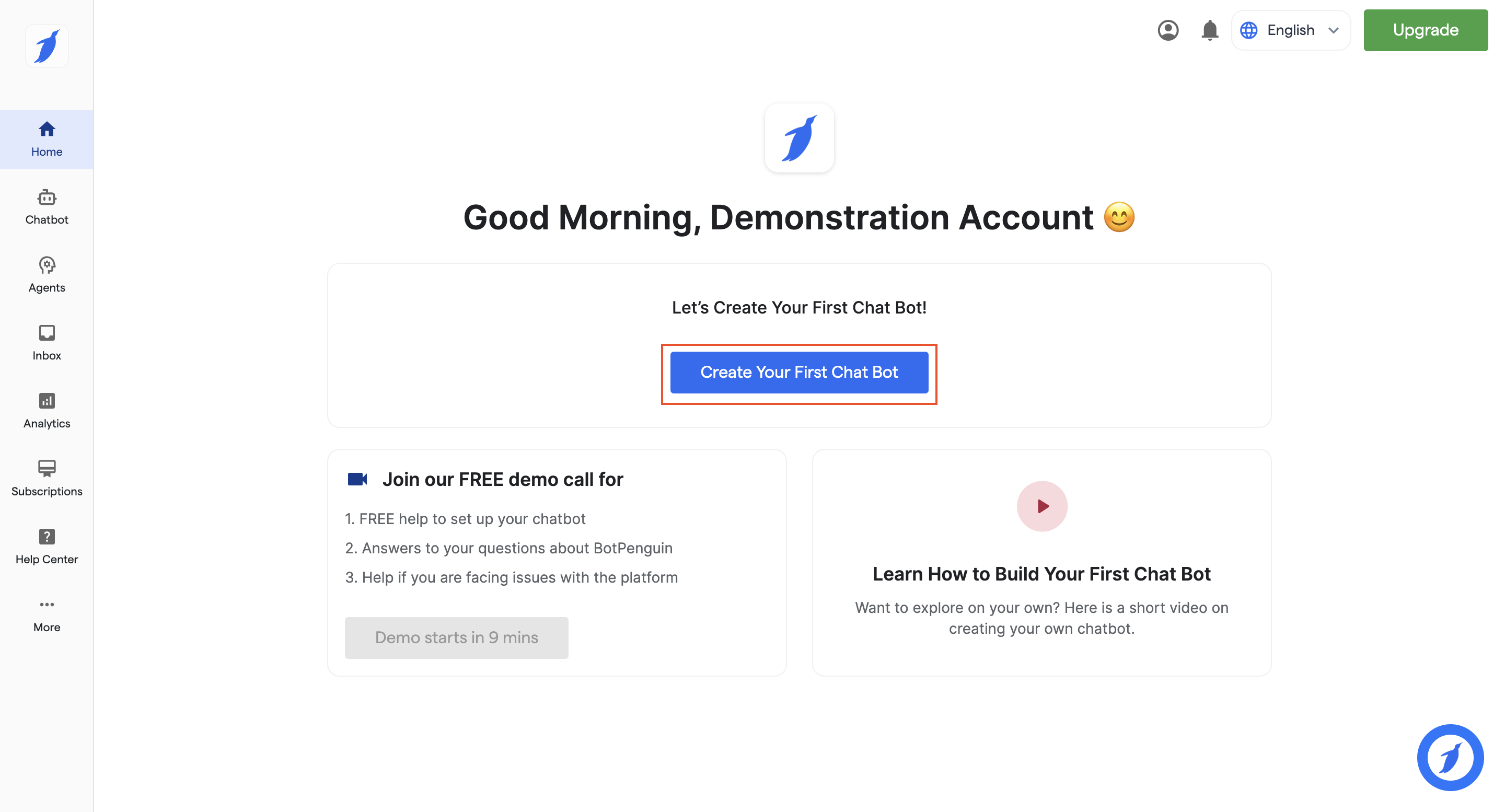
1. Go to the BotPenguin homepage and click **“Create Your First Chatbot”**.
2. Select **“Facebook”** as your platform.
3. Choose your use case template:
1. Survey and Feedback
2. Appointment Booking
3. Event Booking
4. Help My Customers with their Queries
5. Others
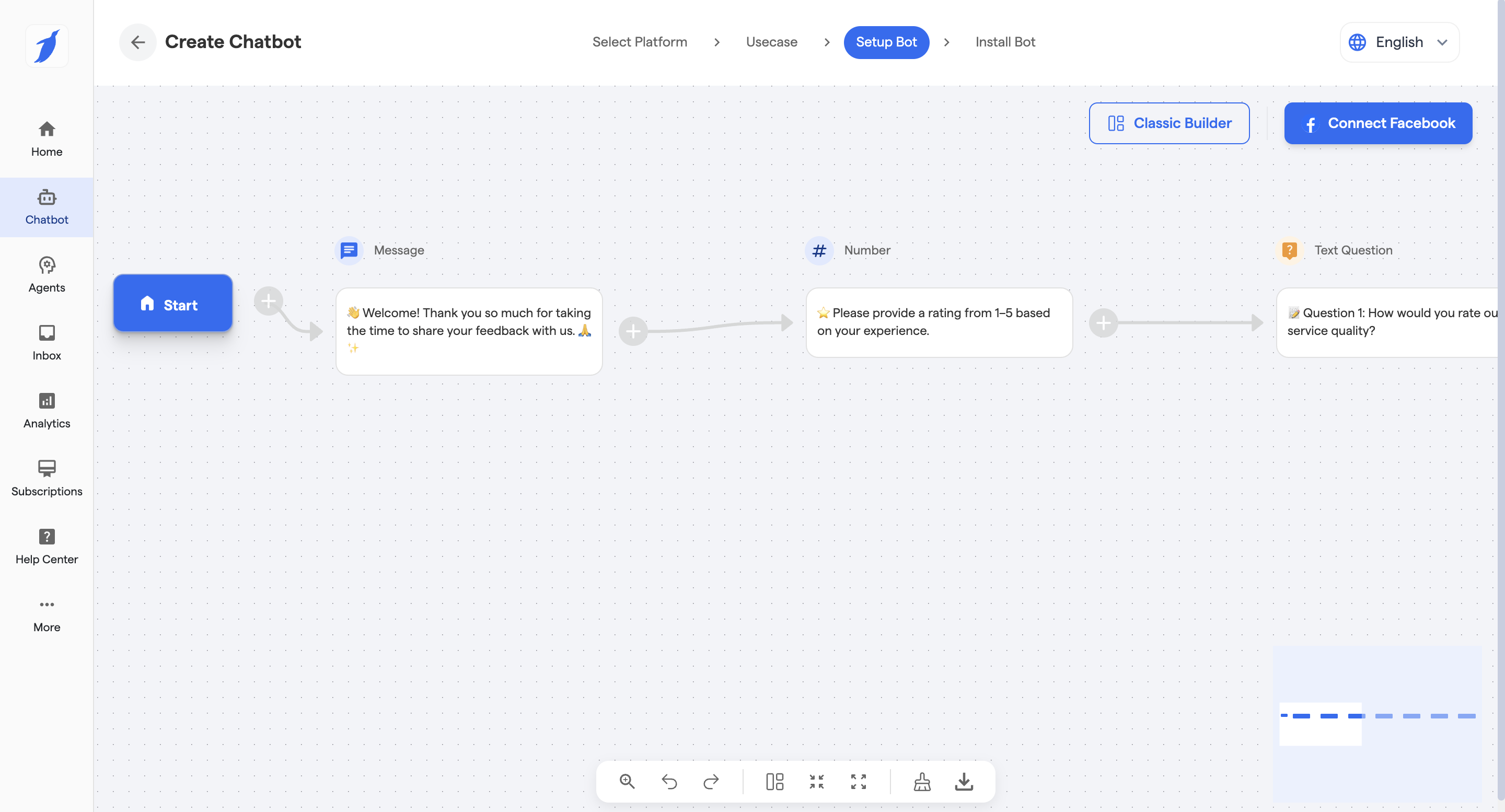
4. Once the chatbot is created, edit the chatflow as per your requirements.
5. Click on **“Connect Facebook”** from the top right.
6. Click on **“Login”** to connect your Facebook account.
7. Enter your credentials and click **“Log in”**.
8. Select the Facebook Business account/page you want to connect, as well as the Business Portfolio you want to give the account the access to.
9. Click on **“Continue”** to grant access.
10. Review permissions and click **“**Save**”** to complete the setup, and then click on "Got It" to finish the setup.
12. Click on the page you want to connect.
13. Account has been connected successfully.
***
### Best Practices
> 💡 Connect the correct Facebook Page to avoid misrouting conversations
> ⚠️ Ensure all permissions are granted during login
> 🚀 Customize your chatbot flow immediately after setup
> 🎯 Align chatbot responses with your brand communication strategy
***
### Troubleshooting
Unable to connect Facebook account
Ensure you are entering the correct login credentials. Try logging out and reconnecting your Facebook account.
Facebook page not visible during selection
Make sure you have admin access to the Facebook page. Only pages with proper permissions will be shown.
Bot connected but not responding
Check if your chatbot flow is active and properly configured. Also verify that no conditions are blocking responses.
Permissions error during setup
Re-login and ensure all requested permissions are granted. Missing permissions can block bot functionality.
Connection fails after login
Clear browser cache, enable cookies, and retry the connection process.
***
### FAQs
Do I need a Facebook Business account to connect the bot?
Yes, you need access to a Facebook Page under a Business account to connect and use the chatbot.
Can I connect multiple Facebook pages?
Yes, you can select multiple pages or a specific page during the connection process.
Why is my Facebook page not visible?
This usually happens if you do not have admin permissions on the page.
Can I edit the chatbot after creation?
Yes, the chatbot flow can be fully customized anytime after setup.
Do I need technical knowledge to set up the Facebook bot?
No, the setup process is simple and does not require coding.
Can the bot reply to both messages and comments?
The bot primarily handles Messenger conversations. Additional automation can be configured if needed.
What happens after connecting the bot?
You can start automating conversations, creating campaigns, and engaging users instantly.
***
### Support
If you still have questions for our team, write to us at [**support@botpenguin.com**](mailto:support@botpenguin.com). We’ll get back to you within 48 hours.
***
### 🎉 Completion
🎉 Congratulations, you have successfully completed this section! You're one step closer to mastering BotPenguin.