> For the complete documentation index, see [llms.txt](https://help.botpenguin.com/llms.txt). Markdown versions of documentation pages are available by appending `.md` to page URLs; this page is available as [Markdown](https://help.botpenguin.com/bots/instagram-bot/bot-setup.md).
# Bot Setup
This section contains essential information and usage guidelines for creating and managing your Instagram Chatbot inside BotPenguin.
### When Should You Use This?
Use this feature when:
* You want to provide 24/7 automated customer support on Instagram without human intervention.
* You need to engage your audience in real time with personalised messages, promotions, or updates.
* You are trying to generate leads by capturing visitor information directly through Instagram conversations.
* You want to handle multiple conversations simultaneously at scale.
***
### What is an Instagram Chatbot?
An Instagram Chatbot is an automated messaging solution integrated directly with your Instagram Business account. It allows you to respond to customer queries, comments, and DMs instantly, and helps you deliver consistent, personalised engagement at any scale — without requiring a live agent for every interaction.
***
### Benefits of the Instagram Chatbot
* 🚀 Delivers round-the-clock customer support — your bot never sleeps.
* ⏱️ Reduces time spent on repetitive queries by automating standard responses.
* 🎯 Improves lead generation by capturing contact details within the conversation flow.
* 🔄 Ensures consistent messaging across all Instagram interactions.
* 📈 Enhances overall audience engagement through real-time, personalised replies.
***
### Expected Outcome
After setting this up:
* Your Instagram account will automatically respond to DMs and comments in real time.
* You will notice a significant reduction in manual effort for routine customer interactions.
* Users will experience faster, more consistent replies — improving overall satisfaction.
> 💡 **Tip:** Once connected, your chatbot will begin responding based on your configured flows immediately. Make sure your flows are tested before going live.
***
### How to Create Your Instagram Chatbot
1. Navigate to your BotPenguin dashboard and click **"Create New Bot"**.
2. Select **"Instagram"** as your platform from the available options.
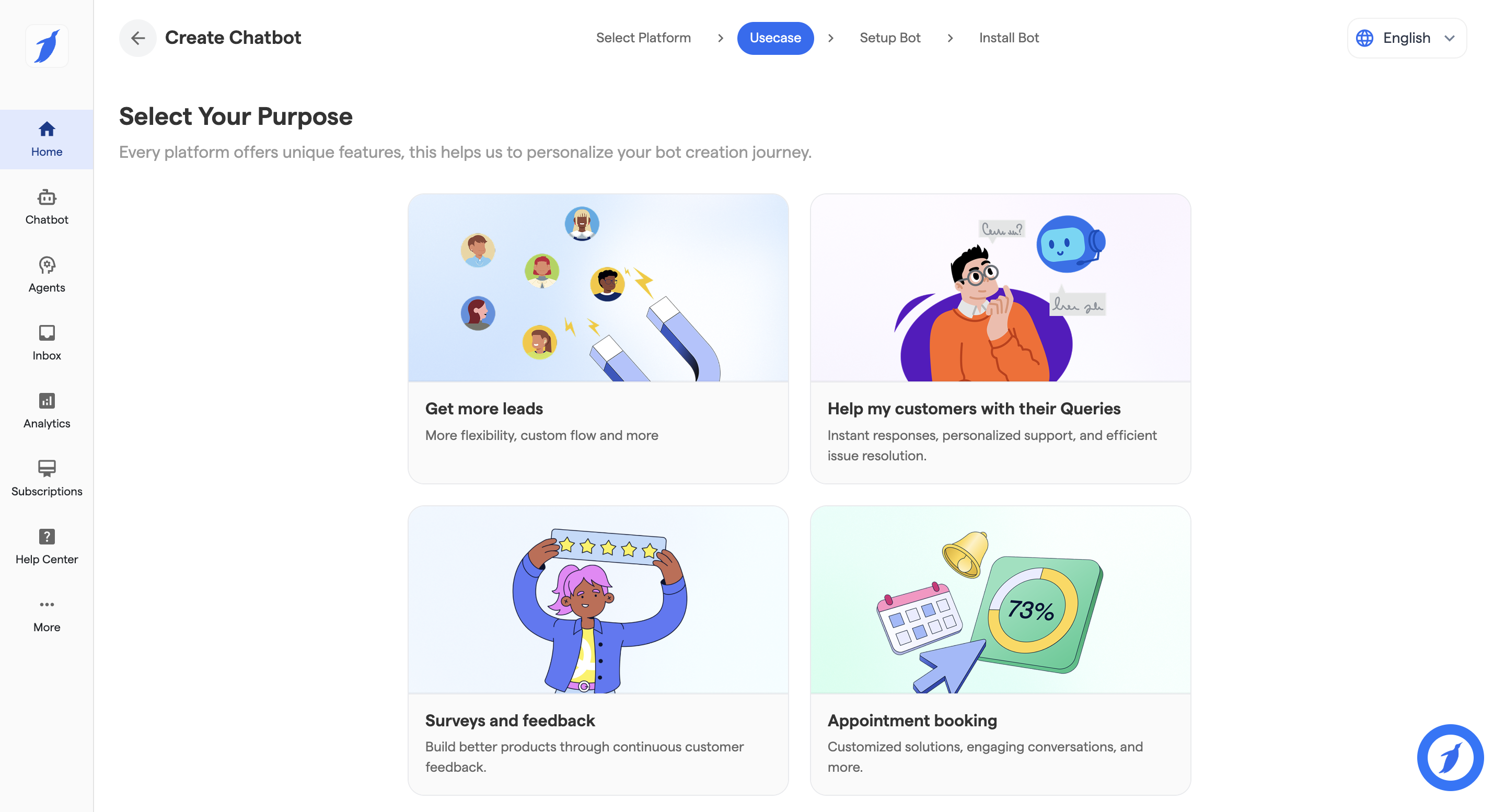
3. Select the primary purpose for your bot.
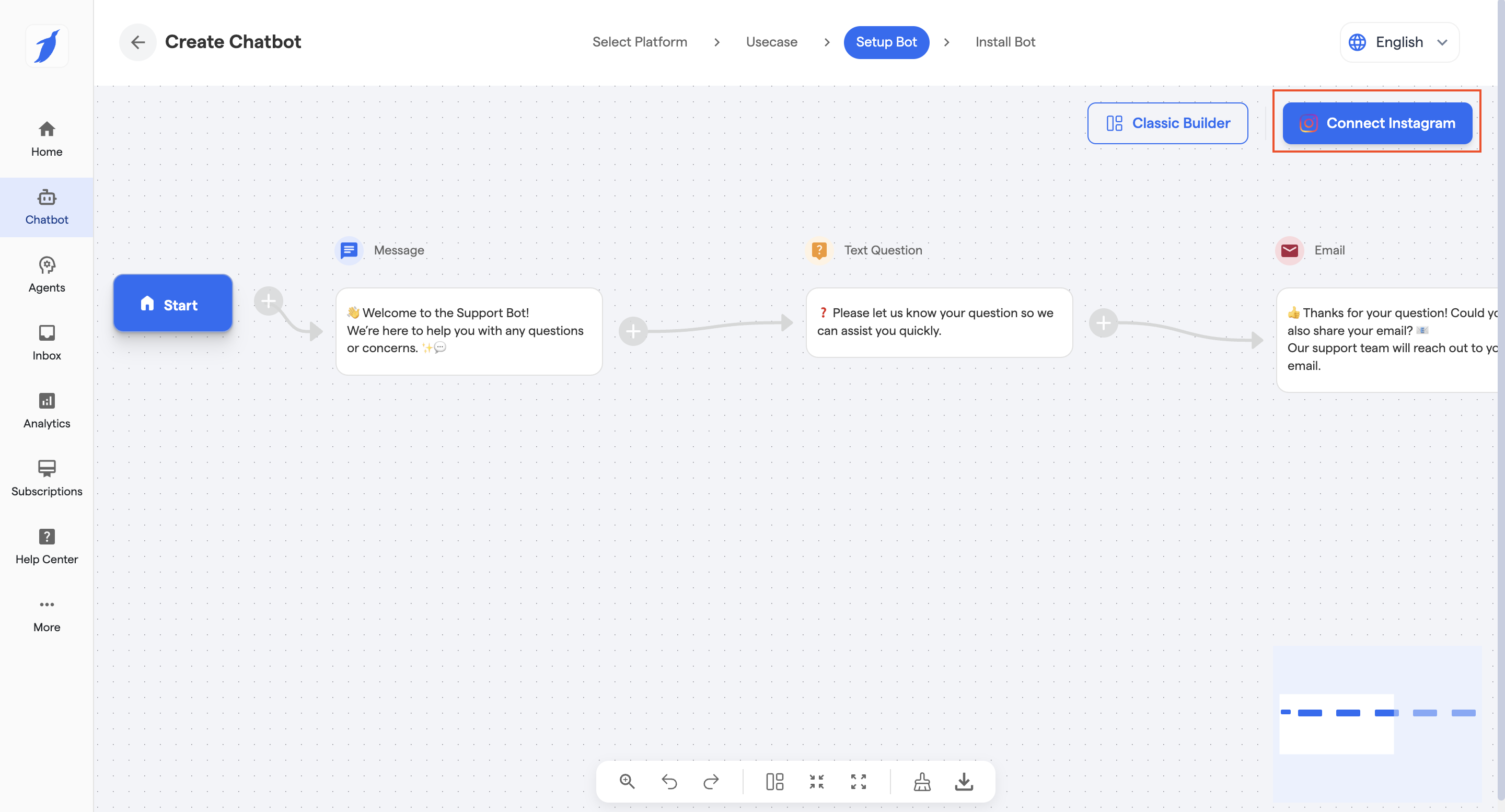
4. Configure the chatflow of your Instagram Chatbot, and customize it to your design. Use the below page to customize your flow.
{% content-ref url="/pages/nqp12yYNGA6wZGn8rSsp" %}
[Edit and Manage Chatflow](/bots/instagram-bot/edit-and-manage-chatflow.md)
{% endcontent-ref %}
5. Click **"Connect Instagram"** and to begin process of adding the flow to your instagram account.
> ⚠️ **Note:** Make sure your Instagram account is a Business Account before proceeding. Personal accounts cannot be used.
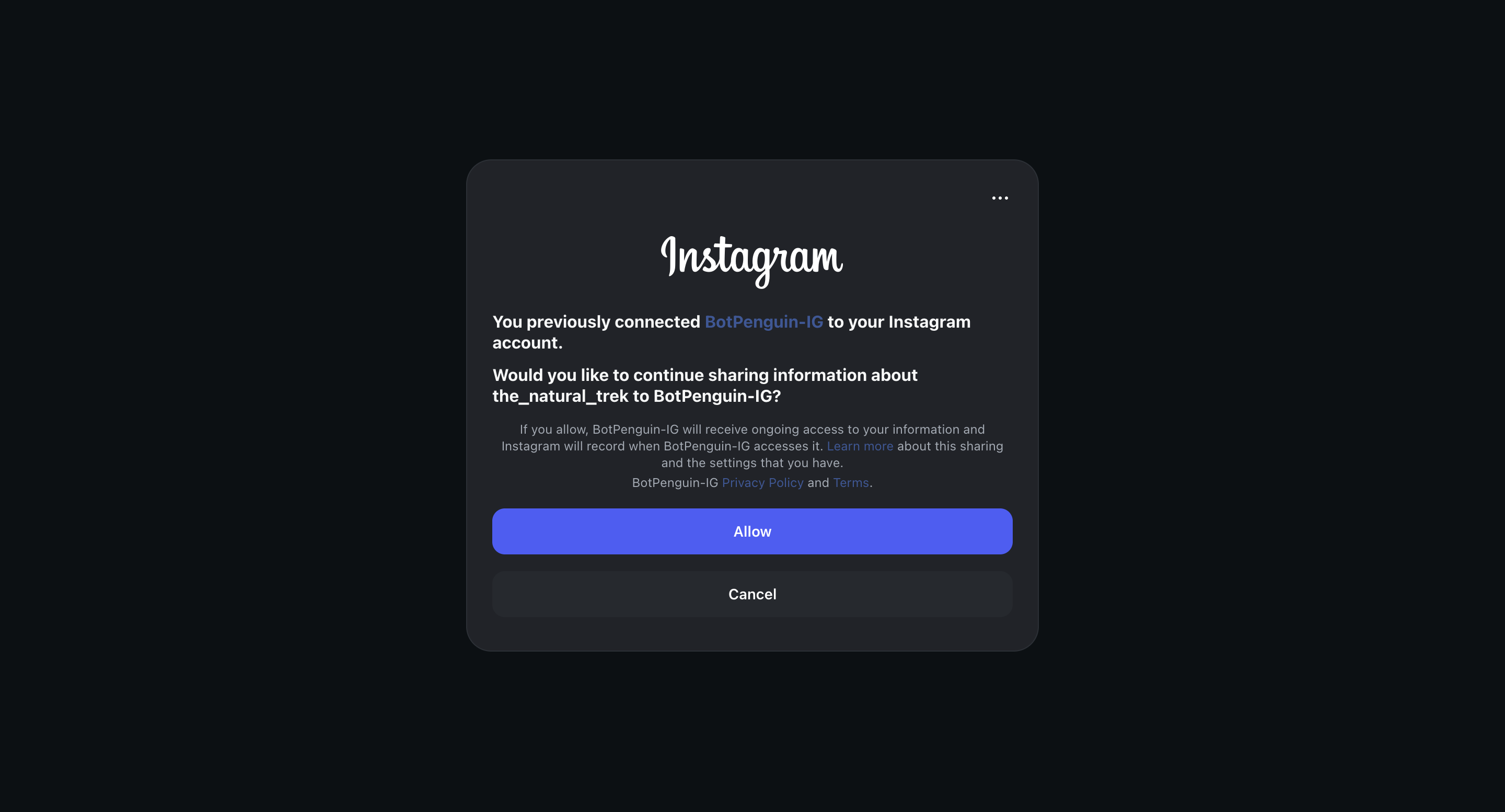
6. Click on "**Login**" to login into your Instagram Account
7. Enter your Instagram credentials, and then grant the needed permissions for the connect. Finally, click on "Connect".
> 🎉 Your Instagram Chatbot is now created and ready to configure!
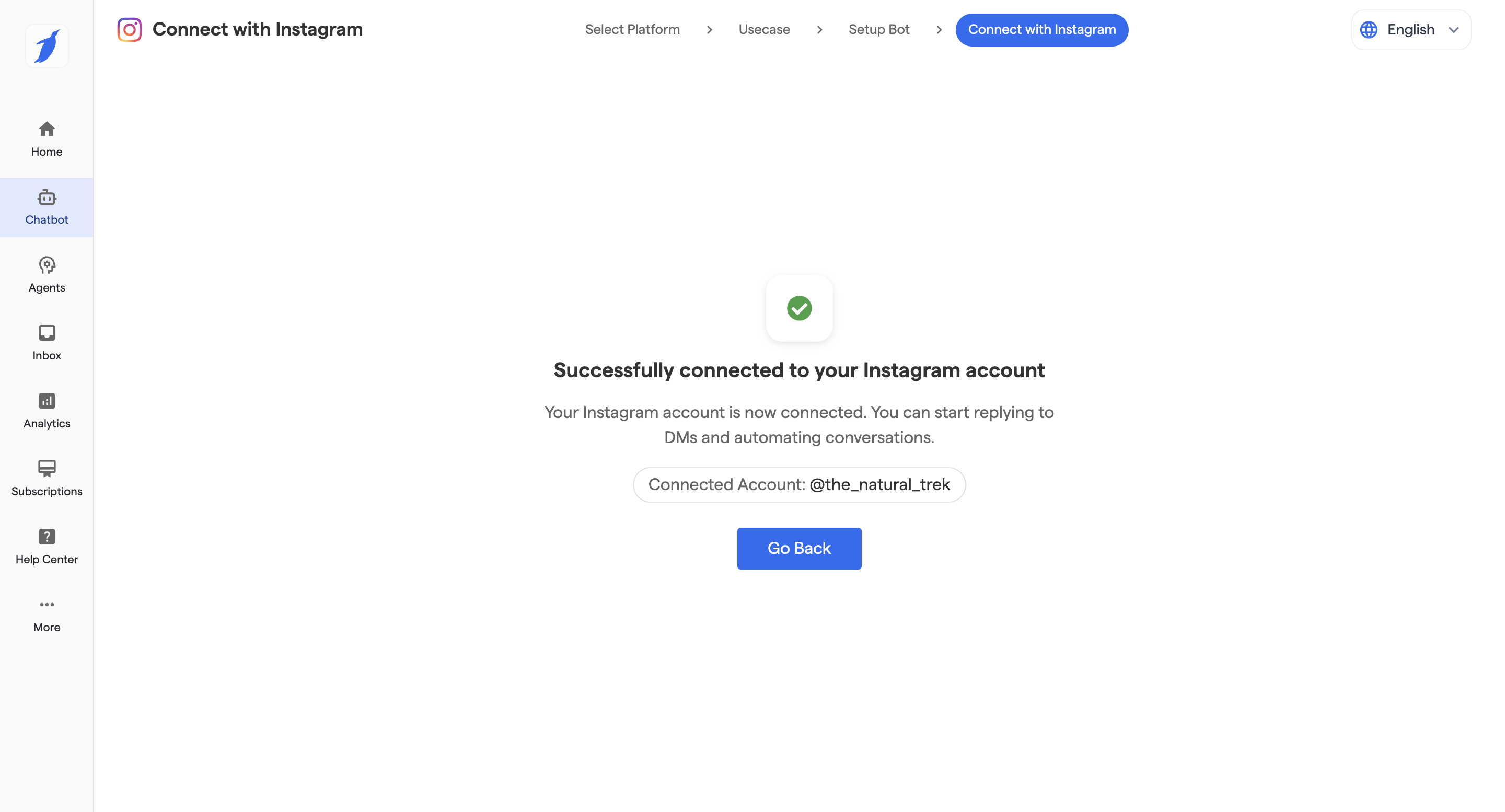
8. When all the permissions are added, your Instagram Account will be connected to your chatbot!
***
### Best Practices
> 💡 Use clear and concise flow names to make it easier to manage multiple bots and automations.
> 🚀 Regularly review your chatbot analytics and update your flows based on drop-off points or unanswered queries.
> 🎯 Align your Instagram bot's tone and messaging with your overall brand voice for a consistent customer experience.
***
### Troubleshooting
Instagram account throws an error during connection.
**Solution:** Go to your Instagram account **Settings → Apps and Websites** → find the BotPenguin app → click on it and reconnect. This refreshes the permissions and usually resolves the error.
Cannot see my Instagram account in the Business account selection step.
**Solution:** Ensure your Instagram account is set to a Professional (Business or Creator) account and is linked to a Facebook Page. You can switch under **Settings → Account → Switch to Professional Account** inside the Instagram app.
Bot was connected but has stopped responding.
**Solution:** Your Facebook Page access token may have expired. Go to your BotPenguin dashboard, navigate to the Instagram integration settings, and reconnect your account to refresh the token.
***
### FAQs
Do I need a Business account to connect to the Instagram Chatbot?
Yes. BotPenguin's Instagram Chatbot only works with Instagram Professional accounts (Business or Creator). Personal accounts are not supported. You can switch to a Professional account from within the Instagram app under Settings → Account → Switch to Professional Account.
My Instagram account is showing an error after connection. What should I do?
Go to your Instagram account Settings → Apps and Websites → find the BotPenguin app → click on it and reconnect. This resets the session and resolves most token or permission-related errors.
Can I tag a user automatically when they comment on my post or story?
Yes. Go to the Auto-Reply section in your BotPenguin dashboard. Inside the reply configuration area, type a backslash ( `\` ) and an option to insert the user's name as a variable will appear. Selecting it will automatically tag the commenter in your reply.
Can the auto-reply message be different for each user?
Yes. You can use the built-in AI rephrasing feature to generate varied responses. The AI acts as a rephrasing layer on top of your configured reply options — it does not generate entirely new answers, but ensures each response feels unique rather than repetitive.
Can I use the Instagram Chatbot for both DMs and post comments?
Yes. BotPenguin supports automation for both Instagram Direct Messages and comments on posts and stories. You can configure separate flows for each trigger type within the Auto-Reply section.
How many Instagram accounts can I connect to BotPenguin?
The number of accounts you can connect depends on your BotPenguin subscription plan. Check your plan details on the BotPenguin pricing page or reach out to for specifics.
Will the chatbot respond to all comments on my posts automatically?
Yes, once configured, the chatbot will respond to all comments that match your trigger rules. You can set keyword-based triggers or configure it to respond to all comments universally from the Auto-Reply settings.
***
### Related Articles
* Broadcast — How to send bulk messages to your Instagram audience
* Auto-Reply — How to configure automated replies for comments and DMs
* Chatbot Flow Builder — Designing conversation flows for Instagram
***
### Support
If you still have questions for our team, write to us at [**support@botpenguin.com**](mailto:support@botpenguin.com). We'll get back to you within 48 business hours.
***
### 🎉 Completion
🎉 Congratulations, you have successfully completed this section! You're one step closer to mastering BotPenguin.