> For the complete documentation index, see [llms.txt](https://help.botpenguin.com/llms.txt). Markdown versions of documentation pages are available by appending `.md` to page URLs; this page is available as [Markdown](https://help.botpenguin.com/bots/ms-teams-bot/ai-settings/ai-settings-legacy/ai-chat-summary.md).
# AI Chat Summary
This section contains essential information and usage guidelines for managing AI-generated chat summaries inside BotPenguin Inbox.
### AI What is Chat Summary?
AI Chat Summary allows you to automatically generate short AI-powered summaries of conversations between users and your bots, AI agents or live agents. These summaries highlight the user’s intent, key questions, and final outcomes, helping teams quickly understand conversations without reading the full chat.
***
### Benefits of Configuring AI Chat Summary
* ⚡ Saves time by eliminating the need to read full conversations.
* 🧠 Helps agents quickly understand user intent and context.
* 📊 Improves reporting and follow-up efficiency.
* 💬 Ensures consistent conversation summaries across the team.
* 💰 Optimizes AI credit usage with interaction-based restrictions.
***
### How to Use Configure Chat Summary
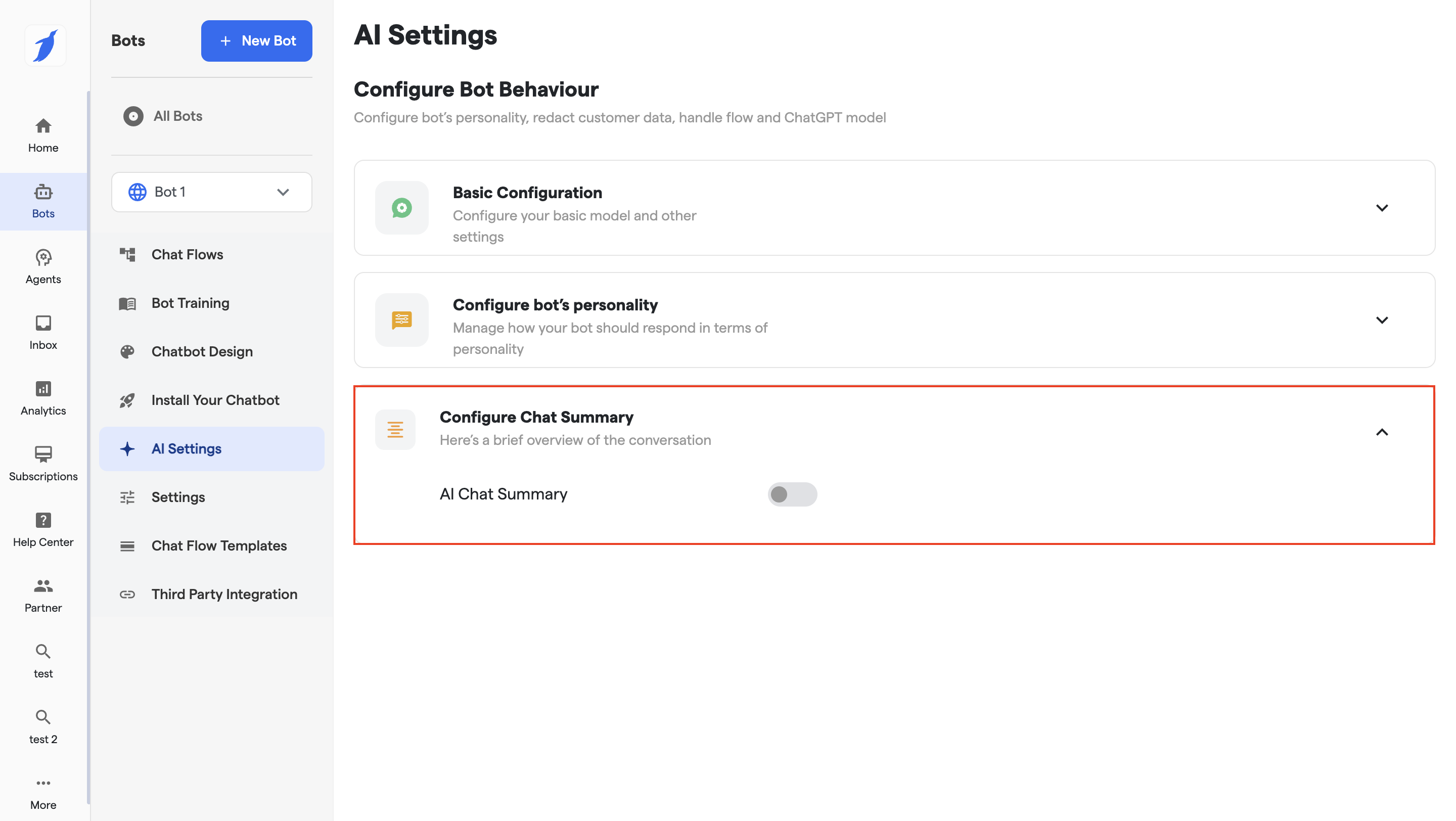
1. Go to the **“Bots”** section from the left sidebar.
2. Select the bot for which you want to enable chat summary.
3. Navigate to **“AI Settings”**.
4. Open **“Configure Chat Summary”**.
5. Turn on the **“AI Chat Summary”** toggle.
{% hint style="info" %}
Each summary generation uses **one AI message credit** from the configured LLM key. If no key is added, it will use the free credits provided by our platform to every user.\
Once enabled, the remaining configuration options will become available.
{% endhint %}
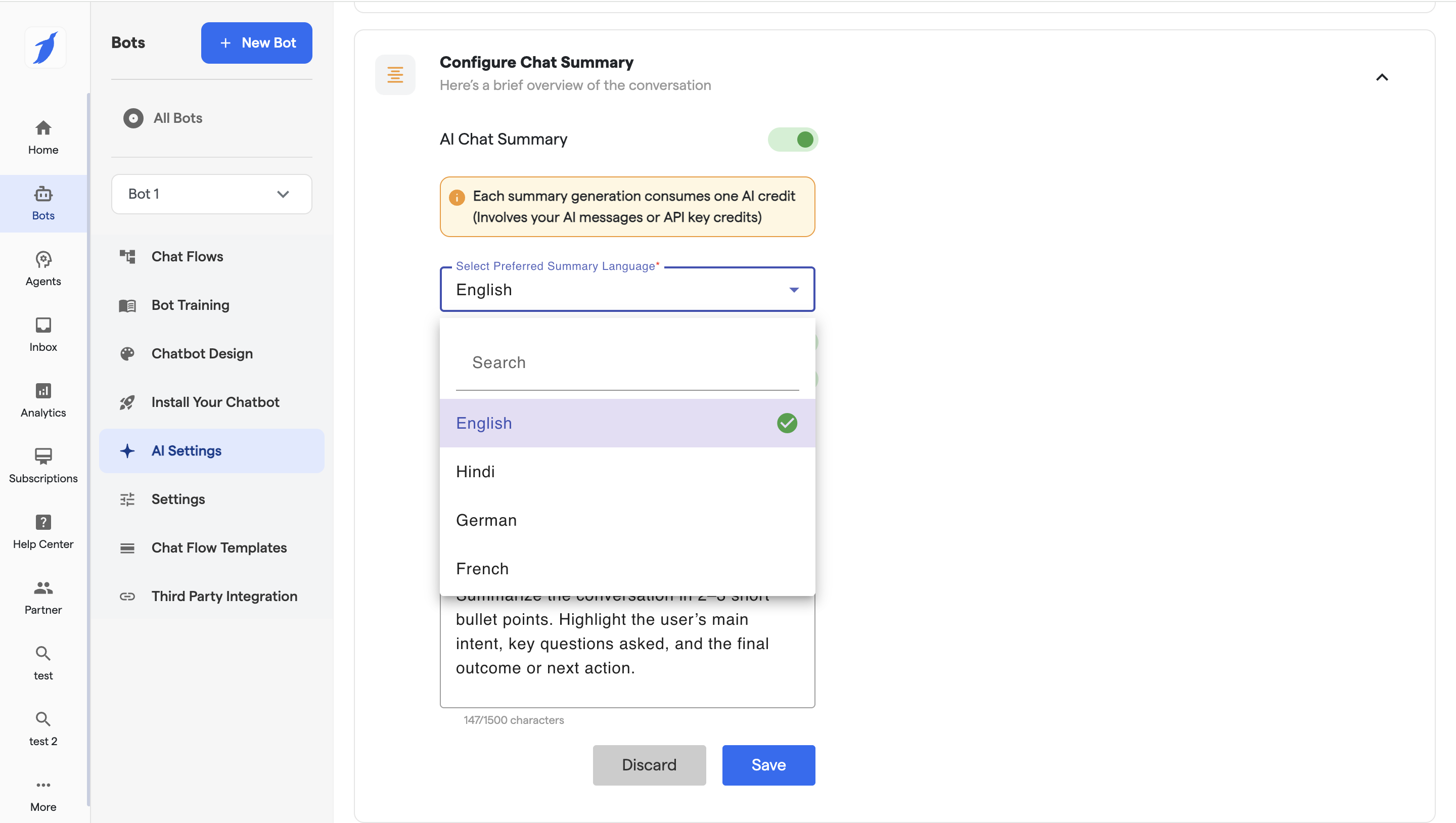
6. Select your preferred language from **“Preferred Summary Language.”**\
For example, if **English** is selected, the summary will be generated in English.
7. Enable the toggle if you would like to **“Generate only if user interacted”** .
**ON:** The system will generate a chat summary only if the user has sent at least one message in the conversation.
**OFF:** The system will generate a chat summary for all chats, even if the user did not send any message.
8. Enable **“Restrict based on number of messages”** and enter the minimum interaction count.
9. Add your custom instructions in the **“Custom Prompt”** field to define how summaries should be generated.
{% hint style="success" %}
To learn best practices, go to this link : [Setting Up Your AI Agent: Guidelines and Best Practices](/ai-agents/creating-ai-agents-in-botpenguin/setting-up-your-ai-agent/setting-up-your-ai-agent-guidelines-and-best-practices.md)
{% endhint %}
10. Click **“Save”** to apply the settings.
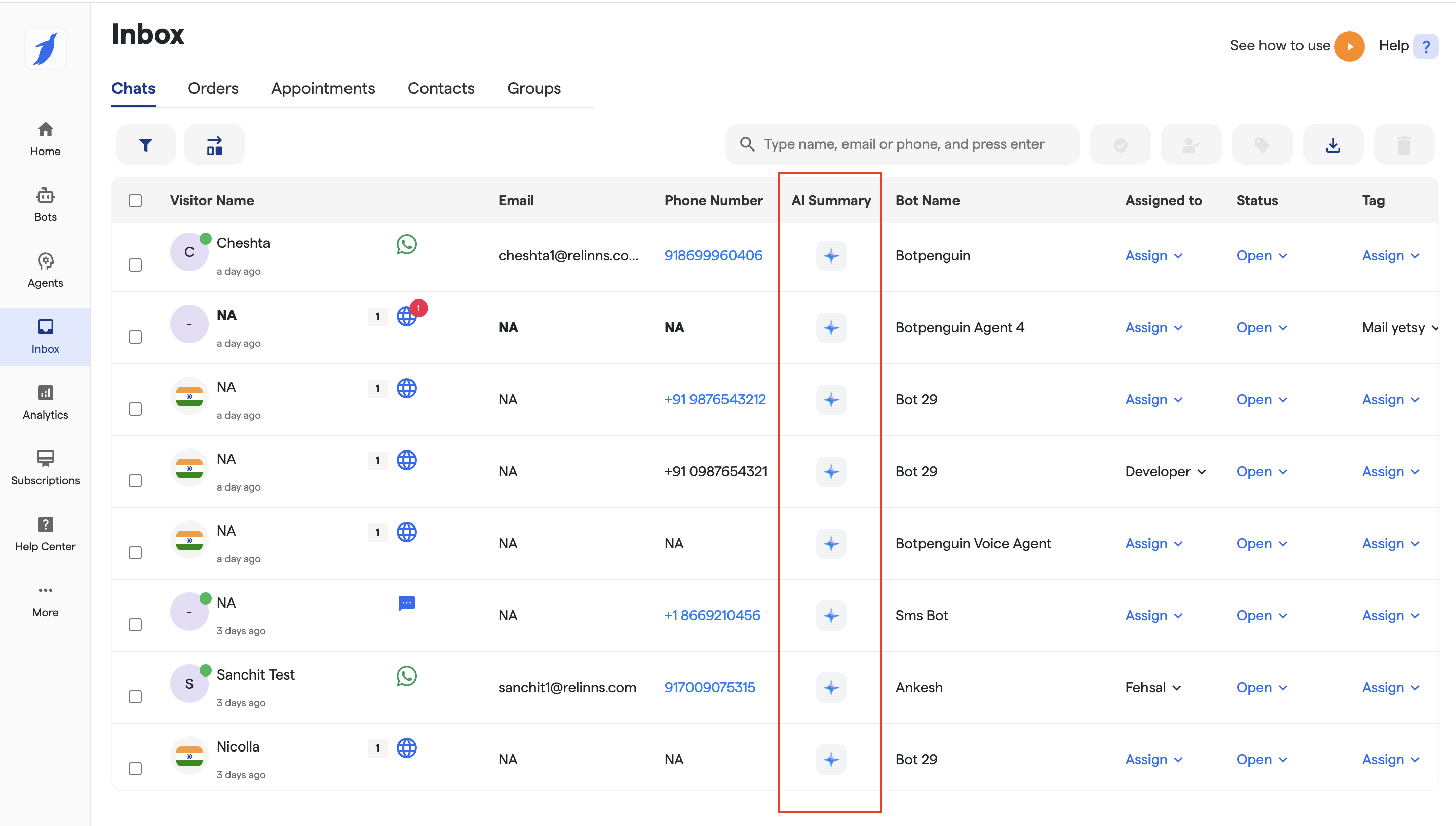
11. After saving the changes, the **AI Summary component** will appear in the **Inbox** section.
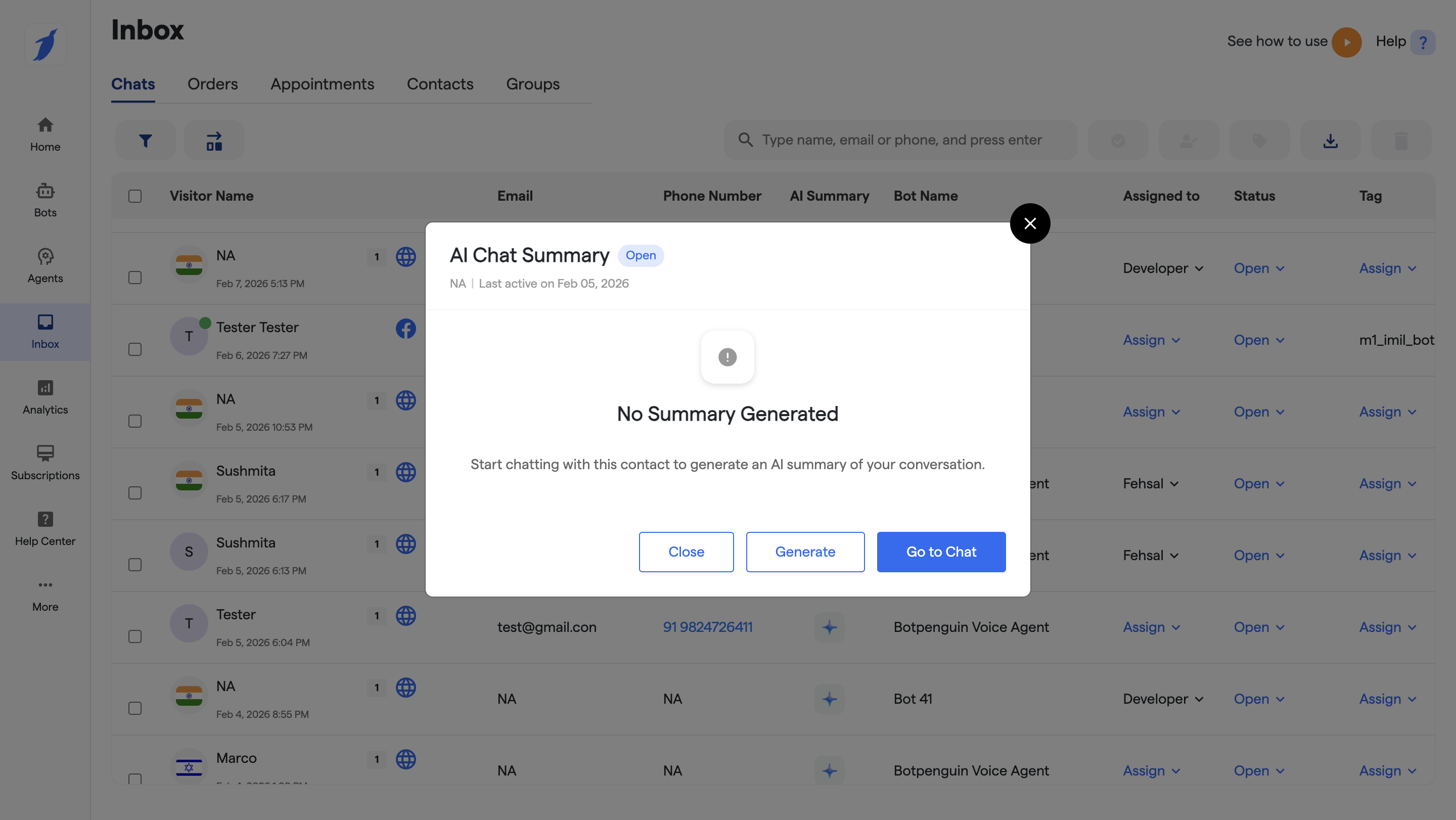
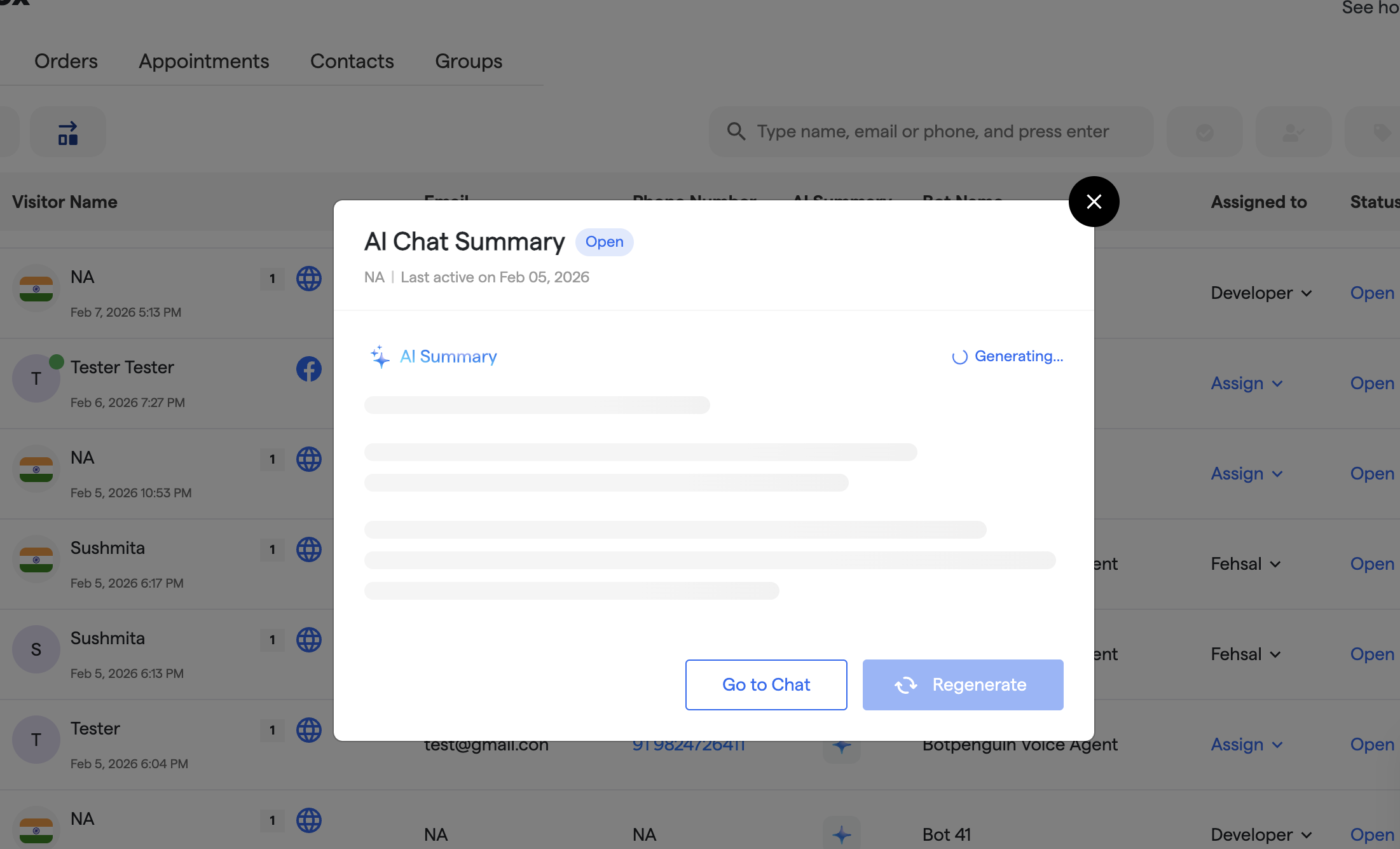
12. Clicking the **AI Summary icon** opens a popup with options to:
1. Generate the AI summary
2. Go to the chat
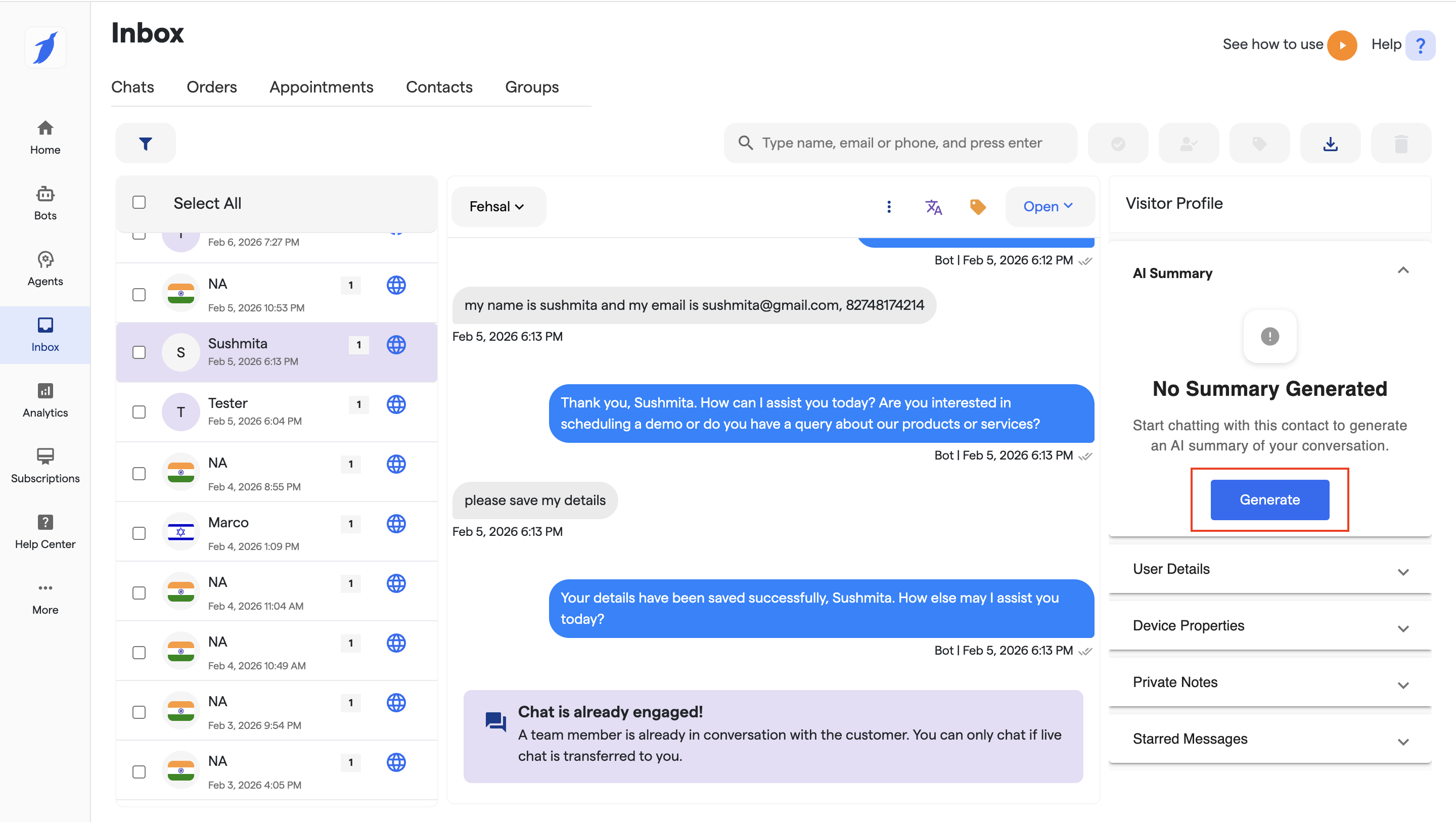
13. Clicking **“Generate”** will create a summary for that specific conversation.
14. The AI summary will be generated once the chat is completed.
15. You can also generate the summary from the chat itself by clicking on the **"Generate"** button.
{% hint style="info" %}
**The AI Summary icon will only be visible if:**
* The **AI Assistance** toggle is enabled in the user’s plan, **and**
* **AI Chat Summary** is enabled for the specific bot or agent.
{% endhint %}
***
🎉 Congratulations, you have successfully completed this section! You're one step closer to mastering BotPenguin.
### FAQs
Does generating a chat summary consume credits?
Yes. Each time a summary is generated, one AI credit is consumed from your available AI messages or API key credits.
When is the AI summary generated automatically?
The summary is generated automatically once the chat is completed, based on the configuration you have set, such as interaction limits or user participation.
Can I control when summaries are generated?
Yes. You can enable options like “Generate only if user interacted” or set a minimum number of messages using the “Restrict based on number of messages” setting.
Where can I view the AI chat summary?
You can view the summary in the Inbox by clicking the AI Summary icon. It opens a popup where you can generate or review the summary for that conversation.
If I enable the Chat Summary for one specific bot, will it be automatically enabled for the other bots as well?
No, the Chat Summary feature is bot-specific and must be enabled separately for each bot.
### Need Help?
If you face any issues managing your subscription, contact **** from the dashboard or reach out via the official support channels.