> For the complete documentation index, see [llms.txt](https://help.botpenguin.com/llms.txt). Markdown versions of documentation pages are available by appending `.md` to page URLs; this page is available as [Markdown](https://help.botpenguin.com/bots/sms-bot/install-sms-bot/twilio.md).
# Twilio
This section contains essential information and usage guidelines for installing and configuring an SMS chatbot using Twilio in BotPenguin.
### What is SMS Chatbot (Twilio)?
The SMS Chatbot (Twilio) integration allows you to deploy your BotPenguin chatbot on SMS by connecting it with Twilio. Once configured, the chatbot can automatically send and receive messages using a Twilio phone number, enabling conversational automation over standard SMS channels.
***
### Benefits of SMS Chatbot (Twilio)
* 📱 Enables chatbot conversations over standard SMS without requiring internet-based apps
* ⚡ Quick and secure setup using Twilio credentials
* 🔁 Automates two-way SMS communication with customers
* 🌍 Works across regions supported by Twilio phone numbers
* 🧩 Seamlessly integrates with existing BotPenguin bot logic
***
### How to Use SMS Chatbot (Twilio)
#### Create the SMS Bot
1. Log in to your dashboard.
2. Click on **Create Bot**.
3. Select **SMS Bot**.
4. Choose your business goal, and then click on "**Proceed to Next Step**".
5. Your SMS Bot will be created automatically!
***
#### 2. Create or Edit the Chatflow
1. Open the newly created SMS Bot.
2. Go to Chat flows
3. Create a new flow or edit the existing one.
4. Save the chatflow.
**Refer the following link to create and manage the chatflow:** [Edit and Manage Chatflow](/bots/sms-bot/edit-and-manage-chatflow.md)
***
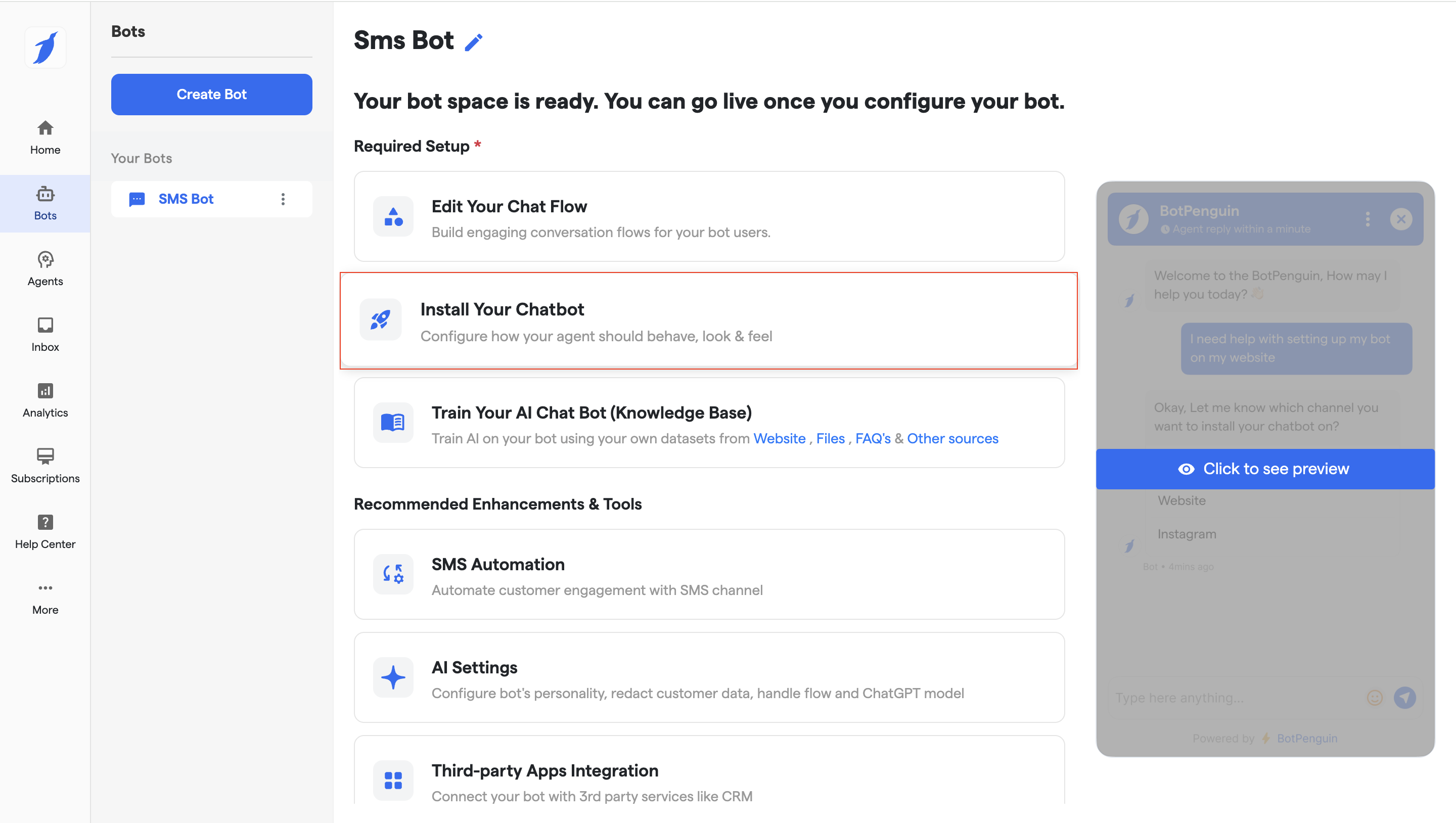
#### 3. Install the SMS Bot
1. Click on **Install Your Chatbot**.
2. Select your SMS Provider
3. You will be redirected to the installation screen.
4. The Twilio prerequisites screen will appear, asking for:
1. **Account SID**
2. **Auth Token**
3. **Twilio Phone Number**
5. Click on save credentials to save the details.
***
#### Part 2: Getting the Required Information from Twilio
6. Open Twilio and sign in to your account. If you do not have an account, create one and complete the onboarding process.
7. Once onboarding is complete, you will land on the **Twilio Dashboard**.
8. If you do not already have a Twilio phone number:
1. Click on **“Get a number”** on the onboarding or dashboard screen.
2. Purchase a phone number using trial credits or added billing credentials.
3. Twilio will assign you a 10-digit phone number.
9. After obtaining the number, go to **Phone Numbers → Manage → Active Numbers**.
10. Scroll down to the **Account Info** section, where you will find:
1. **Account SID**
2. **Auth Token**
3. **Twilio Phone Number**
***
#### Part 3: Completing the Installation
11. Copy the **Account SID**, **Auth Token**, and **Phone Number** from Twilio.
12. Paste these details into the corresponding fields on the BotPenguin installation screen.
13. Click **“Save Credentials”**.
Once saved, the SMS chatbot will be successfully installed using Twilio.
***
### Troubleshooting
Incorrect Twilio credentials were entered
Double-check your Account SID, Auth Token, and Phone Number from the Twilio Dashboard. Re-enter the correct values and click **"Save Credentials"** again.
SMS messages are not being received by the bot
Ensure the Twilio phone number is correctly linked to your BotPenguin installation. Verify that your Twilio account is active and has sufficient credits.
Bot is not responding to incoming SMS messages
Check that your chatflow is saved and published. Confirm that the Twilio webhook is correctly configured to point to BotPenguin.
Twilio phone number is not available in my region
Not all Twilio numbers support SMS in every region. Check Twilio's phone number availability by country before purchasing a number.
***
### FAQs
Do I need a paid Twilio account to install the SMS chatbot?
Twilio offers trial credits that can be used to get started. However, for production use with real customers, a paid Twilio account is recommended as trial accounts have messaging restrictions.
Where can I find my Twilio Account SID and Auth Token?
Log in to your Twilio account and go to the Dashboard. Scroll down to the **Account Info** section — you will find both the Account SID and Auth Token there.
Can I use an existing Twilio phone number?
Yes. If you already have an active Twilio phone number, you can use it during the BotPenguin installation. Go to **Phone Numbers → Manage → Active Numbers** in Twilio to retrieve your number.
What happens if I enter incorrect Twilio credentials?
The installation will fail and the bot will not be able to send or receive SMS messages. Re-enter the correct credentials and click **"Save Credentials"** to complete the setup.
Can I change the Twilio number after installation?
Yes. Go to the **Install Your Chatbot** section, select Twilio as your SMS provider, and update the phone number and credentials with the new details.
***
If you still have questions for our team, write to us at [**support@botpenguin.com**](mailto:support@botpenguin.com). We’ll get back to you within 48 hours.