> For the complete documentation index, see [llms.txt](https://help.botpenguin.com/llms.txt). Markdown versions of documentation pages are available by appending `.md` to page URLs; this page is available as [Markdown](https://help.botpenguin.com/bots/sms-bot/sms-automation/sms-drip-campaign.md).
# SMS Drip Campaign
#### What is a Drip campaign?
A Drip Campaign is a scheduled and structured flow of messages created for customer onboarding journeys. You can define which messages to be sent or can create the whole onboarding journey using the timeline-based messages and chat flow. It only applies to the new customers starting their conversation with the bot.
These drip campaigns can be used for creating a funnel and doing timely communication to your new customer to make them aware, act, and adopt your product or services.
It can be easily created on the BotPenguin dashboard using the guide below
#### How to create Drip Campaigns?
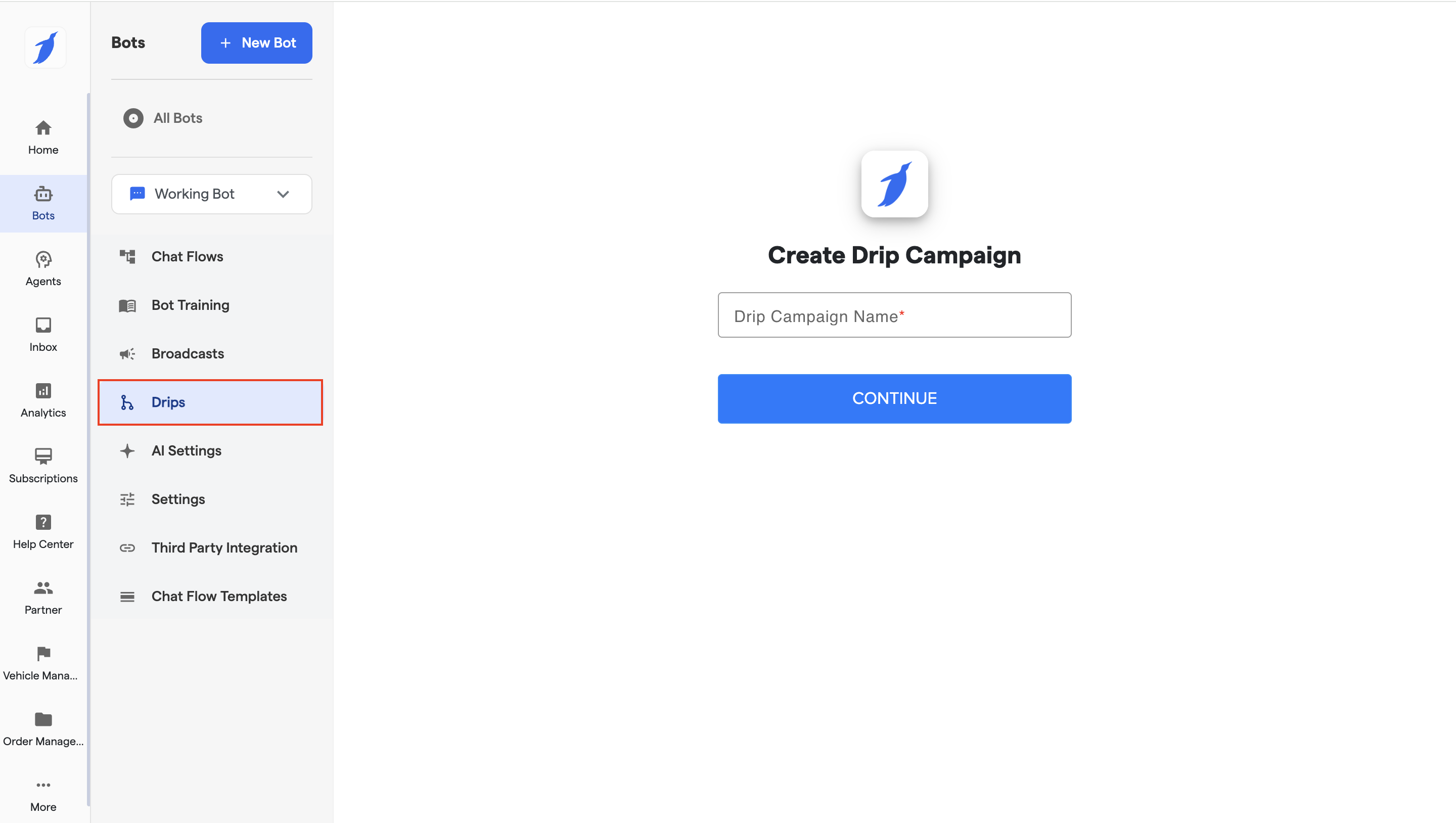
1. Select a SMS bot.
2. Then click on "Drips" from the expanded menu.
3. Give your Drip a name.
4. And Click on Continue.
### Creating a Drip Campaign
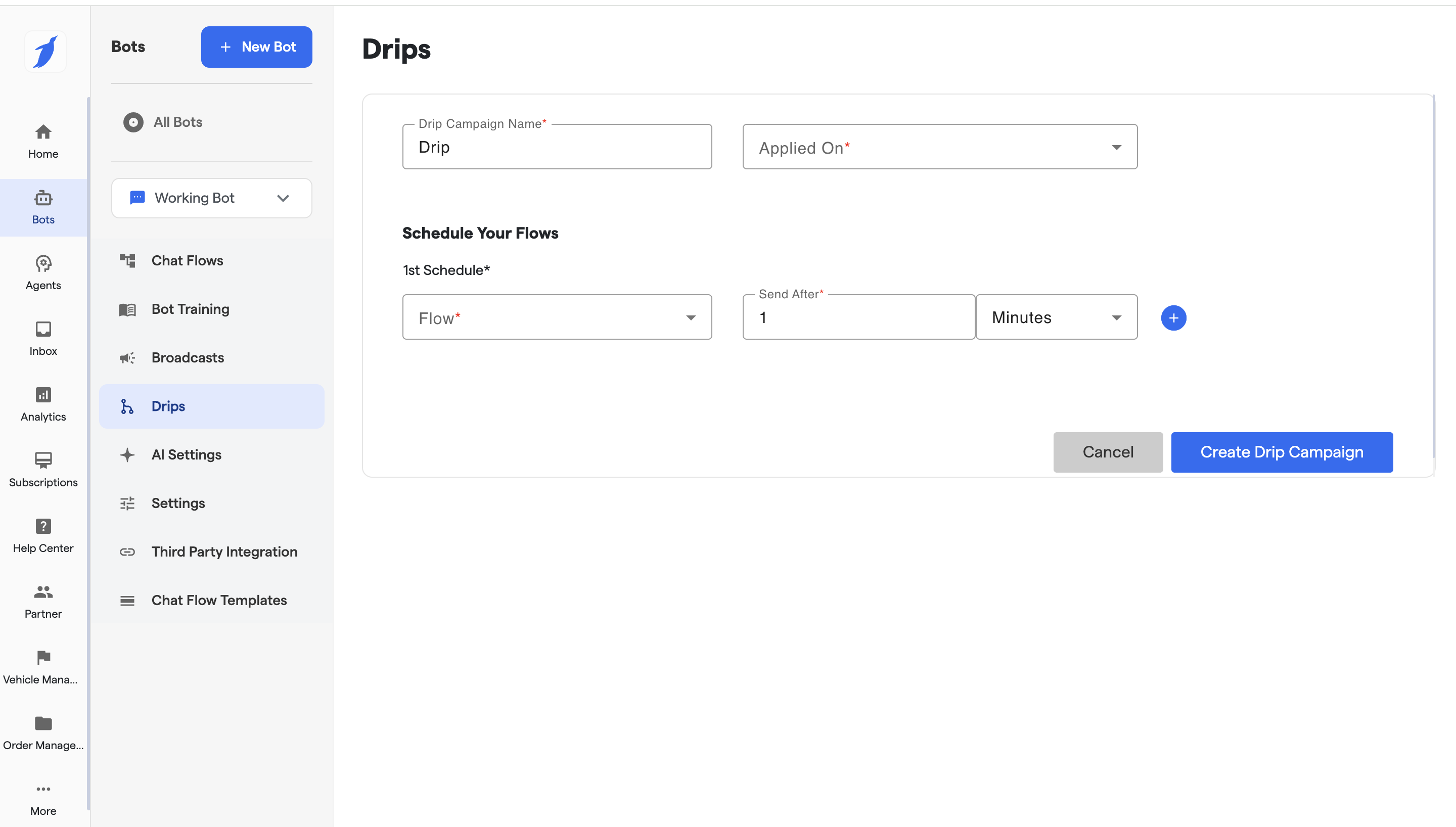
#### Step 1: Enter Campaign Details
**Drip Campaign Name**
Give your campaign a clear, recognizable name.
**Examples**
* `Welcome Series`
* `Product Onboarding`
* `Promo Follow-up`
> This field is required.
#### Step 2: Choose When the Campaign Applies
Use the **Applied On** dropdown to decide **who should receive this campaign**.
Available options:
* **New Subscriber**\
Automatically applies to users as soon as they subscribe to your Instagram bot.
* **Groups**\
Applies only to users who belong to selected groups (for example: `Leads`, `Customers`, `VIP`).
> 💡 Use **Groups** if you want targeted or segmented campaigns.
***
### Scheduling Your Flows
Drip campaigns are built using one or more **scheduled chat flows**.
#### 1st Schedule (Required)
Each schedule defines:
* **Flow** – The chat flow to send
* **Send After** – When the flow should be sent
**Flow**
Select the chat flow that will be sent at this step.
> Only published flows will appear in the list.
***
**Send After**
Set the delay before sending the selected flow.
You can choose:
* Minutes
* Hours
* Days
**Example**
* Send Flow A **1 minute** after subscription
* Send Flow B **1 day** later
* Send Flow C **3 days** later
***
#### Adding More Steps
Click the **➕ (plus)** button to add additional schedules to your campaign.
Each new schedule:
* Sends a different flow
* Can have a different delay time
This allows you to create a full multi-step drip sequence.
***
### Saving the Campaign
Once all required fields are completed:
* Click **Create Drip Campaign** to activate it
* Click **Cancel** to discard changes
> ⚠️ Once active, the campaign will automatically run for users who meet the selected conditions.