> For the complete documentation index, see [llms.txt](https://help.botpenguin.com/llms.txt). Markdown versions of documentation pages are available by appending `.md` to page URLs; this page is available as [Markdown](https://help.botpenguin.com/bots/website-mobile-app-bot/website-manage-chatflow.md).
# Website Manage Chatflow
This section contains essential information and usage guidelines for managing chatflows inside BotPenguin.
### What is Manage Chatflow?
**Manage Chatflow** is the section where you design, edit, and organise every conversation flow your chatbot uses. It lets you update messages, switch between builder modes, manage multiple flows, and control which flow runs and when.
This is where you keep your bot's conversations accurate, engaging, and aligned to your goals.
***
### When should you use this?
Use this feature when:
* You want to edit what your chatbot says or how it responds
* You need to create, rename, duplicate, or delete a flow
* You are trying to reuse a flow in another bot, or hand it to someone else
* You want to set which flow runs by default, or control what returning visitors see
***
### Benefits of Manage Chatflow
* ⚡ Changes go live immediately — no republishing step
* 🔀 Run multiple flows from one bot and connect them with the Redirect component
* 🎛️ Switch between Visualise and Classic builder depending on how you prefer to work
* 📦 Export a flow as JSON and import it into another bot of the same type
* 🔁 Revisit flows give returning users a consistent experience
***
### Expected Outcome
After setting this up:
* Your chatbot will run the flow you marked as default
* You will notice edits reflected in live conversations as soon as they are saved
* Users will experience the conversation path you designed, including any redirects between flows
{% hint style="info" icon="lightbulb" %}
**Tip:** Only one flow can be the default at a time. Everything else runs through redirects or triggers.
{% endhint %}
***
### How to Use Manage Chatflow
#### A. Editing a flow
1. Open your bot and go to **"Manage Chatflow"**.
2. Click the flow you want to change to open it in the builder.
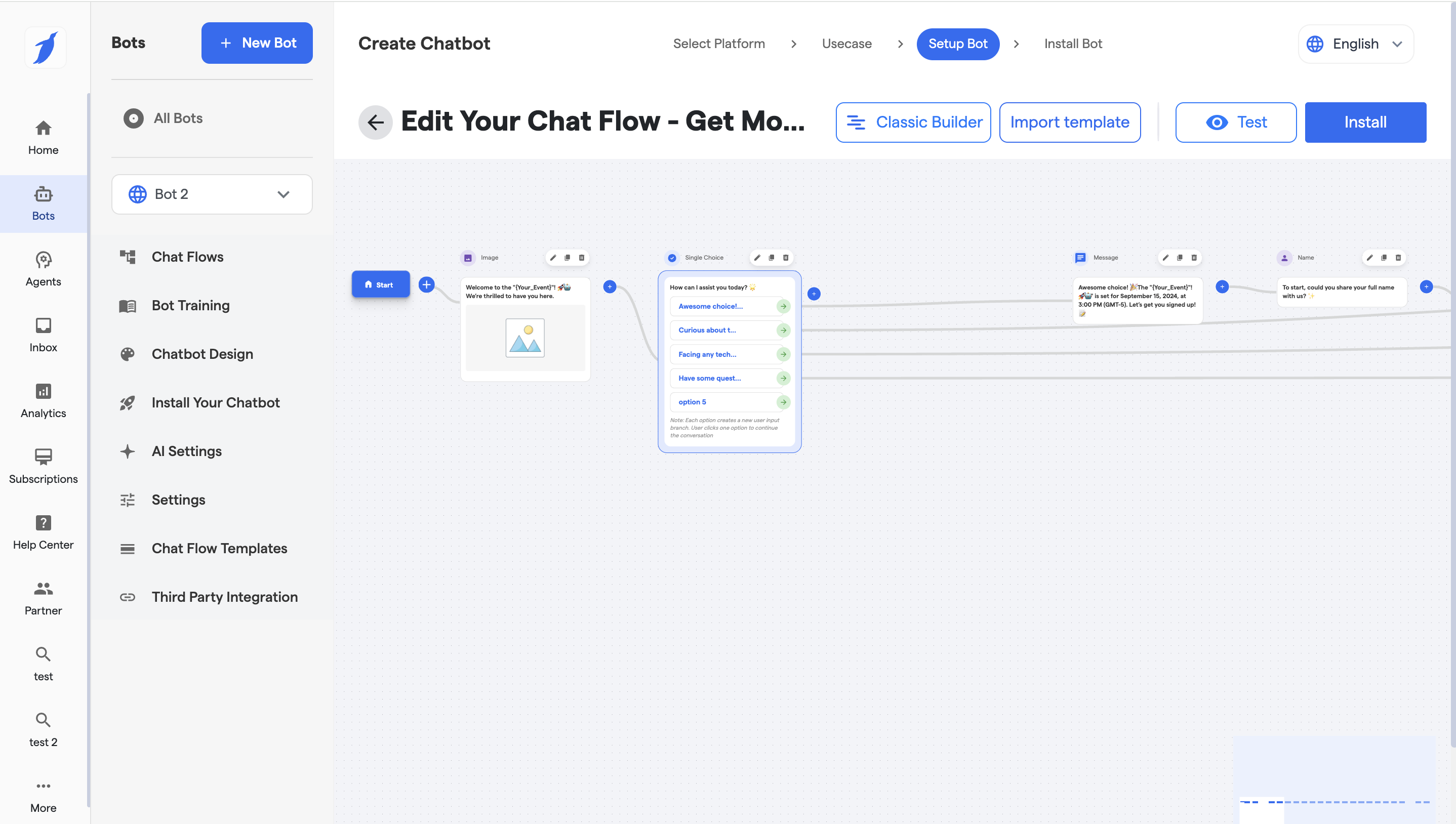
3. Click **"Visualise Flow"** to switch to the visual builder.
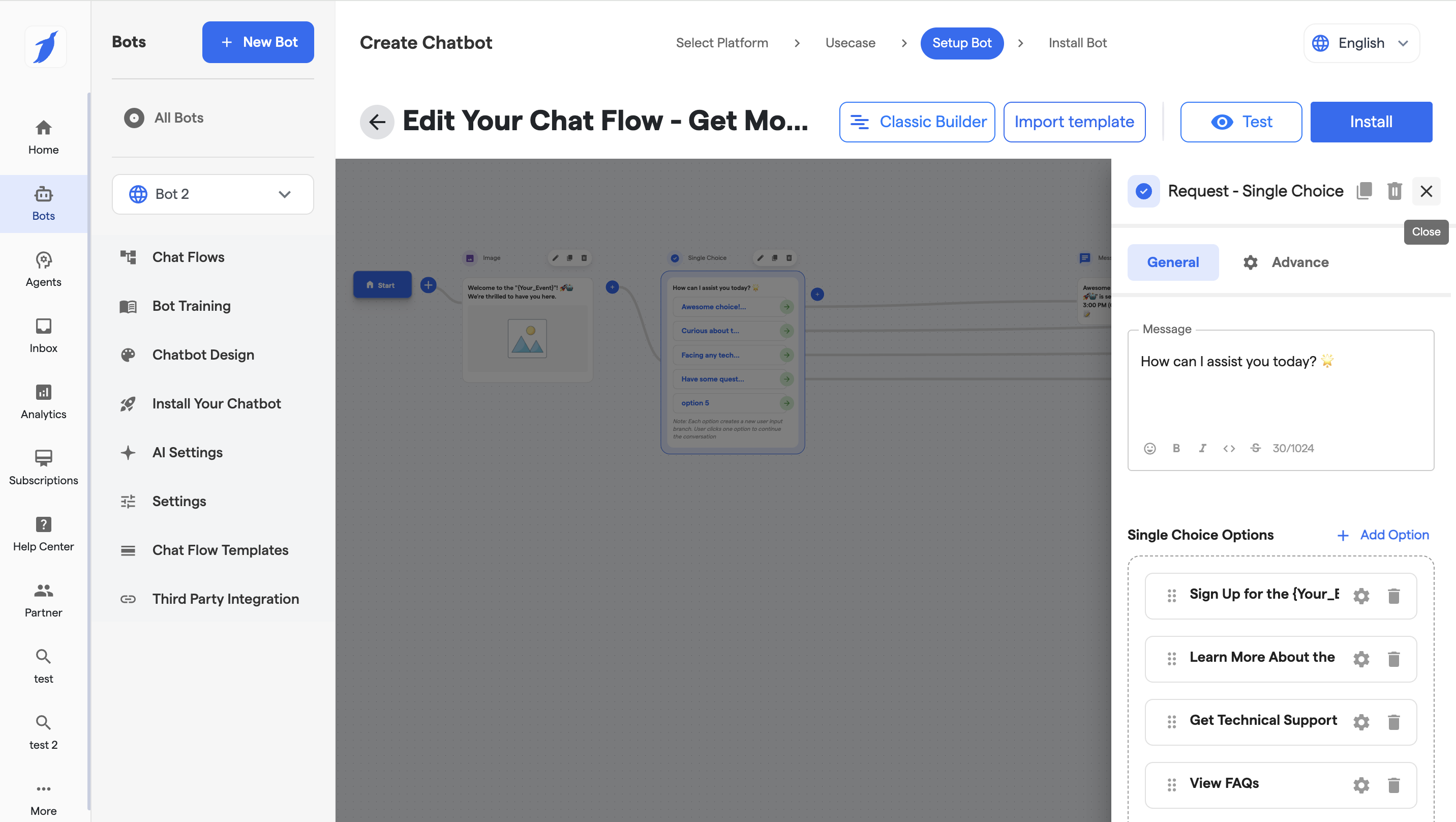
4. Double-click any component to open its configuration window, then set up its **General** and **Advance** settings.
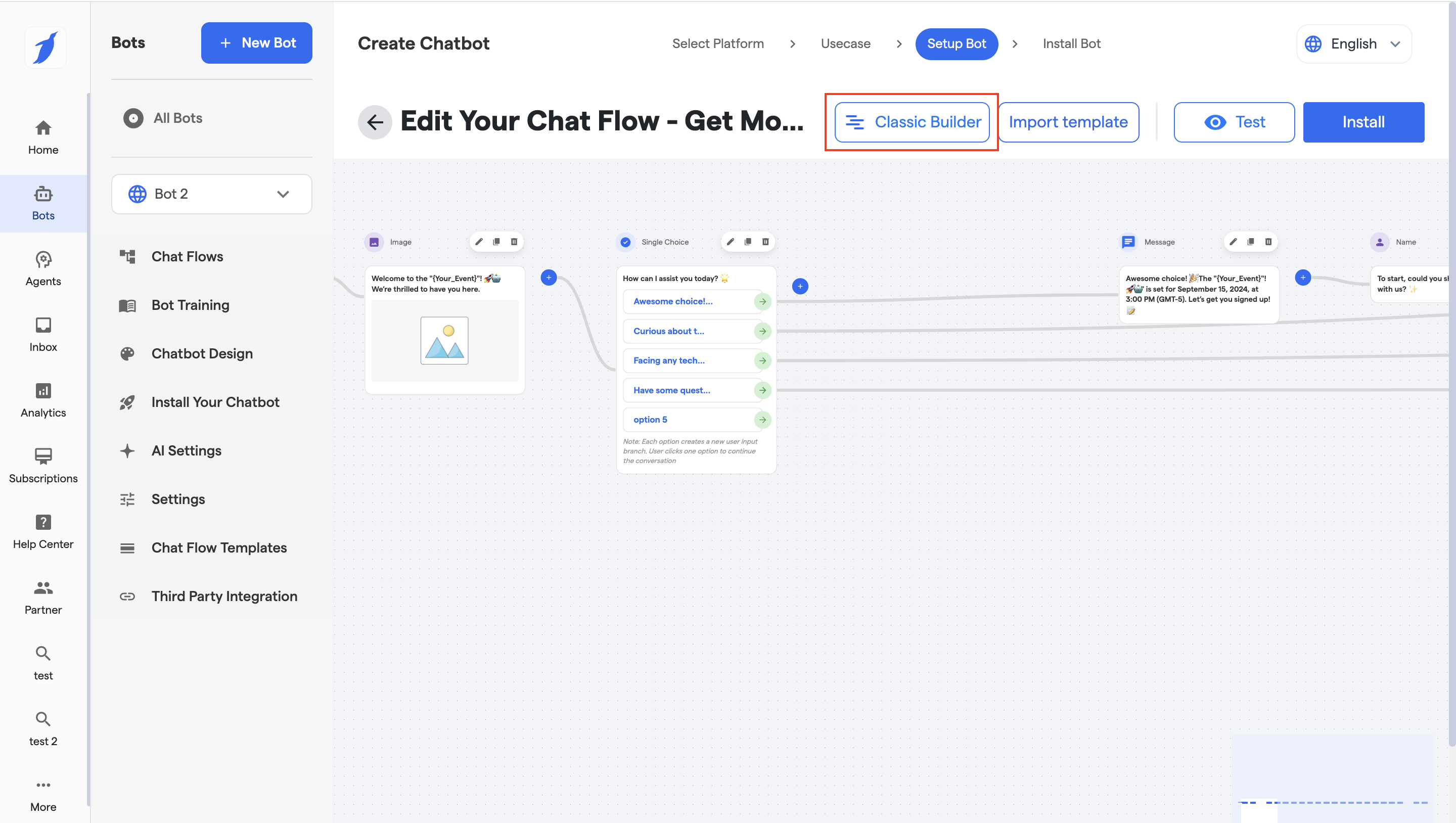
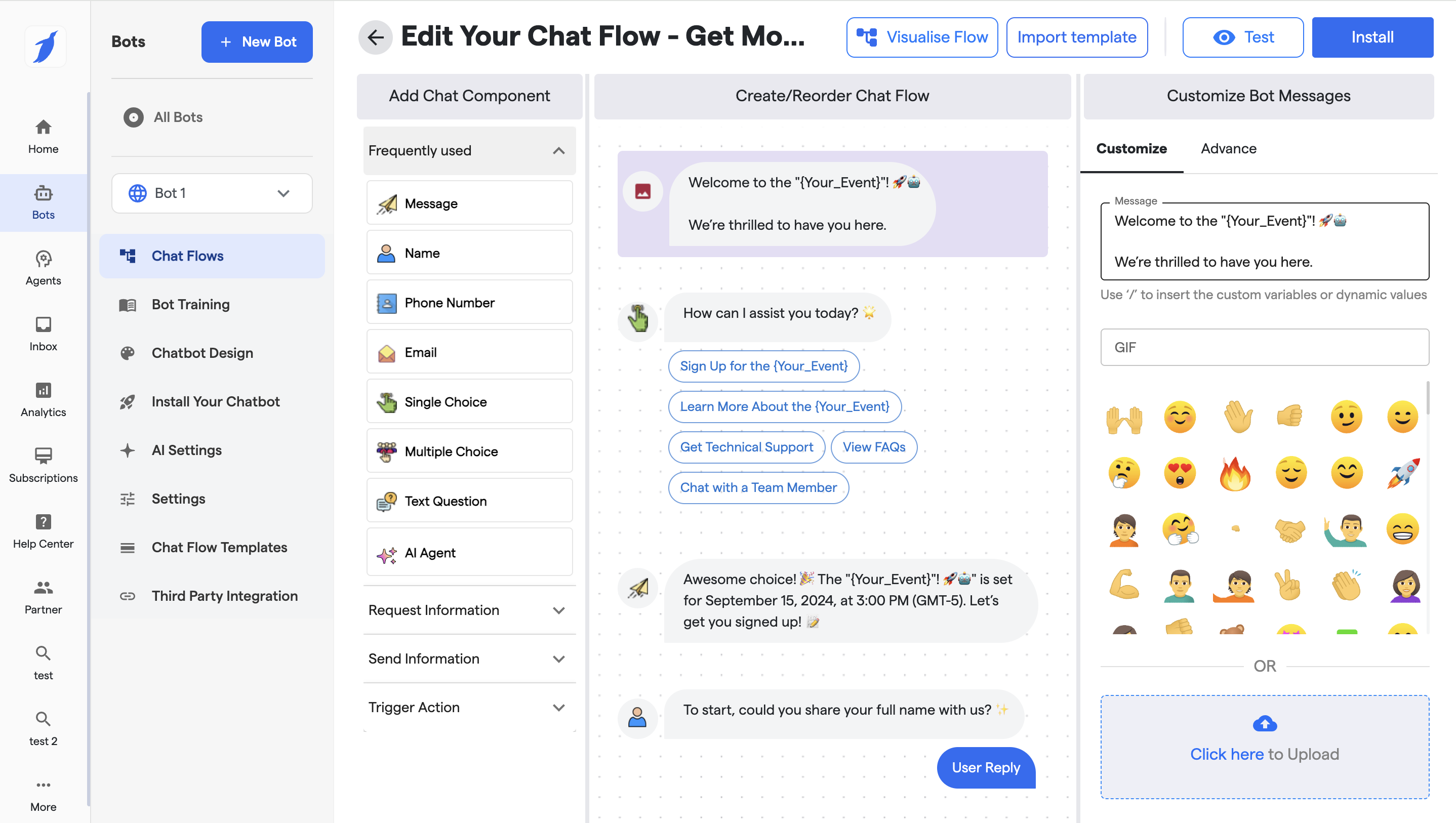
5. To go back to the older builder, click **"Classic Builder"**.
6. The builder switches to Classic mode.
#### B. Using the three-dot menu
Every flow has a three-dot (**⋮**) menu beside it. This is where flow-level actions live, as opposed to editing what is inside the flow.
1. Find the flow in your list and click the **⋮** icon.
2. Choose one of the three actions:
| Option | What it does | When to use it |
| ------------------ | ------------------------------------------------------------ | ----------------------------------------------------------------------------------------------------------------------------------- |
| **Edit Flow Name** | Opens the flow name for editing so you can rename it. | Rename a flow to something clearer once its purpose changes, or to keep naming consistent across a bot with many flows. |
| **Download Flow** | Downloads the entire flow as a **JSON** file to your device. | Back up a flow before making major changes, or move it into another bot of the same type by importing the JSON. |
| **Copy Flow ID** | Copies the flow's unique ID to your clipboard. | Paste it when you need to reference a specific flow — for example in an API call, an integration, or when raising a support ticket. |
3. Rename and ID copy apply instantly. Download saves the JSON file straight to your device.
> The three-dot menu acts on the flow as a whole. To change the messages or logic inside it, open the flow and edit its components instead.
#### C. Managing multiple flows
1. Use the **Redirect** component to send users from one flow into another.
2. Set one flow as the default so it runs when a new visitor starts a conversation.
3. Enable or disable revisit flows to control what returning users see.
#### D. Importing, exporting, and deleting
1. Import a flow from a JSON file, or export one to move it elsewhere.
2. Delete unused or outdated flows to keep the list manageable.
***
### Best Practices
* 💡 Use **Download Flow** as a quick backup before restructuring a working flow — deletion cannot be undone
* 🏷️ Rename flows with **Edit Flow Name** so the list stays readable as it grows
* ⚠️ Remember that saved changes go live immediately, so test on a staging bot if the flow is business-critical
* 🎯 Keep one clear default flow and route everything else through the Redirect component
* 🔁 Turn on revisit flows when returning visitors should pick up where they left off
***
### Troubleshooting
Issue: My edits are not showing in the live chatbot
Confirm the change was saved, then hard-refresh the page where the chatbot is embedded. Also check you edited the flow that is set as default, since edits to a non-default flow only appear once a user is redirected into it.
Issue: My imported flow will not load
Flows can only be imported into a bot of the same type as the one they were exported from. Check that the JSON file is unmodified and came from a matching bot type.
Issue: I deleted a flow by mistake
Deleted flows are permanently removed and cannot be restored. If you downloaded the flow as JSON beforehand, import that file to recover it.
Issue: The wrong flow starts when a visitor opens the chat
Only one flow can be the default. Check which flow is marked default, and review your Redirect components in case a user is being sent elsewhere earlier than expected.
***
### FAQs
Can I edit a live chat flow?
Yes. Any saved changes are applied immediately to the chatbot.
Can I have multiple chat flows?
Yes. You can create and manage multiple flows, but only one can be the default.
What happens if I delete a flow?
The flow is permanently removed and cannot be restored.
Can I reuse chat flows in another bot?
Yes. Download the flow and import it into another bot of the same type.
Why should I use revisit flows?
Revisit flows allow returning users to access the same conversation again, improving continuity and user experience.
What format does Download Flow use?
The flow is downloaded as a JSON file, which can be imported into another bot of the same type.
What is the Flow ID used for?
It uniquely identifies a flow. Copy it when you need to reference that specific flow — for example in an API call, an integration, or when contacting support.
Does renaming a flow break anything?
No. Renaming only changes the display name. The flow's ID and any redirects pointing to it stay intact.
What is the difference between Visualise Flow and Classic Builder?
They are two ways of editing the same flow. Visualise Flow shows the conversation as a connected canvas; Classic Builder uses the older list-based layout. You can switch between them at any time.
***
### Related Articles
{% content-ref url="/pages/zG4xrIQa2ul08dJXDVpe" %}
[Create Chatflow](/bots/website-mobile-app-bot/website-manage-chatflow/create-chatflow.md)
{% endcontent-ref %}
{% content-ref url="/pages/j4bmyhJP102ZPIbXx43y" %}
[Components in Chatflow](/bots/website-mobile-app-bot/website-manage-chatflow/components-in-chatflow.md)
{% endcontent-ref %}
{% content-ref url="/pages/jzLp2bNO8Vfu8ccFft7b" %}
[Multiple Flows (Redirect Component)](/bots/website-mobile-app-bot/website-manage-chatflow/multiple-flows-redirect-component.md)
{% endcontent-ref %}
***
### Support
If you still have questions for our team, write to us at . We'll get back to you within 48 hours.