> For the complete documentation index, see [llms.txt](https://help.botpenguin.com/llms.txt). Markdown versions of documentation pages are available by appending `.md` to page URLs; this page is available as [Markdown](https://help.botpenguin.com/bots/whatsapp-bot/3rd-party-apps-integrations/botpenguin-integrations/integrate-botpenguin-with-webhoper.md).
# Integrate BotPenguin with WebHoper
This page contains the stepwise tutorial for the integration with BotPenguin
### Integrate BotPenguin with WebHoper:-
### **Step 1 of 4: Login to BotPenguin Account and Select Application to Integrate**
1. Login to your BotPenguin account, select the Bot you want to integrate with WebHoper.
2. Now, click the **‘Integrate’ tab.**
3. 
4. The integrate window will open up. Make sure you are in the **“All Integrations Tab.”**
5. A list of all native integrations for BotPenguin will be available in this window.
1. Now find WebHoper by:-
2. Either scrolling down the list
3. Or by typing in **‘**WebHoper**’** in the search box with the placeholder “search integration by name”
6. Now Click On The **‘Connect’** button As Shown Below.
7. 
### **Step 2 of 4: Find your Authorization Key/Token in App Account**
1. To complete the process, you need to fill out:-
1. Webhoper Domain
2. Company Name
3. Lead Source
4. Division
5. Enter Password
2. To obtain these details, please contact the WebHoper Team at ****
### **Step 3 of 4: Enter Authorization Details and establish connection with your App**
1. After Filling Out The Details, Click Connect.
2. 
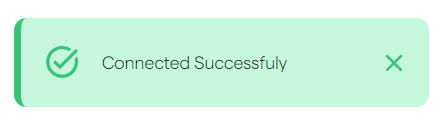
3. Look For The Notification “Connected Successfully” For Confirmation.
4. 
5. Also, your WebHoper integration will show the message **Installed** in the Integration List.
6. 
### **Step 4 of 4: Test your Integration Set up with Data**
Once you have established a connection between **BotPenguin** and **WebHoper** and complete the mapping, you are ready to go for your first test lead. You can test your integration setup by creating a dummy lead on the bot. This lead should appear in your BotPenguin dashboard and in the WebHoper you have integrated.
### **Still Not Working, Let’s Troubleshoot!**
If you are not getting dummy leads from your Bot to **WebHoper**, it may be due to multiple reasons:
* Wrong Authorization Details added- You will be required to check and see if all the authorization credentials are accurate. Kindly check credentials like:
* Webhoper Domain
* Company Name
* Lead Source
* Division
* Free plan- You are not subscribed to the paid plan on BotPenguin as integration works only with the paid plan.
If everything is correct and you are still unable to move forward, write to us at . We will respond back within 48 business hours.