> For the complete documentation index, see [llms.txt](https://help.botpenguin.com/llms.txt). Markdown versions of documentation pages are available by appending `.md` to page URLs; this page is available as [Markdown](https://help.botpenguin.com/bots/whatsapp-bot/bot-setup/getting-a-blue-tick-previously-green-tick-on-whatsapp.md).
# Getting a Blue Tick (previously Green Tick) on WhatsApp
This page contains the information on process for getting green tick on WhatsApp business API account.
The WhatsApp green tick is a valuable symbol of trust and verification for businesses. To be eligible for the green tick, you must meet specific prerequisites. This document provides a step-by-step guide on how to apply for the WhatsApp green tick once you fulfill the necessary requirements.
#### **Prerequisites**
Before applying for the WhatsApp green tick, ensure you meet the following requirements:
1. **WhatsApp Business Platform (API) Account**: Your business must be using the WhatsApp Business Platform; the WhatsApp Business App is not sufficient.
2. **Business Verification**: Complete the Meta Business Verification process to authenticate your business's legitimacy.
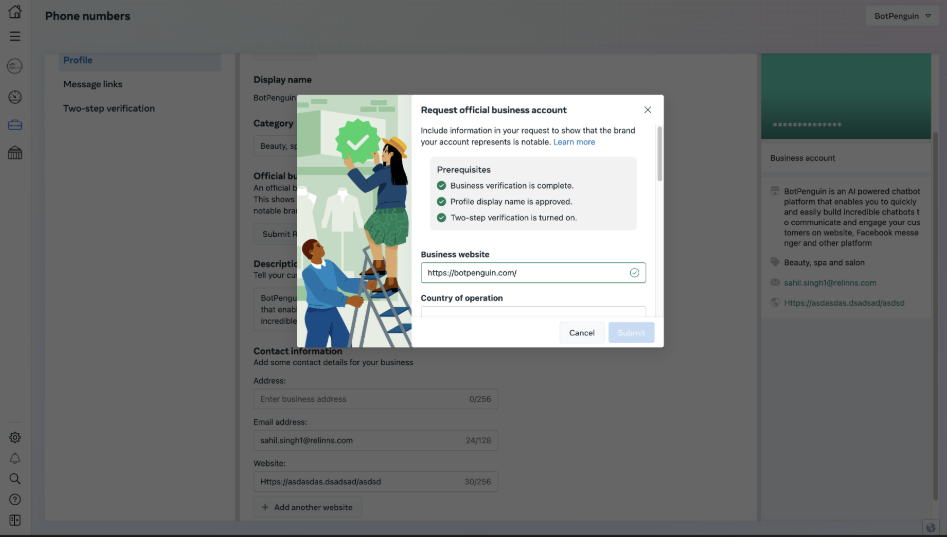
3. **Two-Step Verification**: Enable two-step verification for your WhatsApp Business account to add an extra layer of security.
4. **Display Name Approval**: Ensure your business's display name is approved in the WhatsApp Manager.
5. **Account Age:** Your business must be registered on the WhatsApp Business Platform for at least 30 days before applying.
6. **Notability**: Your business should be a well-known, frequently searched brand or entity, with mentions in at least 5 reputable publications such as The Wall Street Journal, Reuters, or Business Insider. Paid or promotional content is not considered valid for establishing notability.
7. **Messaging Tier**: Before submitting a request, ensure that your messaging limit has been increased to 1,000. You can check your current messaging limits in WhatsApp Manager under Account tools > Phone Numbers.
{% hint style="info" %}
**Note for Co-existence Accounts:** Official Business Account (OBA) status is not supported for co-existence accounts. If your WhatsApp account uses the co-existence feature, you must apply for **Meta Verified for Business** instead. See the section below for details.
{% endhint %}
Once you have met all the prerequisites, you can proceed with the application process.
### **Step-by-Step Guide: Applying for WhatsApp Green Tick**
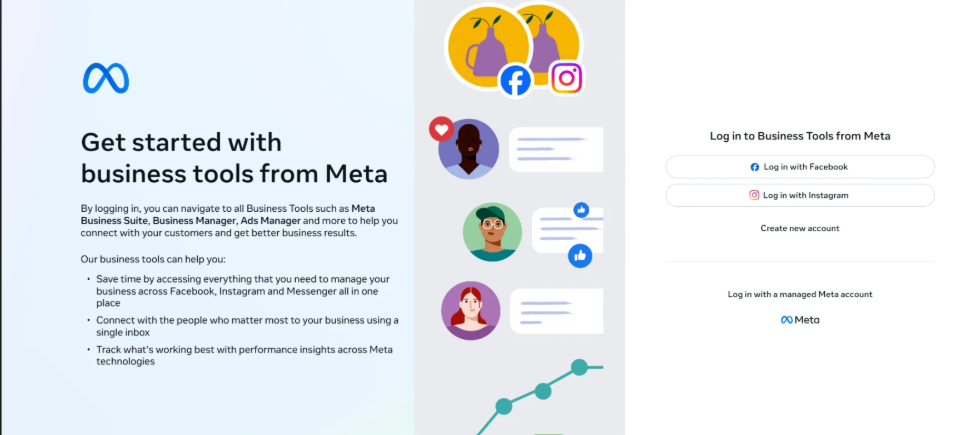
1. Open your web browser and navigate to the Meta Business Suite. The steps for construction of the same can be found in [Setting Up Your Facebook Business Manager](https://help.botpenguin.com/platform-guidelines-and-training/whatsapp-cloud-api-by-meta/setting-up-your-facebook-business-manager).
2. Log in to your Meta Business Suite account using your credentials.
3. In the Meta Business Suite, find the top-left dropdown menu that displays your business account name.
{% hint style="info" %}
2FA must be enabled for the verification to take place.
{% endhint %}
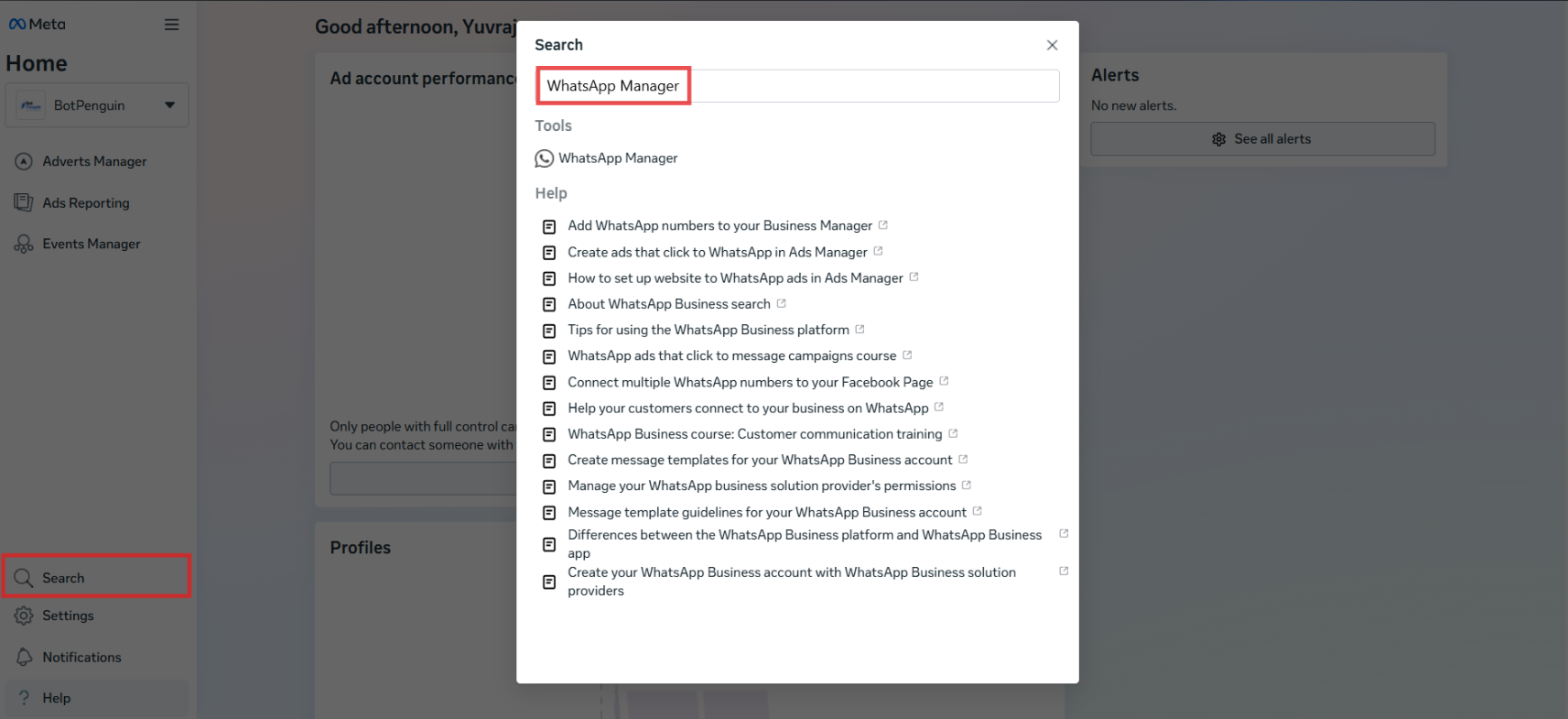
4. Click on the "**All Tools**" tab, or the "**Search**" tab, and search for "**WhatsApp Manager**"
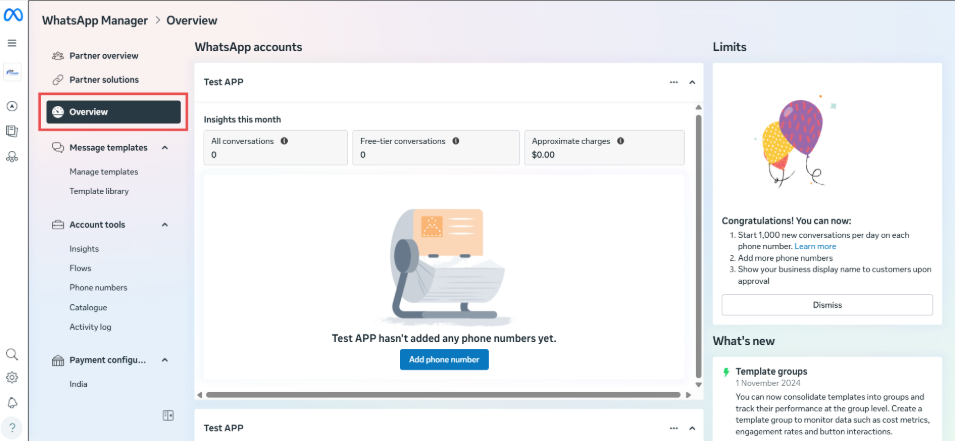
5. Proceed to the "**Overview**" tab
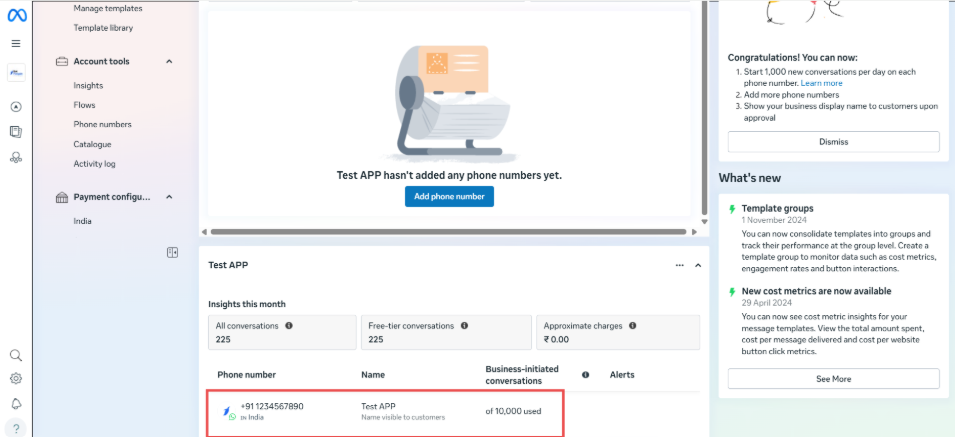
6. Select your WhatsApp account by scroll down to the "**WhatsApp Manager**" section, and click the number where we want the Blue Tick.
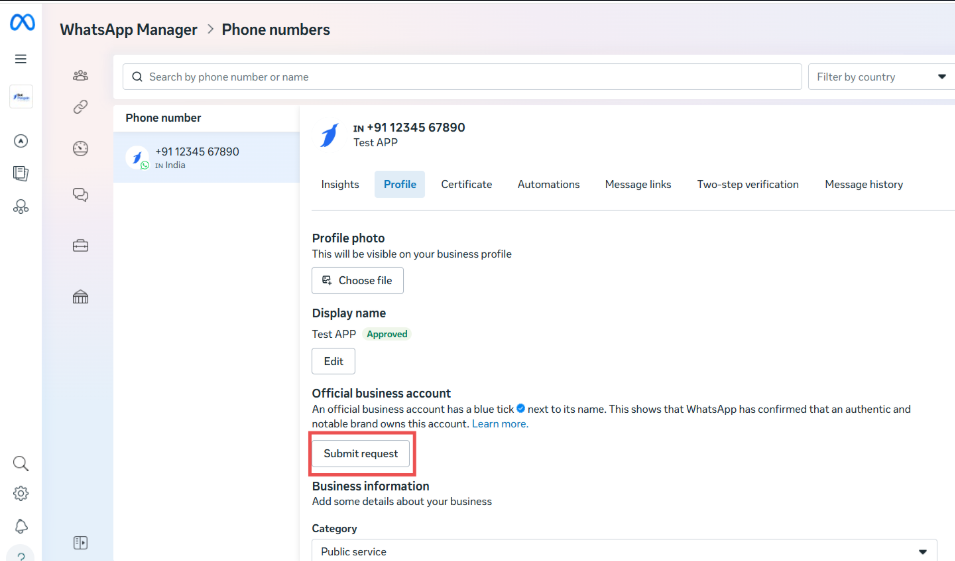
7. Go to the "**Profile**" tab
8. Once the "Request official business account" pop-up opens up, fill in the necessary details.
{% hint style="warning" %}
You must have the prerequisites completed for the "Submit request" to be clickable. In case they are not complete, the button will not be clickable.
{% endhint %}
9. Submit the request for the WhatsApp green tick.
10. Once your application is approved, you will receive an email notification confirming the green tick status.
***
#### Applying via Meta Verified for Business (Paid Route)
If your business uses the WhatsApp Business App (not the API), or if you are a co-existence account, you may apply for the blue tick through Meta Verified for Business — a paid subscription offered by Meta.
* Open your WhatsApp Business App and go to Settings or Business Tools.
* If the Meta Verified option is visible, follow the in-app steps to subscribe and apply.
* If you do not see the option, it is currently not available for your account as Meta is rolling this out gradually.
***
#### FAQ's
Here are some common questions related to Green Tick:
Is the WhatsApp Green Tick now a Blue Tick?
Yes, WhatsApp has updated the verification badge from green to blue to align with Meta's branding across platforms like Facebook and Instagram.
Can individuals or influencers apply for the verification badge?
No, the verification badge is intended for registered businesses. Individuals and influencers are not eligible for this verification
What if my application is rejected?
If rejected, review the feedback provided, address any issues (such as enhancing brand visibility or correcting information), and reapply after 30 days.
Is there a fee for obtaining the verification badge?
WhatsApp does not charge for the verification itself.
How long does the verification process take?
Typically, the review process takes 2-4 business days, but it can vary depending on the completeness of your application and Meta's assessment.
***
Congratulations! You have successfully applied for the WhatsApp green tick. The green tick will now appear next to your business account, providing credibility and trust to your customers.
If everything is correct and you are still unable to move forward, write to us at . We will respond back within 48 business hours.