> For the complete documentation index, see [llms.txt](https://help.botpenguin.com/llms.txt). Markdown versions of documentation pages are available by appending `.md` to page URLs; this page is available as [Markdown](https://help.botpenguin.com/bots/whatsapp-bot/bot-setup/requirements-for-the-migration.md).
# Requirements for the Migration
Before initiating the migration of your WhatsApp Business Account to BotPenguin, please ensure that the following requirements are fulfilled.
### 1. Meta Account Access Requirements
You must have:
* Access to your **Meta (Facebook) Business Manager Account**
* Admin access to the **WhatsApp Business Account (WABA)** you want to migrate
* Access to the registered email ID linked with the WhatsApp Business Account
* Access to the phone number being migrated (to receive OTP)
Without admin permissions, the migration process cannot be completed.
***
### 2. Disable Two-Step Verification (Mandatory)
Before starting migration, you must disable Two-Step Verification for the WhatsApp number.
#### Requirement:
1. Login to your registered Meta Account.
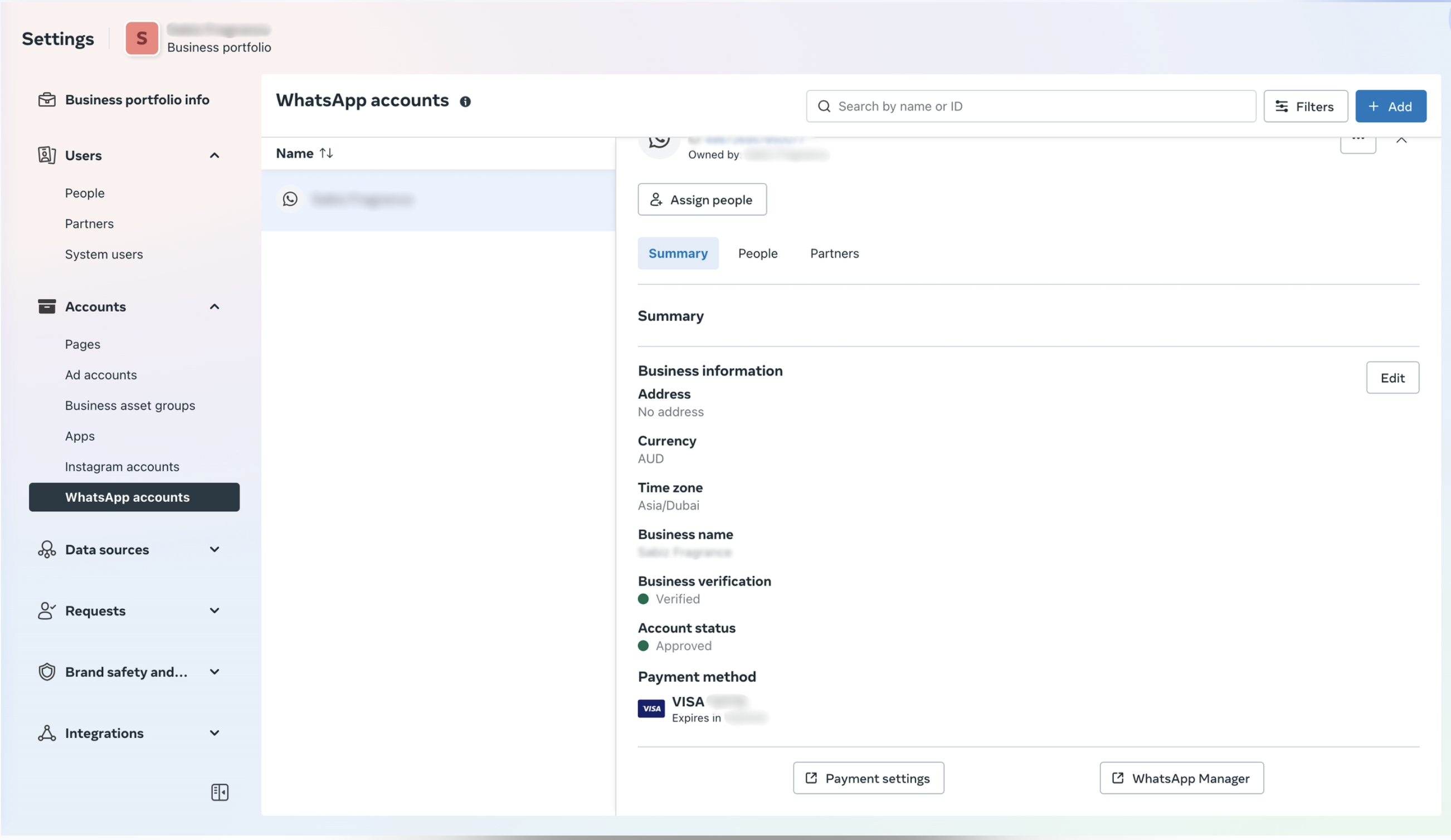
2. Under "Accounts" click on "Whatsapp Accounts".
3. Select the Whatsapp account you want to migrate into BotPenguin.
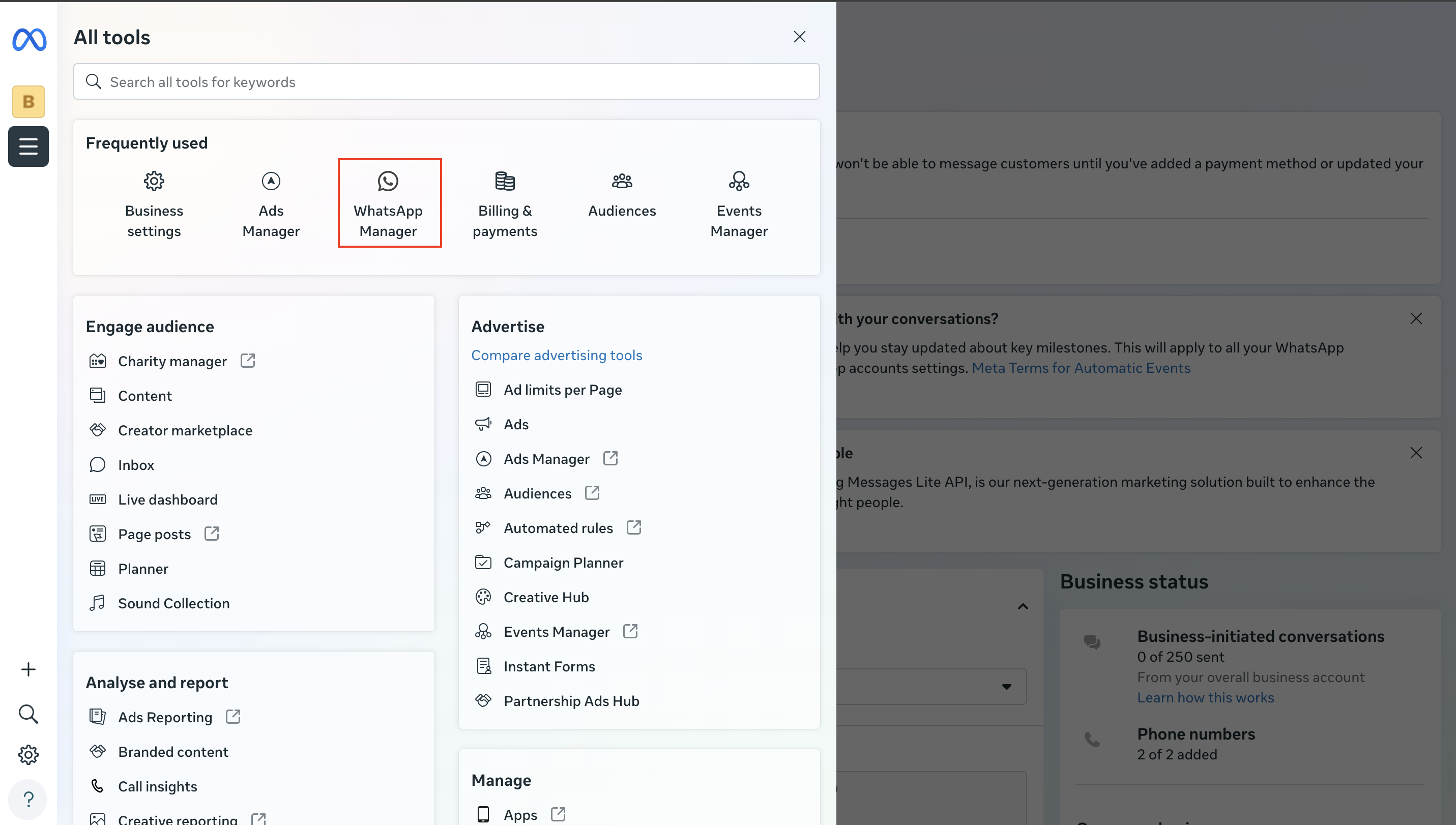
4. Then click on "Whatsapp Manager". It will be available in the bottom of the account information.
5. Once clicked on "Whatsapp Manager". Go to settings and then go to Account tools in it.
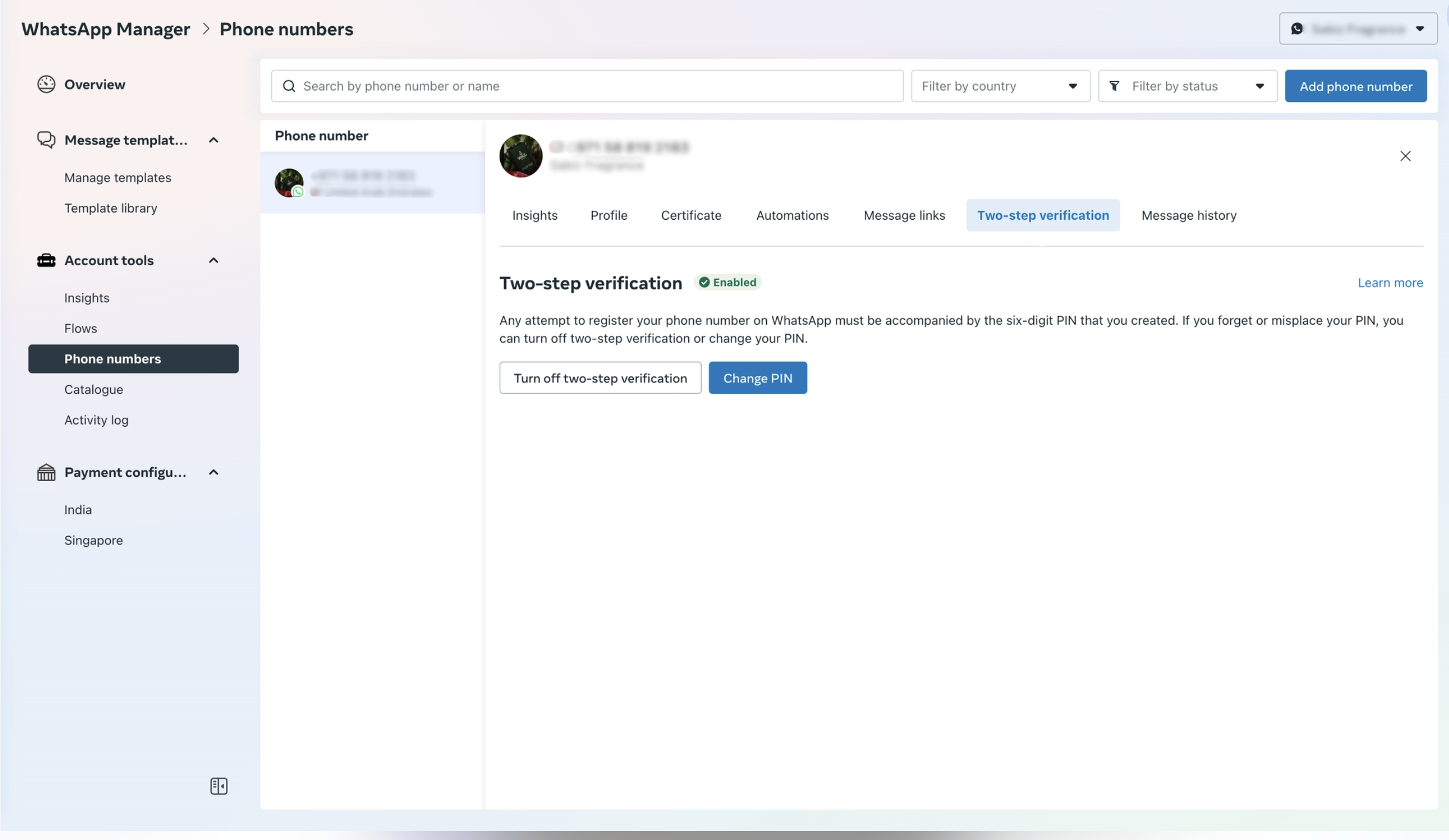
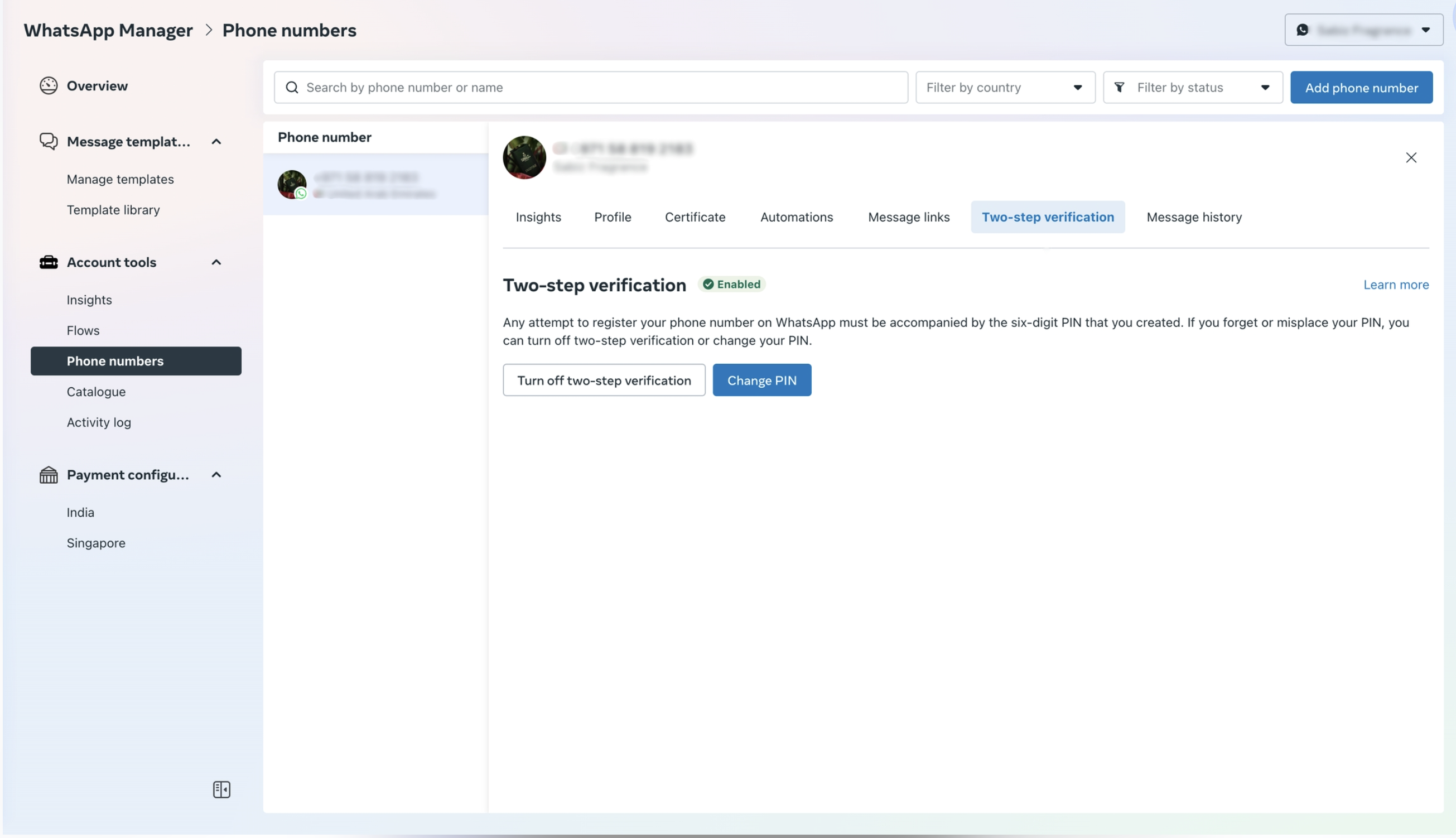
6. In "Phone Numbers", click on settings button for the phone number you want to migrate and select "Two-Step Verification".
7. Now click on "Turn off two-step verification". You will receive an email to disable two-factor authentication.
⚠️ Migration cannot proceed if Two-Step Verification is enabled.
***
### 3. Browser & Technical Requirements
To ensure smooth onboarding:
* Pop-ups must be enabled in your browser
* Stable internet connection is required
* Clear browser cache if onboarding window does not load
* Use updated browser version (Chrome recommended)
***
### 4. BotPenguin Account Requirements
Before migration:
* You must have an active BotPenguin account
* You must have permission to create a bot
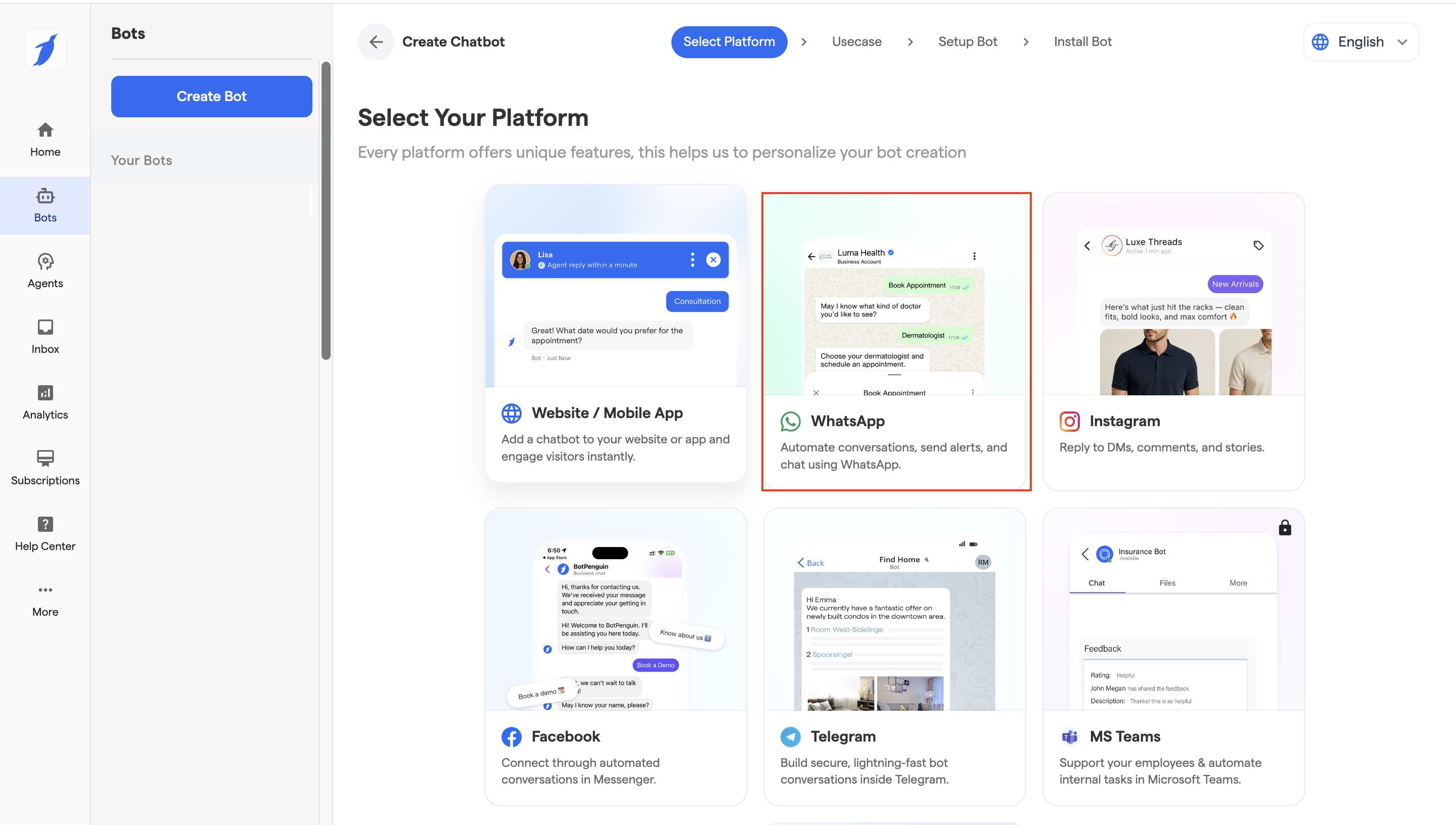
* Click **Create Bot**
* Select **WhatsApp** as the platform
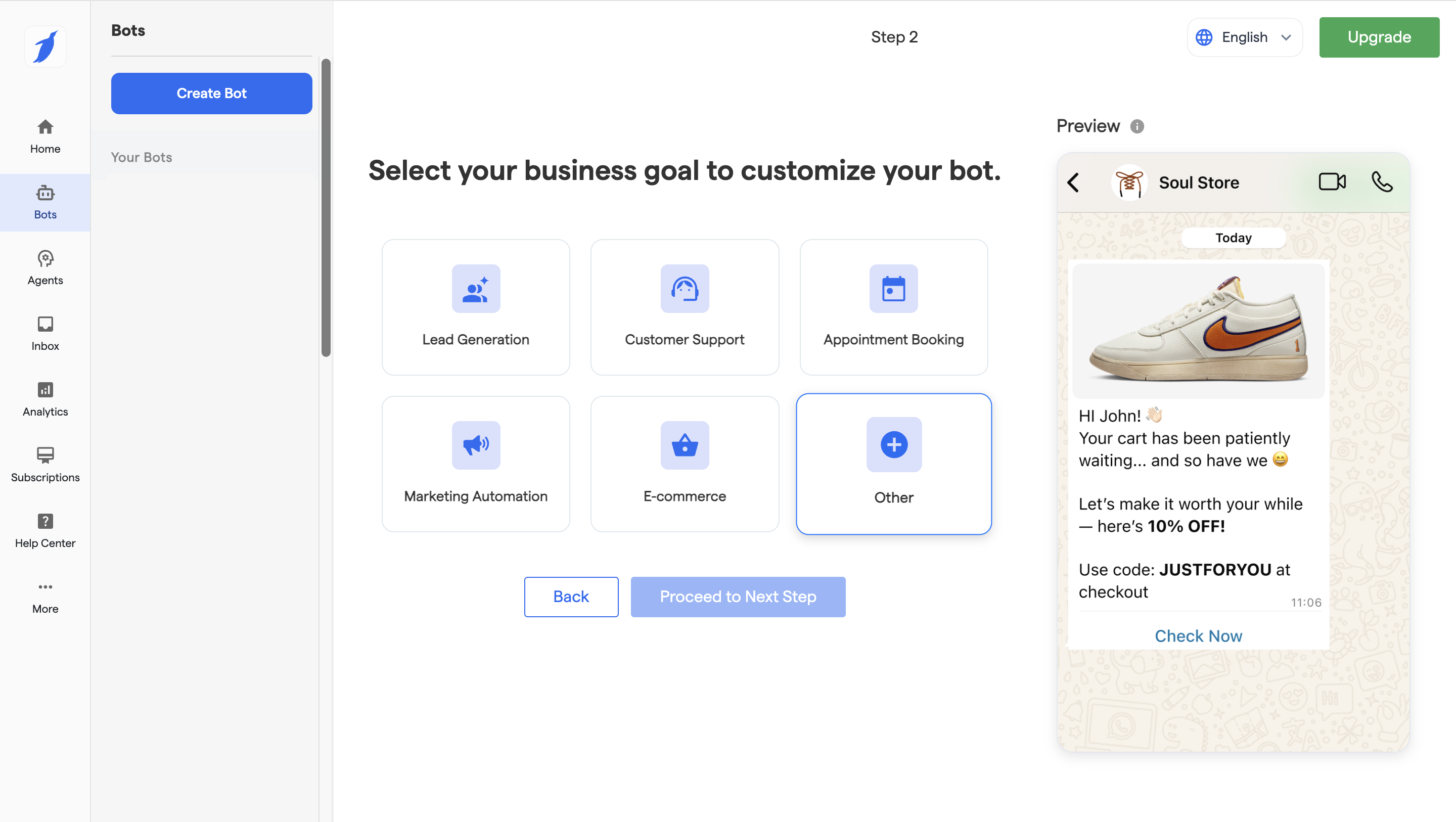
* Select your Business Goal
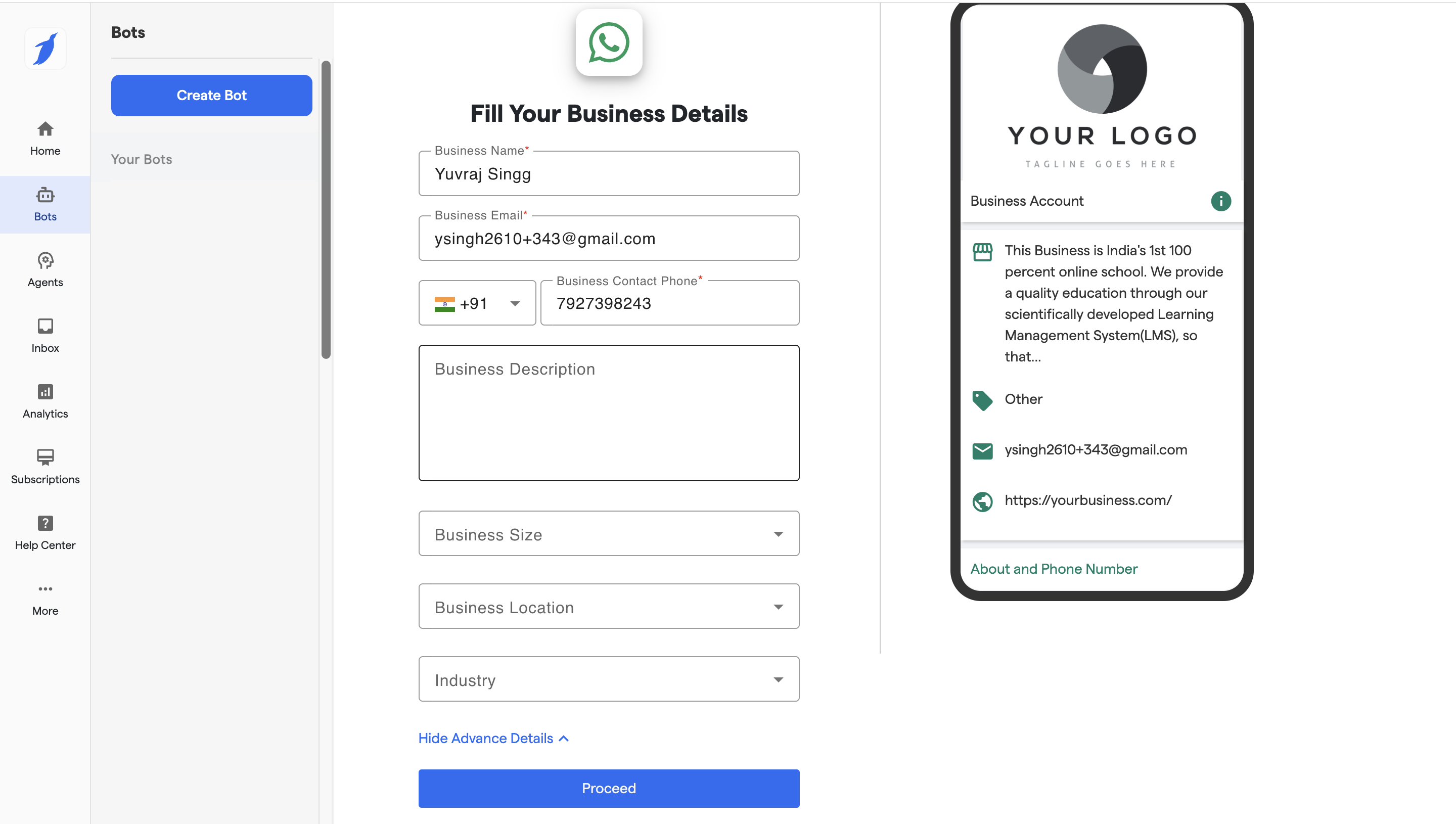
* Fill the required details.
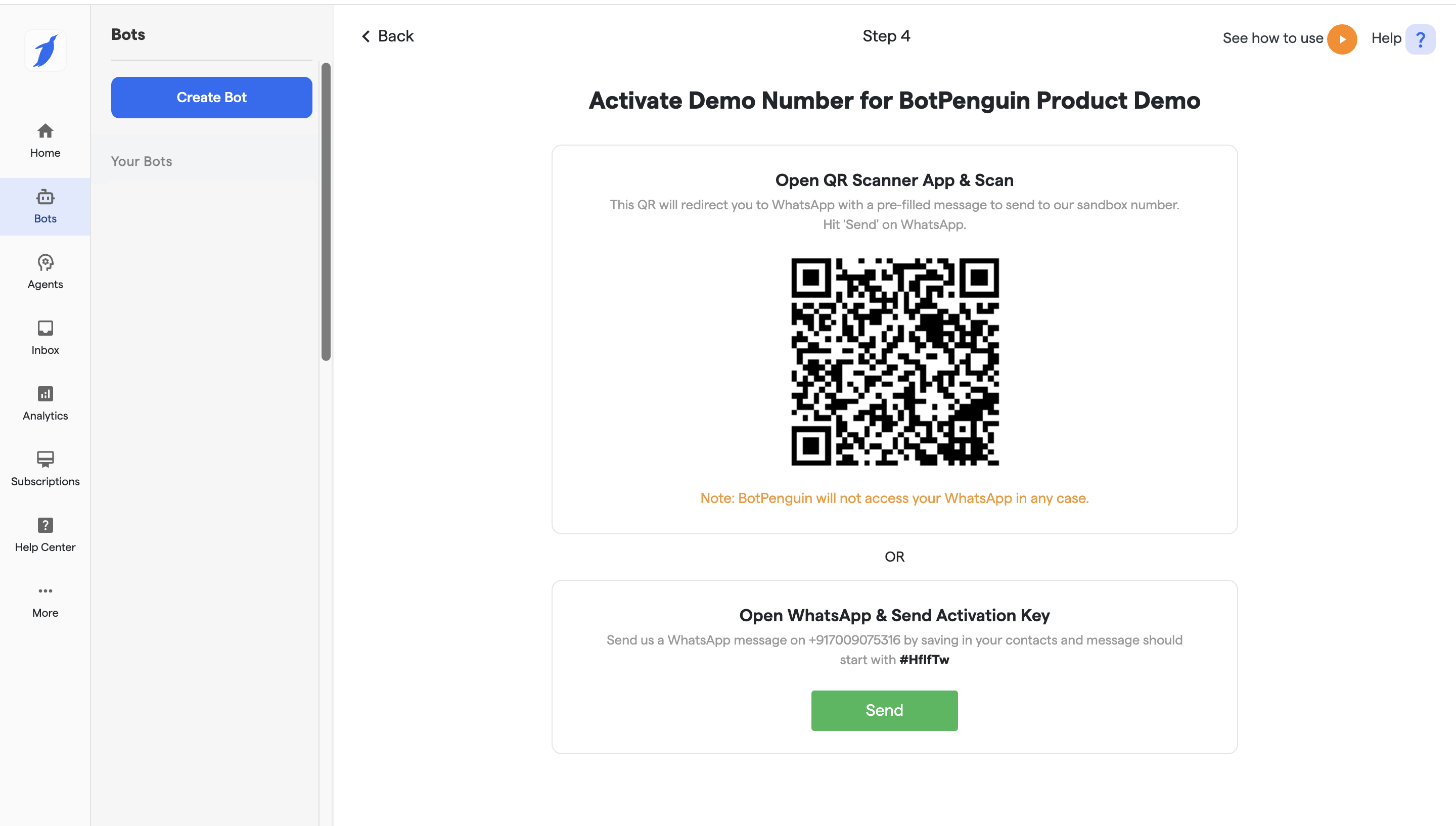
* Scan the QR Code and initiate a WhatsApp message to create the bot.
* Click to connect your business number.
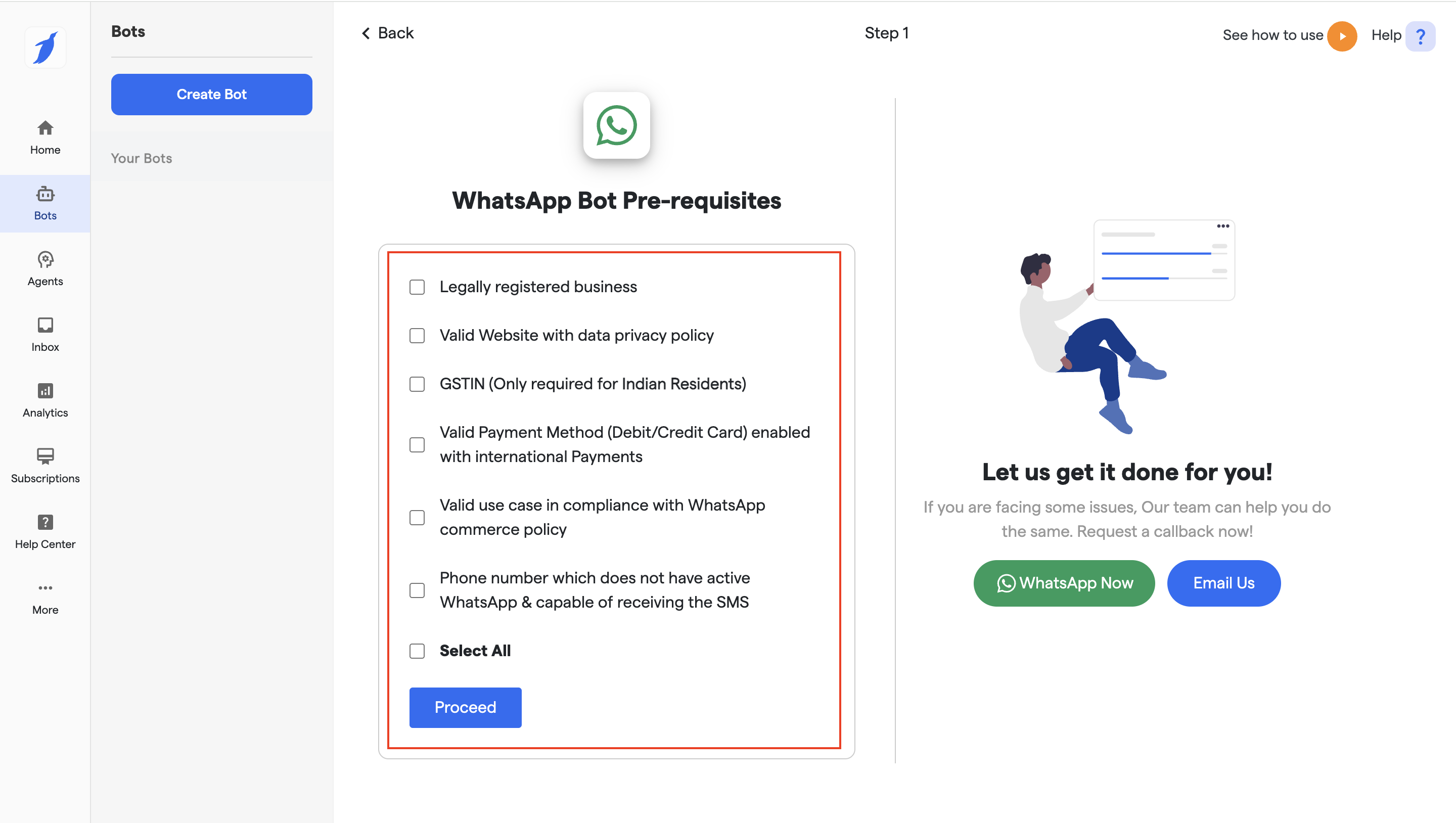
* Select all the pre-requisite and click "Proceed".
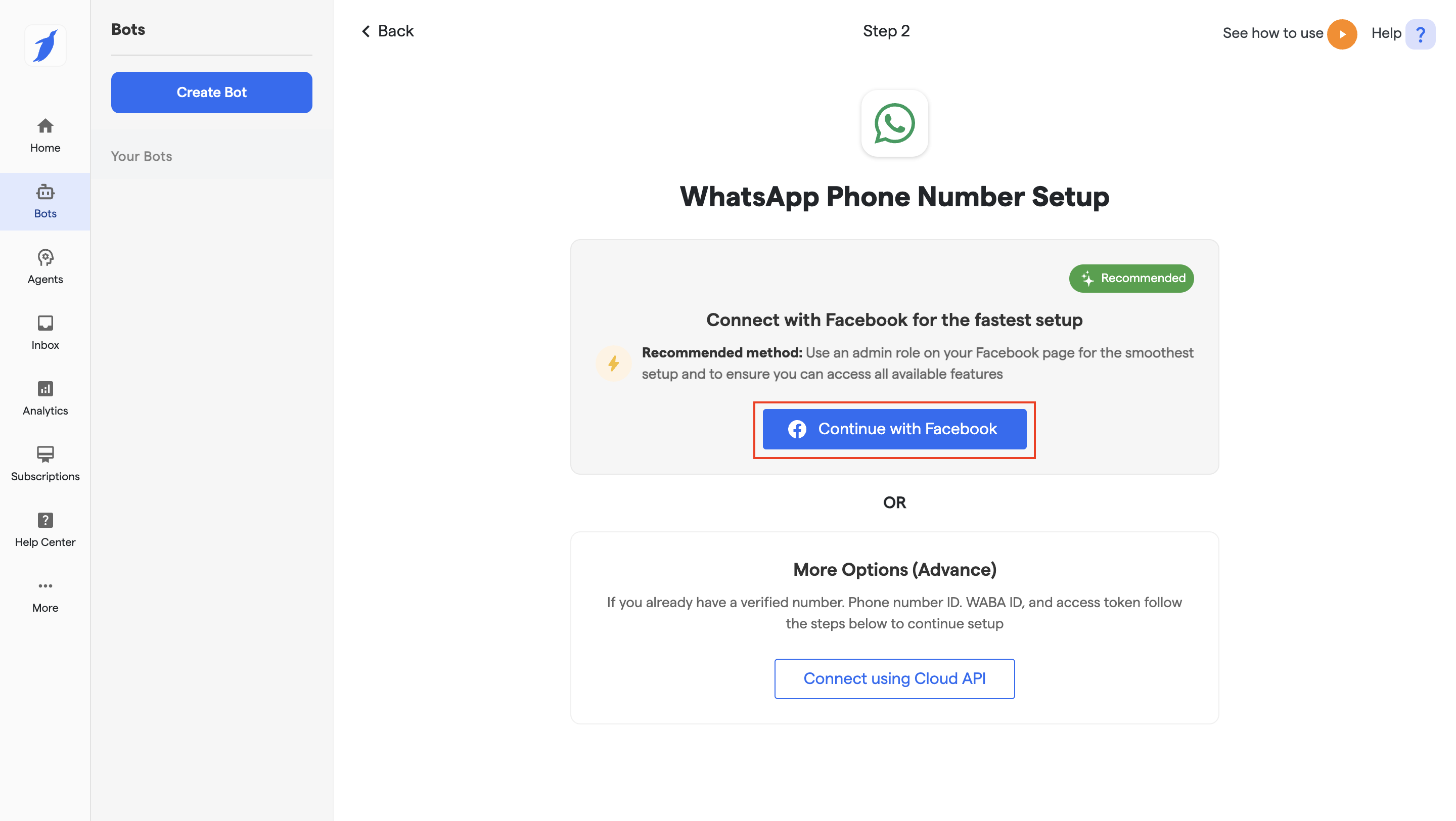
* Choose Automated or Manual onboarding. In this document, We will talking about Automated onboard.
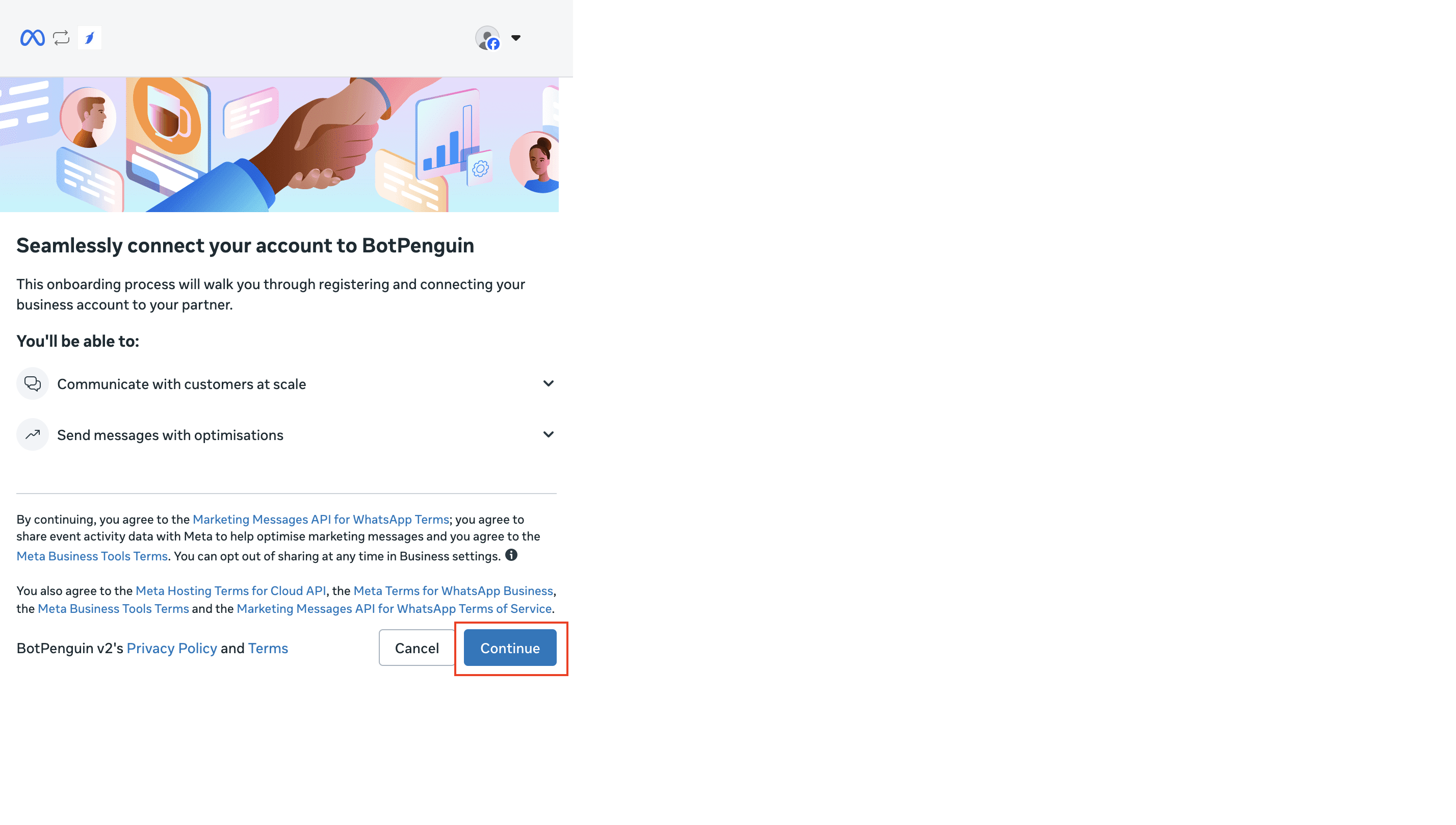
* Click on continue button.
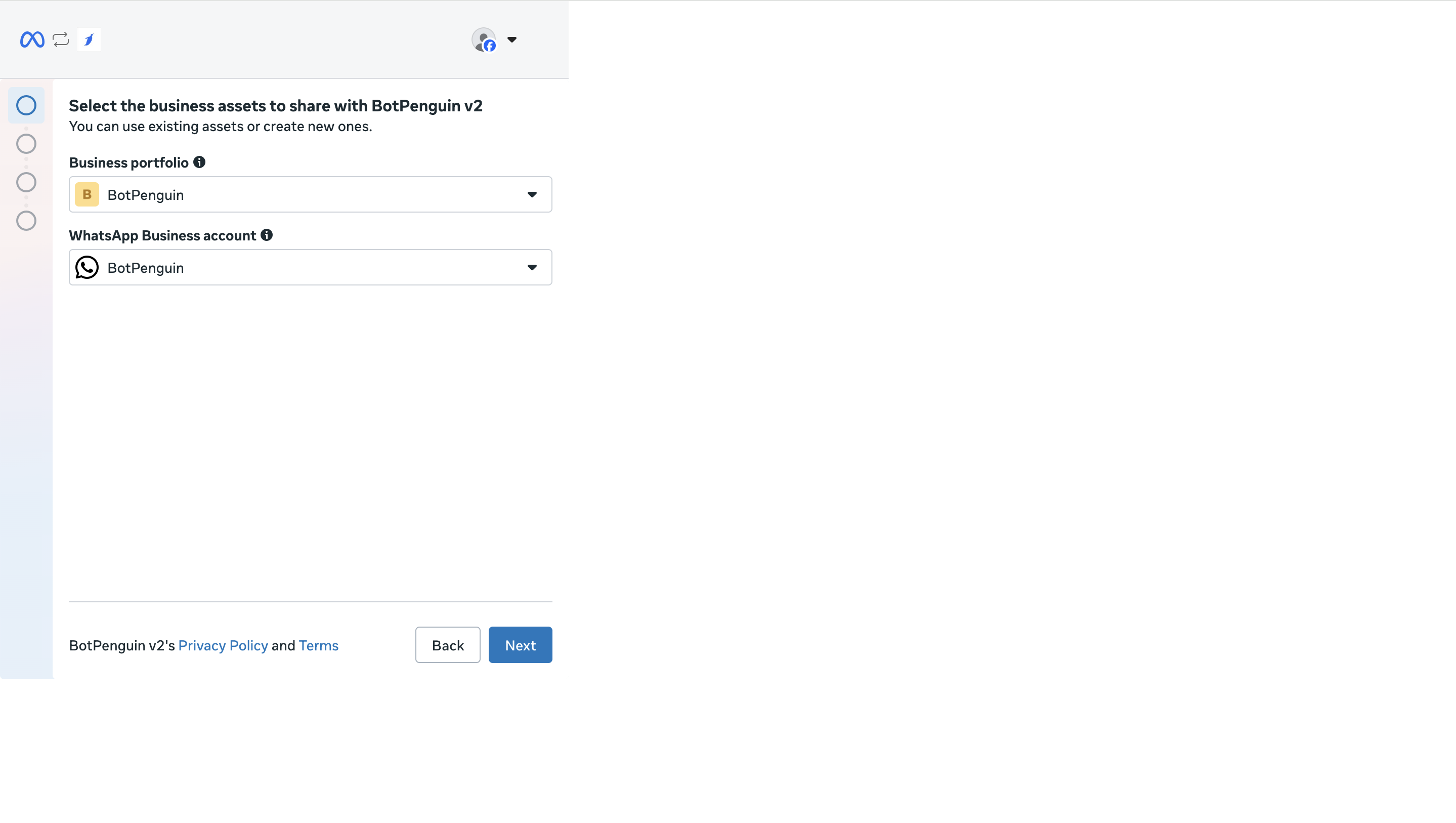
* Select the Business Assets and click on Next.
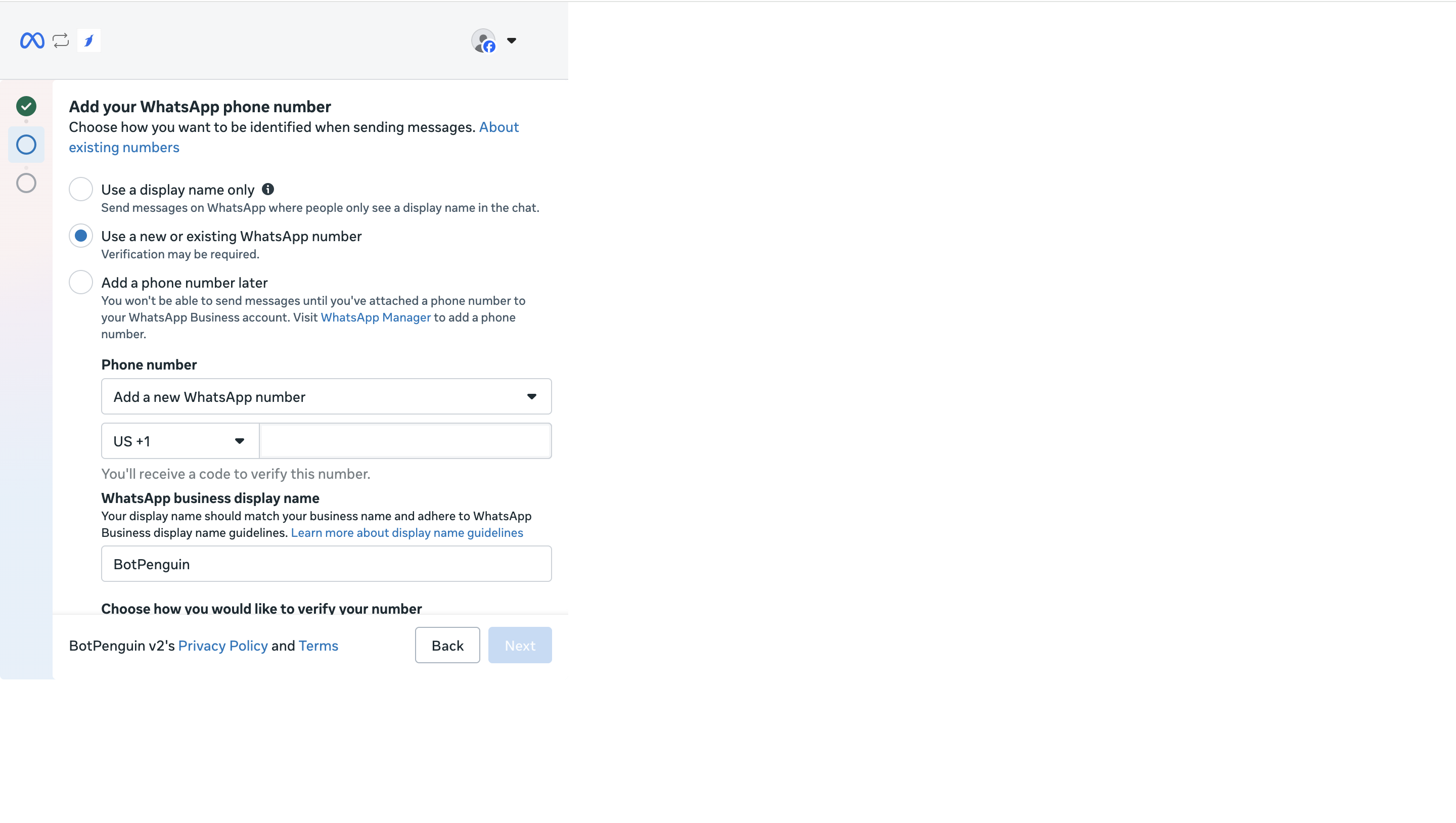
* Click on " Use a new or existing Whatsapp Number" option.
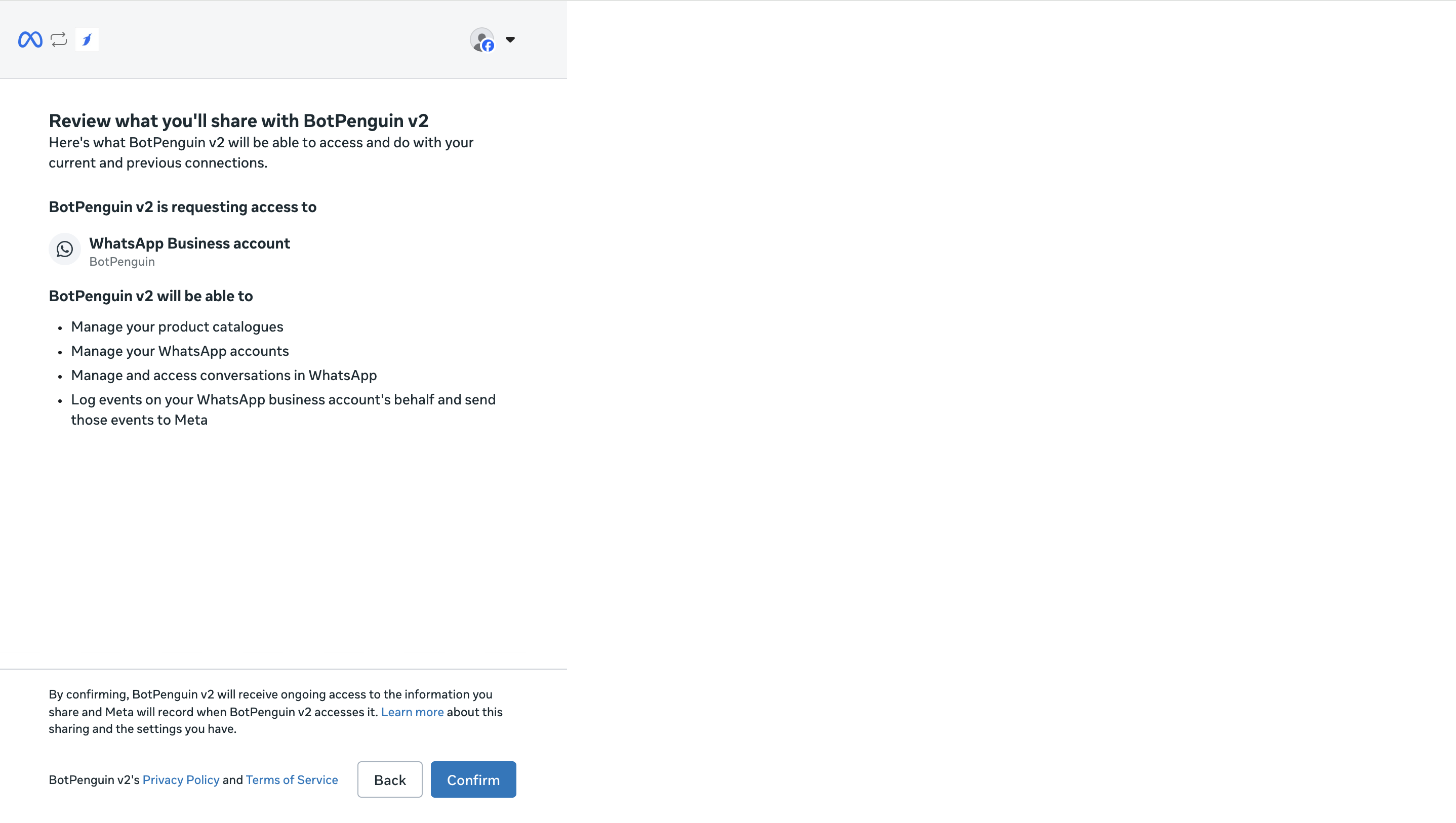
* Review what you will be sharing and click on **"Confirm"** button.
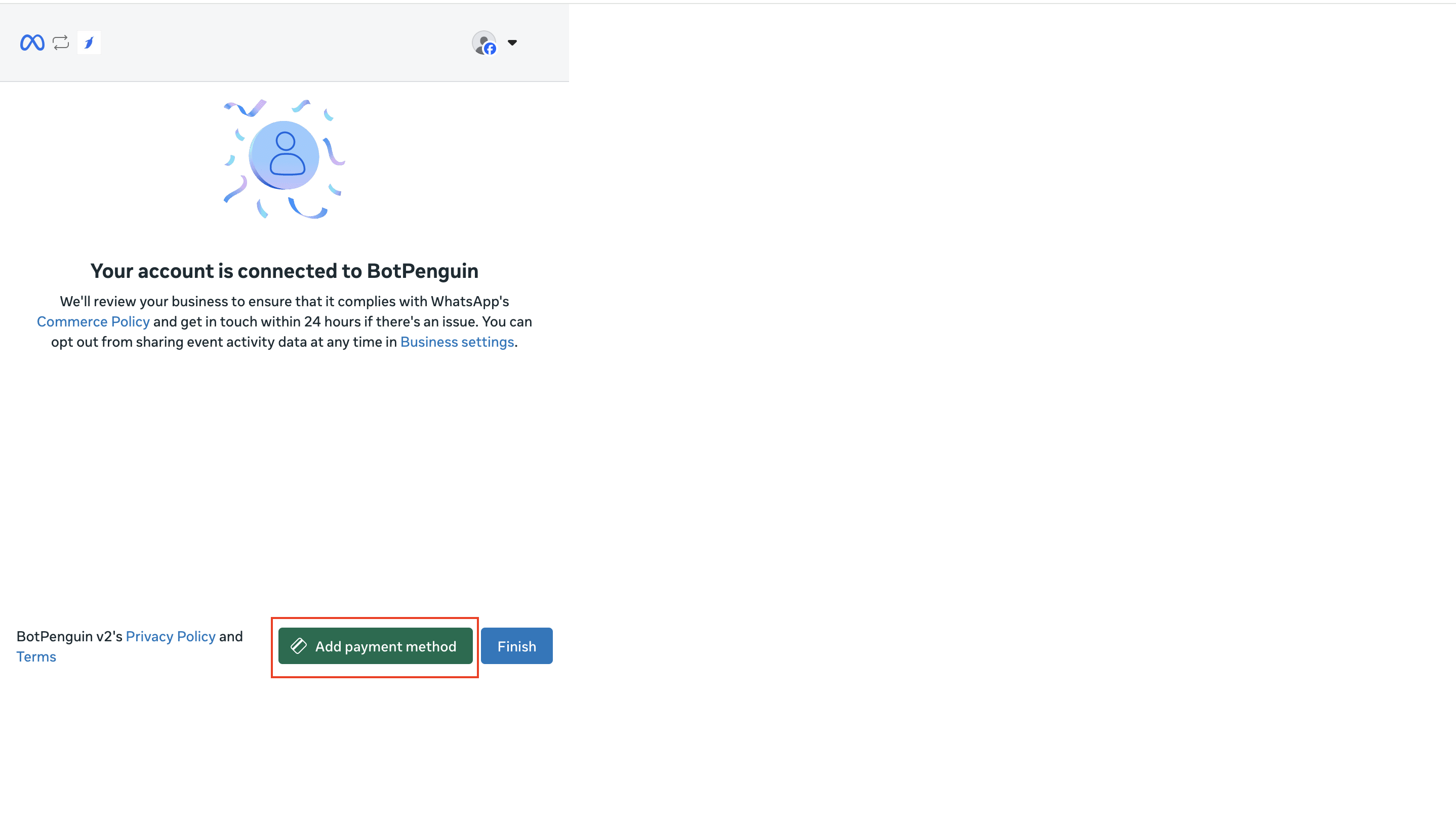
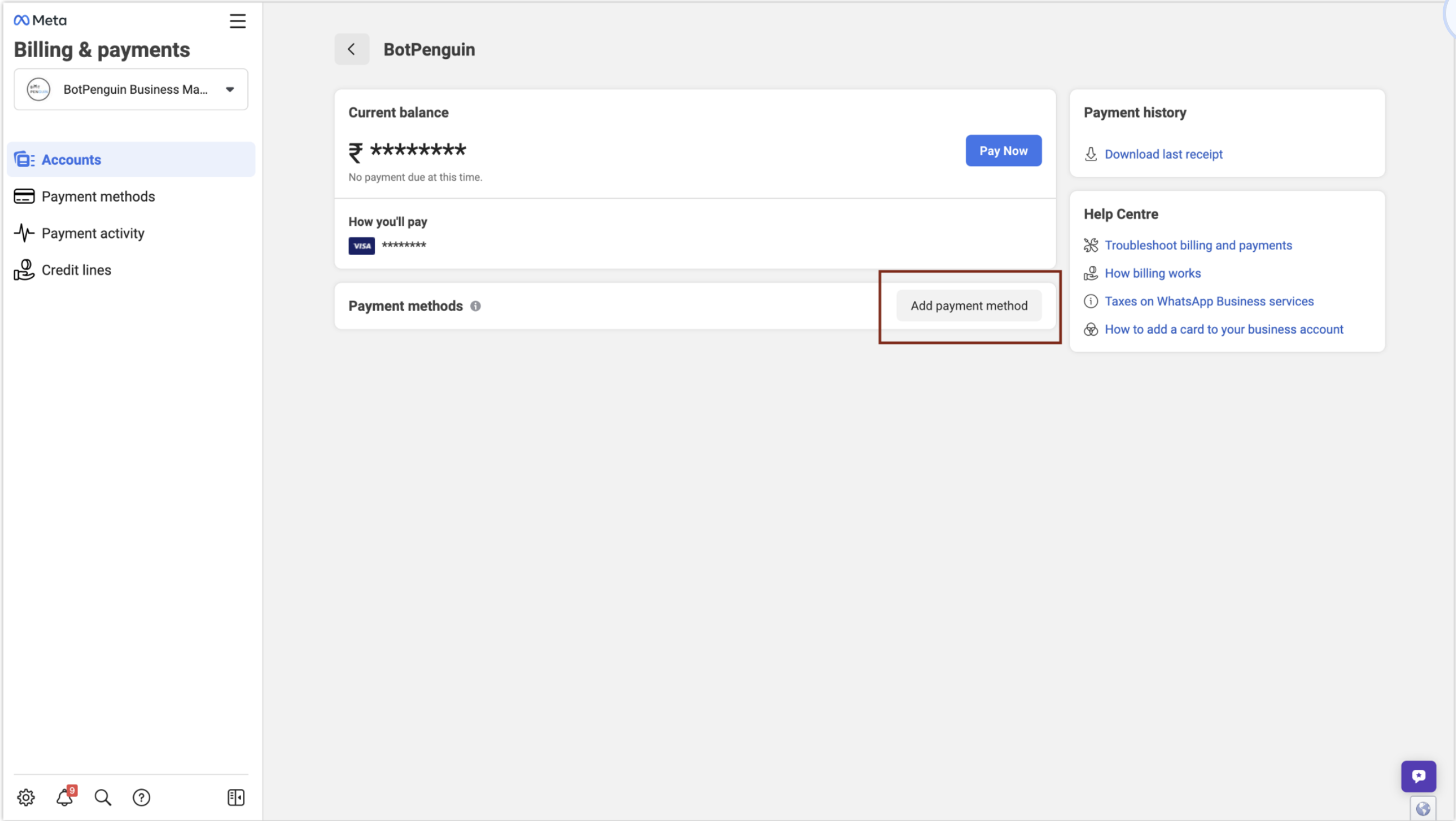
* Click on **"Add a payment method"** option.
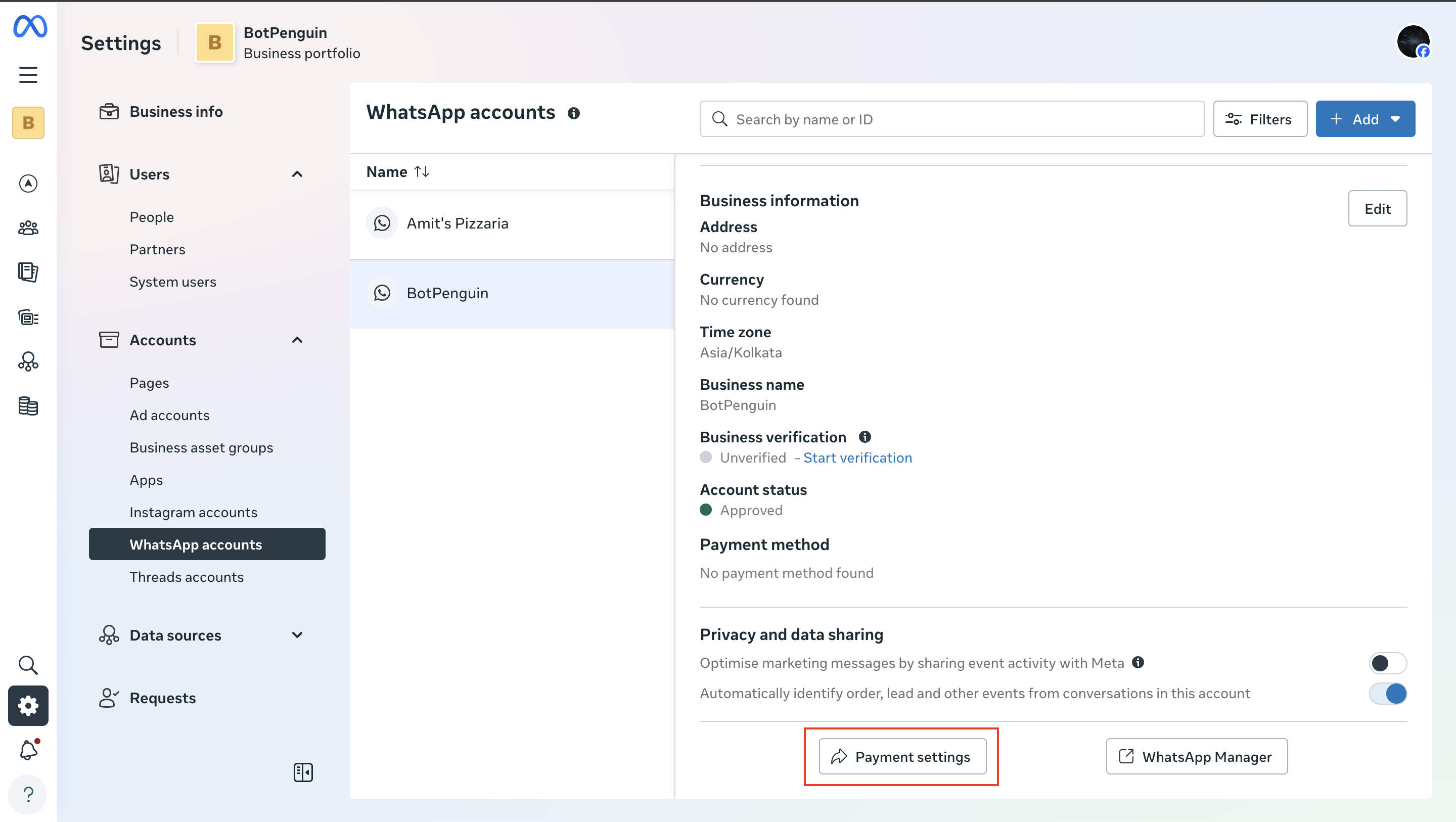
* Access WhatsApp Account Settings
In the "Meta Business Manager," locate and click on the "Payment Settings" button for your WhatsApp Account.
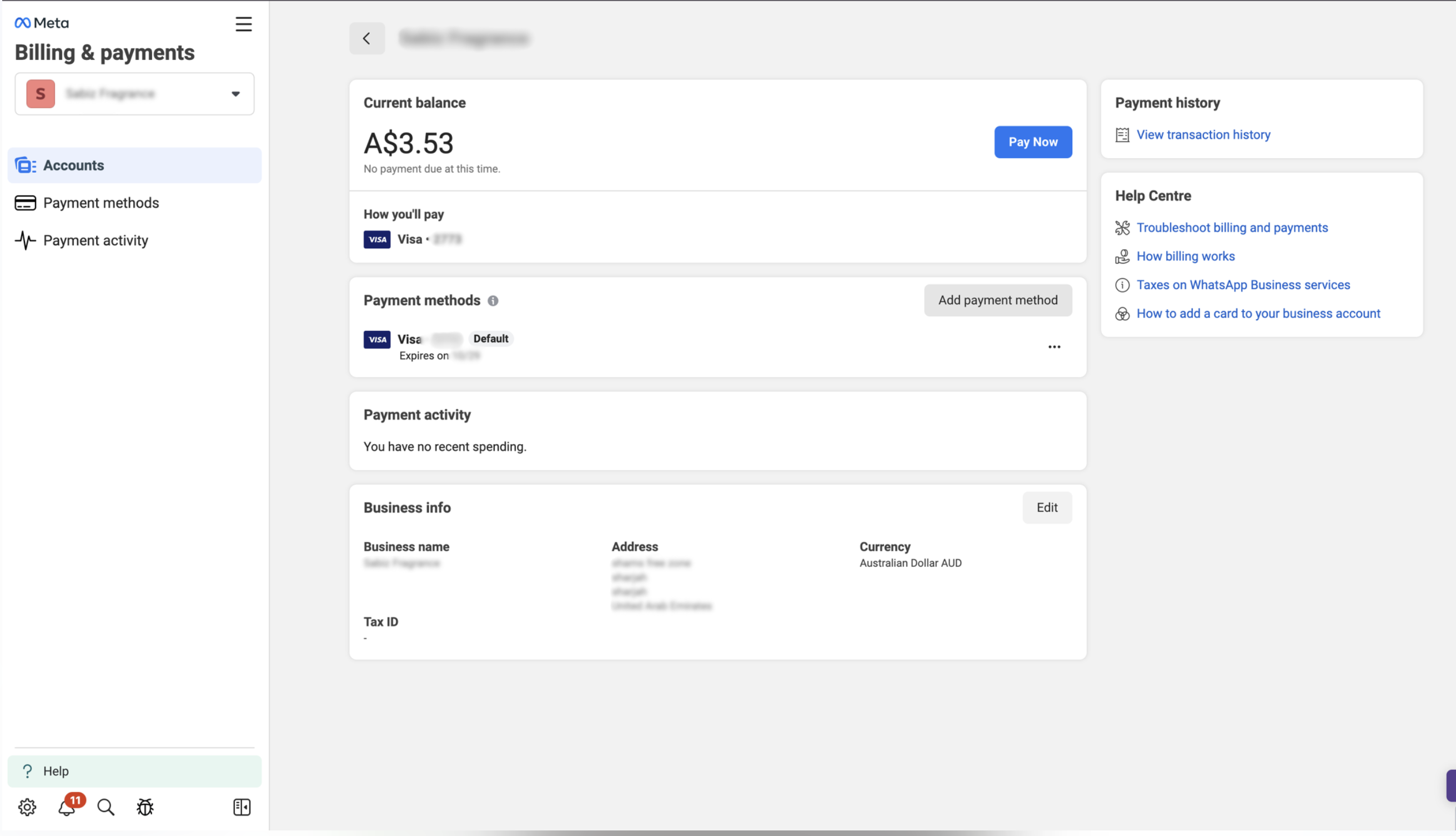
* Navigate to Billing and Payments Page
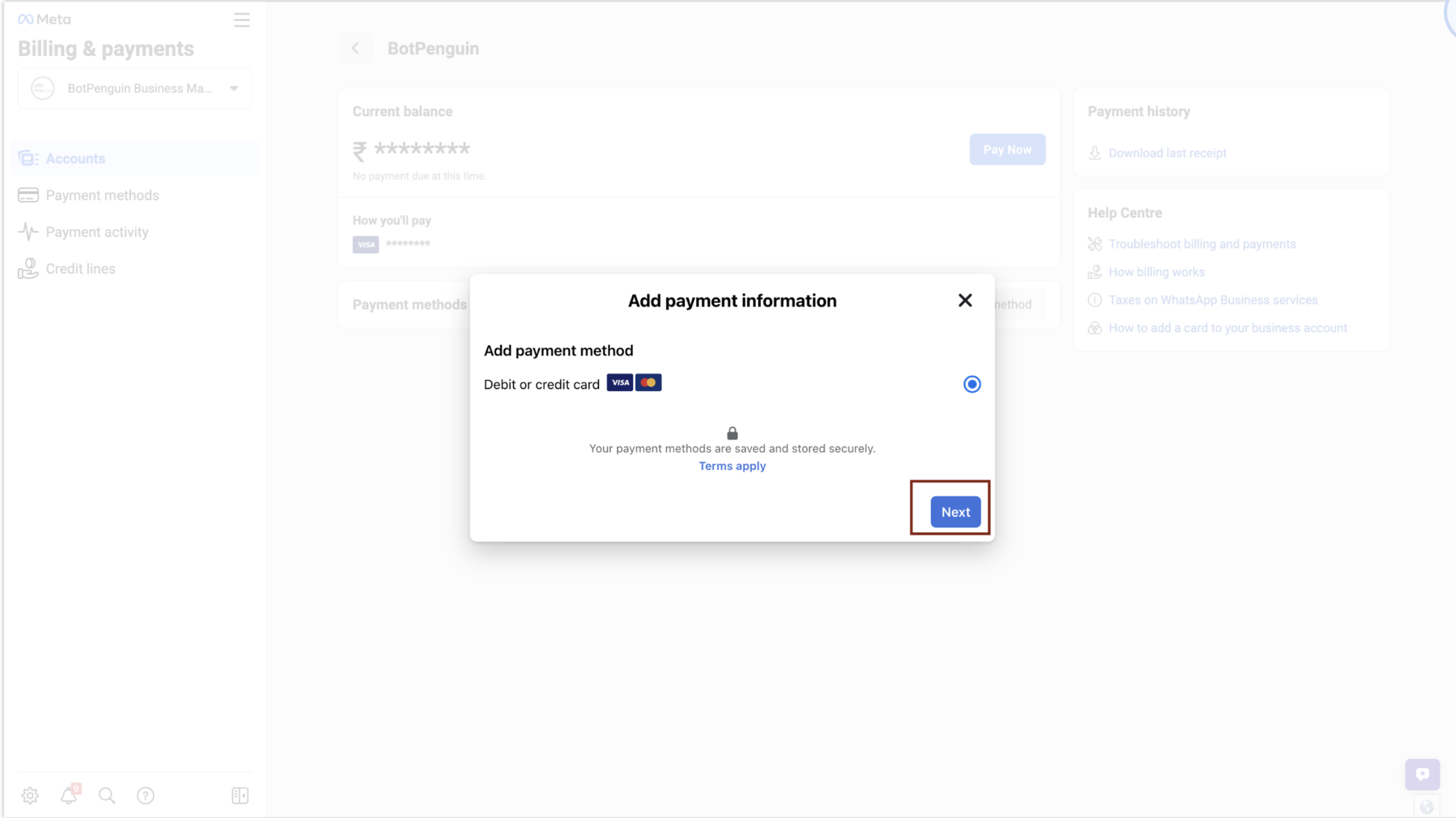
* On the "Billing and Payments" page, click on the "Add Payment Method" option to add a new payment method.
* Choose the payment method type that you want to use for your WhatsApp account.
* Enter the necessary payment details based on the selected payment method.
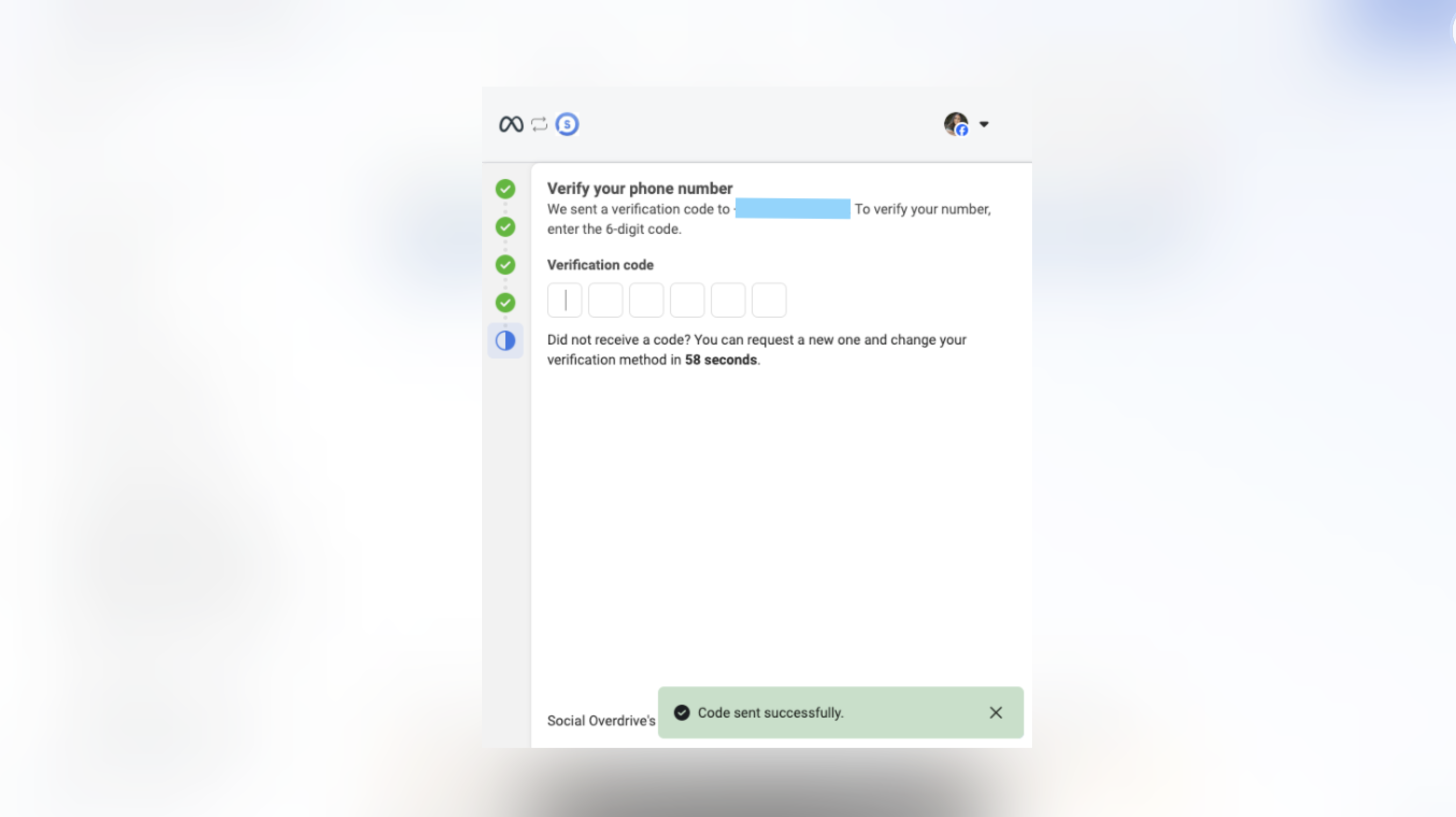
* After completing the payment details you can go back and enter the received OTP that was asked earlier.
* OTP Submission Requirement
After:
* Two-Step Verification disabled
* Payment method added
* All onboarding details completed
Then:
* Enter the OTP received on your registered number
* Click **Finish**
If OTP expires and a new OTP is not received:
* Wait 72 hours before requesting a new OTP
***
### Migration Completion Criteria
Migration is considered successful when:
* WhatsApp number is verified
* Meta onboarding is completed
* Payment method is added
* Bot appears inside BotPenguin dashboard
* WhatsApp status shows as Connected
***
### Support Requirement
If:
* OTP is not received
* Onboarding pop-up fails
* Number verification fails
* Migration gets stuck
Please contact:\
📩
Response time: Within 48 business hours.
***
## Important Notes
* Ensure the number is not connected to another BSP during migration.
* The same number cannot be migrated if it is already active elsewhere.
* Do not attempt multiple OTP requests within short intervals.
* Make sure no browser pop-up blockers are enabled.
***
If all above requirements are met, your WhatsApp Bot will be successfully migrated to BotPenguin.