> For the complete documentation index, see [llms.txt](https://help.botpenguin.com/llms.txt). Markdown versions of documentation pages are available by appending `.md` to page URLs; this page is available as [Markdown](https://help.botpenguin.com/bots/whatsapp-bot/manage-chatflow/components-in-chatflow/how-to-use-suggestions-in-chat-component.md).
# How to use Suggestions in Chat component
The Suggestions feature in the Chat component allows you to show AI-powered quick reply options to users, helping them ask relevant questions easily and improving conversation flow.
### What Are Chat Suggestions?
Chat Suggestions are **predefined or AI-generated prompts** displayed to users during a conversation. Users can tap these suggestions instead of typing, making interactions faster and more intuitive.
***
### Where to Find the Suggestions Setting
1. Open your **Bot and select the bot**
2. Go to **Chat Flow**.
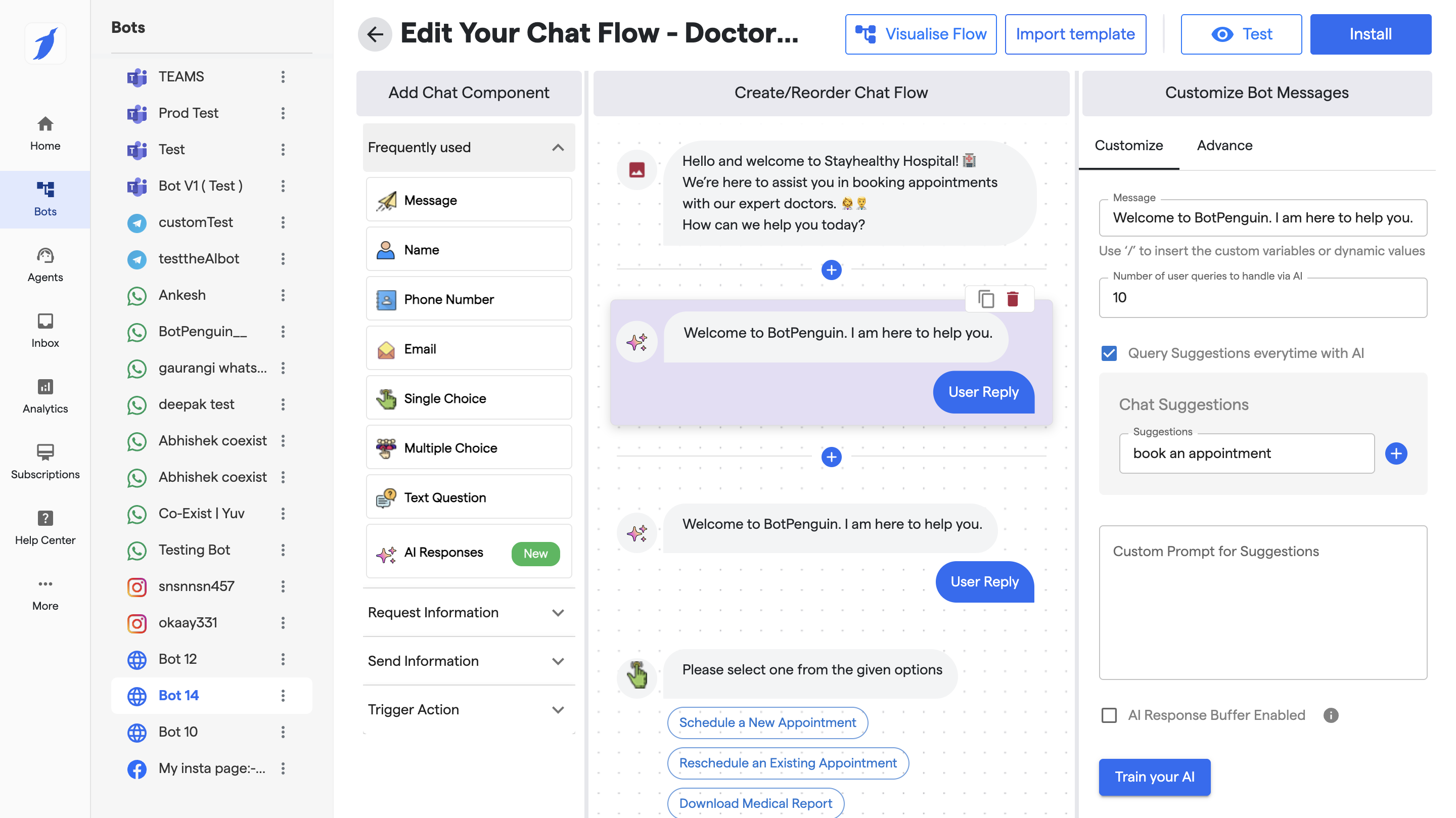
3. Open or add a **Chat (AI Agent) AI Responses component**.
4. On the **right-side configuration panel**, scroll to the **Suggestions section**.
***
### Step-by-Step: Enable and Configure Suggestions
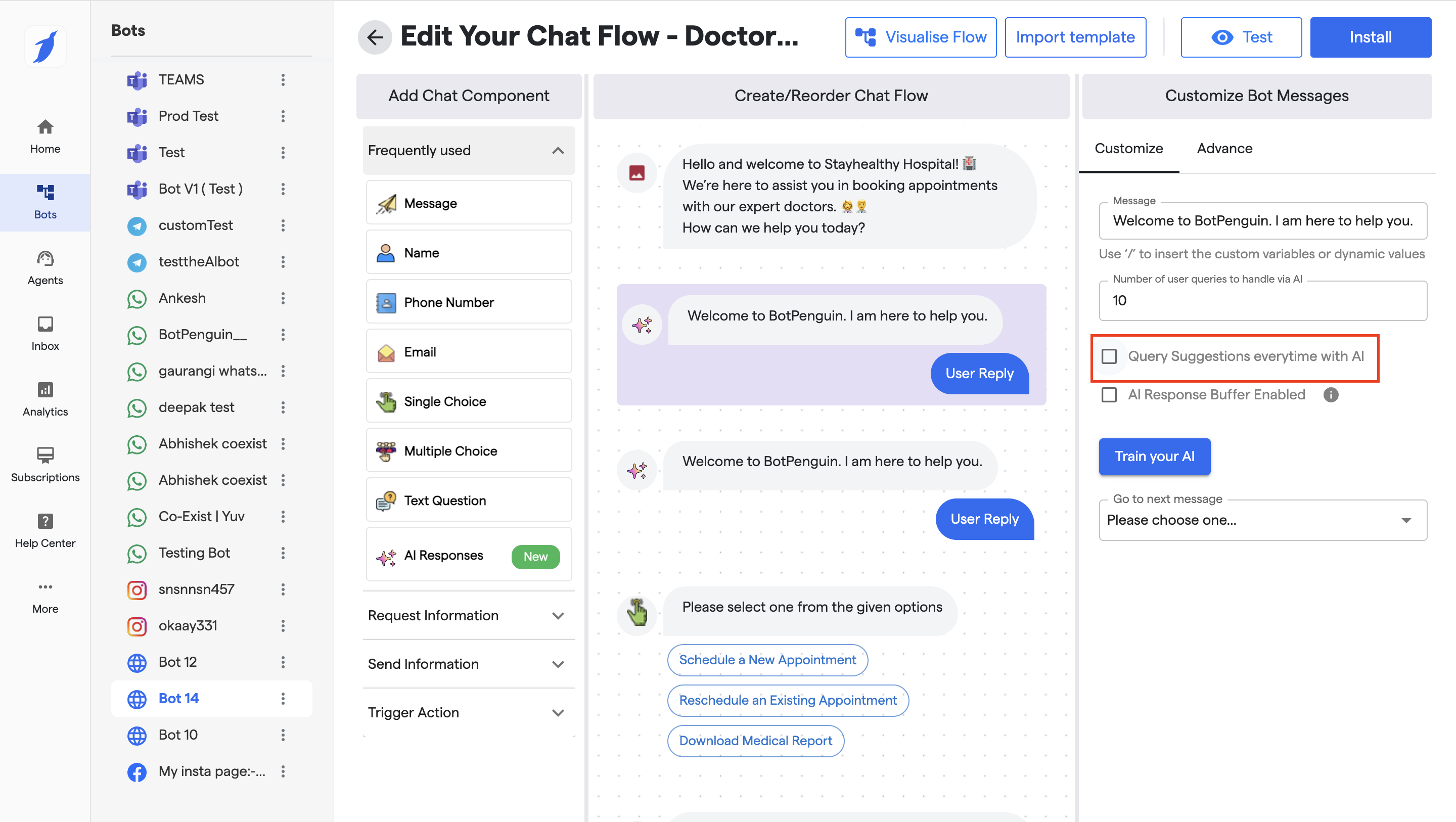
#### Step 1: Enable Query Suggestions
* Enable the checkbox\
**“Query Suggestions every time with AI”**
This ensures suggestions are generated dynamically by AI during the conversation.
***
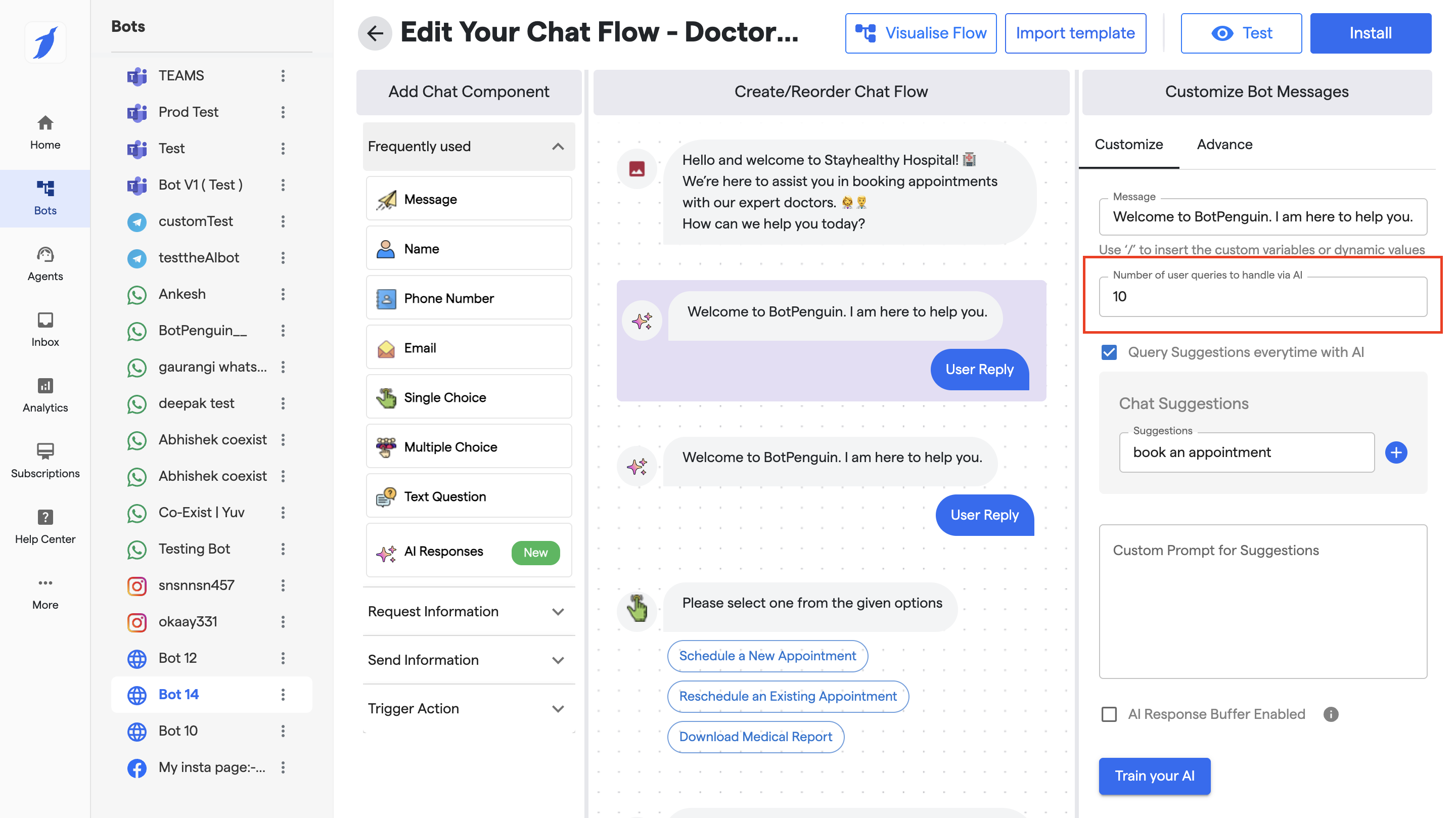
#### Step 2: Set Number of User Queries (Optional)
* In **“Number of user queries to handle via AI”**, enter the limit (e.g., `10`).
This defines how many user messages the AI should handle before handing off to another flow or logic.
***
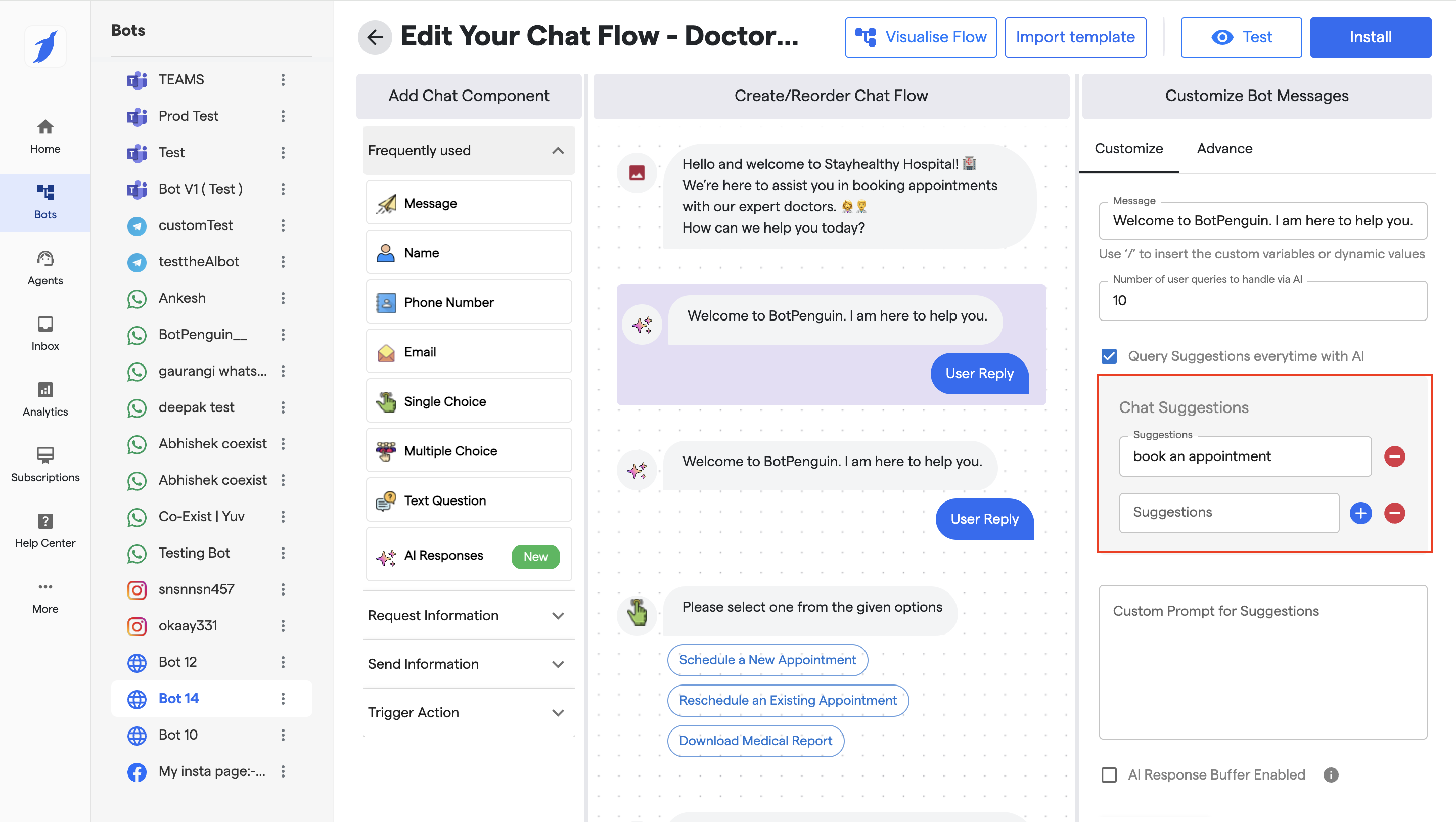
#### Step 3: Add Chat Suggestions
1. Under **Chat Suggestions**, click the **➕ (plus)** icon.
2. Enter a suggestion text (example):
* “Book an appointment”
* “Talk to a doctor”
* “Check pricing”
3. Repeat to add multiple suggestions.
💡 These suggestions will be shown to users as clickable options.
***
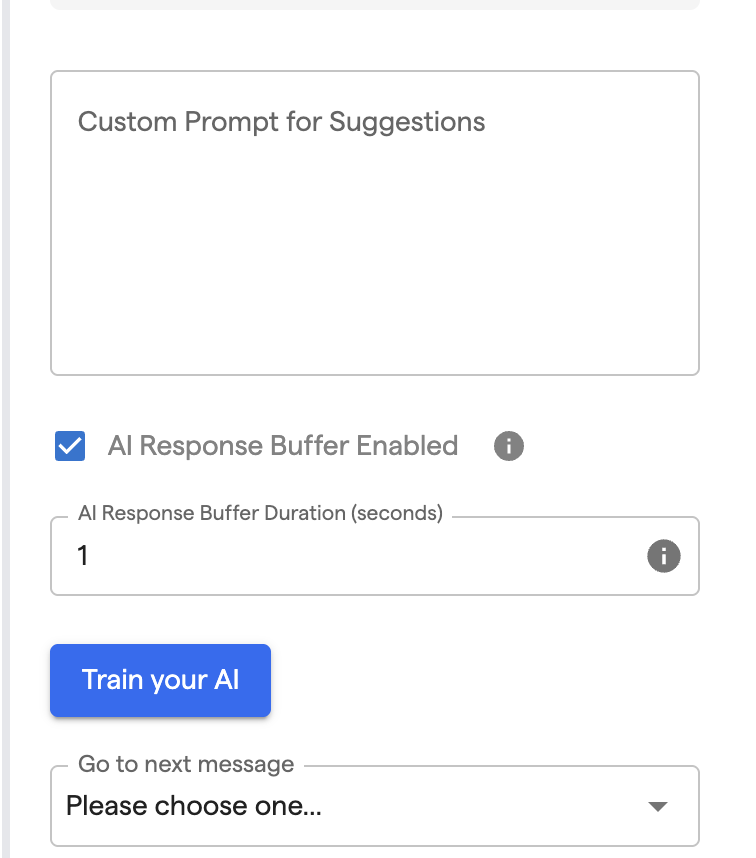
#### Step 4: (Optional) Add Custom Prompt for Suggestions
* Use **Custom Prompt for Suggestions** to guide AI on what type of suggestions to generate.
**Example:**
> “Suggest common healthcare-related questions users usually ask.”
This helps make suggestions more contextual and relevant.
***
#### Step 5: Save and Install
1. Click **Save**.
2. Click **Install** to apply the changes.
3. A success message **“Bot Updated Successfully”** confirms the update.
***
### How Suggestions Appear to Users
* Suggestions are shown as **quick reply buttons** inside the chat.
* Users can tap a suggestion instead of typing.
* Once selected, the suggestion is sent as a user query to the AI.