> For the complete documentation index, see [llms.txt](https://help.botpenguin.com/llms.txt). Markdown versions of documentation pages are available by appending `.md` to page URLs; this page is available as [Markdown](https://help.botpenguin.com/bots/whatsapp-bot/whatsapp-automation/whatsapp-conversations-and-flow-builder.md).
# WhatsApp Conversations & Flow Builder
### What are WhatsApp Flows:
**WhatsApp Flows** are interactive forms built directly inside WhatsApp chats, allowing businesses to collect information from users quickly and smoothly. Instead of asking multiple back-and-forth questions, businesses can present a simple form where users can fill in details like name, email, preferences, or feedback all in one go. Flows make the experience faster, more organized, and user-friendly, helping businesses generate leads, take orders, book appointments, or gather customer inputs without needing users to leave the chat. They are extremely useful for improving response rates, reducing manual effort, and offering a professional and seamless customer experience.
***
### How to Setup WhatsApp Flows:
### Step 1: Navigate to WhatsApp Flows in BotPenguin
**Path:**\
**WhatsApp Bot → WhatsApp Automation → WA Flow (Forms)**
1. Open your WhatsApp Bot
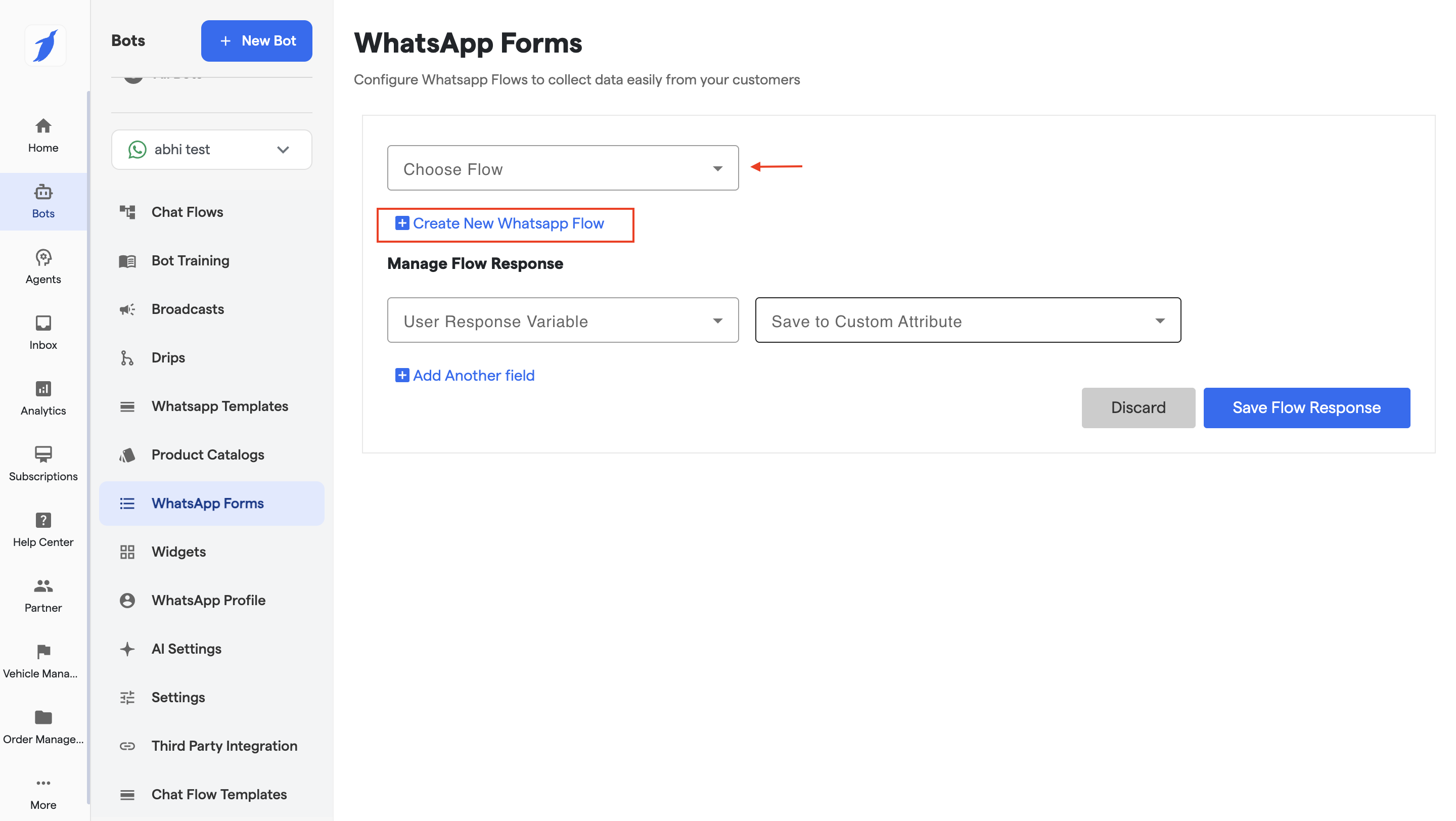
2. Select whatsapp forms
3. Click **Continue** to start creating your first form
### Step 2: Choose or Create a WhatsApp Flow
#### Option 1: Use an Existing Flow
1. Click on the **Choose Flow** dropdown
2. Select a previously created WhatsApp Flow
#### Option 2: Create a New WhatsApp Flow
1. Click the **Create New Flow** button shown on the screen
2. You will be redirected to **business.facebook.com**
3. This opens the **WhatsApp Flows management page**
***
### Step 3: Create the Flow on Meta (Facebook)
1. Click **Get Started**
2. Enter the required details:
* **Flow Name**
* **Category**
* If unsure, select **Default**
* **Template** (if applicable)
3. (Optional) Set an **Endpoint**
* This defines where the submitted data is sent (e.g., external system or API)
4. Click **Create**
Your WhatsApp Flow will now be created.
{% hint style="info" %}
If unsure about the category, set as "Default" for now.
{% endhint %}
***
### Step 4: Design the Flow (JSON-Based)
WhatsApp Flows are built using **JSON**.
#### How to Create or Edit Flow JSON
* Replace the default JSON with your custom flow logic
* Define:
* Input fields
* Labels
* Field types
* Validation rules
#### Helpful Tool
You can design and test your flow using Meta’s official playground:\
👉
This tool helps you:
* Build flows visually
* Validate JSON structure
* Test user experience before publishing
***
### Step 5: Publish the Flow
Once your JSON is ready:
1. Save the flow
2. Publish it on Meta
3. Ensure the flow status is **Active**
Only **published flows** can be used in BotPenguin.
***
### Step 6: Manage Flow Responses in BotPenguin
After creating the flow on Meta, return to **BotPenguin**.
#### Path
**WhatsApp Automation → WA Flow (Forms) → Manage Flow Response**
***
### Step 7: Map Flow Responses to BotPenguin Attributes
1. Enter the **User Response Variable**
* This should match the variable name used in your flow JSON
2. Select **Save to Custom Attribute**
* Choose an existing attribute or create a new one
3. Click **Add Another Field** to map more responses
4. Repeat for all required form fields
***
### Step 8: Save the WhatsApp Flow Form
1. Click **Save Flow Response**
2. Your WhatsApp Flow (Form) is now ready to use
You can now trigger this form inside:
* Chatbot flows
* Automations
* WhatsApp conversations
***
### Best Practices for WhatsApp Flows
* Keep forms short and relevant
* Ask only essential questions
* Use clear field labels
* Test the flow before using it live
* Always map response variables correctly
* Avoid collecting unnecessary sensitive data
***
### Common Issues & Troubleshooting
* Flow not appearing in BotPenguin → Ensure it is **published** on Meta
* Responses not saved → Check variable names and attribute mapping
* User not able to submit form → Validate JSON and required fields
***
### FAQ's:
Here are some common FAQ's regarding WA flows:
What types of data or information do we want to collect using WhatsApp Flows?
We collect user details, service needs, order information, and feedback using WhatsApp Flows.
Can we design a WhatsApp Flow that lets a customer book a demo call without needing human intervention?
Yes, we can design a WhatsApp Flow to book demo calls automatically without human intervention. Just set your flow to direct customers to the form, and start collecting!
Is it possible to use a Flow to take a full product order, including quantity, size, and delivery address?
Yes, full product orders including quantity, size, and address can be captured through a Flow.
Where to make the Flows if I don't know any coding?
Go to "" to make the flows using interactive buttons, all without using any coding.
If everything is correct and you are still unable to move forward, write to us at . We will respond back within 48 business hours.