For the complete documentation index, see llms.txt. This page is also available as Markdown.

Acuity Scheduling

This section contains essential information and usage guidelines for integrating Acuity Scheduling with BotPenguin.

What is Acuity Scheduling?

Acuity Scheduling is an online appointment scheduling platform that helps businesses manage bookings, appointments, and customer scheduling.

Integrating Acuity Scheduling with BotPenguin allows your chatbot to securely connect with your Acuity account and automate appointment-related workflows using your scheduling data.


When should you use this?

Use this integration when:

  • You want to connect your Acuity Scheduling account with BotPenguin.

  • You need your chatbot to access appointment scheduling information.

  • You want to automate booking-related workflows using Acuity Scheduling.


Benefits of Acuity Scheduling Integration

  • 📅 Connect your chatbot directly with your Acuity Scheduling account.

  • ⚡ Automate appointment and scheduling workflows.

  • 🔄 Keep scheduling information connected with your chatbot.

  • 🤖 Reduce manual effort while managing appointments.

  • 📈 Improve the customer booking experience.


Expected Outcome

After setting this up:

  • Your Acuity Scheduling account will be successfully connected to BotPenguin.

  • BotPenguin will be able to securely communicate with your Acuity Scheduling account.

  • Your chatbot will be ready to use Acuity Scheduling within supported workflows.

lightbulb

Tip: Test the integration after connecting to verify that your credentials have been configured correctly.

🔐 Prerequisites

Before setting up this integration, ensure you have:

  • An active Acuity Scheduling account.

  • Your User ID.

  • Your API Key.

  • Permission to access your Acuity Scheduling account settings.


How to Use Acuity Scheduling

1. Open Integrations

  1. Log in to your BotPenguin account.

  2. Select the bot you want to configure.

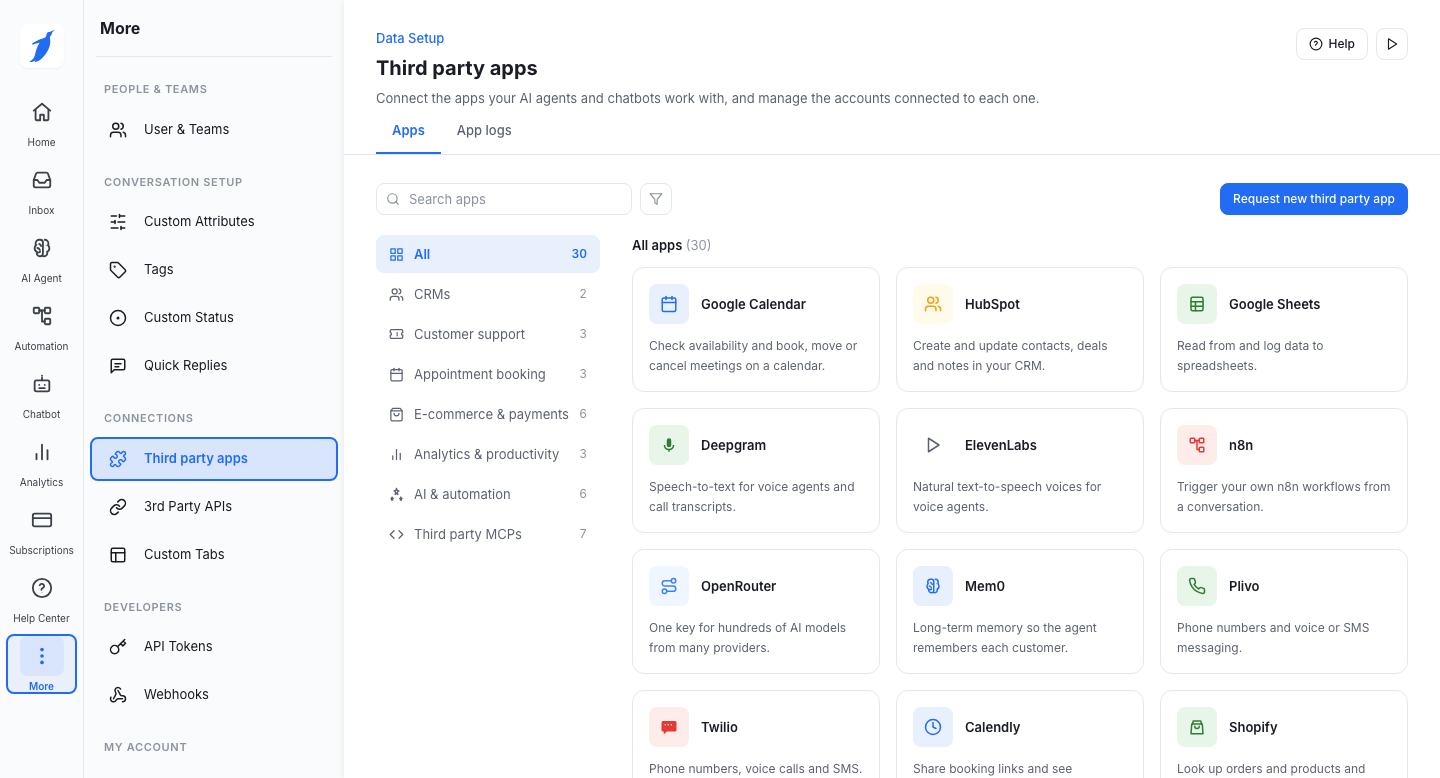
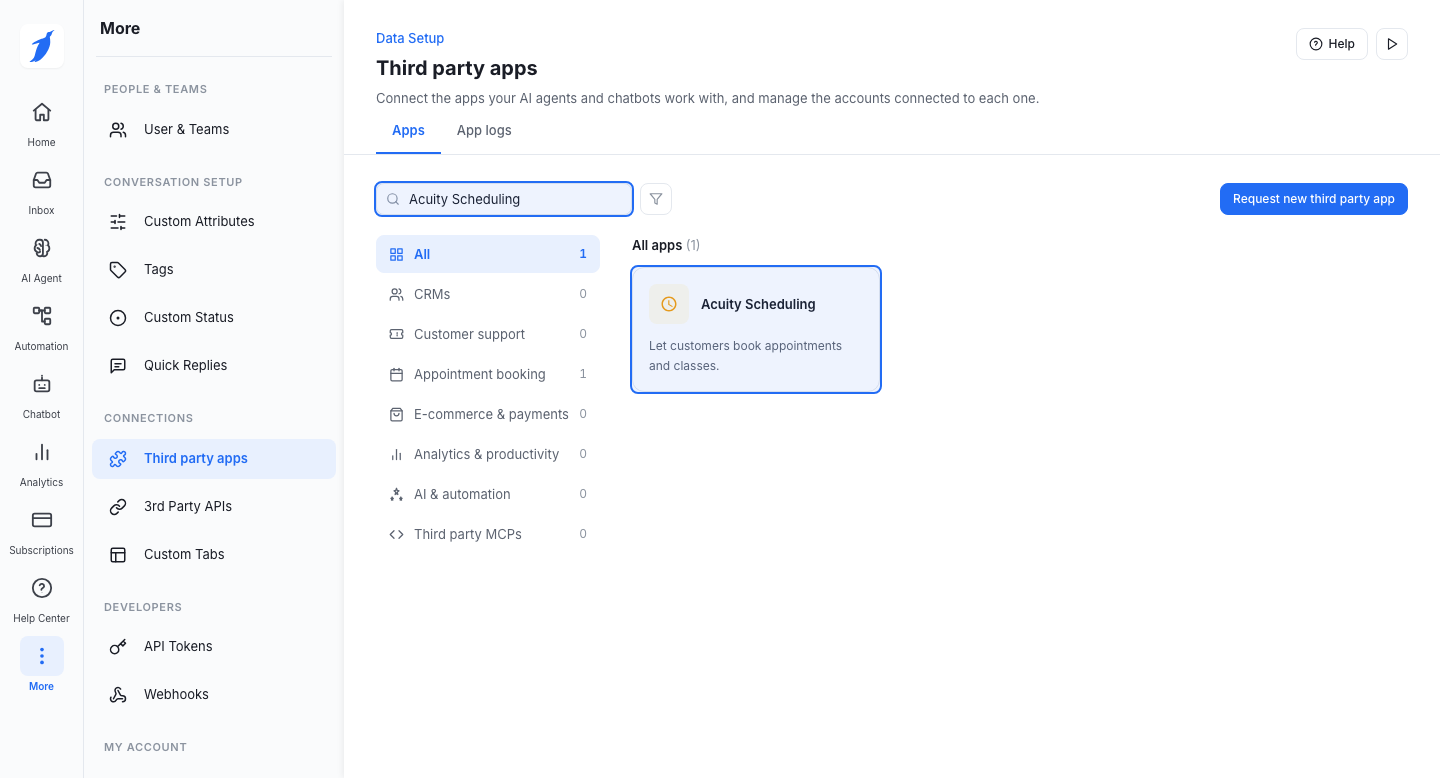
  3. Navigate to Third Party Apps.

  1. Search for Acuity Scheduling and click on it.
2. Obtain Your Acuity Scheduling Credentials

If you already have your User ID and API Key, proceed to the next step.

Otherwise:

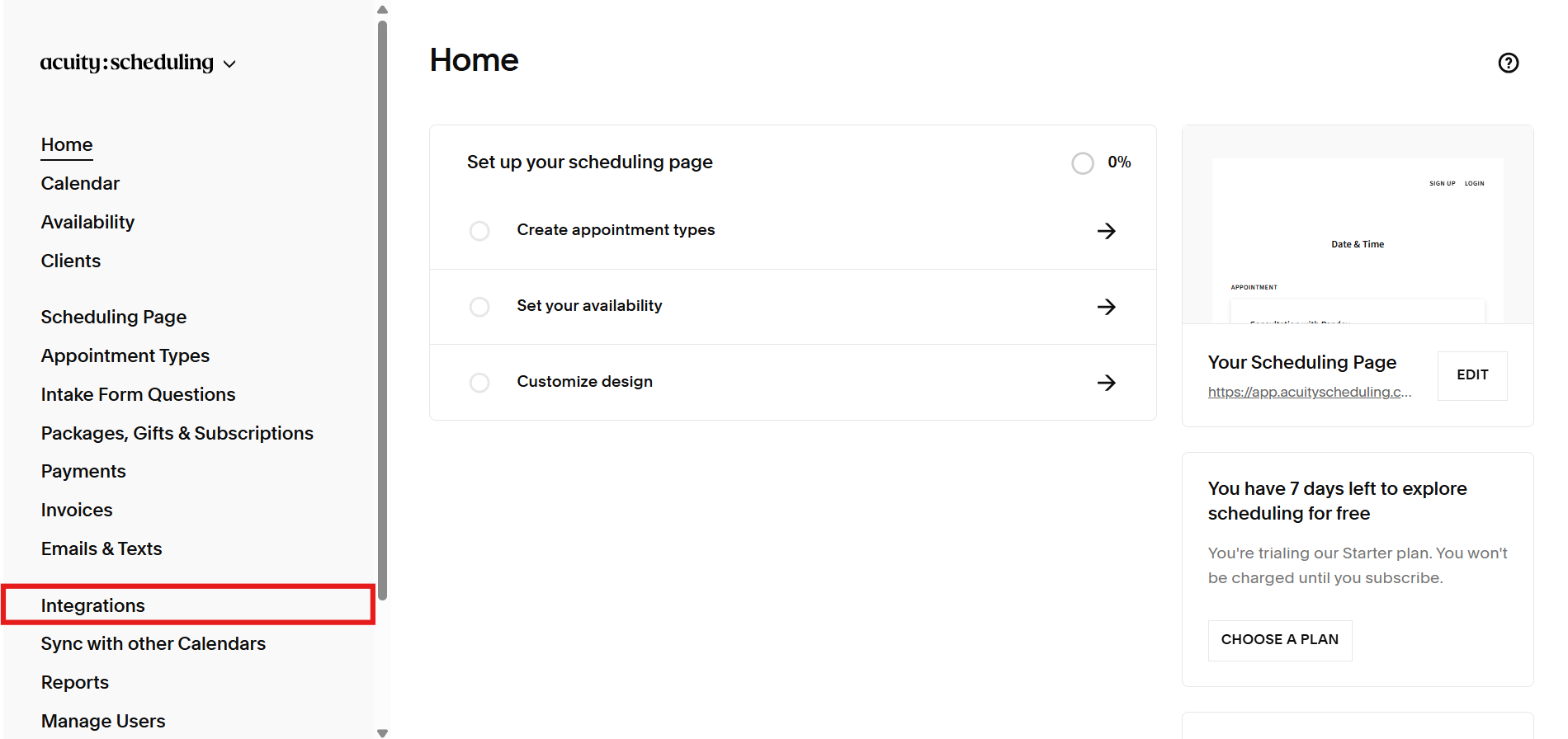
  1. Log in to your Acuity Scheduling account.

    https://acuityscheduling.com/

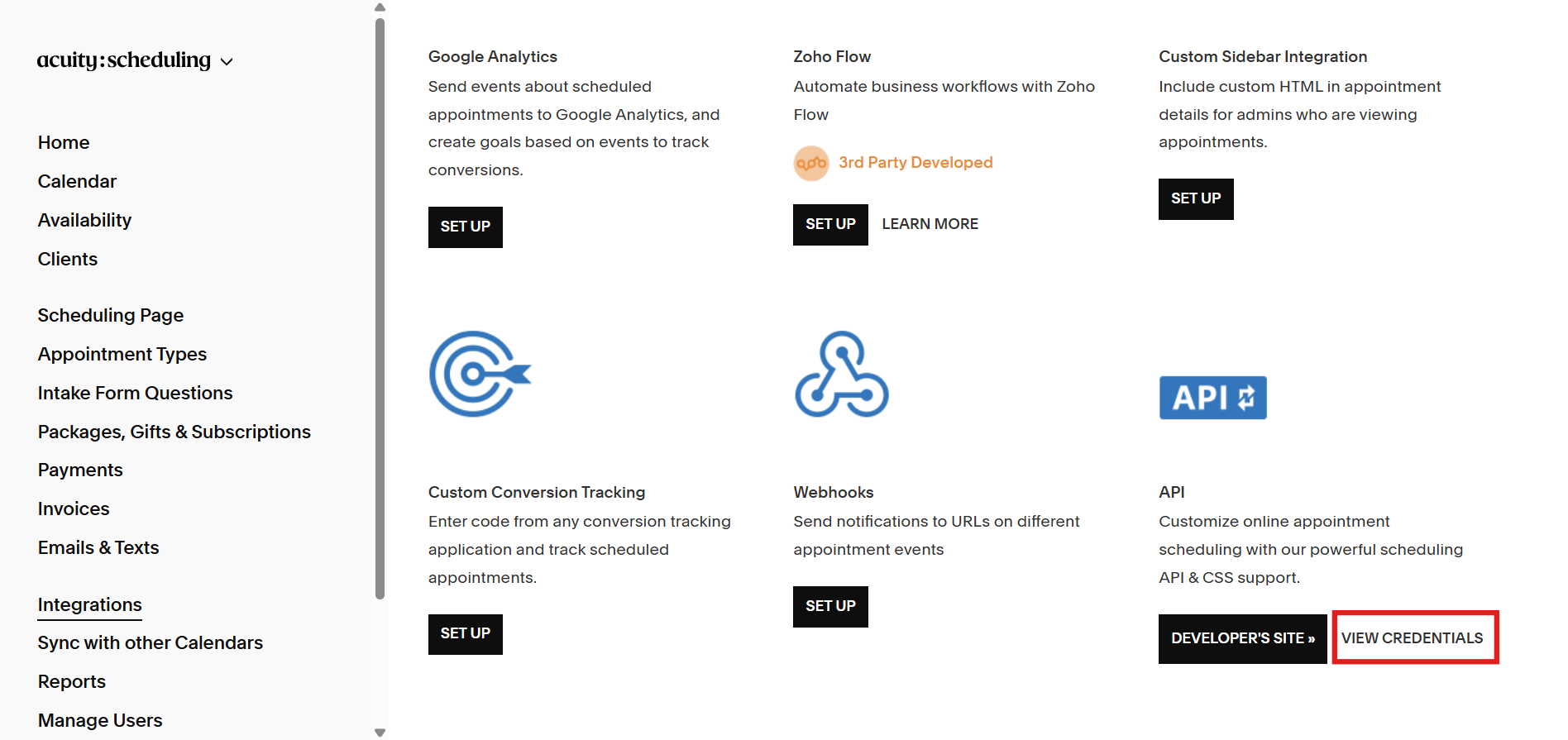
  2. Navigate to Integrations.

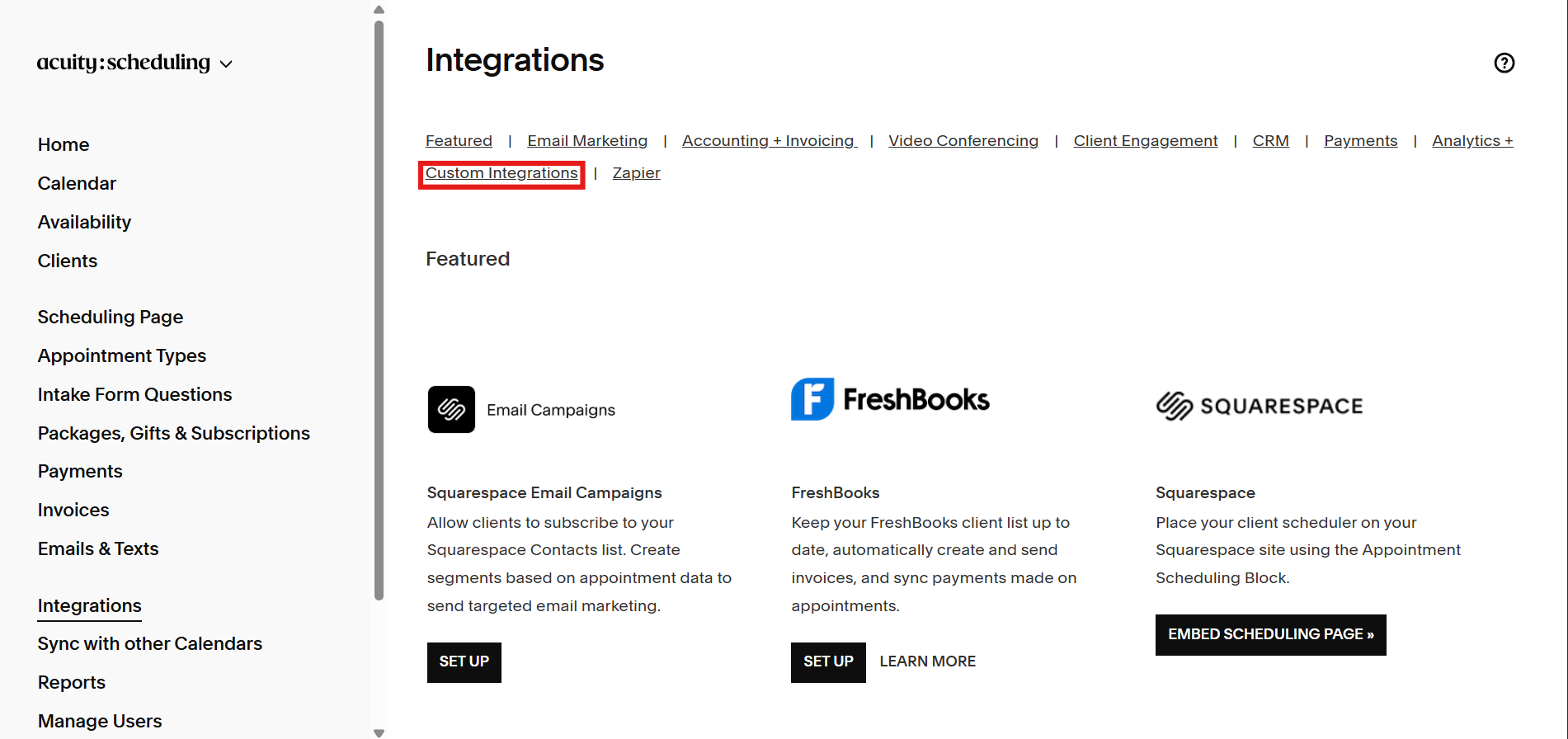
  1. Click Custom Integrations.

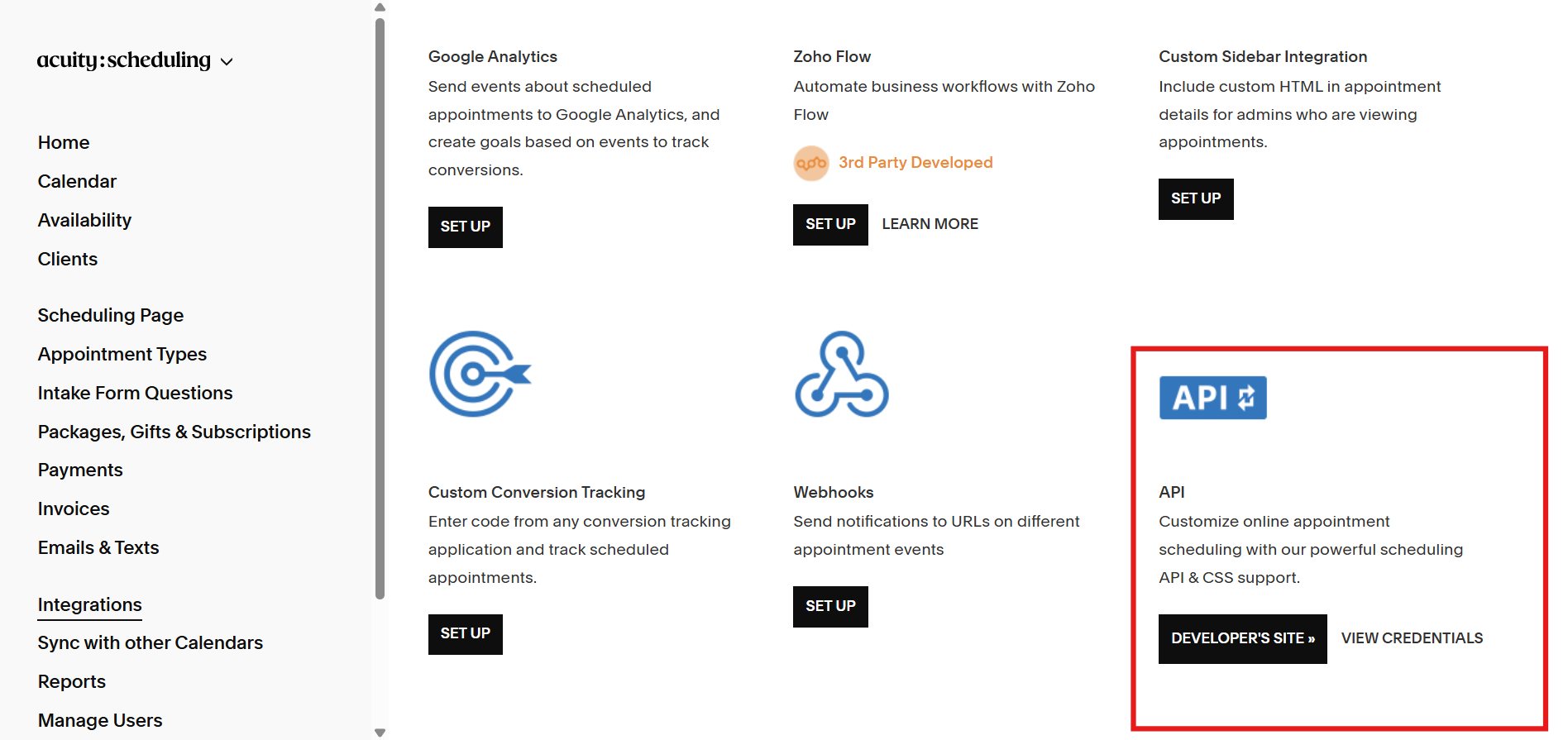
  1. Scroll down to the API section.

  1. Click View Credentials.

  1. Your User ID and API Key will be displayed.
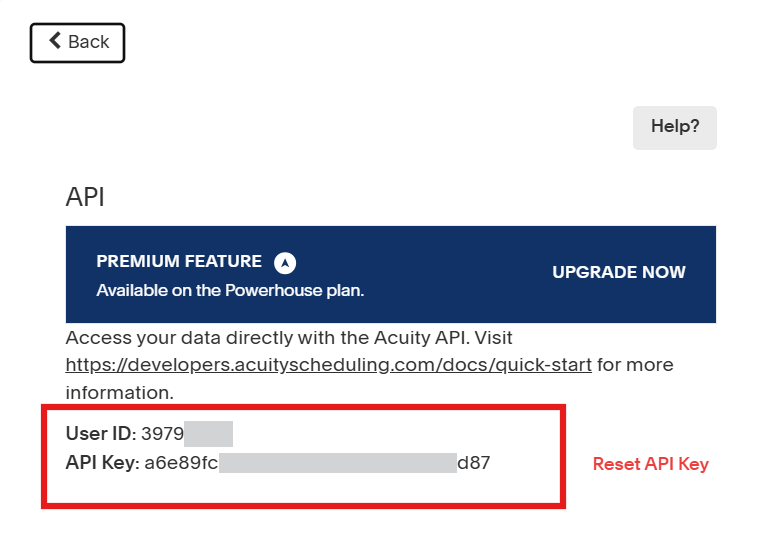
Keep your API Key secure and do not share it with unauthorized users.


3. Connect Acuity Scheduling

  1. Return to BotPenguin.

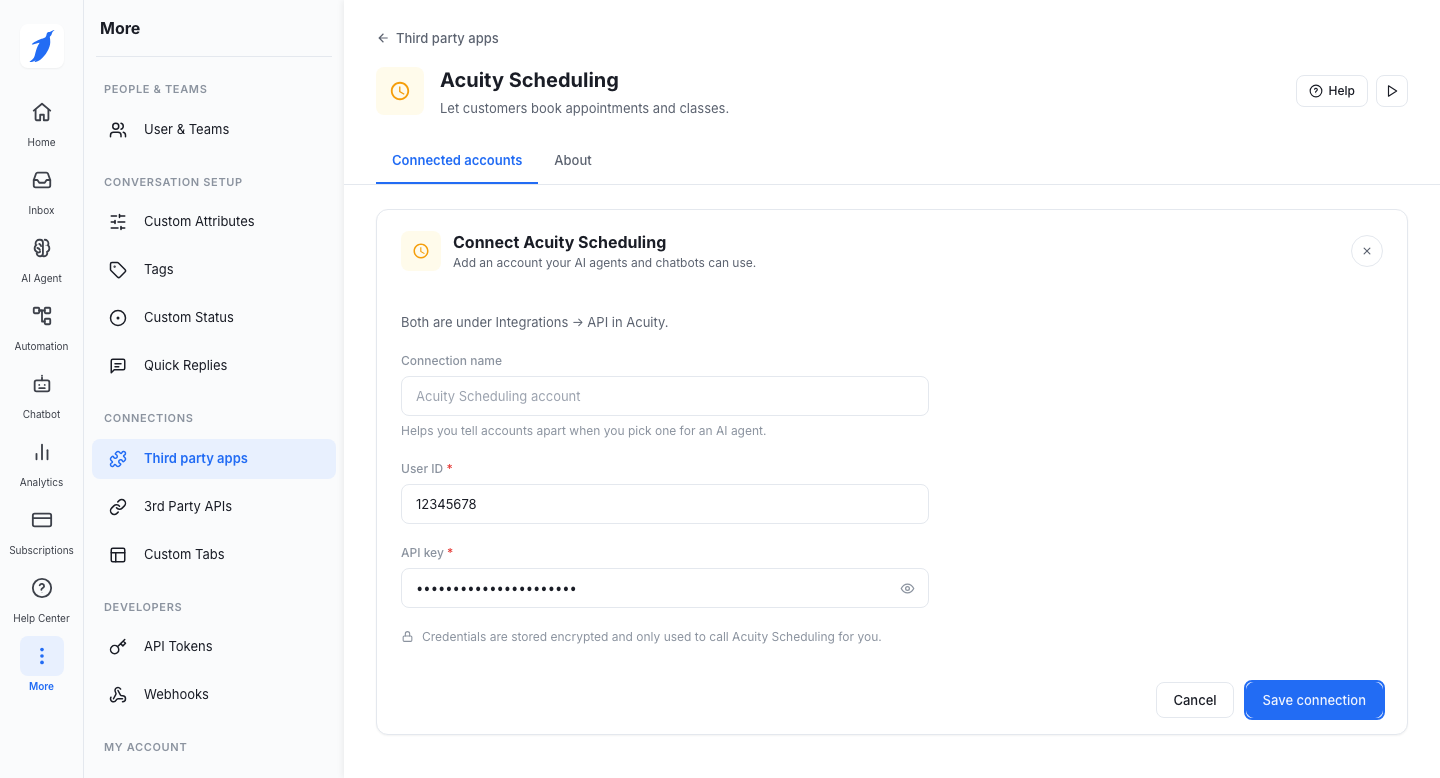
  2. In the Actuity Scheduling Configuration:

    1. Enter your User ID.

    2. Enter your API Key.

  3. Click Save Configuration.


🚫 Limitations

  • A valid Acuity Scheduling account is required.

  • Invalid or expired API credentials will prevent the integration from connecting.

  • Changes to your API Key require reconnecting the integration in BotPenguin.


Best Practices

💡 Verify your User ID and API Key before connecting.

⚠️ Keep your API Key secure and never share it publicly.

🚀 Test the connection after setup to ensure the integration is working correctly.

🎯 Reconnect the integration if your API credentials are updated.


Troubleshooting

Unable to connect Acuity Scheduling

Likely Cause: The User ID or API Key was entered incorrectly.

Resolution: Verify that your User ID and API Key have been entered correctly, then try connecting again.

Authentication failed

Likely Cause: The API Key is invalid, outdated, or has been regenerated.

Resolution: Generate or retrieve the latest API Key from your Acuity Scheduling account and update the integration.

Unable to locate the API credentials

Likely Cause: You are not viewing the correct section of your Acuity Scheduling account.

Resolution: Navigate to Integrations → Custom Integrations → API → View Credentials to access your User ID and API Key.

Integration disconnected after updating credentials

Likely Cause: The previously connected API Key is no longer valid.

Resolution: Re-enter the updated API Key and reconnect the integration.

FAQs

What happens if I regenerate my API Key?

If you generate a new API Key in Acuity Scheduling, you'll need to update it in BotPenguin by editing the existing integration or reconnecting it.

Can I change the calendar used by my chatbot later?

Yes. You can edit the integration configuration and select a different calendar at any time. Future appointments will use the updated calendar.

Why aren't my calendars appearing after connecting Acuity Scheduling?

Ensure you've connected the correct Acuity Scheduling account and that at least one active calendar is available. Refresh the integration after reconnecting if necessary.

Will changes made in Acuity Scheduling automatically reflect in BotPenguin?

Yes. BotPenguin retrieves the latest scheduling information from your connected Acuity Scheduling account whenever the integration is used.

Can multiple chatflows use the same Acuity Scheduling configuration?

Yes. A single Acuity Scheduling configuration can be reused across multiple chatflows without creating separate integrations.

What happens if I disable an Acuity Scheduling configuration?

The integration will no longer be available for appointment-related actions until the configuration is enabled again.

Can I edit the mappings after creating the integration?

Yes. You can modify the mapped questions, calendar selection, or other configuration settings whenever your booking workflow changes.

Why are appointments not being created even though the integration is connected?

Verify that all required chatbot questions are correctly mapped, the appropriate calendar is selected, and your Acuity Scheduling account has available appointment types.

Can I use one Acuity Scheduling account across multiple bots?

Yes. The same Acuity Scheduling configuration can be used across multiple BotPenguin bots, depending on your workflow requirements.

Does deleting an integration remove existing appointments from Acuity Scheduling?

No. Removing the integration from BotPenguin does not delete appointments that have already been created in your Acuity Scheduling account.


Support

If you still have questions for our team, write to us at support@botpenguin.com. We'll get back to you within 48 hours.


🎉 Completion

🎉 Congratulations! You have successfully connected your Acuity Scheduling account with BotPenguin.

Last updated