
GoHighLevel MC
GoHighLevel MCP lets your AI agent use the tools that GoHighLevel publishes. You add the MCP server URL and a private access token once in Third party apps.
Prerequisites
A BotPenguin account with access to the More menu.
A GoHighLevel account.
Your MCP URL and Private Integration Token from the GoHighLevel settings.
Key Definitions
MCP
Model Context Protocol. A standard way for an AI agent to use the tools of another app.
MCP server URL
The address of the MCP server.
Tool
An action that the app publishes. The app decides which tools exist.
Connection
One saved account that your agents can use.
Steps
Click More in the left menu, then click Third party apps.
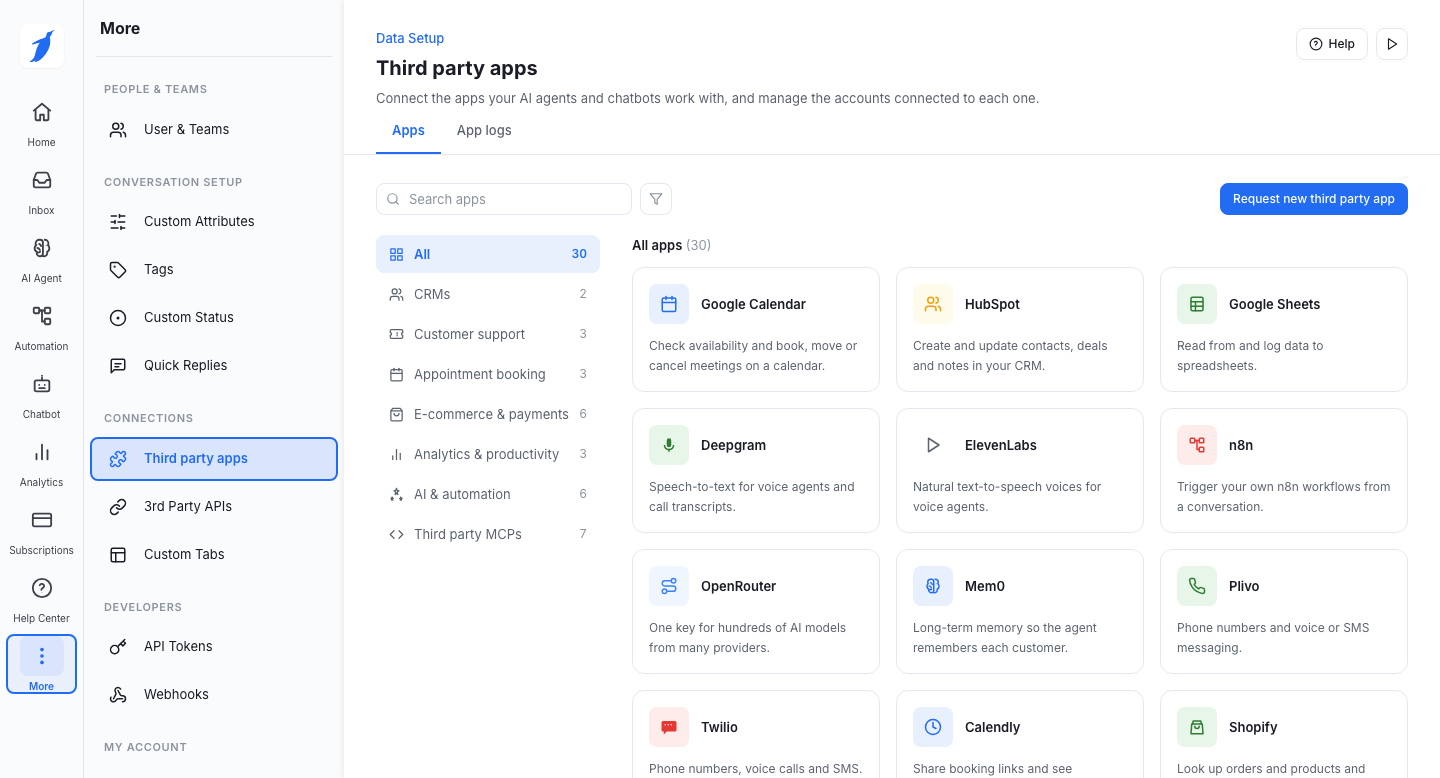
Type GoHighLevel MCP in the search box, then open the GoHighLevel MCP card.

On the Connected accounts tab, click Add connection.
In the configuration panel, type a Connection name.

Enter the MCP server URL. This field is required. Copy it from the GoHighLevel settings.
Enter the Private access token. This field is required. Paste your GoHighLevel Private Integration Token.
Click Save Configuration. BotPenguin tests the connection and saves it only if the server answers.
Check the Connected accounts tab. Your GoHighLevel MCP configuration appears in the list with an Active status.
Common Errors
Support
Still not working? Write to us at support@botpenguin.com. We will reach out to you within 24 hours.
Last updated