
Model Context Protocol (MCP)
Connect and manage MCP tools so your AI agent can use outside tools and data.
What is MCP?
MCP (Model Context Protocol) allows you to connect external tools hosted on third-party platforms (such as Zapier or similar providers) directly with your BotPenguin AI agents.
It acts as a bridge between your AI agent and external capabilities, enabling the bot to perform advanced actions, fetch real-time data, and execute workflows beyond native platform limitations.
Benefits of MCP
🚀 Enables your AI agents to interact with external tools and systems seamlessly.
⚙️ Extends bot capabilities beyond built-in features using third-party integrations.
🔗 Centralizes tool management through a single MCP connection.
🧠 Enhances automation by enabling real-time actions and data retrieval.
📈 Improves scalability by allowing integration with multiple external services.
How to Use MCP
Prerequisites
Before setting up MCP, ensure:
You have created an AI Engine.
MCP feature is included in your current plan.
You have valid MCP credentials from your third-party provider (e.g., Zapier).
Your MCP tools are already configured on the provider’s platform.
Part 1: Connecting MCP
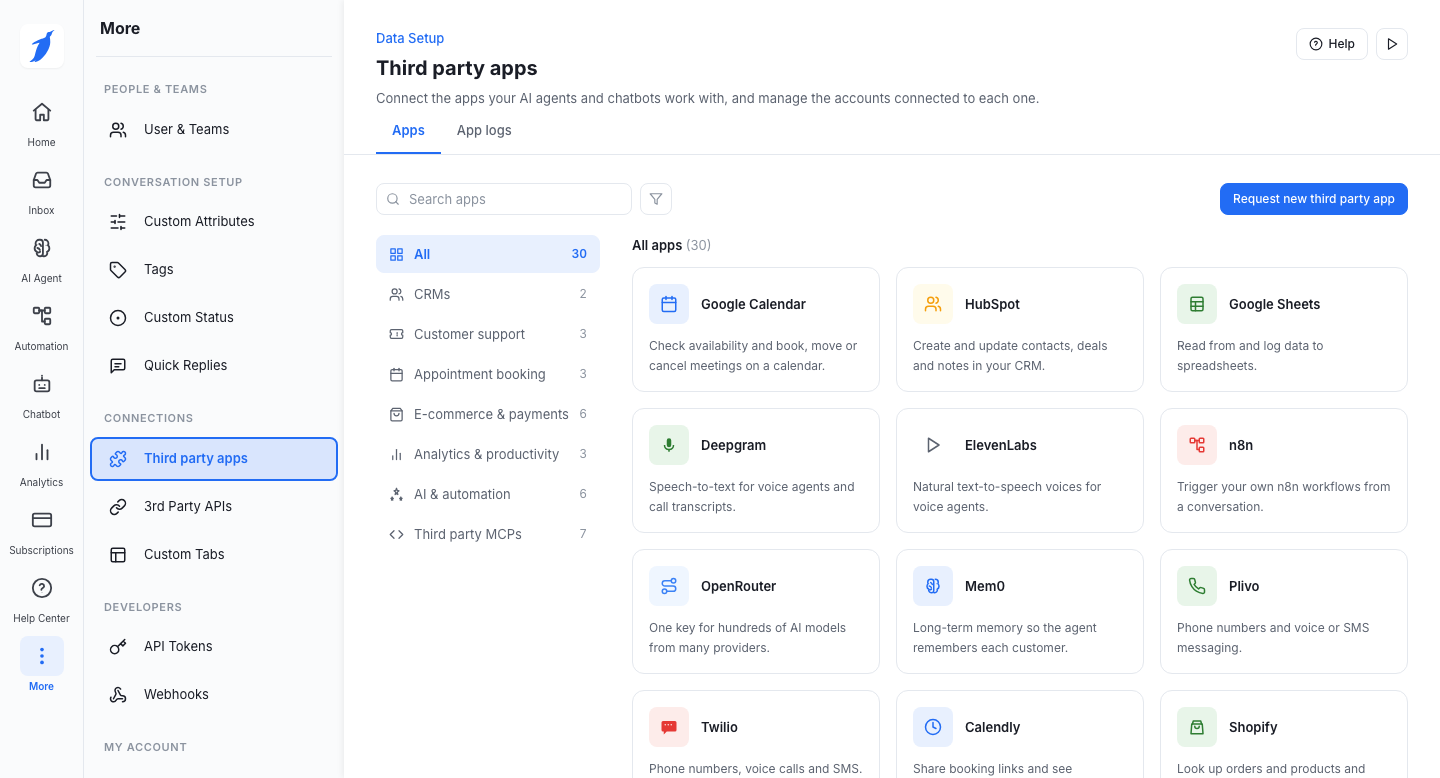
Go to the “More” section from the left sidebar.
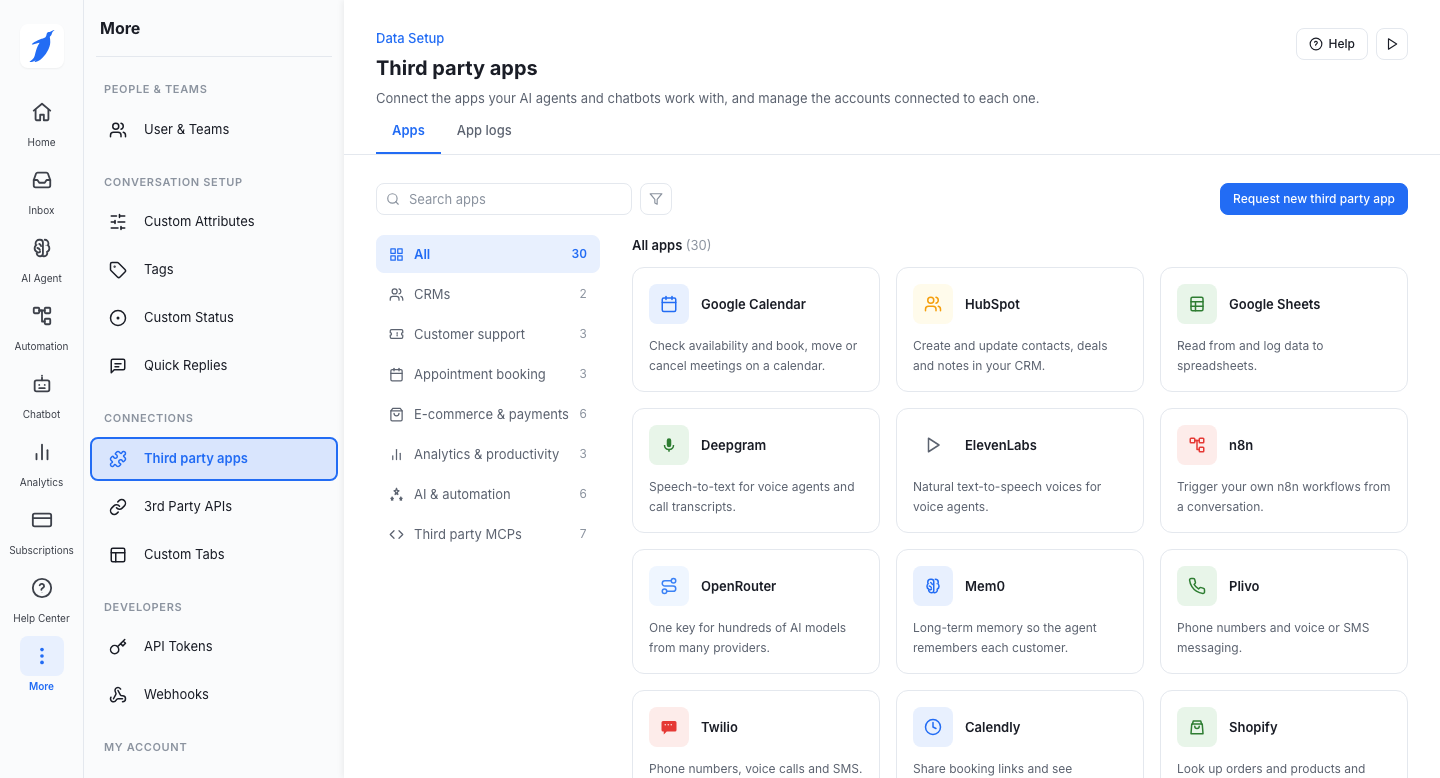
Select an MCP that you wish to connect. Alternatively, go to "Third Party MCP" and select the MCP for connection.
Click on the “Connect” button to start the setup.
Enter the following details:
Configuration Name – A unique name to identify this MCP connection.
MCP URL – Provided by your MCP provider.
Authentication Method – Choose one of the following:
None – No authentication required.
Access Token – Enter the token provided by your MCP provider.
Custom Headers – Add key-value pairs required by your provider (multiple entries supported).
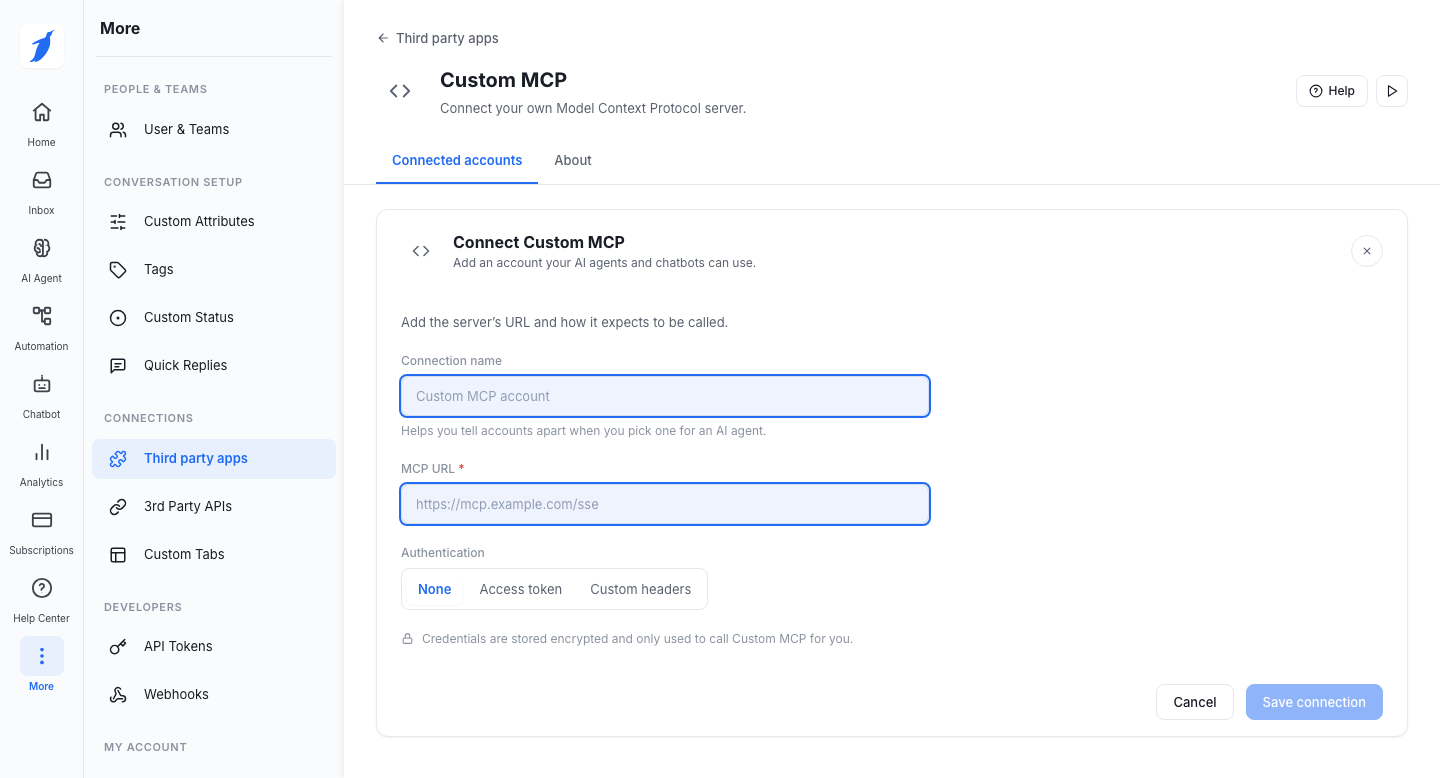
Click on “Connect” to establish the connection.
Part 2: Adding MCP Tools to an AI Agent
Go to the “AI Agents” module and select your desired agent.
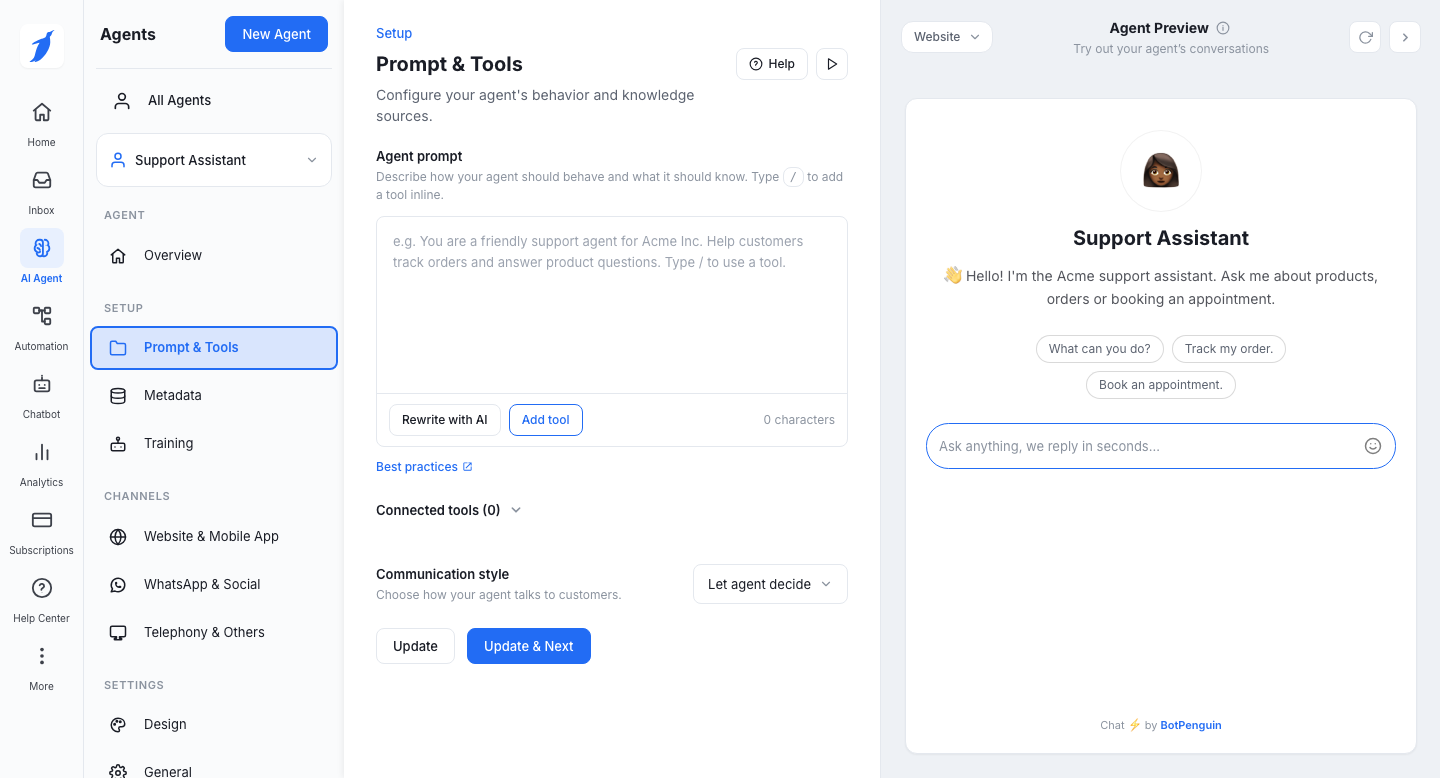
Navigate to “Prompts”.
Click inside the text editor, click on the "Add Tools" button to check out all possible tools and integrations.
Select “Third Party MCP” from the available options.
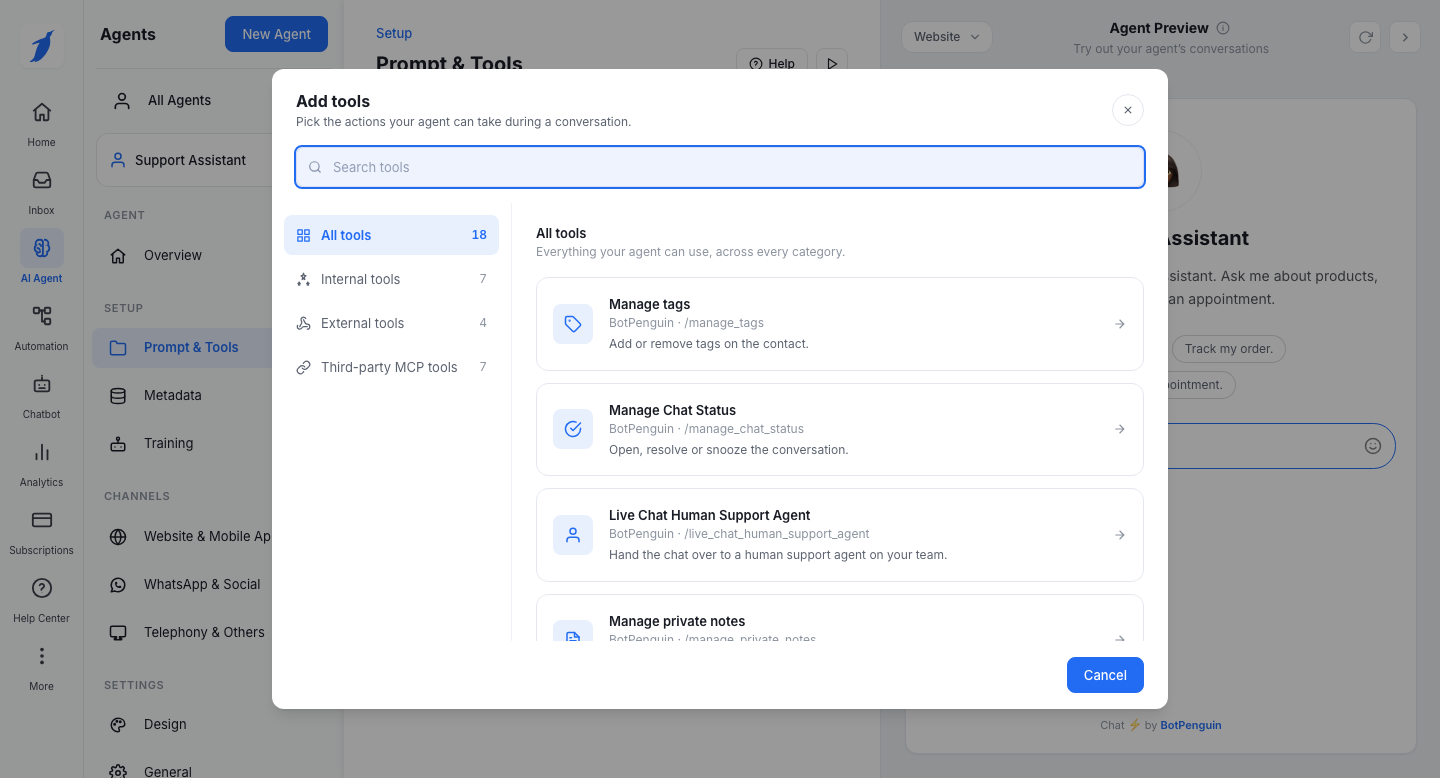
From the dropdown, select your choosen MCP.
Part 3: Using MCP Tools in Prompts
If the MCP tool is connected, then choose form the option of MCP that you want to integrate.

Configure the Prompt of the MCP, as well as the tools you want to give access to.

Once the prompt is added and the tools are selected, click on "Add Tools", and you will successfully have added an MCP!
Important Notes
A tool cannot be added multiple times from the same MCP configuration.
The same tool from different MCP configurations will be treated as separate tools.
Ensure all credentials and configurations are valid to avoid connection failures.
🎉 Congratulations, you have successfully completed this section! You're one step closer to mastering BotPenguin.
MCP FAQs
If you still have questions for our team, write to us at support@botpenguin.com. We’ll get back to you within 48 hours.
Last updated