
Plivo
Connect your Plivo account to use its numbers for voice and SMS with your agent.
What is Plivo?
Plivo integration allows you to connect BotPenguin with Plivo's powerful voice and SMS communication platform. It enables data exchange between systems, allowing you to make and receive phone calls, send SMS messages, and automate customer communication workflows seamlessly. With Plivo, you can leverage SIP trunking for reliable voice connectivity and manage your phone numbers and billing all from one platform.
When should you use this?
Use this integration when:
You want to connect BotPenguin with Plivo's voice communication services
You need to enable outbound and inbound calling capabilities for your agents
You are trying to automate voice-based customer interactions and workflows
You need to manage multiple phone numbers across different regions
You want to handle compliance requirements for phone numbers in specific countries
Benefits of Plivo Integration
🔗 Enables seamless voice and SMS communication between BotPenguin and Plivo
⚡ Automates outbound and inbound call workflows with SIP trunking
🎯 Improves customer engagement through reliable voice connectivity
🔄 Ensures real-time call routing and configuration management
📈 Reduces communication setup complexity with integrated number management
Expected Outcome
After setting this up:
Your Plivo account will be successfully connected to BotPenguin
Data will flow between BotPenguin ↔ Plivo
You will be able to make and receive calls through your Plivo phone number
Your agents will have access to both inbound and outbound calling capabilities
🔐 Prerequisites
Before setting up this integration, ensure you have:
An active Plivo account (sign up at https://www.plivo.com/)
Completed the Plivo onboarding process with your account
Purchased at least one phone number from Plivo
Admin or Owner access to your Plivo account
Billing information added to your Plivo account (payment method on file)
Compliance verification completed for your country (required for phone numbers)
How to Use Plivo Integration
Phase 1: Set Up Your Plivo Account
Visit the Plivo website at https://www.plivo.com/ and sign up for a free Plivo account.
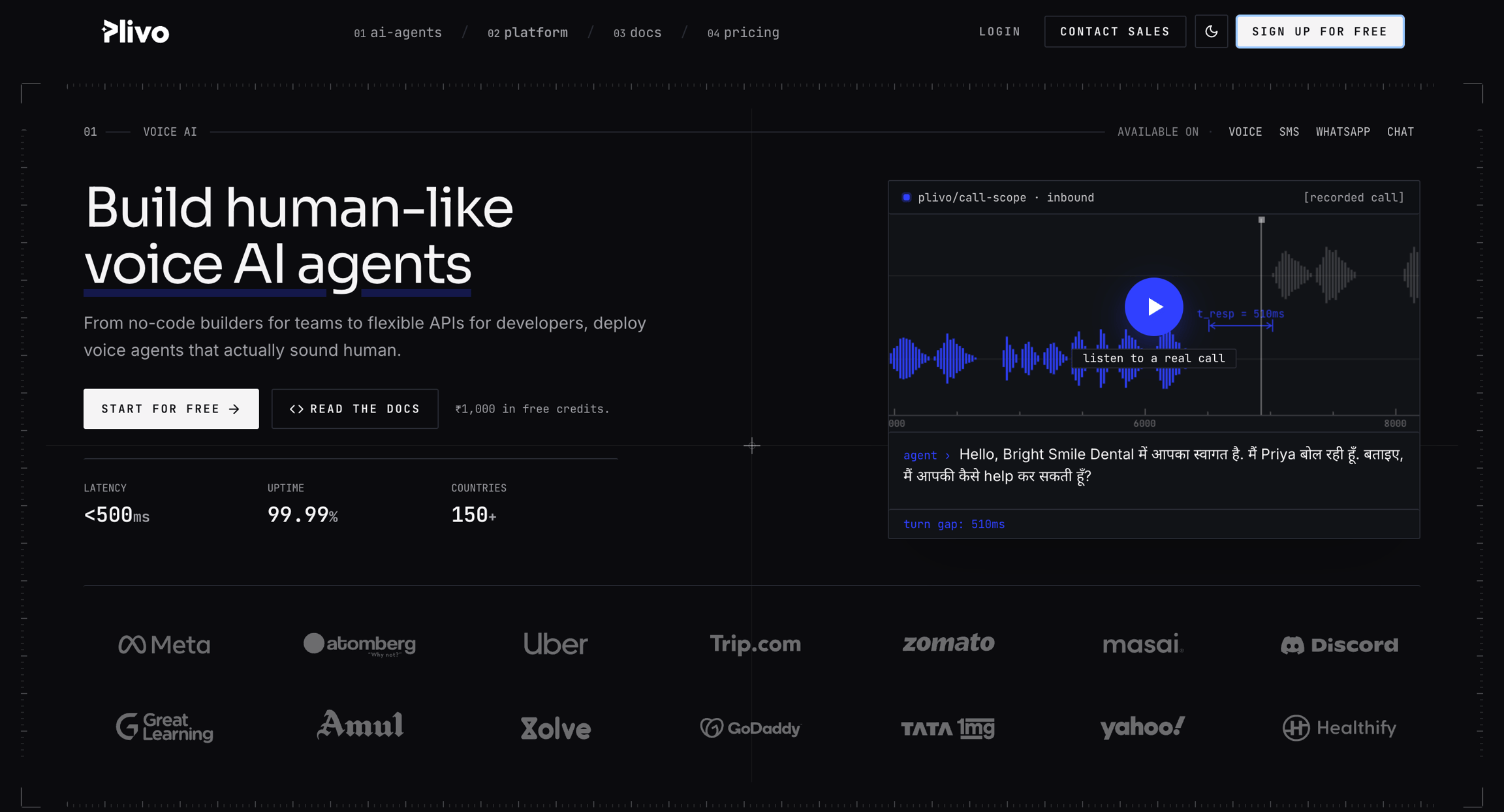
Complete the Plivo onboarding process to set up your account with your country information and required documentation.
Once verified, log into the Plivo Dashboard at https://console.plivo.com.
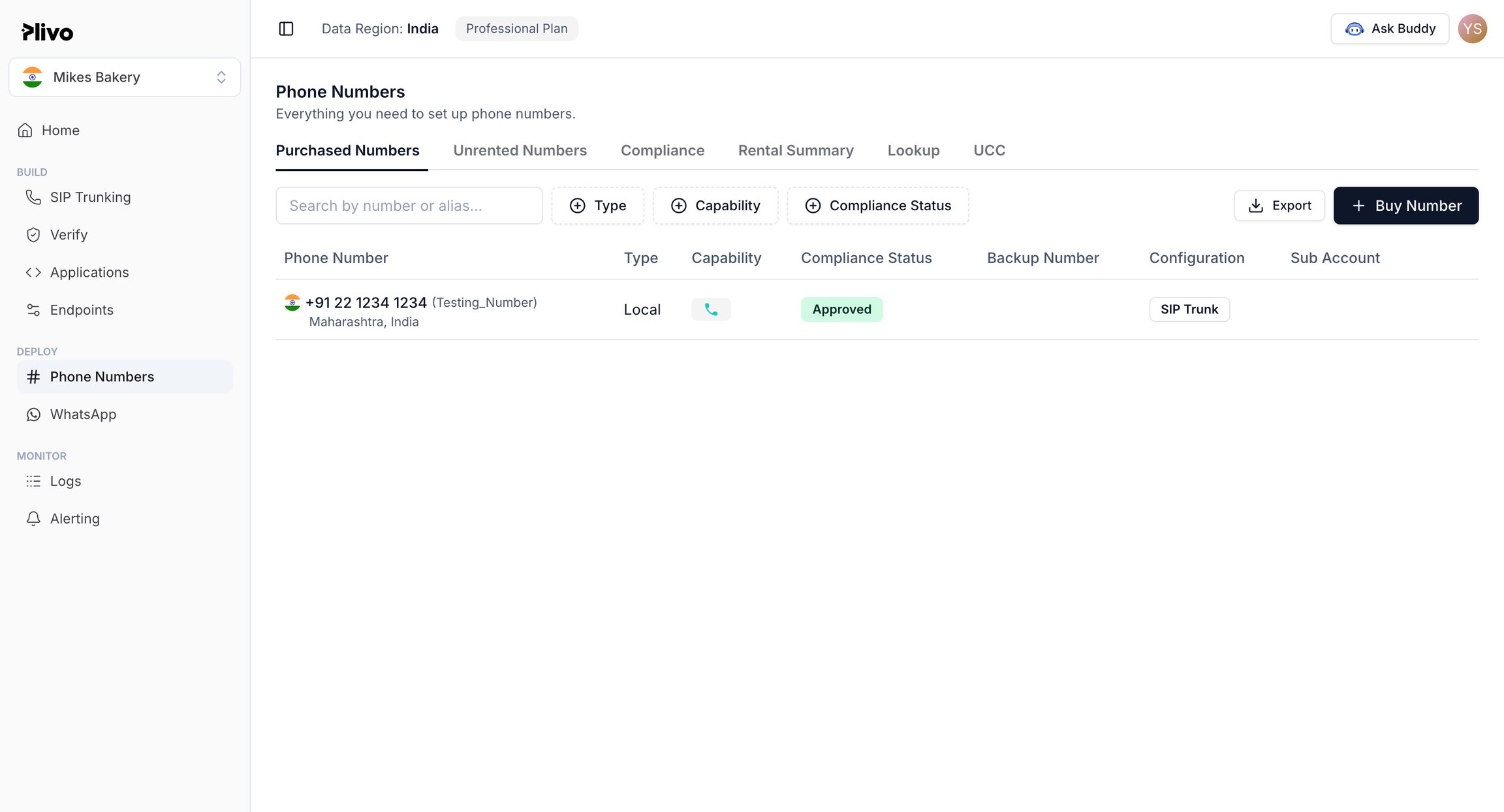
Phase 2: Purchase a Phone Number
From your Plivo Dashboard home page, click on "Phone Numbers" in the left sidebar.
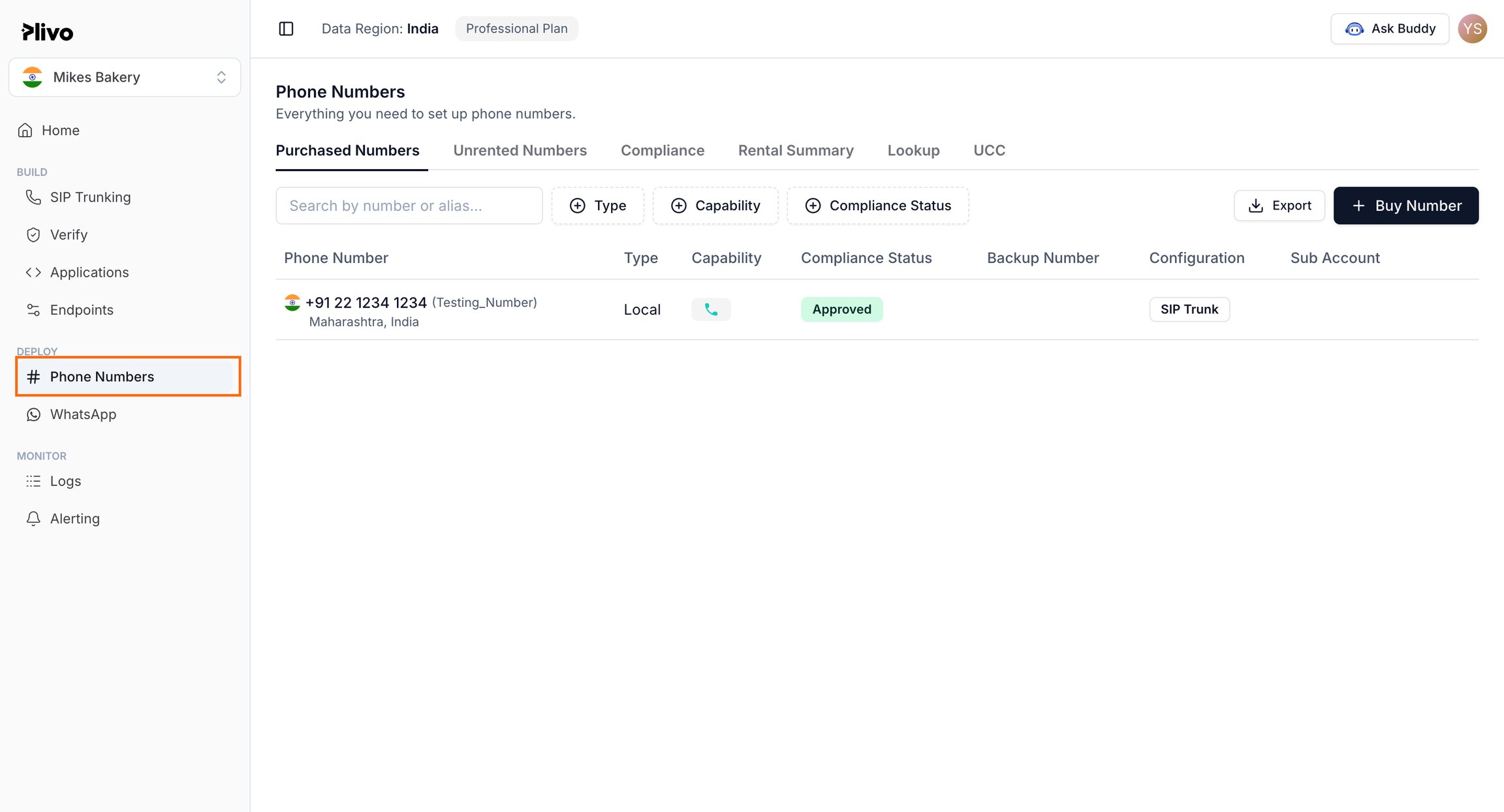
5. Click on "Purchase Number" button (top right) to buy a new phone number.
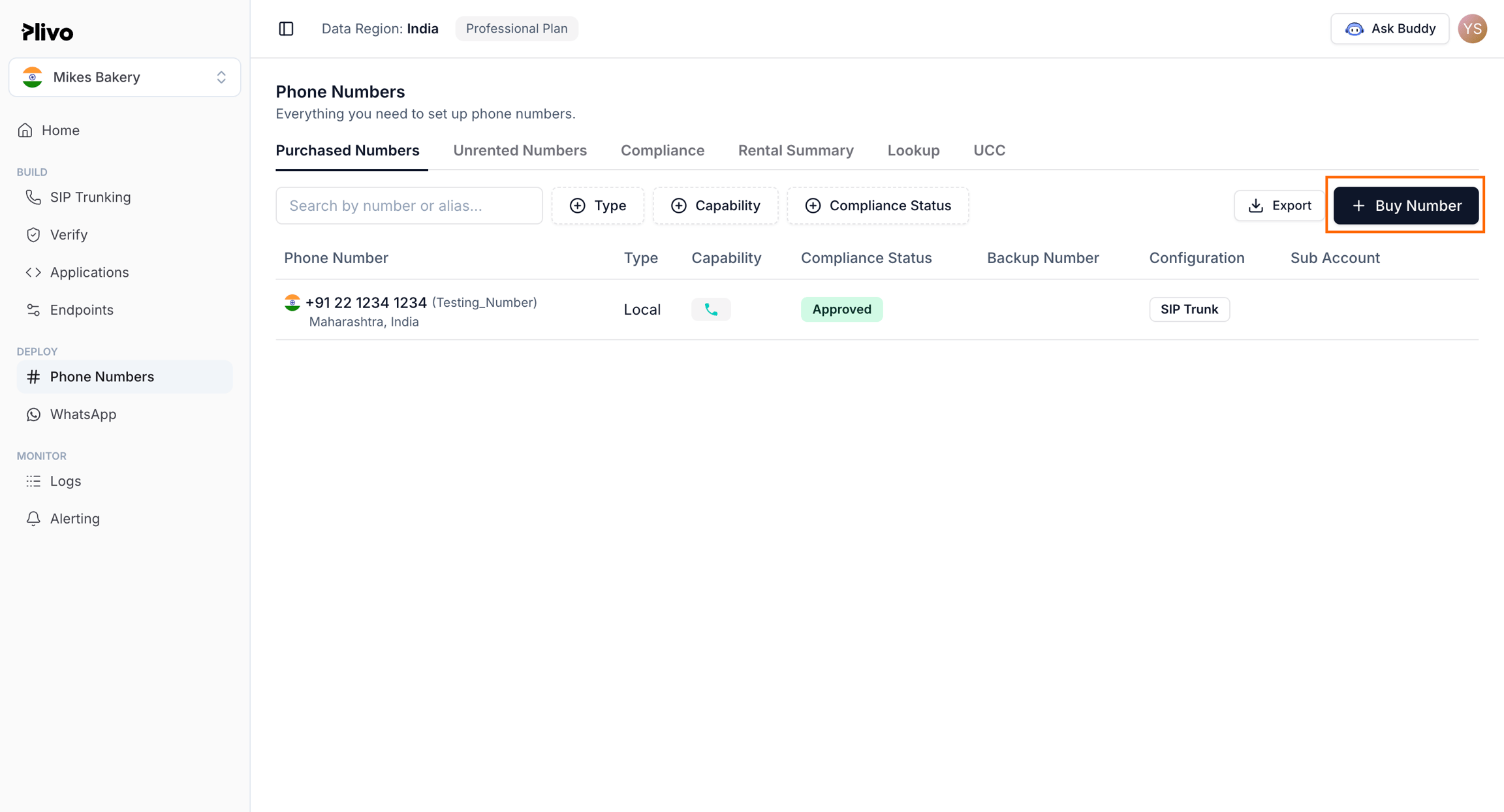
Filter the available numbers by:
Country: Select the country where you want the number
Capabilities: Select "Voice"
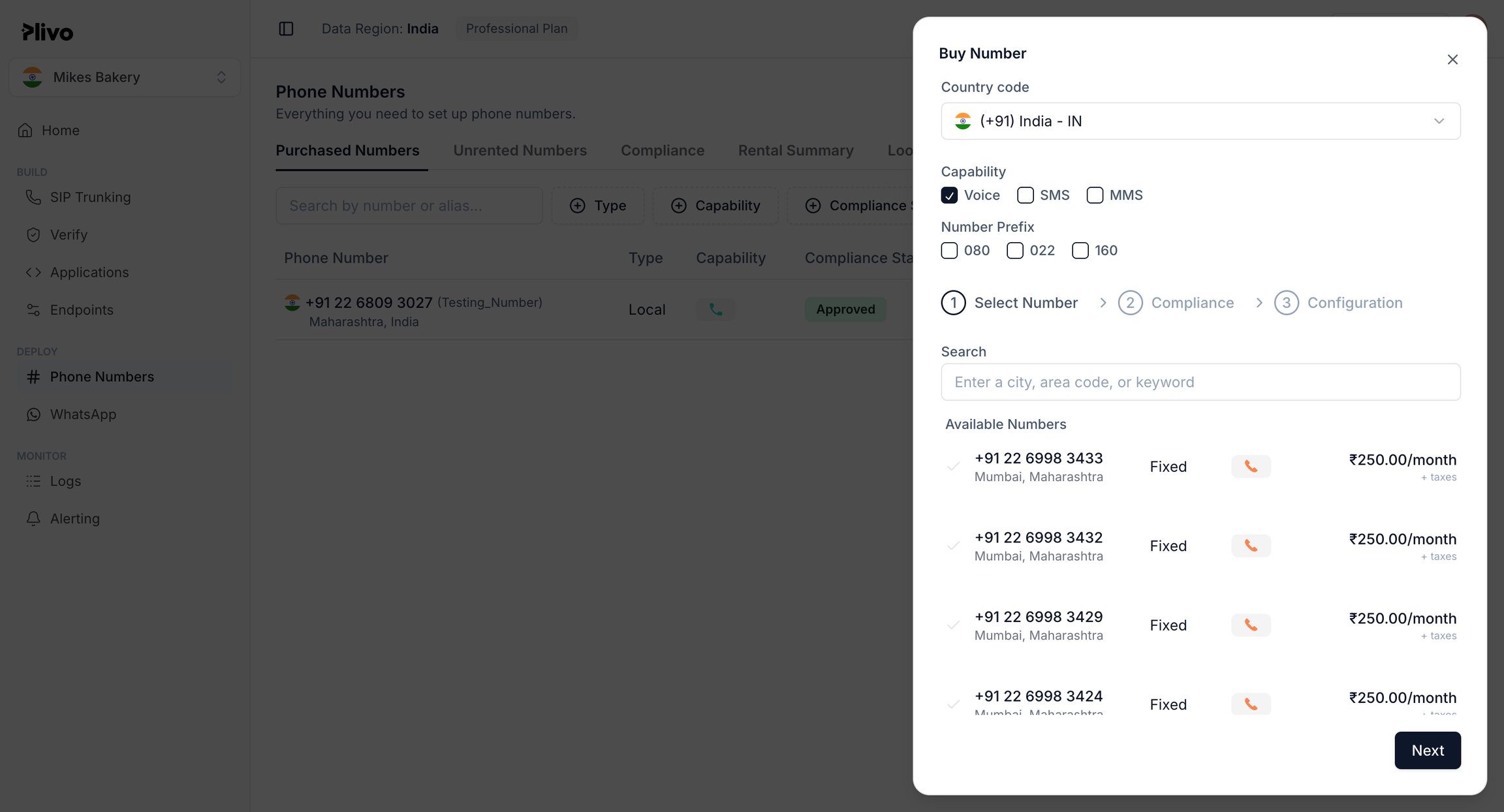
Select the phone number you want to purchase and click "Next".
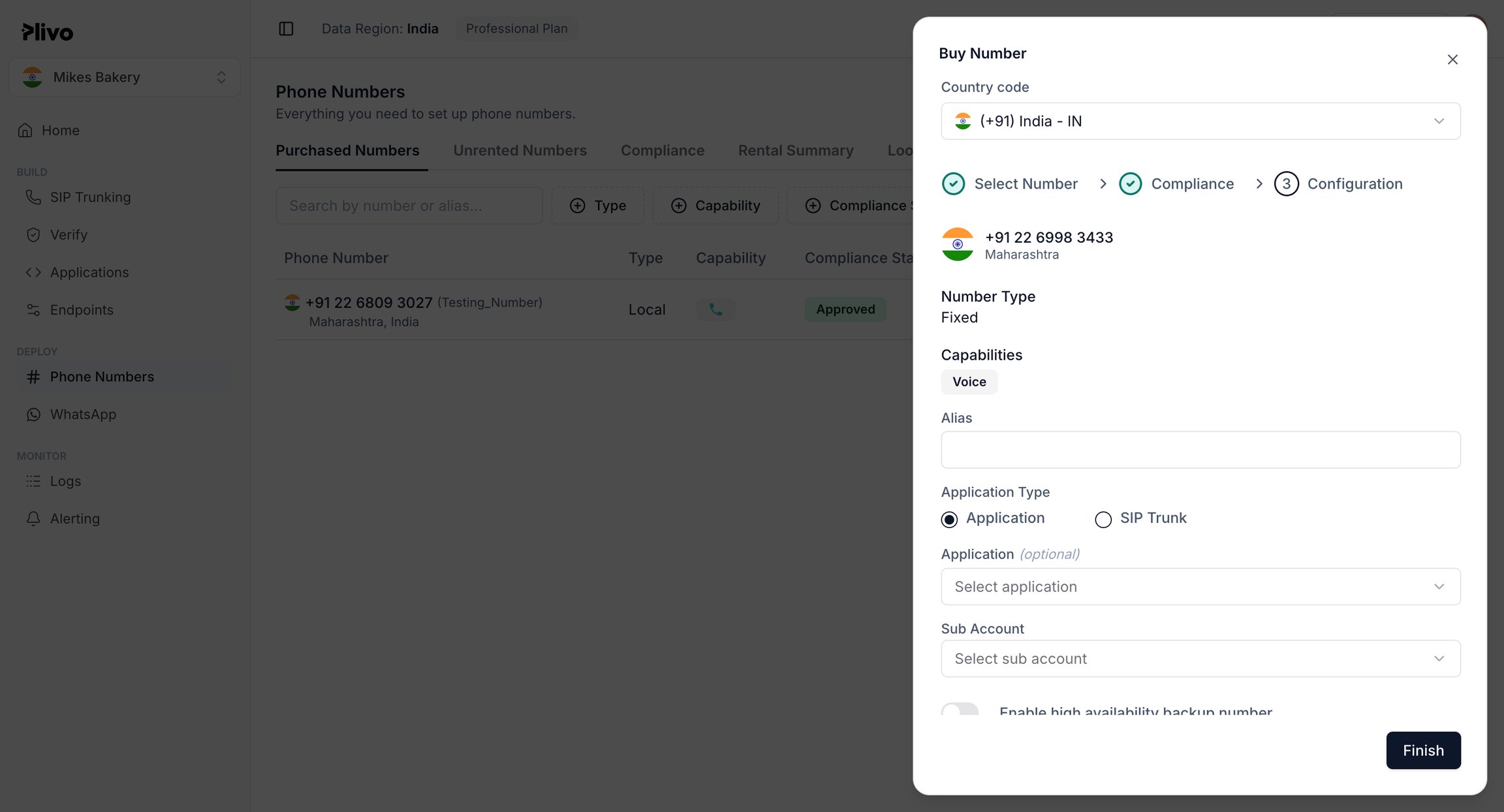
Configure the purchased number:
Set an Alias (internal name for your reference)
Under Application Type, select "SIP Trunk"
Click "Finish" to complete the purchase
Phase 3: Configure Billing
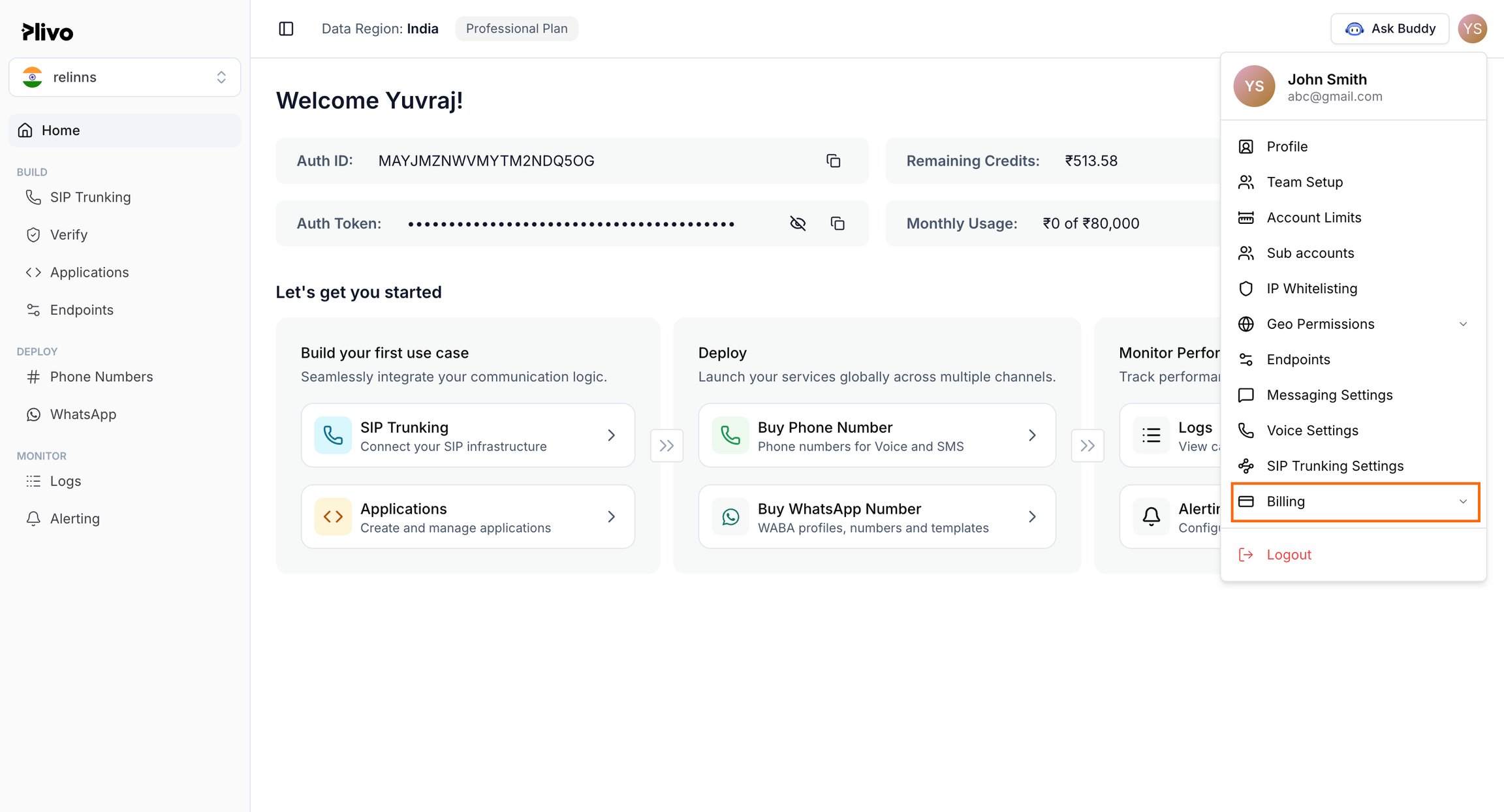
Click your Profile Icon (top right) and navigate to "Billing".
Click on "Overview" to view your billing status.
If no card is added, go to "Payment Methods" and add your billing card details. Add payment method before proceeding to the next step.
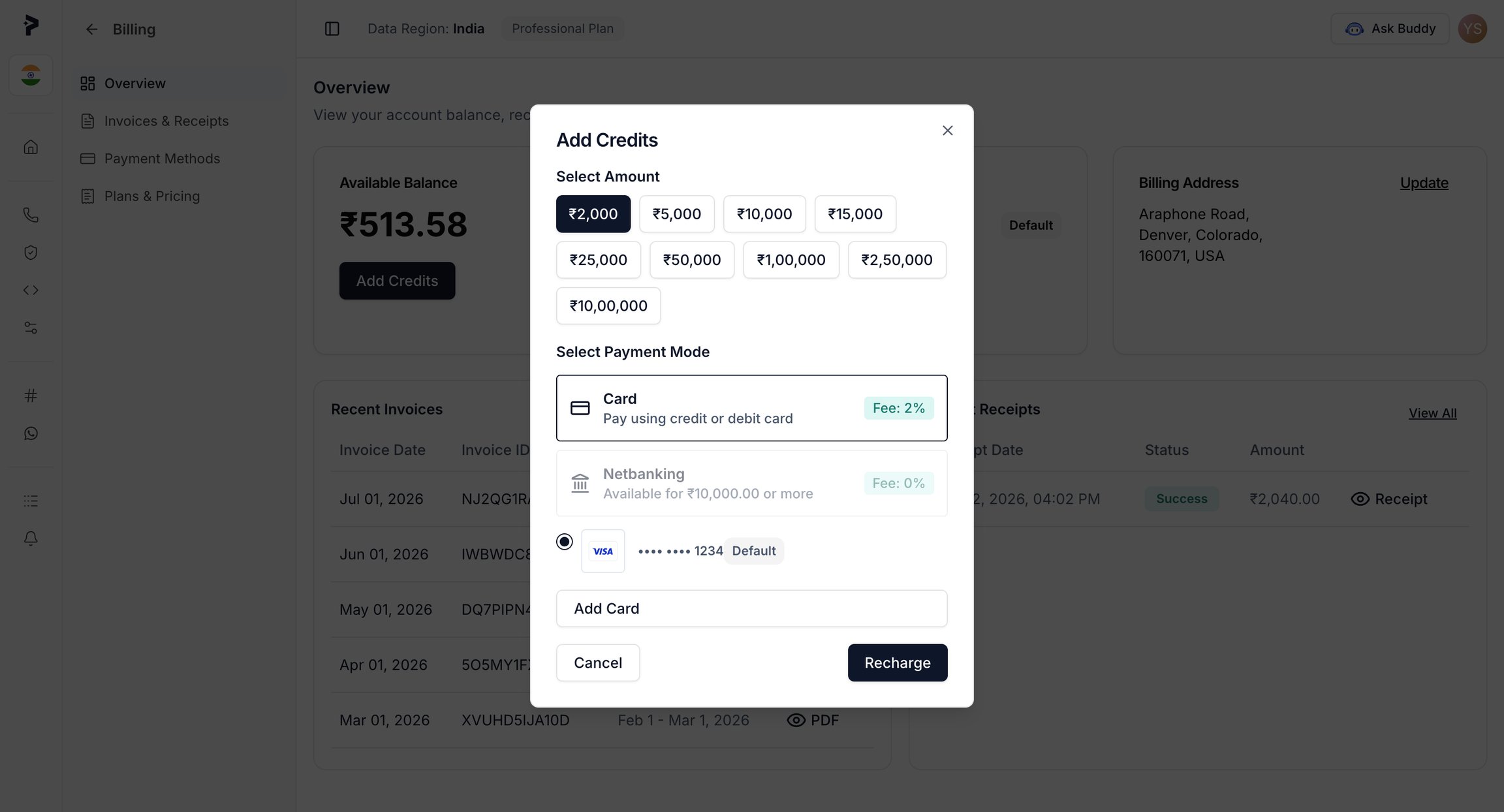
Click "Add Credits" to add prepaid credits to your account.
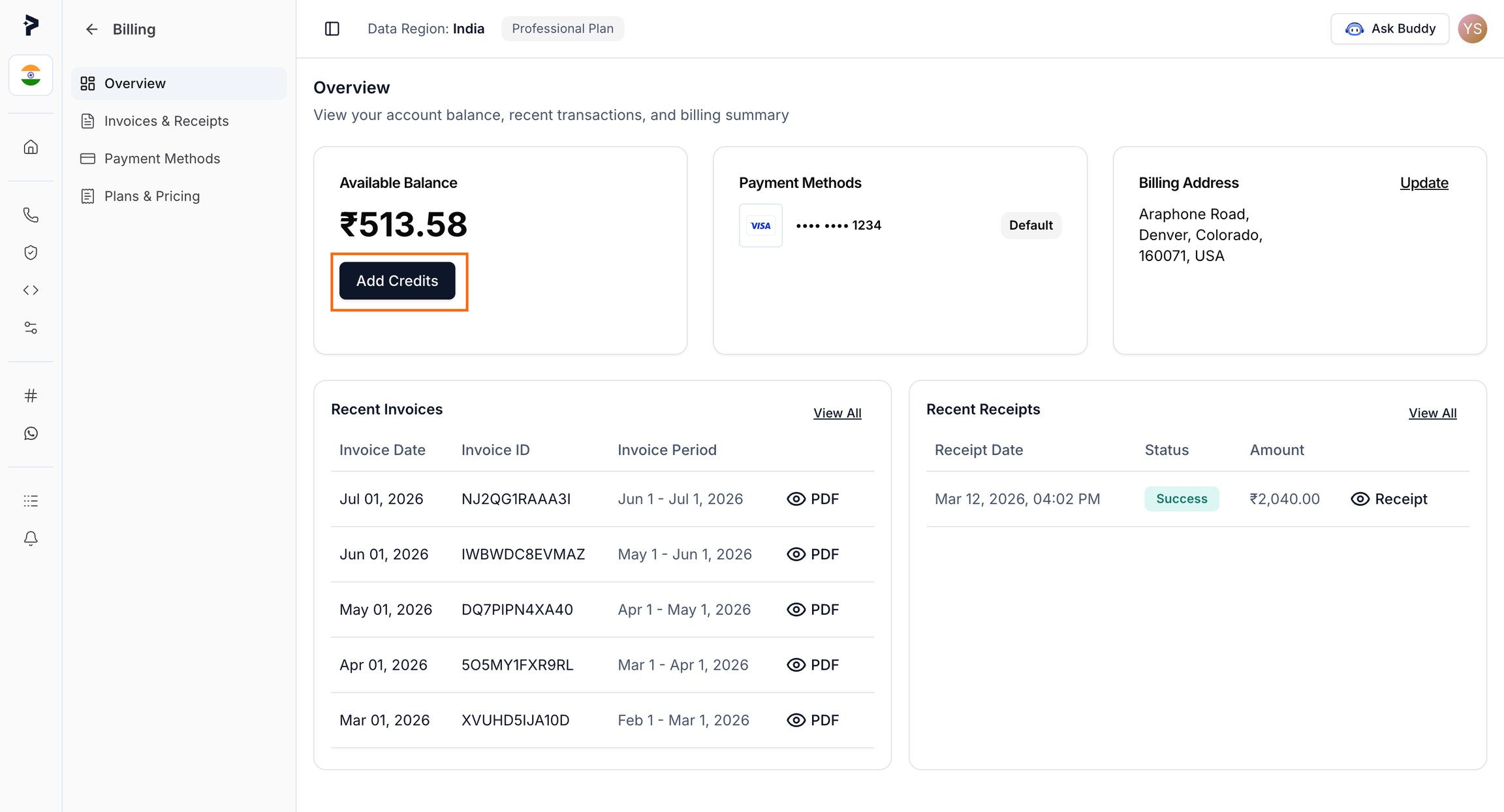
Select the amount of credits you need and your preferred payment method, then click "Finish".
Phase 4: Create Inbound Trunk (For Receiving Calls)
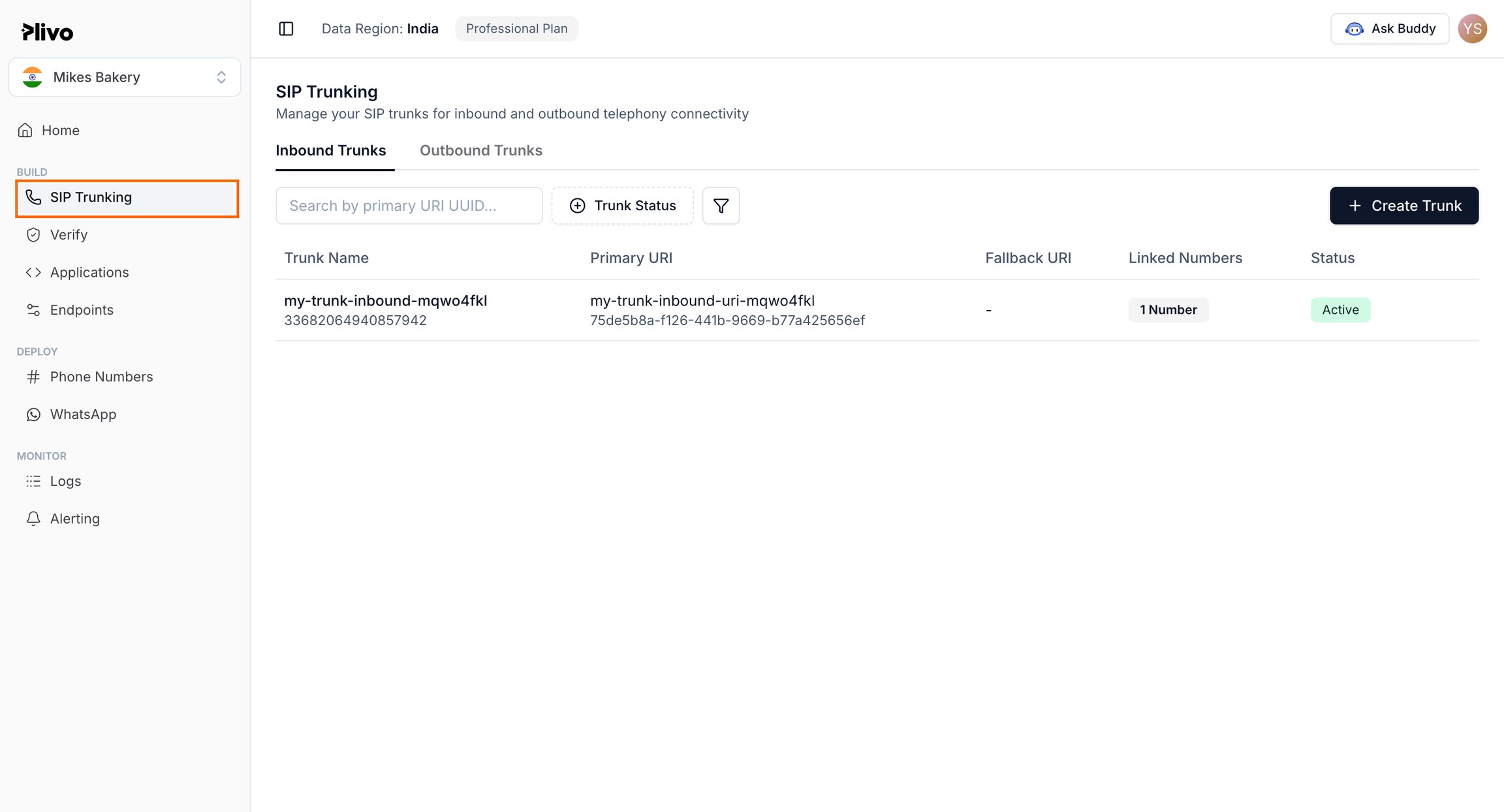
In the Plivo Console, navigate to "SIP Trunking" → "Inbound Trunks" from the left menu.
Click "Create New Inbound Trunk" and give it a descriptive name (e.g., "BotPenguin Inbound").
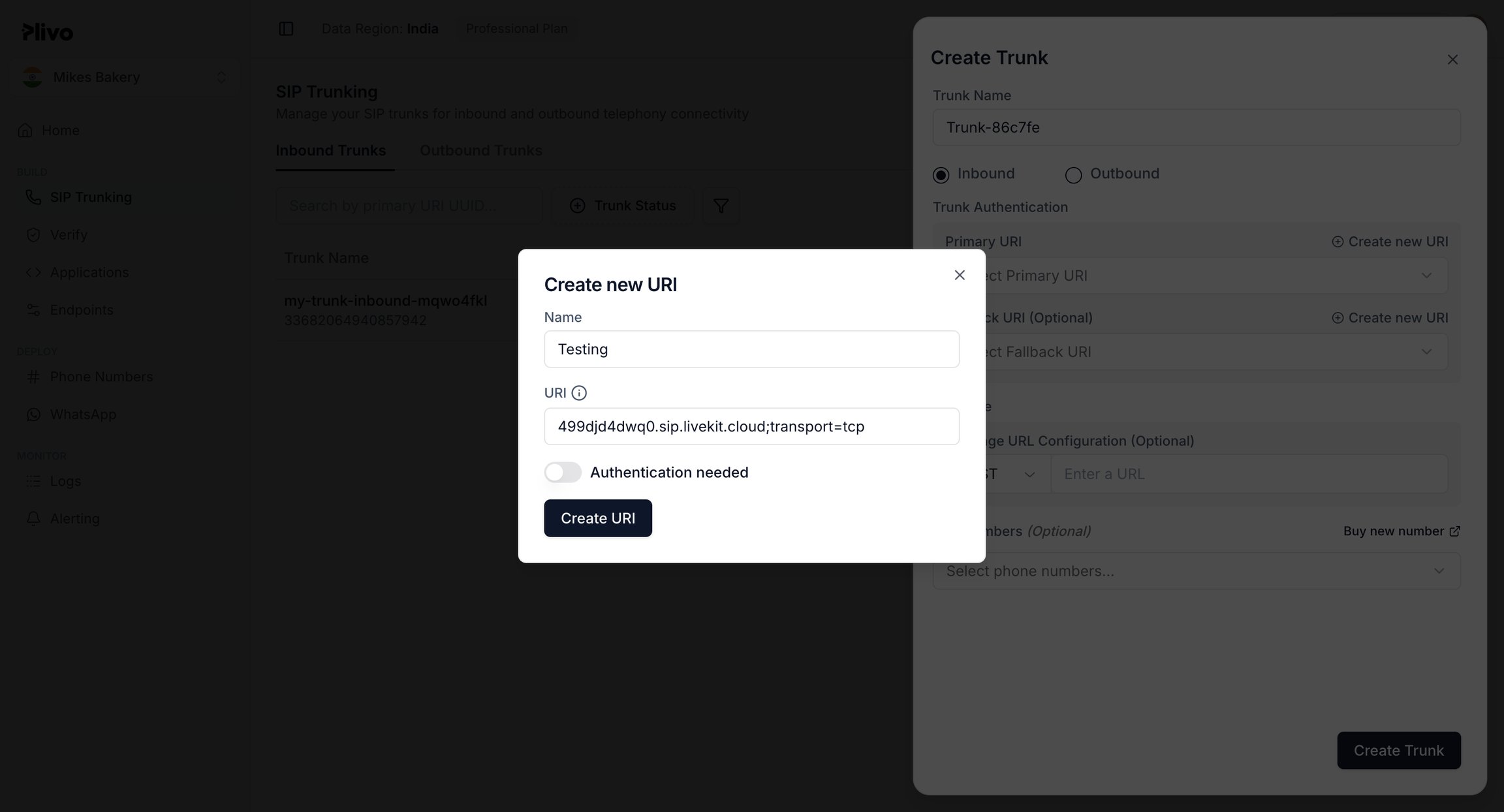
Set the Primary URI by clicking "Add New URI" and paste the following endpoint exactly:
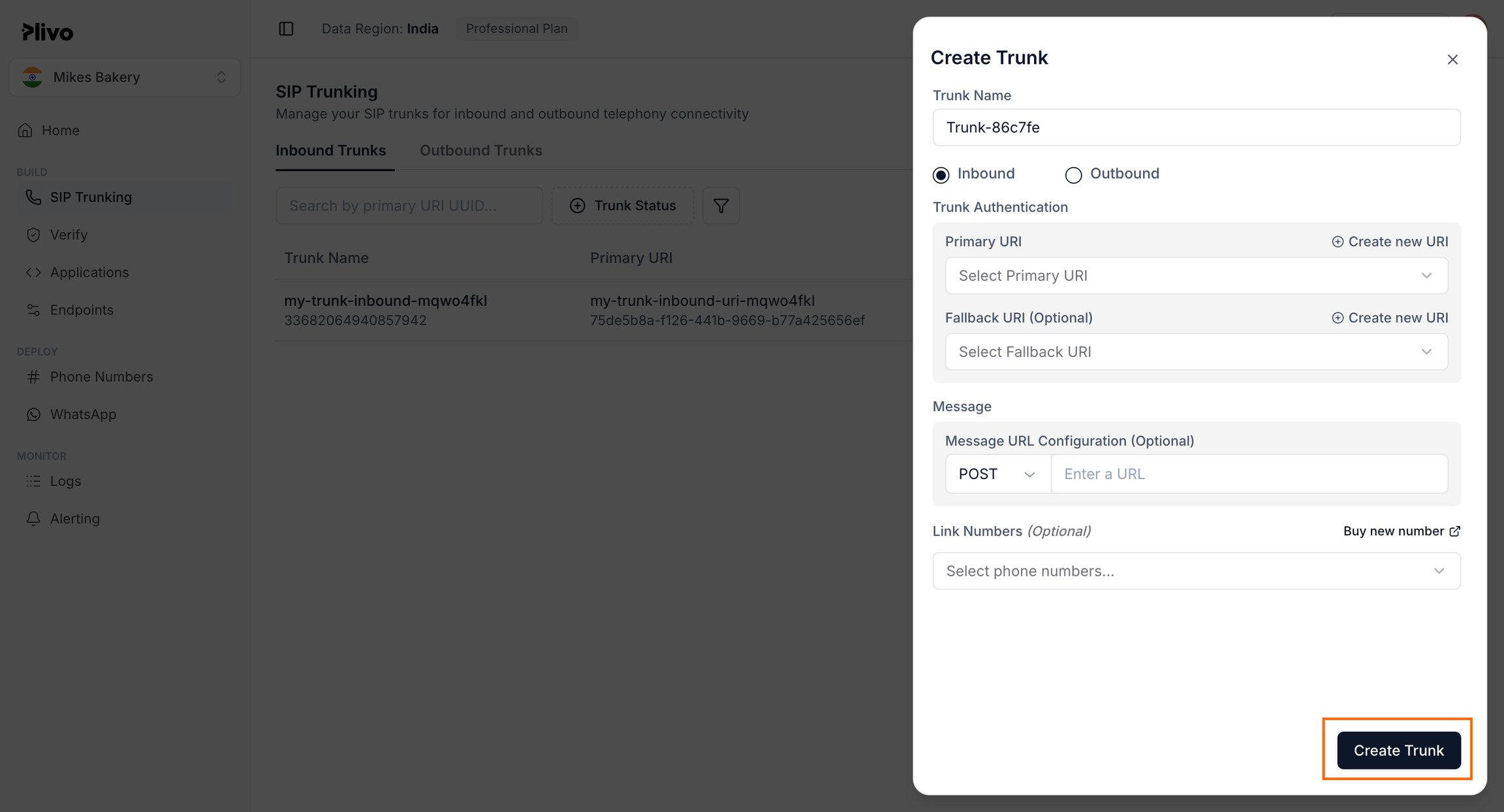
Click "Create Trunk" to save your inbound trunk.
Attach your phone number to the inbound trunk:
Go to "Phone Numbers" → "Your Numbers"
Click on the phone number you purchased
Under "Number Configuration" → "Application Type", select "SIP Trunking"
Under "Trunk", select the inbound trunk you just created
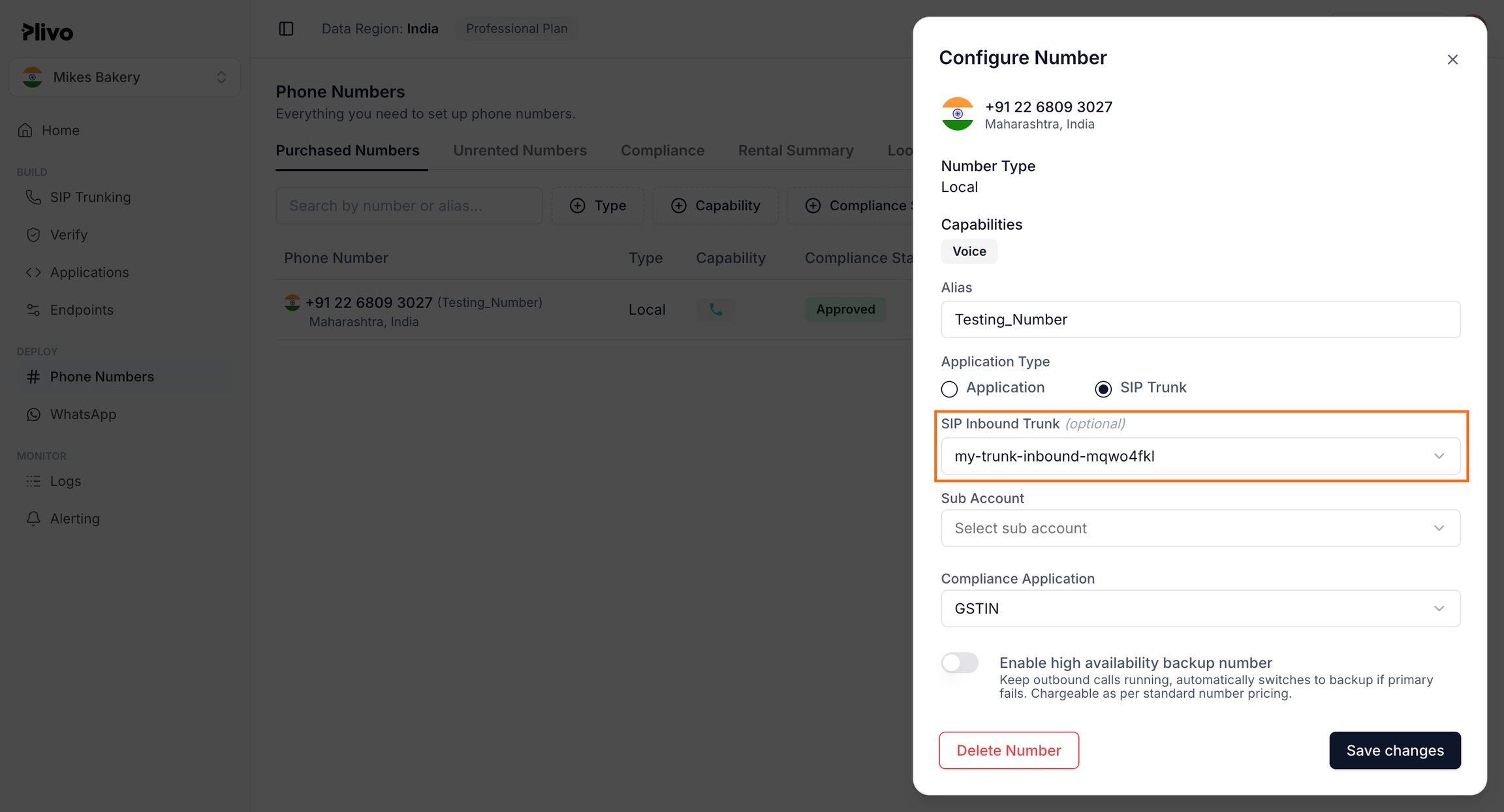
Click "Save Changes"
Phase 5: Create Outbound Trunk (For Making Calls)
Navigate to "SIP Trunking" → "Outbound Trunks" in the Plivo Console.
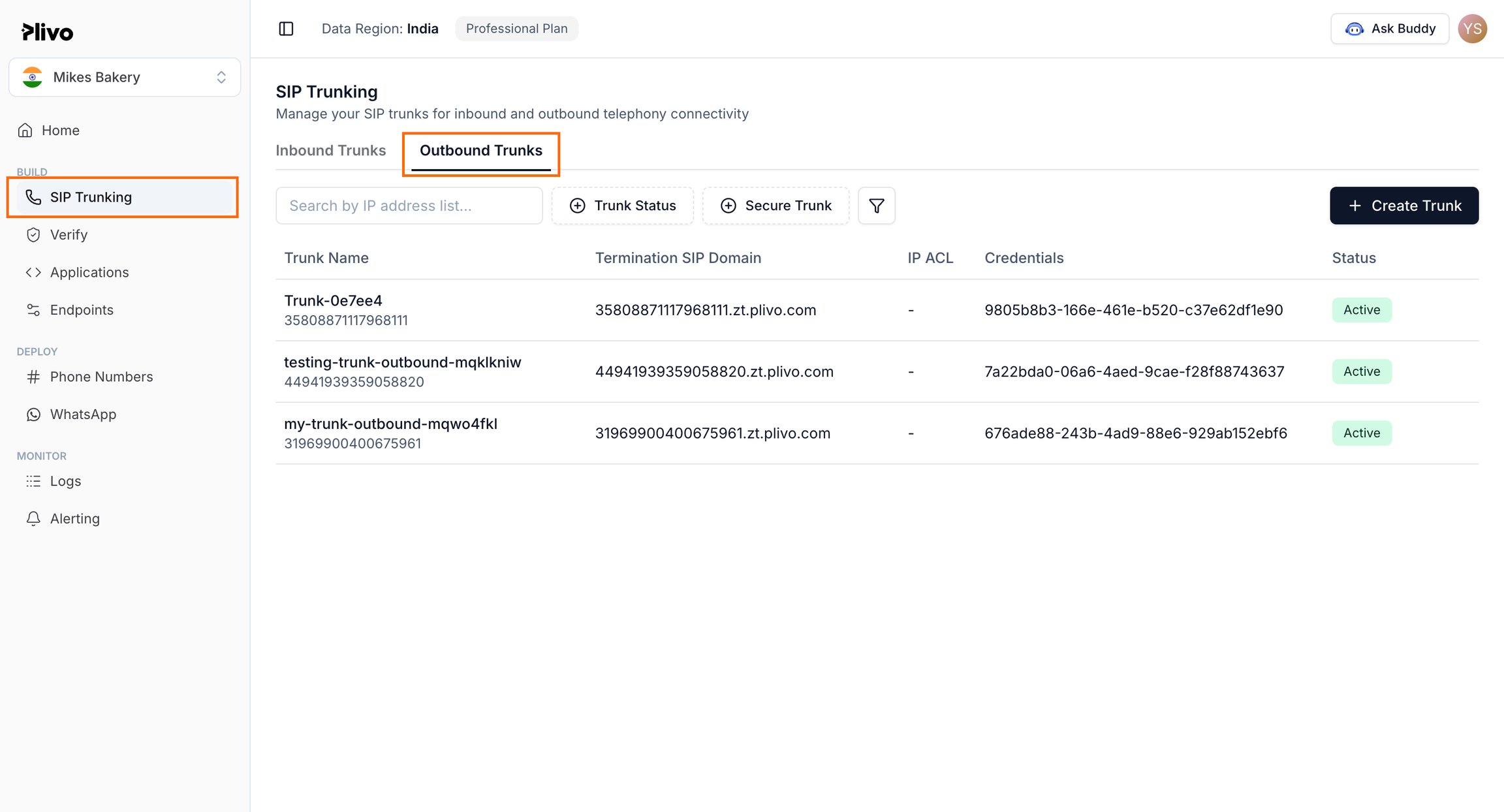
20. Click "Create New Outbound Trunk" and give it a descriptive name (e.g., "BotPenguin Outbound").
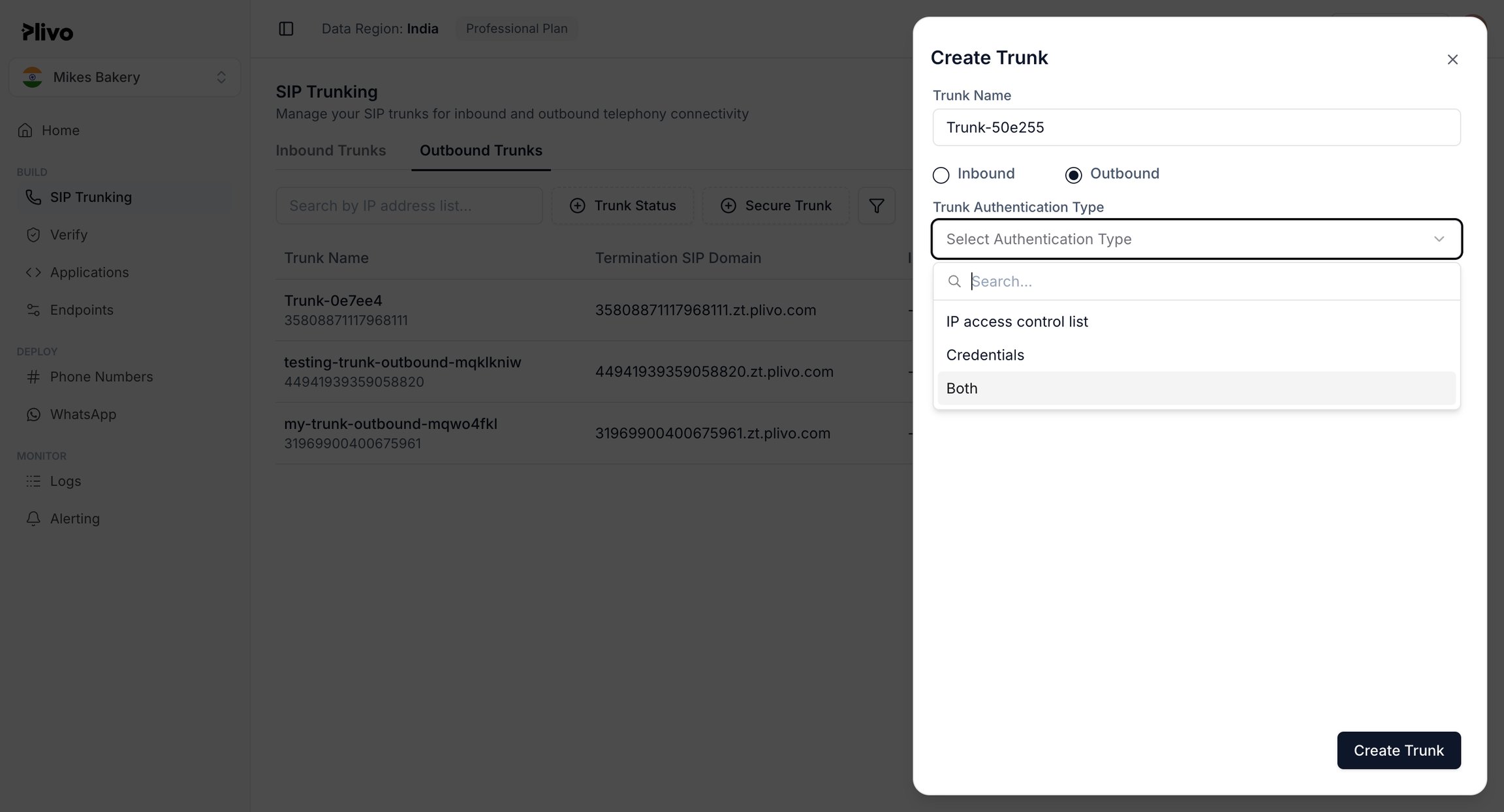
Set up authentication for your outbound trunk:
Go to "Trunk Authentication" → "Credentials"
Click "Add New Credentials List"
Create a Username and a strong Password
Click "Create Credential"
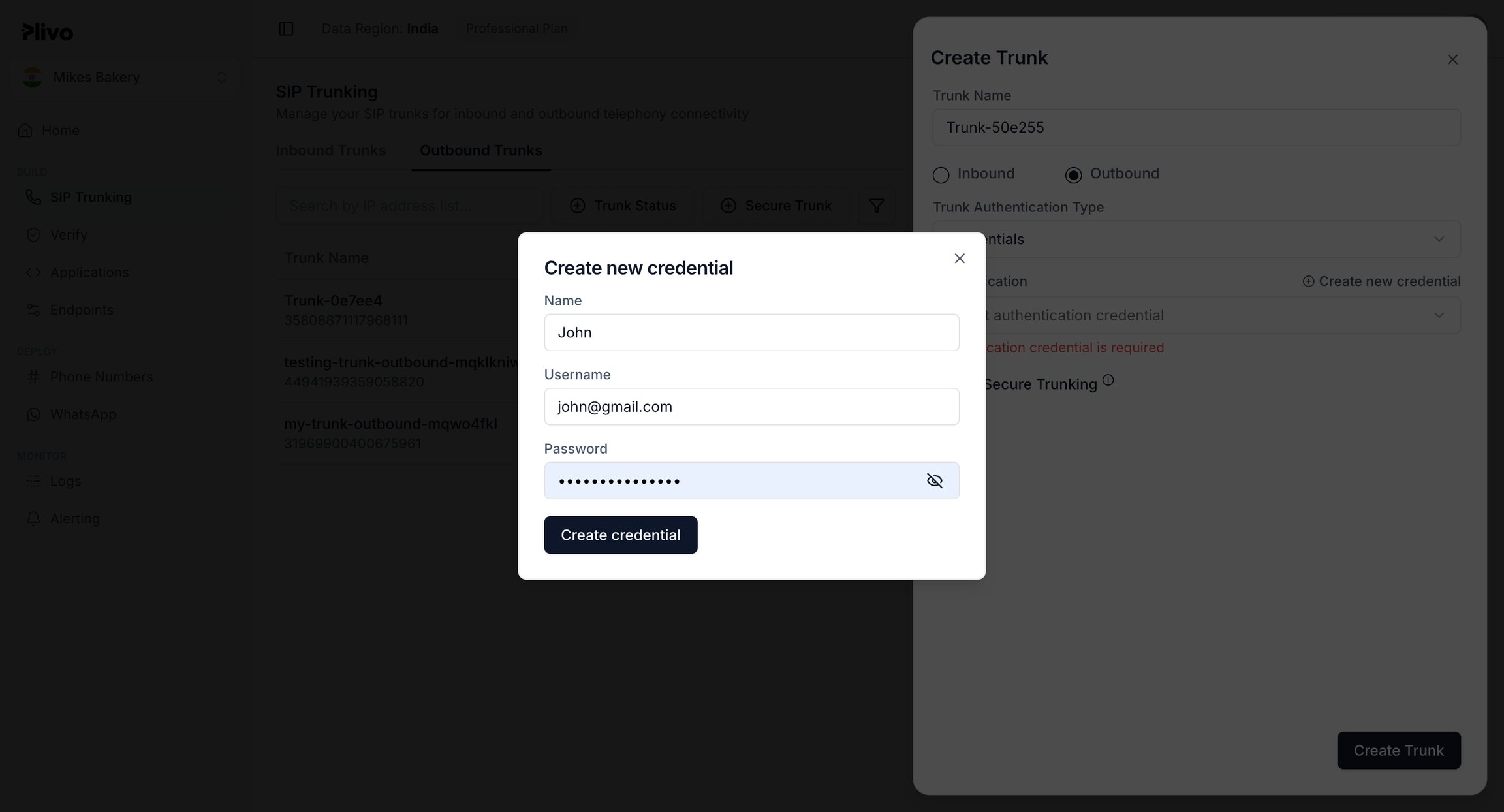
Click "Create Trunk" to save your outbound trunk.
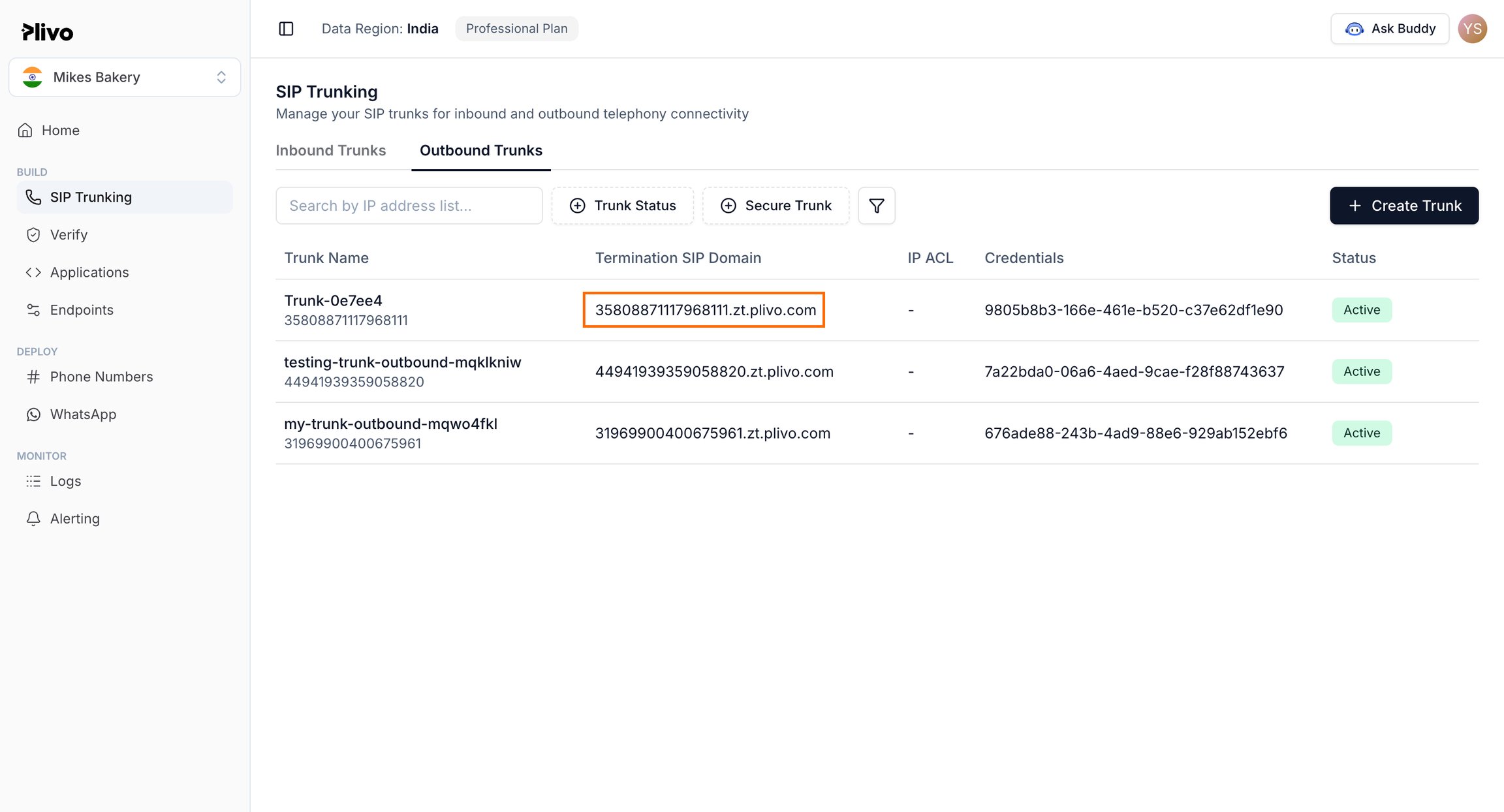
From the outbound trunk details page, copy the Termination SIP Domain (it looks like:
yourname.sip.plivo.com). You will need this for BotPenguin.
Phase 6: Connect to BotPenguin
Go to the "Third Party Apps" section in BotPenguin from the left sidebar.
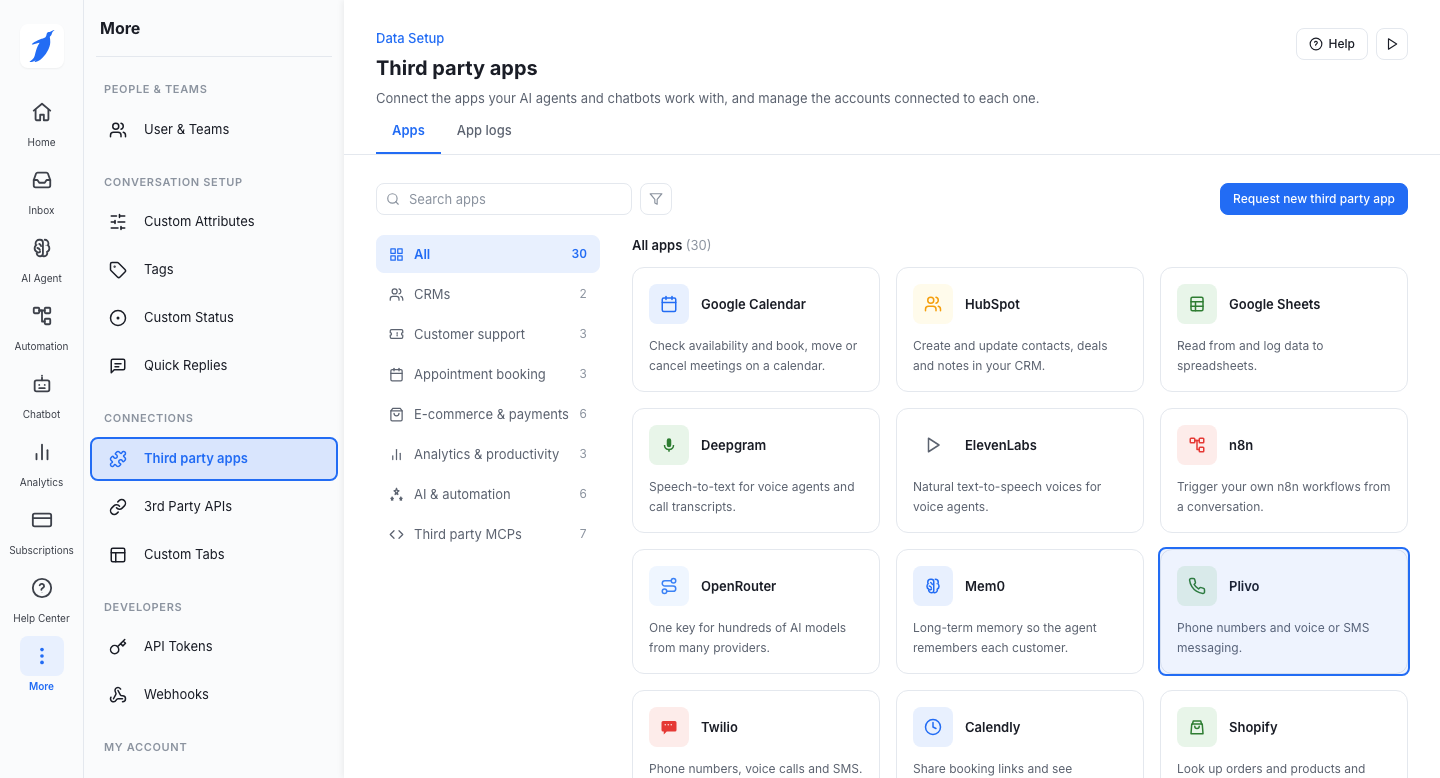
Locate "Plivo" and click "Add Connection".
Fill in the integration form with the following information from your Plivo account:
Country Code
Your country code (e.g., +91 for India)
Dropdown before Phone Number
Phone Number
Your Plivo phone number (without country code)
Plivo → Phone Numbers → Your Numbers
Termination URI
Your Termination SIP Domain
Plivo → Zentrunk → Outbound Trunks
Username
Username from Credentials List
Plivo → Zentrunk → Outbound Trunks → Credentials List
Password
Password from Credentials List
Plivo → Zentrunk → Outbound Trunks → Credentials List
Outbound Transport
TCP (default)
Select from dropdown

Click "Configure" to complete the integration. Installation may take up to 30 seconds.
🔄 How Data Flows (Important)
BotPenguin sends outbound call requests → Plivo processes and initiates calls using your configured trunk
Plivo routes inbound calls → BotPenguin receives and processes them through your inbound trunk
Authentication happens through SIP credentials defined in your Zentrunk configuration
Actions are triggered based on incoming calls, outbound call requests, and system events
This flow ensures reliable two-way voice communication between your agents and customers
🚫 Limitations
Compliance Requirements: Phone numbers in certain countries require compliance verification before purchase. Ensure your account is compliant in your target region.
Regional Restrictions: If you're not compliant in a region, you may need to create a separate organization to purchase numbers there.
Call Logs: Monitor call logs in Plivo → SIP Trunking → Logs → Calls for debugging connection issues.
SIP Transport: TCP transport is required for the SIP endpoint. UDP or other protocols are not supported.
India Region Pinning: If using Indian phone numbers or dialing Indian numbers, region pinning must be enabled on the LiveKit side or calls will fail.
Best Practices
💡 Always test the integration with both inbound and outbound test calls before deploying to production.
⚠️ Store your SIP credentials securely and never share your username/password in plain text communications.
🚀 Use clear, descriptive names for your inbound and outbound trunks to avoid confusion during troubleshooting.
🎯 Monitor Plivo logs regularly to identify and resolve connectivity or configuration issues early.
📋 Keep your billing information current and monitor your credit balance to ensure uninterrupted service.
🔄 Ensure compliance documentation is kept up-to-date, as requirements may change by region.
Troubleshooting
FAQs
Support
If you still have questions for our team, write to us at support@botpenguin.com. We'll get back to you within 48 hours.
🎉 Completion
🎉 Congratulations, you have successfully set up the Plivo integration! You can now enable your agents to make and receive calls, automate voice workflows, and enhance your customer communication capabilities with reliable voice connectivity.
Last updated