> For the complete documentation index, see [llms.txt](https://help.botpenguin.com/llms.txt). Markdown versions of documentation pages are available by appending `.md` to page URLs; this page is available as [Markdown](https://help.botpenguin.com/settings/3rd-party-apis.md).
# 3rd Party APIs
This section is a guide on the 3rd Party Apps API section of BotPenguin
## APIs Management
The **APIs Management** section allows you to add, configure, test, and manage all third-party APIs that can be used inside your chatbot flows.
You can use these APIs to:
* Send data to external systems
* Fetch customer details
* Trigger third-party actions
* Automate workflows after bot interactions
***
### How to Access APIs Management
1. Go to **More** from the left sidebar.
2. Click on **3rd Party APIs**.
3. You will land on the **APIs Management** page.
***
### Overview of the APIs Management Page
#### 🔎 Search Bar
* Use **Search by API name** to quickly find a configured API.
#### ➕ Add API
* Click **Add API** (top right) to create a new API configuration.
#### 📋 API List Table
The table displays all configured APIs with the following details:
| Column | Description |
| -------- | ------------------------------------- |
| API Name | Name given to the API |
| Method | Request type (GET, POST, PUT, DELETE) |
| URL | Configured API endpoint |
| Actions | Edit (⚙️) or Delete (🗑️) the API |
***
### Managing an Existing API
#### ⚙️ Edit API
* Click the **Settings (⚙️) icon** to modify:
* API URL
* Headers
* Parameters
* Body
* Response mapping
#### 🗑️ Delete API
* Click the **Delete (🗑️) icon** will show the warning popup.
* Confirming will permanently delete the API.
> ⚠️ Note: Deleting an API may impact any chatbot flow where it is currently used.
***
## Setting up API's in BotPenguin
1. Login to your [**BotPenguin Dashboard**](https://app.botpenguin.com/)**.**
2. Go to the **More** section from the sidebar.
3. Click on the **3rd Party API** option.
4. Click on **“Add API”** to add a new API.
***
### Configure 3rd Party API
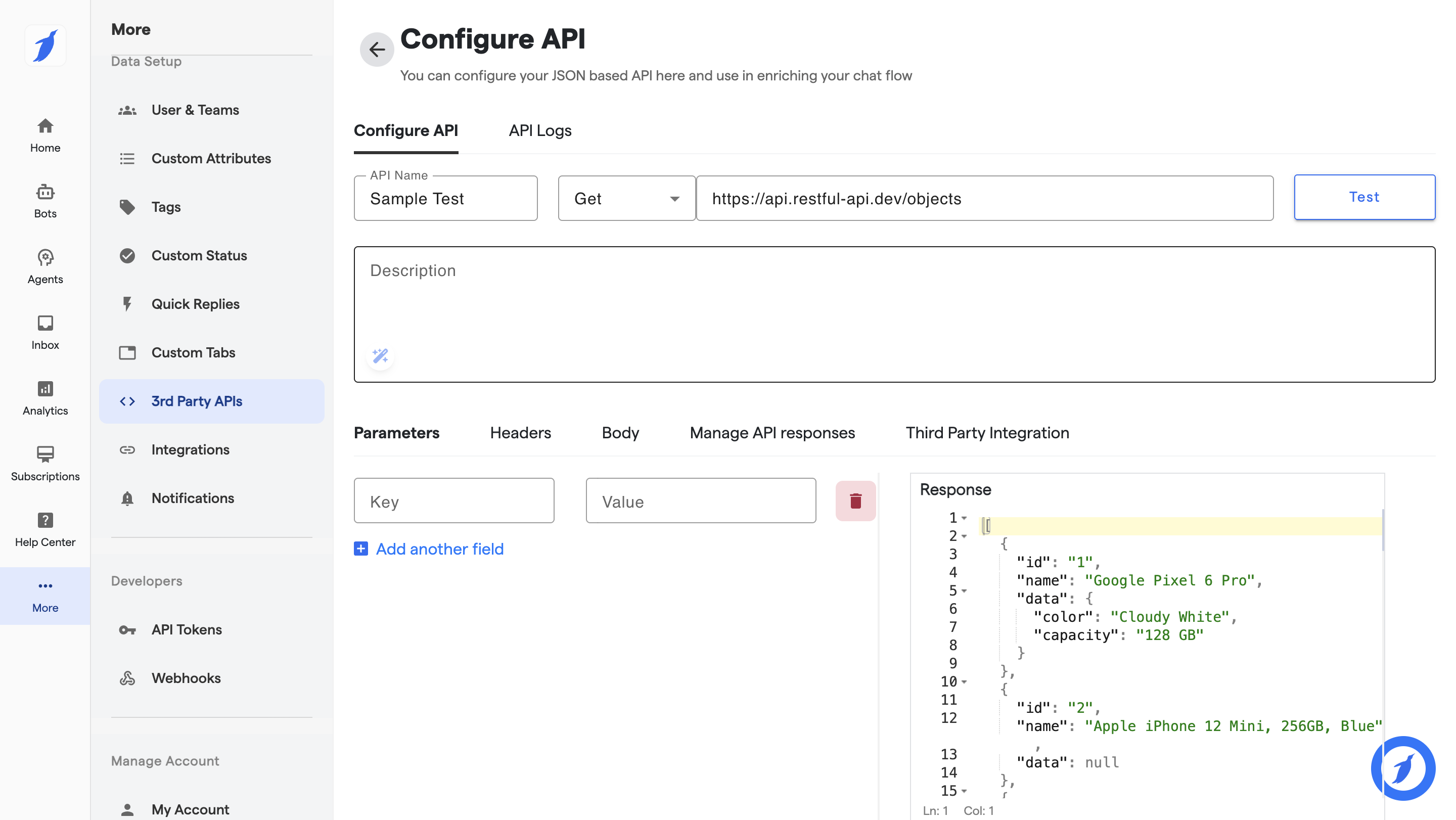
The **Configure API** section allows you to integrate external APIs with your bot to send or fetch data dynamically during conversations.
#### a. Basic Configuration
1. Go to **More** from the left sidebar.
2. Click on **3rd Party APIs**.
3. Select **Configure API**.
Now fill in:
* **API Name** – Enter a unique name for the API.
* **Method Type** – Choose from:
* GET
* POST
* PUT
* DELETE
* **API URL** – Enter the complete endpoint URL.
* **Description** – (Optional) Add internal notes about what this API does.
Click **Test** to check the API response before saving.
#### b. Configure Request Details
1. **Parameters Tab**
1. Add **Key–Value** pairs for query parameters.
2. Click **Add another field** to add more parameters.
2. **Headers Tab**
1. Add required headers (e.g., Authorization, Content-Type).
3. **Body Tab**
1. Required for POST/PUT requests.
2. Add JSON or form data based on API requirements.
***
#### c. Manage API Responses
Use **Manage API responses** to:
* Map response fields
* Save API responses
* Use values inside chatbot flows
* Trigger conditional logic
***
#### d. Third Party Integration
Configure how this API connects with:
* Chatbot flows
* AI Agents
* Live Chat automation
***
#### e. Final Step
Click **Save** after successful testing.
***
#### Manage API Responses
1. Once the API is tested, you can **map API responses to custom attributes**.
2. Example: Map the API’s `title` field to a chatbot’s custom attribute.
3. These attributes can then be reused later in the conversation flow.
***
#### Use API in Chatbot Flow
1. Create a new flow (e.g., *Products Test*).
2. Add default or custom **questions** to capture user inputs.
3. Open the **Request Information Tab** and select the **API Component**.
4. Choose the API you created earlier.
5. Set up response handling:
* **Success (200 status code):** Redirect user to success message or next step.
* **Failure (4xx codes):** Redirect user to a fallback message.
* **Server Errors (5xx codes):** Redirect to another prompt (e.g., *How was your day?*).
***
#### Testing & API Logs
1. Test your API flow using **“Test Live on WhatsApp Web”**.
2. Navigate to **More → third party APIs → select your API → API Logs → Click on view**
3. Here, you can check:
* API call history
* Response codes (200, 400, 500, etc.)
* Errors and reasons for failure
* Actions - copy and delete
***
## FAQ's
Can I use multiple APIs in one chatbot flow?
Yes, you can configure multiple APIs and call them at different stages in your flow.
What if my API requires authentication headers?
You can add authorization tokens or keys in the \*\*Headers section\*\* of your API setup.
Can I pass user inputs dynamically to the API?
Yes, by mapping \*\*custom attributes\*\* to API parameters, headers, or body fields.
What happens if the API fails?
BotPenguin automatically follows your \*\*fallback path\*\* (error or unknown error configuration).
Where can I debug API failures?
Check the \*\*API Logs\*\* section in the Developer tab to see request and response details.
***
If everything is correct and you are still unable to move forward, write to us at ****. We will respond back within 48 business hours.