> For the complete documentation index, see [llms.txt](https://help.botpenguin.com/llms.txt). Markdown versions of documentation pages are available by appending `.md` to page URLs; this page is available as [Markdown](https://help.botpenguin.com/subscription/subscription-plans.md).
# Subscription Plans
This guide explains how to view, upgrade, downgrade your BotPenguin subscription from the dashboard.
### Subscription
1. Log in to your **BotPenguin Dashboard**.
2. Click on **Subscriptions** .
3. You will be redirected to **Subscriptions → Plan** tab.
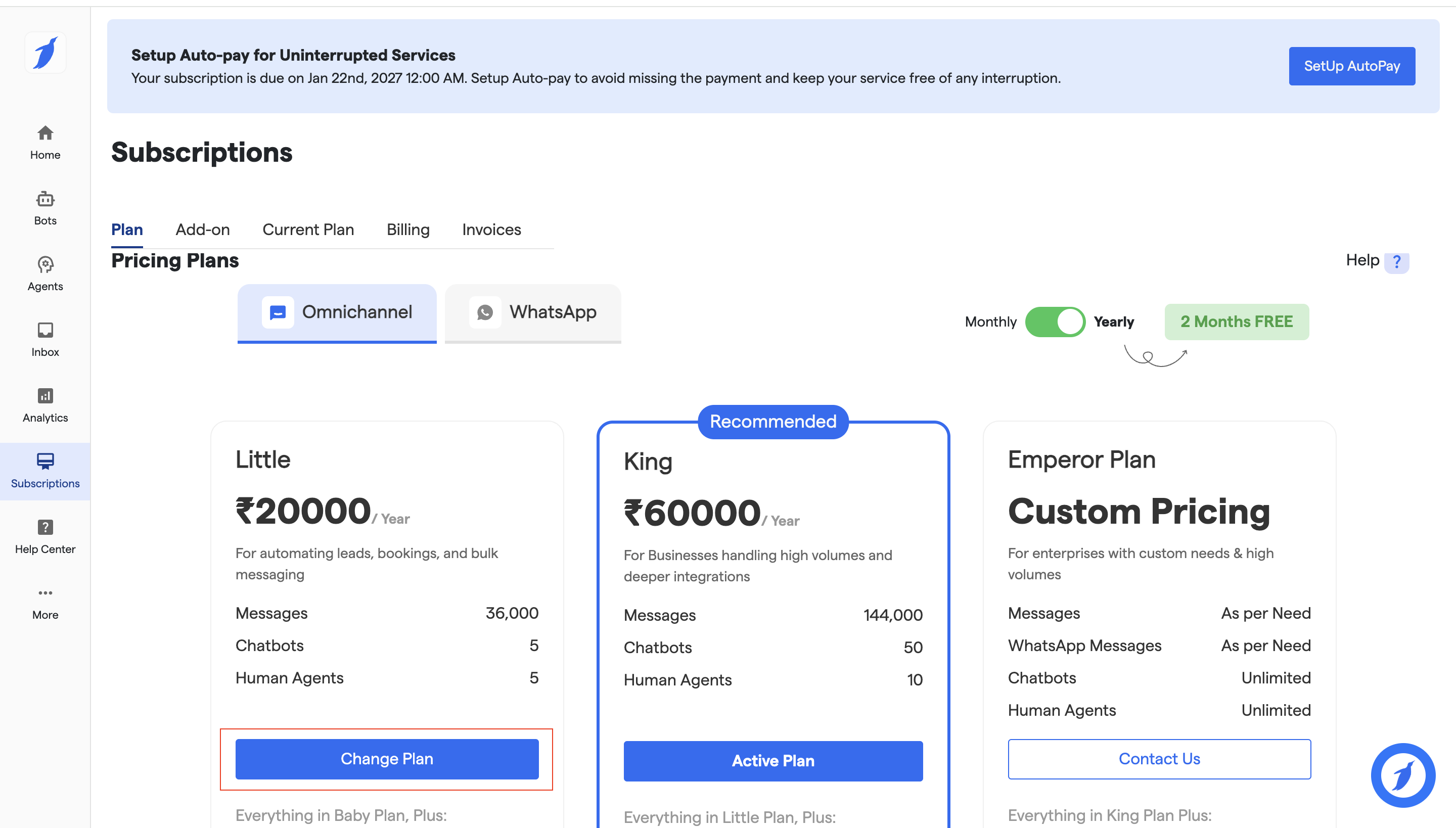
4. Here, you will see two pricing plans:
* **Omnichannel** – Includes features for all bots and agents across channels.
* **WhatsApp** – A WhatsApp-only plan designed for businesses that want to automate conversations, campaigns, and support exclusively on WhatsApp, without AI features.
{% content-ref url="/pages/Q4ZJbiWH0GAYvuF0wTl0" %}
[Whatsapp Only Plans](/subscription/whatsapp-only-plans.md)
{% endcontent-ref %}
**When you select Omnichannel, you will see the available plans and their features:**
1. **Baby Plan** – This is the default plan assigned when a user first joins the platform. It is ideal for beginners who want to explore chatbots without risk.
2. **Little Plan** – Users can upgrade from the Baby Plan to the Little Plan. It is suitable for automating leads, bookings, and bulk messaging.
3. **King Plan** – Designed for businesses handling higher volumes and requiring deeper integrations.
4. **Emperor Plan** – Best suited for enterprises with custom requirements and very high usage.
You can choose the plan that best fits your needs.\
You also have the option to switch between **monthly** and **yearly** billing by simply toggling the plan duration.
6. At the top, you will see the "**Set Up Auto Pay"** button, which allows you to enable automatic payments so the amount can be deducted directly from your bank account.
7. Click **Change Plan** to switch to your preferred plan.
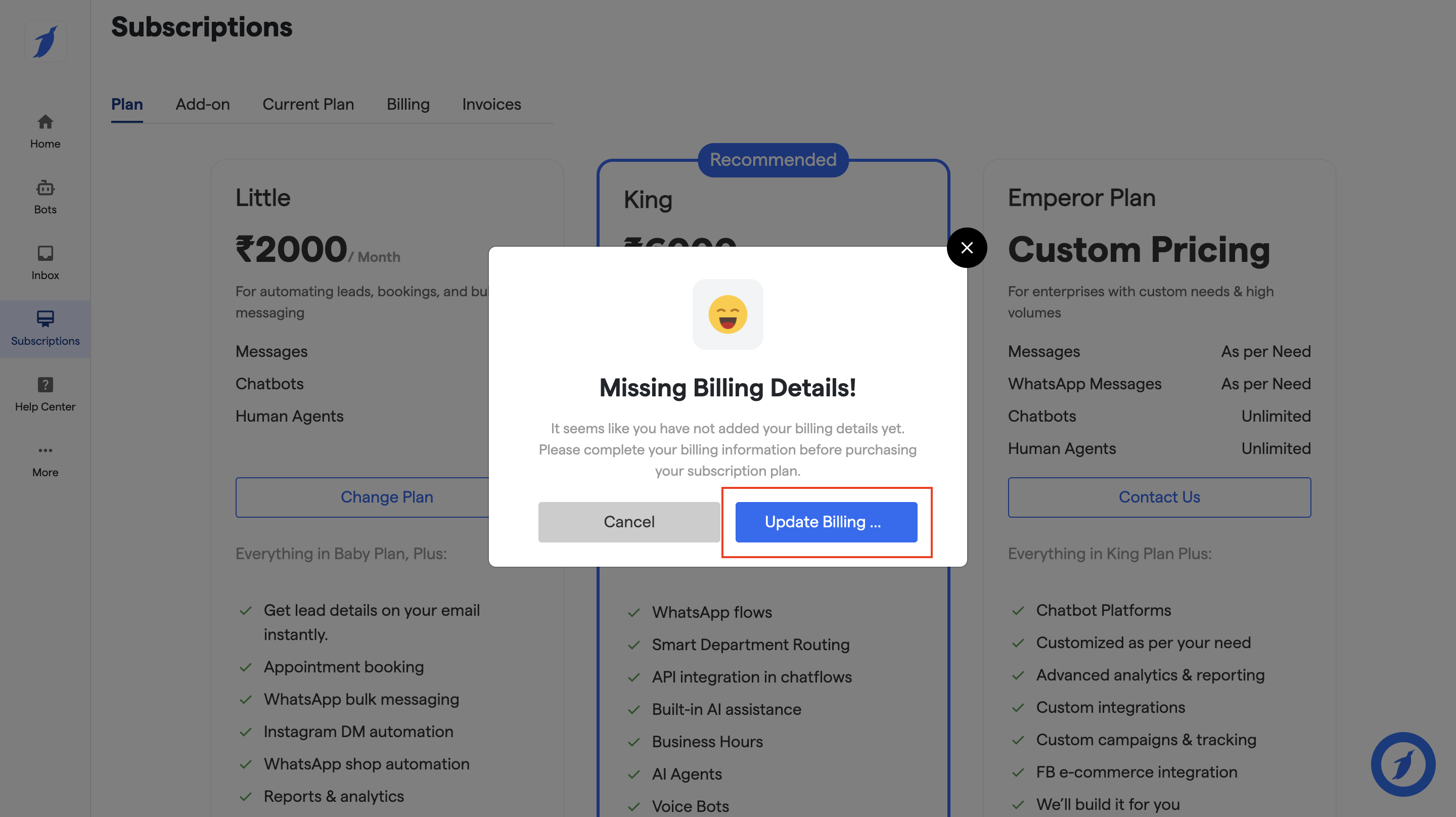
8. A pop-up will appear to add your billing details if they are missing.
9. Click on "**Update Billing"**.
10. You will be redirected to the Billing screen.
11. Add your billing address and payment method.
12. After adding the details, go back to the **Plans** screen.
13. Select your desired plan and click on "**Change Plan" button**.
14. Click on the "**Upgrade"** button.
15. You will be redirected to the payment gateway.
16. Choose your payment method and confirm the payment.
17. After successful payment, your account will be activated.
***
### Downgrade Your Subscription
To downgrade your plan:
1. Select the desired plan and click **Change Plan**.
2. Confirm the downgrade request.
3. Once confirmed, the downgrade request will be submitted and will be displayed on the Plan screen.
**Important:**
* Downgrades take effect at the end of the current billing cycle.
* Any features that exceed the limits of the new plan will be paused.
## FAQ
Will my bots stop working if I cancel?
Bots continue working until the end of your billing cycle.
Can I upgrade anytime?
Yes, upgrades are applied instantly.
Can I get a refund?
There is no refund policy.
### Need Help?
If you face any issues managing your subscription, contact **** from the dashboard or reach out via the official support channels.
***