> For the complete documentation index, see [llms.txt](https://help.botpenguin.com/llms.txt). Markdown versions of documentation pages are available by appending `.md` to page URLs; this page is available as [Markdown](https://help.botpenguin.com/bots/sms-bot/bot-setup-and-installation.md).
# Bot Setup and Installation
This section contains the steps on how to create a SMS chatbot, access the bot, and install a SMS bot .
### What is the SMS Bot?
The SMS Bot enables businesses to connect an SMS service provider, such as Twilio, and automate two-way conversations with users through text messages. It allows you to send and receive SMS messages directly from the platform, making SMS a fully functional communication channel for customer engagement, notifications, and support.
By combining automated chatflows with SMS delivery, the SMS Bot helps teams scale communication, ensure timely message delivery, and manage all SMS-based conversations from a single dashboard—without manual intervention.
***
### Benefits of Twilio SMS Integration
* 🚀 Accelerates customer communication with instant, automated message delivery at scale.
* ⏱️ Reduces operational overhead by automating repetitive notifications and responses.
* 🔒 Improves reliability and trust through timely OTPs, alerts, and transactional messages.
* 📈 Boosts engagement and conversions with targeted campaigns and real-time updates.
***
### How to Set Up the SMS Bot
#### 1. Create the SMS Bot
1. Log in to your dashboard.
2. Click on **Create Bot**.
3. Select **SMS Bot**.
4. Choose your business goal, and then click on "**Proceed to Next Step**".
5. Your SMS Bot will be created automatically!
***
#### 2. Editing your SMS Bot Chatflow
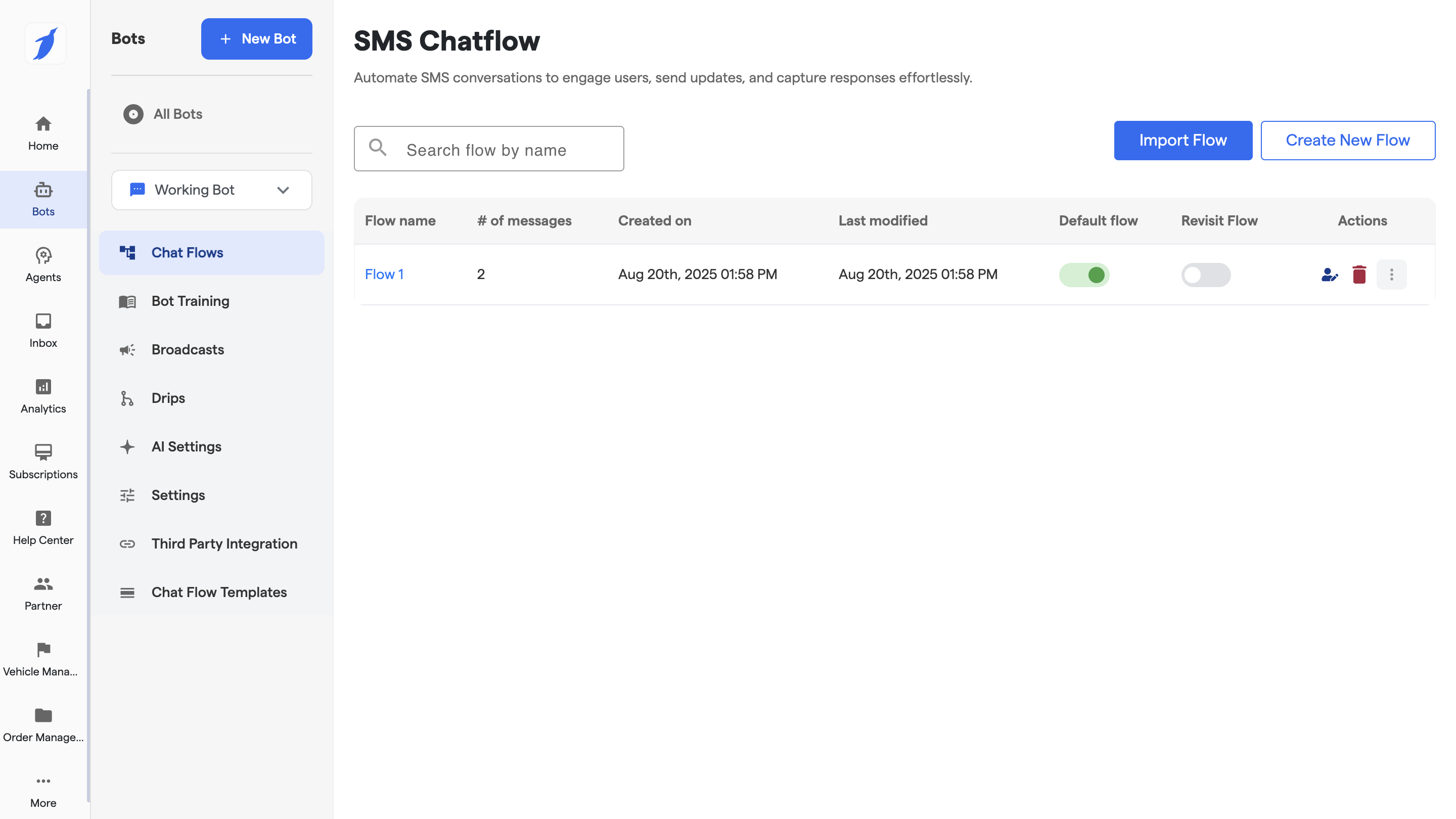
1. Open the newly created SMS Bot.
2. Go to the "**Chatflow**"
3. Create a new flow or edit the existing.
{% hint style="info" %}
**Want to learn how to create a chatflow? Check out the following article:** [Edit and Manage Chatflow](/bots/sms-bot/edit-and-manage-chatflow.md)
{% endhint %}
***
### Installing SMS Bot via Twilio
#### 3. Install the SMS Bot
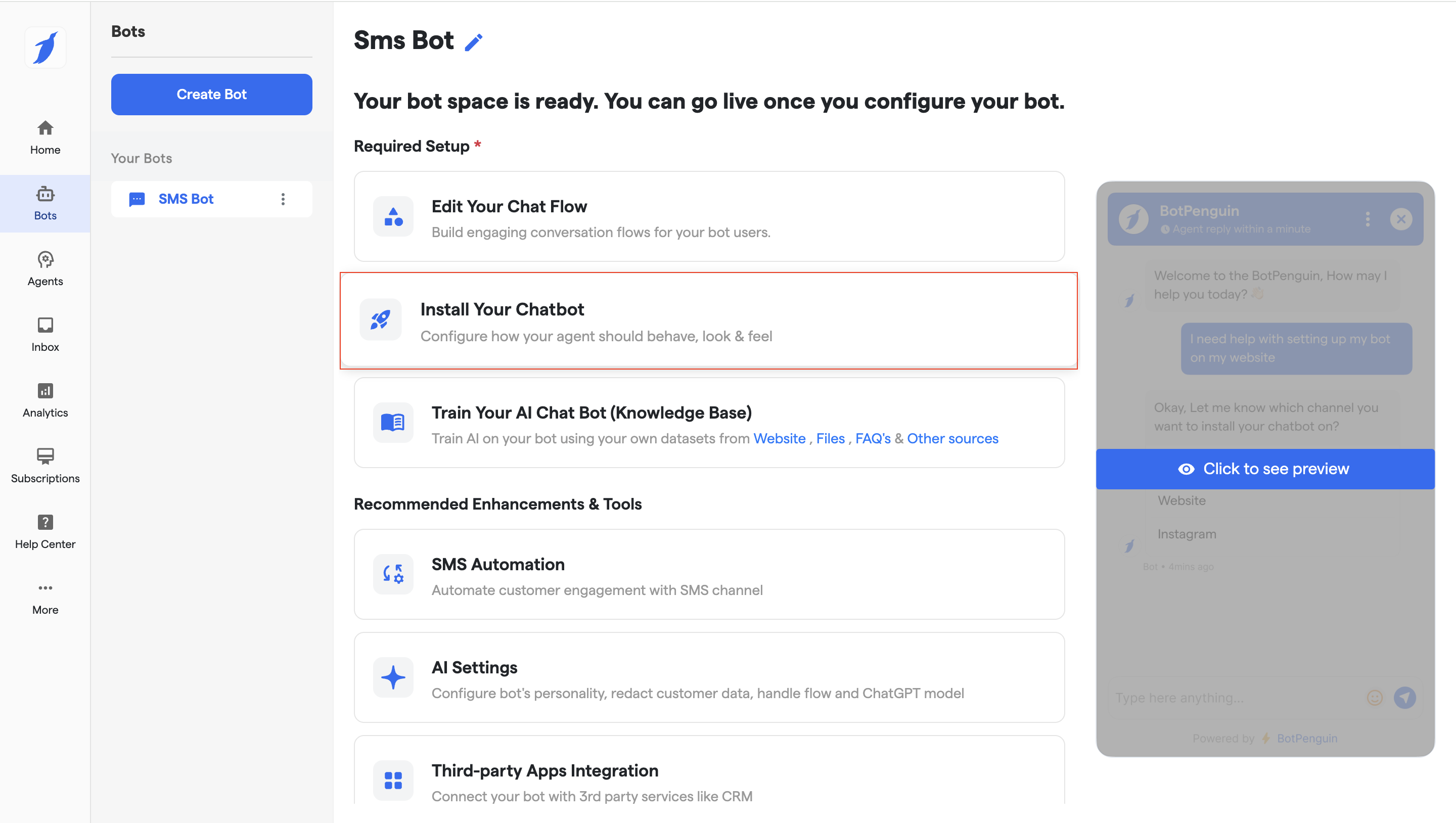
1. Click on **Install Your Chatbot**.
2. Choose Twilio as the provider.
3. You will be redirected to the installation screen.
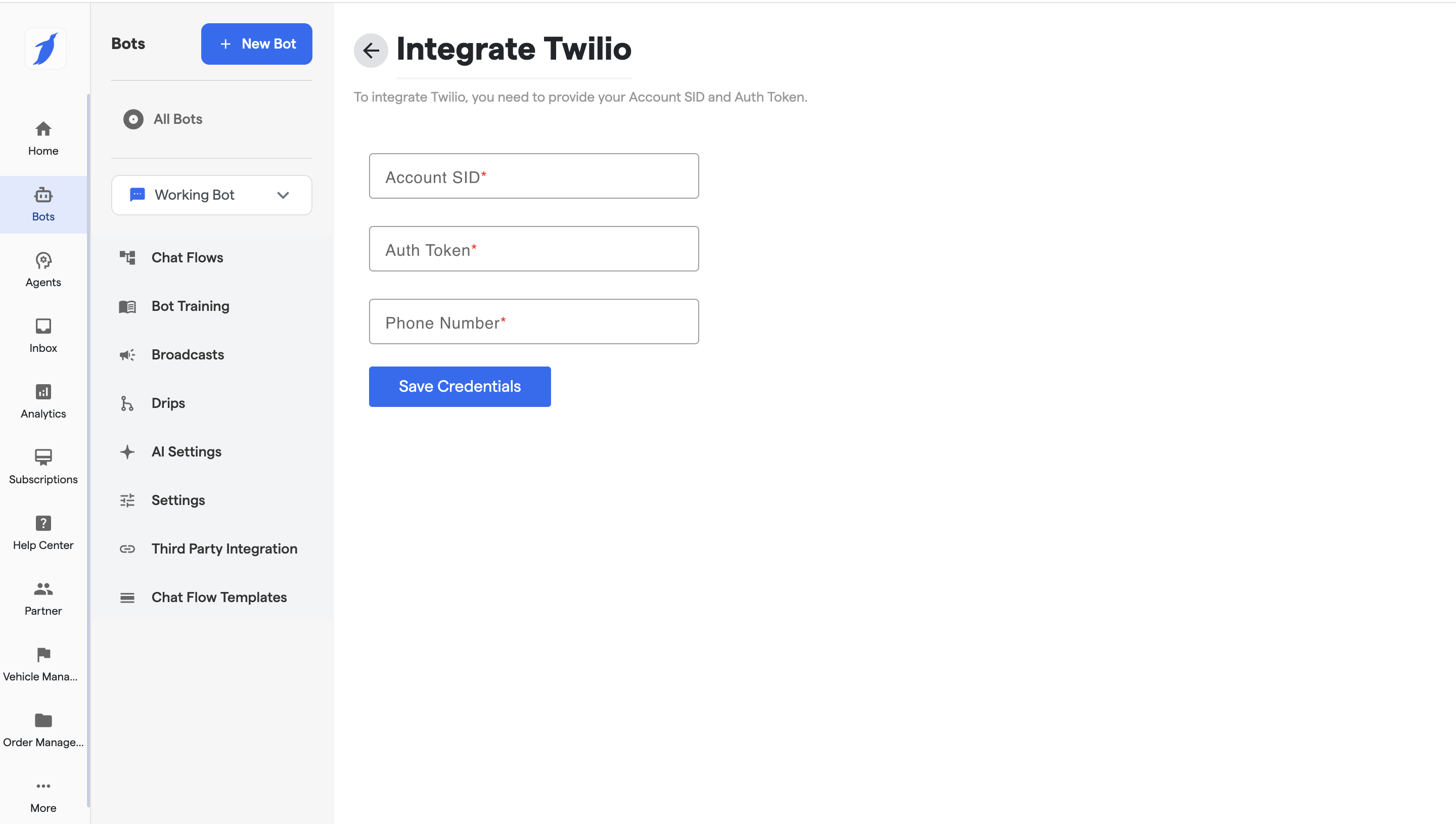
4. Add the details of Account SID, Auth Token and Phone number details to integrate with Twilio. (specified below in "4. Get Twilio Credentials")
5. Then click on "**Save**" credentials options to save.
***
#### 4. Get Twilio Credentials
Follow these steps to collect the required details from Twilio:
1. Log in to Twilio
1. Go to [**https://www.twilio.com/**](https://www.twilio.com/)
2. Log in to your Twilio account.
3. To get the following [prerequisites](https://help.botpenguin.com/bots/sms-bot/install-sms-bot/twilio#part-2-getting-the-required-information-from-twilio) follow the following steps:
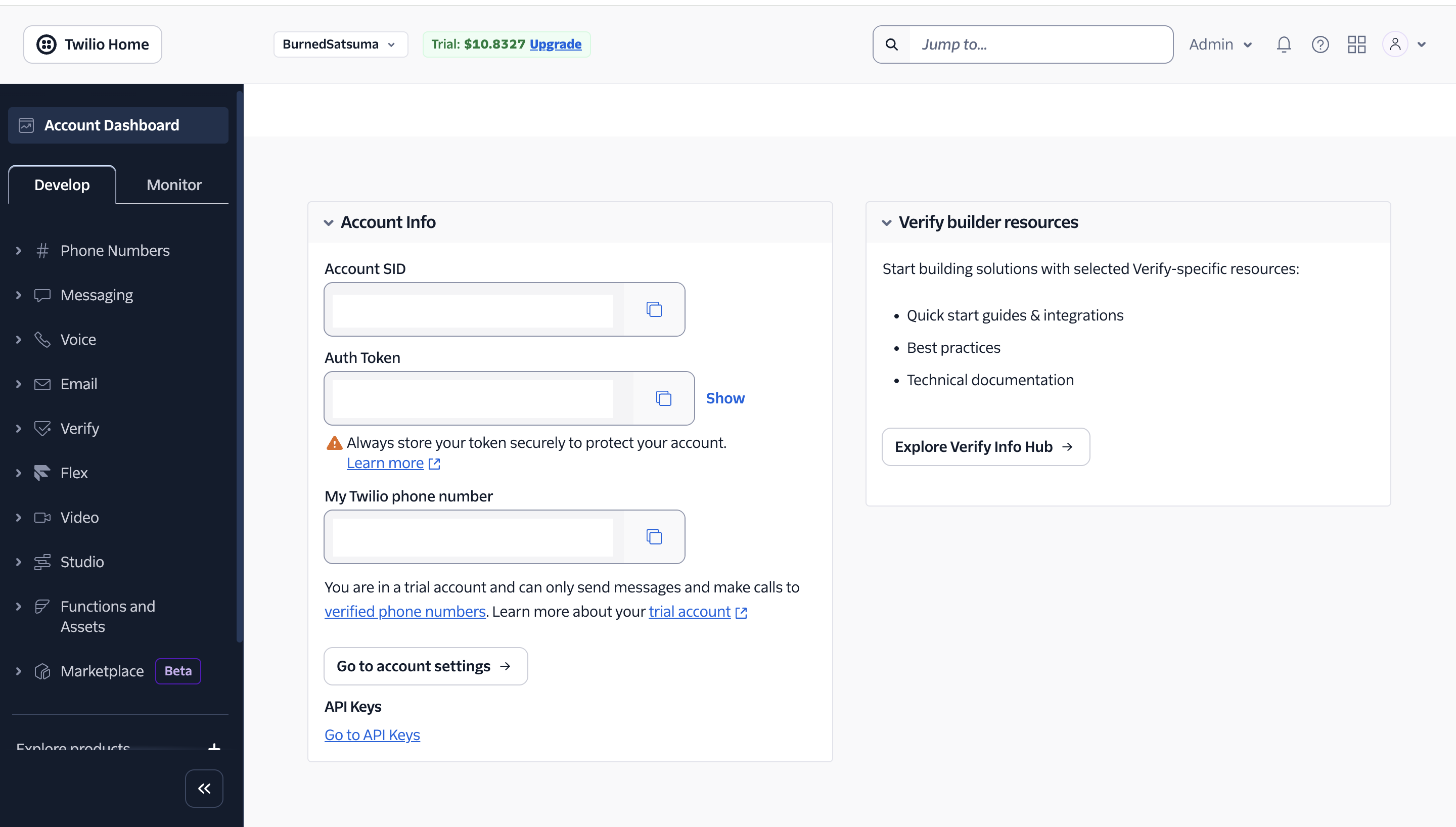
2. Copy Account SID and Auth Token
1. From the **Twilio Console Dashboard**, locate:
* **Account SID**
* **Auth Token**
3. Copy both values.
***
### Step 5: Connect Twilio in the SMS Bot
Enter the following details in the installation screen:
| Field | What to Enter |
| ---------------- | ------------------------------ |
| **Account SID** | From Twilio Dashboard |
| **Auth Token** | From Twilio Dashboard |
| **Phone Number** | Your Twilio SMS-enabled number |
1. Paste the credentials.
2. Click "**Save Credentials"** to save the credentials. Leaving without clicking on the button will not update the installation screen.
3. Your Twilio account will now be connected successfully!
### After Setup
* Your SMS Bot will start sending and receiving messages via Twilio.
* Conversations can be monitored from the Inbox.
***
#### SMS Chatbot (Twilio) FAQs
Do I need a paid Twilio account to install the SMS chatbot?
You can start with Twilio’s trial account and use the provided credits to purchase a phone number. However, production usage may require upgrading your Twilio plan.
Where can I find my Twilio Account SID and Auth Token?
These details are available on the Twilio Dashboard under the **Account Info** section once you log in.
Can I use an existing Twilio phone number?
Yes, any active Twilio phone number associated with your account can be used for SMS chatbot installation.
What happens if I enter incorrect Twilio credentials?
The chatbot will not install successfully. Ensure that the Account SID, Auth Token, and Phone Number are copied exactly as shown in Twilio.
Can I change the Twilio number after installation?
Yes, you can update the credentials by revisiting the installation settings and saving new Twilio details.
### Need Help?
If everything is correct and you are still unable to move forward, write to us at . We will respond back within 48 business hours.