> For the complete documentation index, see [llms.txt](https://help.botpenguin.com/llms.txt). Markdown versions of documentation pages are available by appending `.md` to page URLs; this page is available as [Markdown](https://help.botpenguin.com/ai-agents/creating-ai-agents-in-botpenguin/advance-ai-settings.md).
# Advance AI Settings
Use this section to connect your agent to powerful AI models and fine-tune how they operate at scale.
### What is Advanced AI Settings?
Advanced AI Settings allows you to integrate your AI Agent with external LLMs (like ChatGPT), configure advanced AI performance settings, enable voice capabilities, set up transcription, and manage agent memory. It's designed for teams that need granular control over how their agent behaves in high-load, multi-tool, AI-intensive scenarios, and voice-based interactions.
***
### When should you use this?
Use Advanced AI Settings when:
* You want to integrate external LLMs like ChatGPT for improved agent responses
* You need to configure voice capabilities for your agent
* You are building voice-based bots or call automation workflows
* You need to store and manage conversation context through advanced memory
* You want to fine-tune agent behavior for complex, multi-tool scenarios
* You require custom voice transcription for specific languages or use cases
***
### Benefits of Advanced AI Settings
* 🧠 Integrate with powerful external LLMs (ChatGPT, GPT-5.x) for enhanced reasoning
* 🔊 Enable voice-to-voice conversations with TTS and transcription providers
* ⚡ Fine-tune agent performance with parallel tool calling and token management
* 💾 Store and retrieve conversation context using advanced memory (MemZero or In-Memory)
* 🎯 Improve accuracy and response quality with model selection and temperature tuning
* 🔄 Automatically switch models based on token limits for optimal performance
***
### Expected Outcome
After setting this up:
* Your AI agent will use the selected external LLM for enhanced responses
* Your agent will support voice interactions with text-to-speech and transcription
* Agent behavior will be optimized for your specific use case with custom settings
* Conversation context and customer information will be preserved through advanced memory
* Your agent will handle complex, multi-tool scenarios with improved performance
***
### Where to Find It
1. Log in to [**https://app.botpenguin.com/**](https://app.botpenguin.com/)
2. Go to the **Agents** tab and select the agent you want to configure
3. Click on **Advanced Agent Settings** from the left-hand sidebar
***
### Key Sections
#### 🔹 **LLM Provider**
* If no LLM is integrated yet, click **Integrate LLM Provider**
* This redirects you to the Integrations page, where you can connect to tools like:
* OpenAI (ChatGPT)
* Calendars
* CRMs
* Other third-party platforms
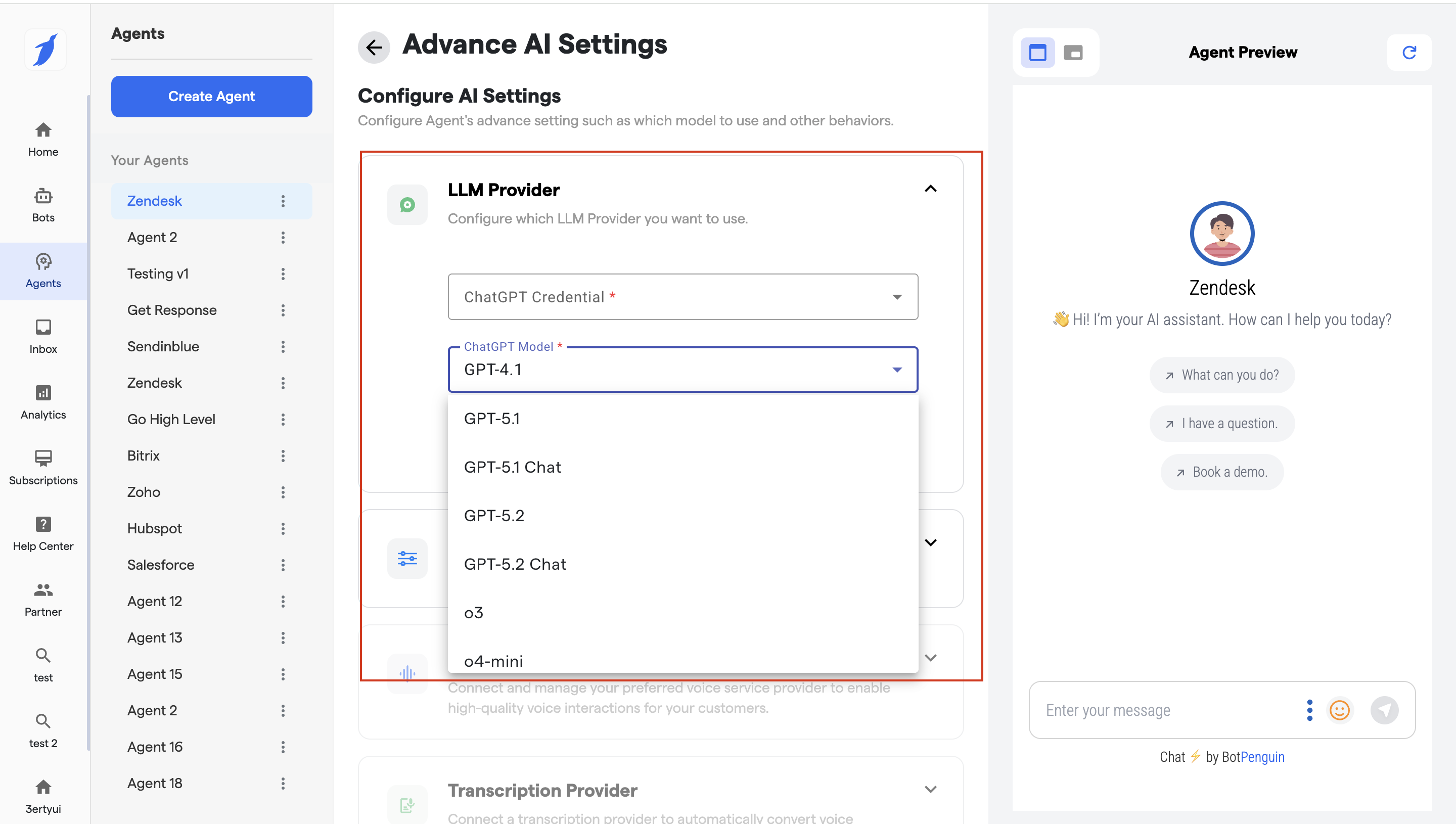
You can now choose from the **GPT models** to improve your agent’s responses, accuracy, and conversation quality.
***
#### Latest Top 4 Models
* **GPT-5.1** – Best for advanced reasoning and complex queries
* **GPT-5.1 Chat** – Optimized for natural, conversational responses
* **GPT-5.2** – Improved accuracy and faster performance
* **GPT-5.2 Chat** – Best balance of speed and chat quality
***
#### How to Enable a Model
1. Go to **Agents**
2. Select your **Agent**
3. **Click on Integrate Ai model**
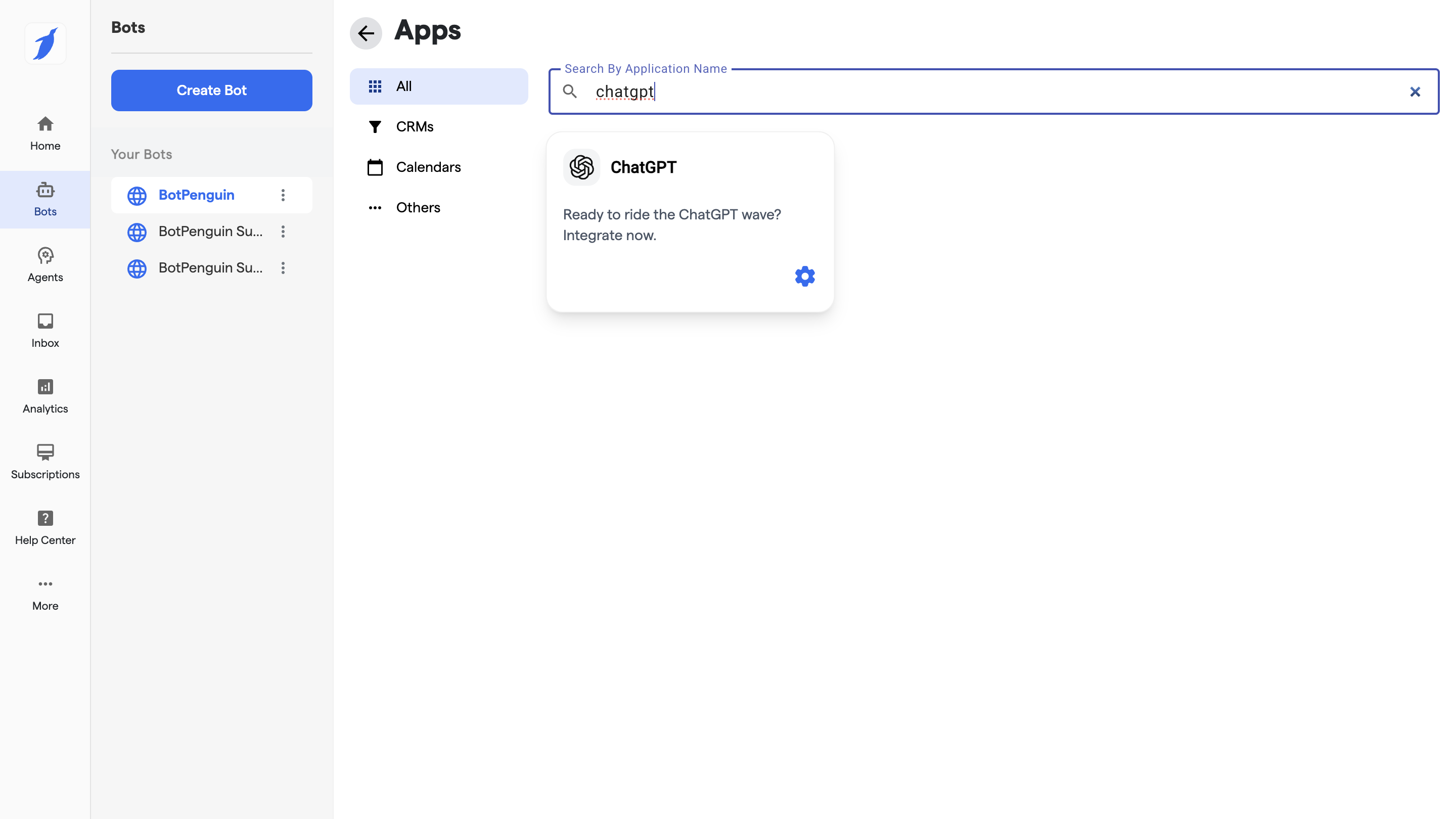
4. **You will be redirected to the app screen.**
5. Search Chatgpt option
6. Click on ChatGPT option
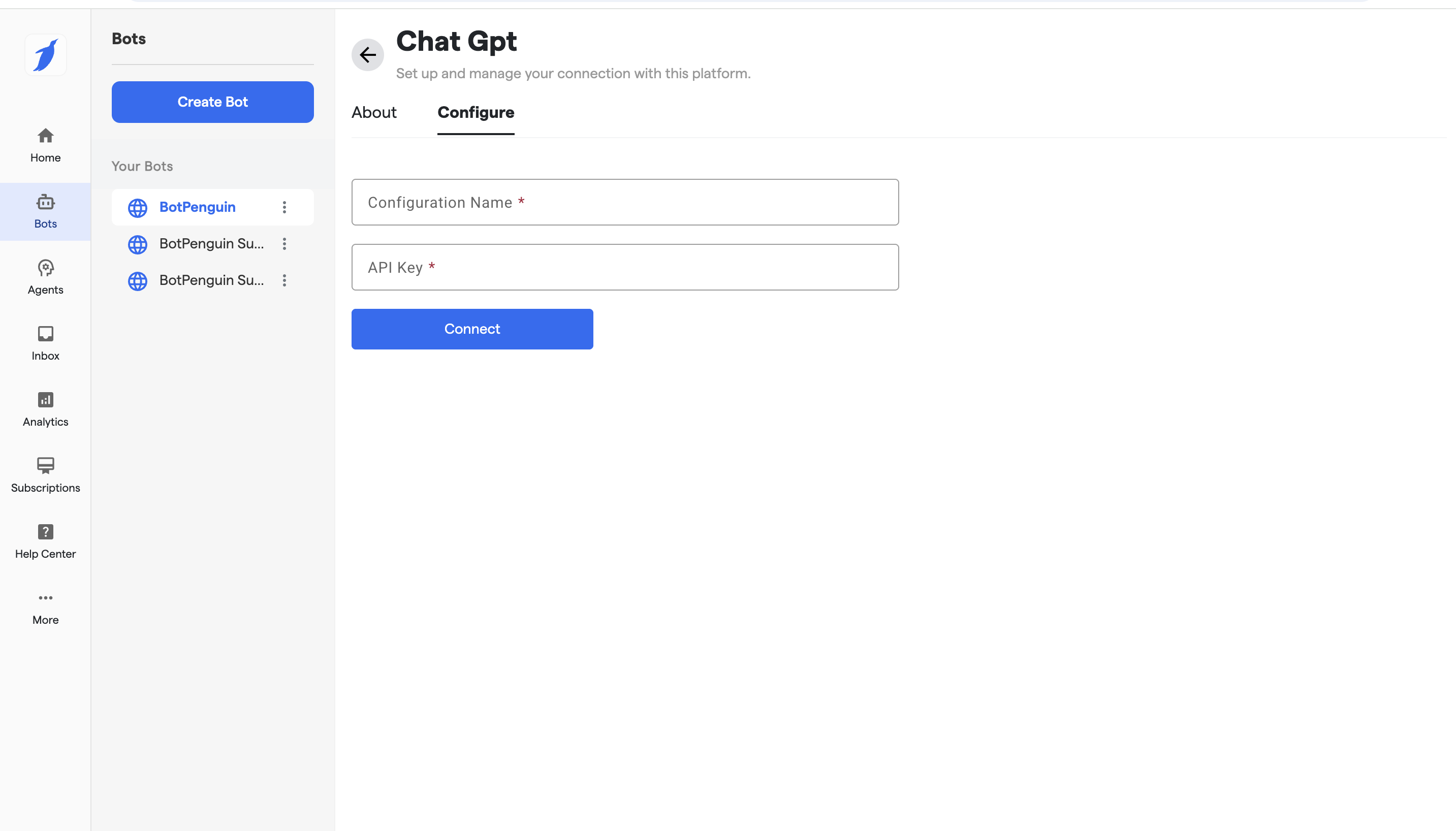
7. Click on connect and add the configuration name and API key
8. Click on connect.
***
#### Model Selection Tips
* Use **Chat models** for customer support and live chat
* Use **non-Chat models** for logic-heavy or structured responses
* Choose newer versions (5.2) for better performance
***
#### Agent Preview
After selecting a model, use **Agent Preview** to test responses before going live.
#### 🔹 **Advanced Settings**
Fine-tune the agent’s operational behavior with the following controls:
* **Parallel Tool Calling** (Toggle): Allow the agent to call multiple tools simultaneously
* **Strict Tool Calling** (Toggle): Ensure only predefined tools are used without fallbacks
* **Switch Model on Token Limit** (Toggle): Automatically switch to a fallback LLM if token count exceeds threshold
* **Model Selector** (Dropdown): Choose fallback models like *o3*, *o4-mini*, *gpt-4.1*, etc.
* **Token Limit** (Input): Set the maximum number of tokens before switching models
* **Temperature** (Input): Adjust randomness/creativity of the model response (range: 0–1)
**Action:** Click **Update** to save all advanced configurations.
***
#### 🔹 Voice Provider
{% embed url="" %}
### Voice Provider Settings
The **Voice Provider** section allows you to connect a voice service provider to enable **text-to-speech (TTS)** for your agent.
#### 1. Voice Provider
Select the voice service provider you want to use.
This determines:
* Voice quality
* Supported languages
* Available voice styles
> **Note:** A voice provider is mandatory to enable voice responses.
***
#### 2. Voice Provider Credential
Choose or add credentials linked to your selected voice provider.
Credentials are required to:
* Authenticate your voice service
* Securely process voice responses
***
#### 3. Voice
Select the **voice type** for your agent.
Examples:
* Male / Female voices
* Natural or conversational tones
* Language-specific voices
Choose a voice that matches your brand and use case.
***
#### 4. Model
Select the **voice model** used for speech generation.
The model affects:
* Speech clarity
* Naturalness
* Response speed
***
#### 5. Purchase Voice Add-on
If voice features are not enabled on your plan, click **Purchase Voice Add-on** to activate voice capabilities.
***
#### 6. Update
Click **Update** to save and apply your voice configuration.
***
#### How Voice & Transcription Work Together
When enabled:
1. User speaks to the agent
2. Transcription provider converts voice to text
3. AI processes the text
4. Voice provider converts AI response back to speech
This enables a complete **voice-to-voice conversation experience**.
***
#### 🔹 Transcription Provider
The **Transcription Provider** settings allow you to convert **voice conversations into text** automatically. This enables your AI agent to understand spoken user inputs, process them correctly, and store conversations in a readable format.
Transcription is essential for voice-based agents, call automation, and analytics.
* Converts user **voice input into text**
* Sends the text to the AI for processing
* Enables searchable and loggable conversations
Without transcription, voice inputs cannot be understood by the AI agent.
***
### Accessing Transcription Provider Settings
To configure transcription:
1. Log in to your **BotPenguin Dashboard**
2. Go to **Agents**
3. Select your **Agent**
4. Open the **Advanced** section
5. Expand **Transcription Provider**
***
### Transcription Provider Configuration Fields
#### 1. Voice Provider
Select the transcription service provider you want to use.
This determines:
* Speech-to-text accuracy
* Supported languages
* Processing speed
> **Required Field**
***
#### 2. Voice Provider Credential
Choose or add credentials associated with the selected provider.
Credentials are required to:
* Authenticate transcription requests
* Secure your voice data
> **Required Field**
***
#### 3. Model
Select the transcription model.
The model affects:
* Accuracy of speech recognition
* Noise handling
* Language understanding
> **Required Field**
***
#### 4. Language
Select the language spoken by your users.
This ensures:
* Accurate transcription
* Proper handling of accents and pronunciation
> **Required Field**
***
#### 5. Purchase Voice Add-on
If transcription is not enabled for your plan, click **Purchase Voice Add-on** to activate voice and transcription features.
***
#### 6. Update
Click **Update** to save and apply your transcription settings.
***
### How Transcription Works
1. User speaks to the agent
2. Audio is sent to the transcription provider
3. Speech is converted into text
4. AI processes the text
5. (Optional) AI responds using voice via the voice provider
***
### When Should You Enable Transcription?
Enable transcription if:
* Your agent accepts voice inputs
* You are using call-based bots
* You want conversation logs for analysis
* You need accurate AI understanding of spoken queries
***
***
### 🔹 Advanced Memory Configuration
Advanced Memory allows you to store and retrieve conversation context, customer information, and interaction history. Choose between MemZero (external) or In-Memory (internal) storage.
#### Understanding Advanced Memory
Advanced Memory enables your agent to:
* Remember customer details across conversations
* Store policy questions and responses
* Maintain conversation history and context
* Categorize and organize stored information
* Retrieve relevant information for personalized responses
#### Step 1: Select Memory Storage Method
1. In Advanced Agent Settings, locate the **"Advanced Memory"** section.
2. Click the dropdown to choose your memory storage method:
1. **Mem0** — External memory service (requires separate configuration)
2. **In-Memory** — Internal BotPenguin memory storage
***
#### Option A: Configure Mem0 Memory
Mem0 provides external, scalable memory storage for your agent conversations.
1. Select **"Mem0"** from the memory storage dropdown.
2. Click on **"Configuration Name"** dropdown.
3. Select your Mem0 configuration or create a new one.
{% hint style="info" %}
Tip: For detailed Mem0 setup instructions, refer to the [Mem0 Integration Documentation](/settings/integrations/mem0.md)
{% endhint %}
4. Configure the **Memory Prompt**:
1. Click in the **"Prompt"** field
2. Define what information the agent should remember and save
3. Example:
```
Save all personal details including name, email, phone number,
and account information. Also save any policy questions, insurance
inquiries, coverage details, and pricing information mentioned
by the customer.
```
5. Click **"Update"** to apply MemZero memory configuration.
***
#### Option B: Configure In-Memory Storage
In-Memory storage keeps conversation context and customer information within BotPenguin.
1. Select **"In-Memory"** from the memory storage dropdown.
2. Configure the **Memory Prompt**:
1. Click in the **"Prompt"** field
2. Define what information should be stored in memory
3. Example prompts:
**For Customer Support:**
```
Remember all customer personal information (name, email, phone,
account ID). Store all support tickets, issues reported, and
resolutions provided. Track customer preferences and past
interactions for personalized service.
```
3. Create Memory Categories:
1. Click **"Add Category"** button
2. Enter a **Category Name** (e.g., "Personal Details", "Policy Information", "Pricing", "Preferences")
4. For each category, enter a **Category Description**:
1. Explain what type of information should be stored
2. Example descriptions:
1. **Personal Details:** "Store customer name, email, phone, account ID, and contact preferences"
2. **Policy Information:** "Save all insurance policies, coverage details, and policy numbers"
3. **Pricing Data:** "Record quoted prices, discounts offered, and payment terms discussed"
4. **Support History:** "Maintain log of all support issues, tickets, and resolutions"
5. Add multiple categories as needed for your use case.
6. Click **"Update"** to save all In-Memory configurations.
***
#### Memory Configuration Best Practices
* **Be Specific:** Clearly define what information should be stored
* **Use Categories:** Organize memory by logical categories for better retrieval
* **Regular Review:** Periodically review what's being stored to ensure relevance
* **Privacy Compliance:** Only store information you have permission to retain
* **Test Before Deploy:** Use Agent Preview to verify memory is working correctly
***
### Best Practices
> 💡 Always use Agent Preview to test LLM model responses, voice output, and memory configurations before deploying to production
> ⚠️ Store API keys and credentials securely; never share them in communications or commit them to public repositories
> 🚀 Start with balanced settings (temperature 0.5, standard model) and gradually fine-tune based on agent performance
> 🎯 Use meaningful memory categories that align with your business needs and customer interactions
> 📋 Monitor token usage to optimize model selection and prevent unnecessary fallback switching
> 🔊 Test voice and transcription with multiple accents and languages to ensure accuracy for your user base
***
### Troubleshooting
Issue: LLM integration shows "API Key Invalid"
**Solution:**
* Verify your OpenAI API key is correct and hasn't expired.
* Check that the API key has the appropriate permissions.
* Regenerate a new API key from your OpenAI account if needed.
* Ensure there are no extra spaces in the API key field.
Issue: Voice responses not working
**Solution:**
* Verify that a voice provider and credentials are selected.
* Check that your plan supports voice features (purchase the Voice add-on if required).
* Ensure the voice model and language are properly configured.
* Test the configuration using **Agent Preview** to identify any errors.
Issue: Transcription not converting speech to text
**Solution:**
* Verify that a transcription provider and credentials are configured.
* Ensure the selected language matches the language being spoken.
* Check that transcription is enabled for your subscription plan.
* Test with a clear audio sample to rule out audio quality issues.
Issue: Agent forgetting previous conversation context
**Solution:**
* Verify that **Advanced Memory** is configured with the correct storage method.
* Ensure the memory prompt clearly specifies what information should be remembered.
* If using **In-Memory** storage, verify that memory categories are properly configured.
* Test memory behavior using **Agent Preview**.
Issue: Token limit exceeded - model frequently switching
**Solution:**
* Increase the token limit in **Advanced Settings**.
* Consider switching to a more efficient LLM.
* Break complex queries into smaller tasks.
* Configure a larger fallback model to handle overflow scenarios.
Issue: High temperature causing inconsistent responses
**Solution:**
* Reduce the temperature to **0.3–0.5** for more consistent responses.
* Use **0.1–0.3** for factual and deterministic responses.
* Use **0.7–0.9** for creative use cases.
* Test different values using **Agent Preview** before deployment.
***
### FAQs
What's the difference between GPT-5.1 and GPT-5.1 Chat models?
GPT-5.1 Chat is optimized for conversational, natural responses in chat and customer support scenarios. GPT-5.1 is better for logic-heavy, structured tasks. Use Chat models for most customer-facing agents.
Do I need both a voice provider and a transcription provider?
Yes. The transcription provider converts speech to text (what the customer says), while the voice provider converts text back to speech (what the agent responds with). Both are required for complete voice conversations.
What happens if my agent hits the token limit?
If **Switch Model on Token Limit** is enabled, the agent automatically switches to the configured fallback model. If it is disabled, the response may be truncated. Enabling this setting helps ensure uninterrupted conversations.
What's the best temperature setting for my agent?
The ideal temperature depends on your use case:
* **0.1–0.3:** Factual and deterministic responses (support, policies, pricing)
* **0.5:** Balanced responses
* **0.7–0.9:** Creative and open-ended conversations
Use **Agent Preview** to test different values and choose the best fit.
Can I use multiple memory storage methods?
No. You can select only one primary memory storage method at a time (MemZero or In-Memory). However, you can switch between them later by updating your configuration and clicking **Update**.
What information should I include in my memory prompt?
Include the types of information you want the agent to remember, such as:
* Personal details
* User preferences
* Transaction history
* Previous support issues
* Any other information relevant to your use case
Be as specific and clear as possible.
How many memory categories can I create?
You can create as many memory categories as needed. For most use cases, **3–7 categories** are recommended. Creating too many categories may make memory retrieval less efficient.
Is my conversation data secure?
Yes. Your API keys and credentials are encrypted. Memory storage (In-Memory or MemZero) follows BotPenguin's security standards. For detailed security information, contact ****.
Can I test settings before deploying?
Yes. Use the **Agent Preview** feature to test:
* LLM responses
* Voice output
* Speech transcription
* Memory retrieval
Testing before deployment helps identify configuration issues early.
What's the cost of voice and transcription features?
Voice and transcription capabilities may require additional add-ons beyond your base subscription plan. Click **Purchase Voice Add-on** to view pricing. Costs vary depending on your selected provider and usage.
***
### Support
If you still have questions for our team, write to us at [**support@botpenguin.com**](mailto:support@botpenguin.com). We'll get back to you within 48 hours.
***
### 🎉 Completion
🎉 Congratulations, you have successfully configured Advanced AI Settings! Your agent now has enhanced LLM capabilities, voice support, transcription, and advanced memory. You're one step closer to building powerful, intelligent conversational experiences with BotPenguin.