> For the complete documentation index, see [llms.txt](https://help.botpenguin.com/llms.txt). Markdown versions of documentation pages are available by appending `.md` to page URLs; this page is available as [Markdown](https://help.botpenguin.com/ai-agents/creating-ai-agents-in-botpenguin/how-to-transfer-a-chat-to-another-agent.md).
# How To Transfer A Chat To Another Agent
This guide explains how to transfer a chat to another agent using the BotPenguin Inbox.
Transferring a chat allows you to hand over an ongoing customer conversation from one agent to another without losing context. This ensures faster resolution, better collaboration, and a smooth customer experience.
### When Should You Transfer a Chat?
You may want to transfer a chat when:
* The query requires a specialist or senior agent
* Your shift is ending
* The chat belongs to a different department (sales, support, billing, etc.)
* You want another agent to follow up with the customer
***
### Prerequisites
Before transferring a chat, make sure:
* You have access to the **Inbox** module
* The chat request has been **accepted**
* The target agent is **active** and available
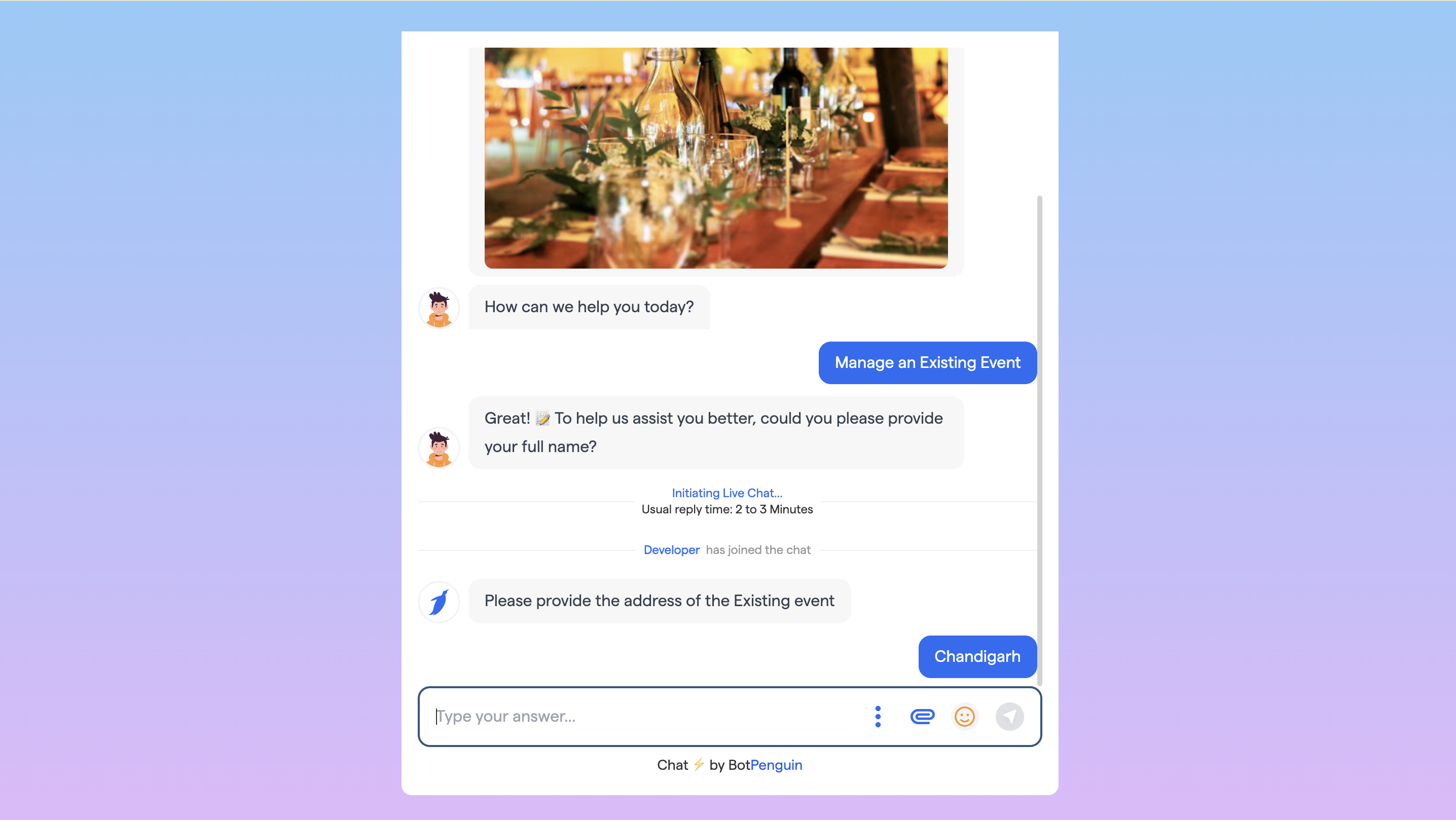
#### Initial Steps By User using the Bot:
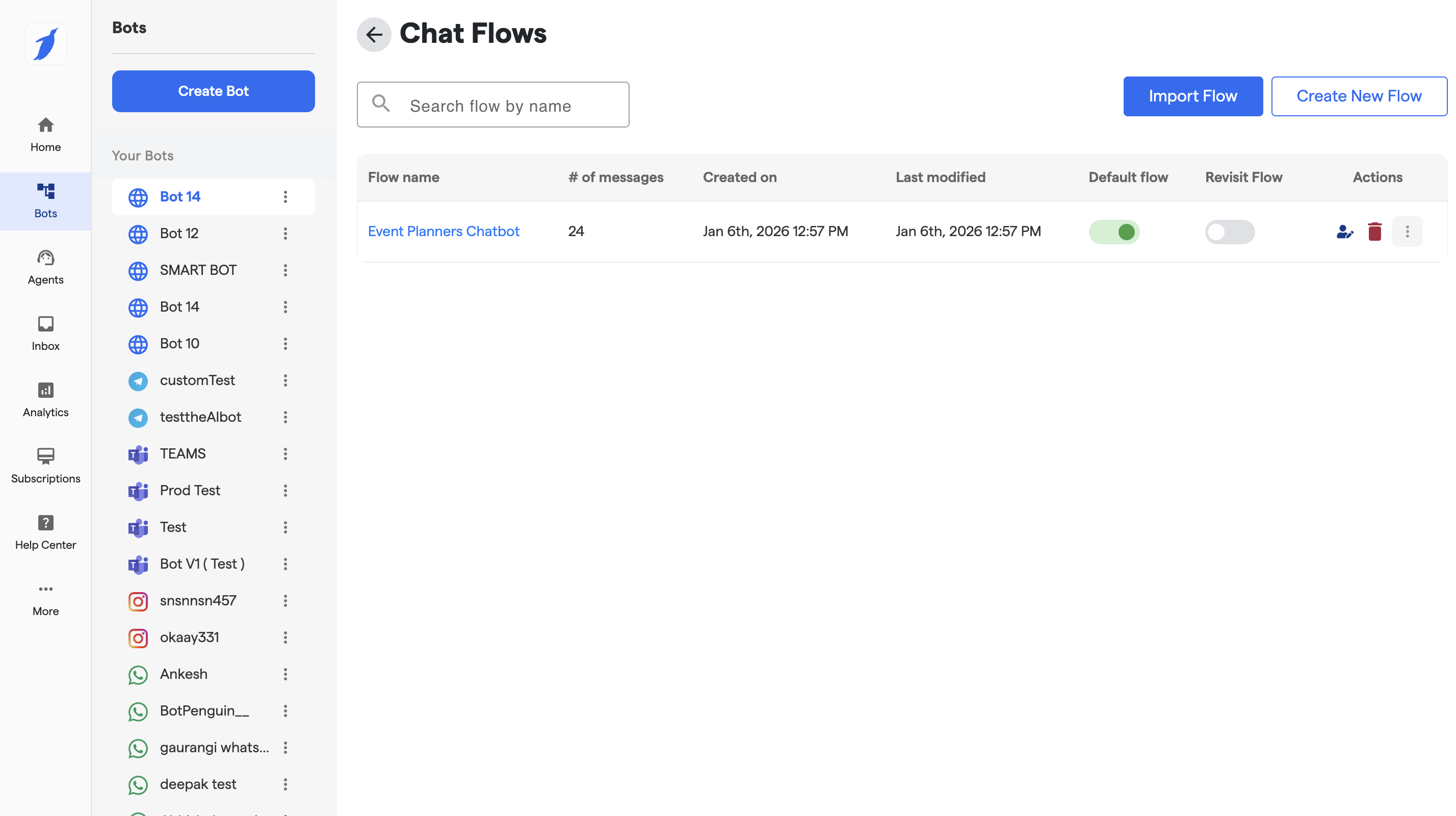
1. Select your Bot
2. Click on the specific Bot
3. Click on the Edit Chat flow option.
4. Select your default chat flow
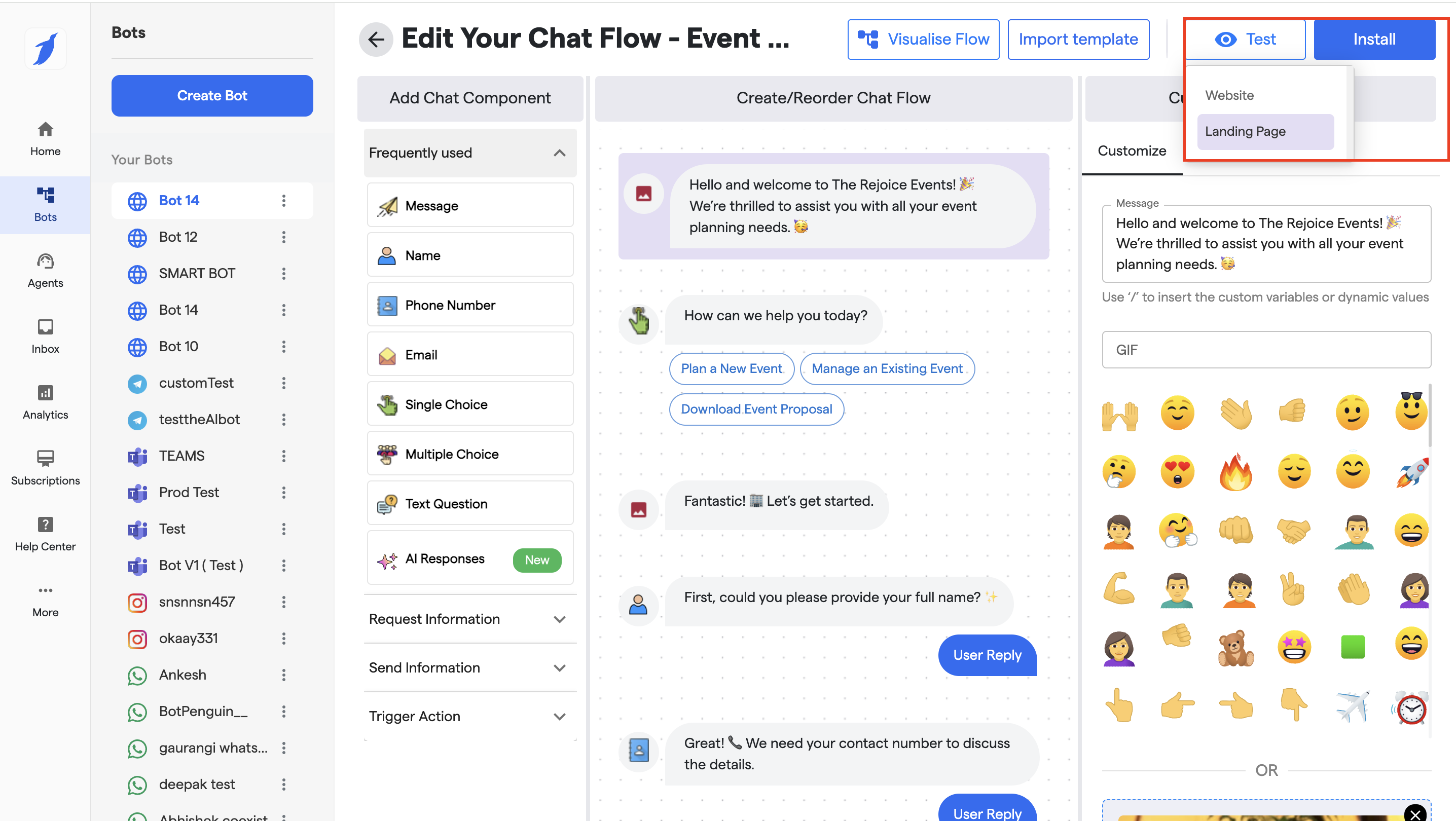
5. Click on Test button to test the chat flow
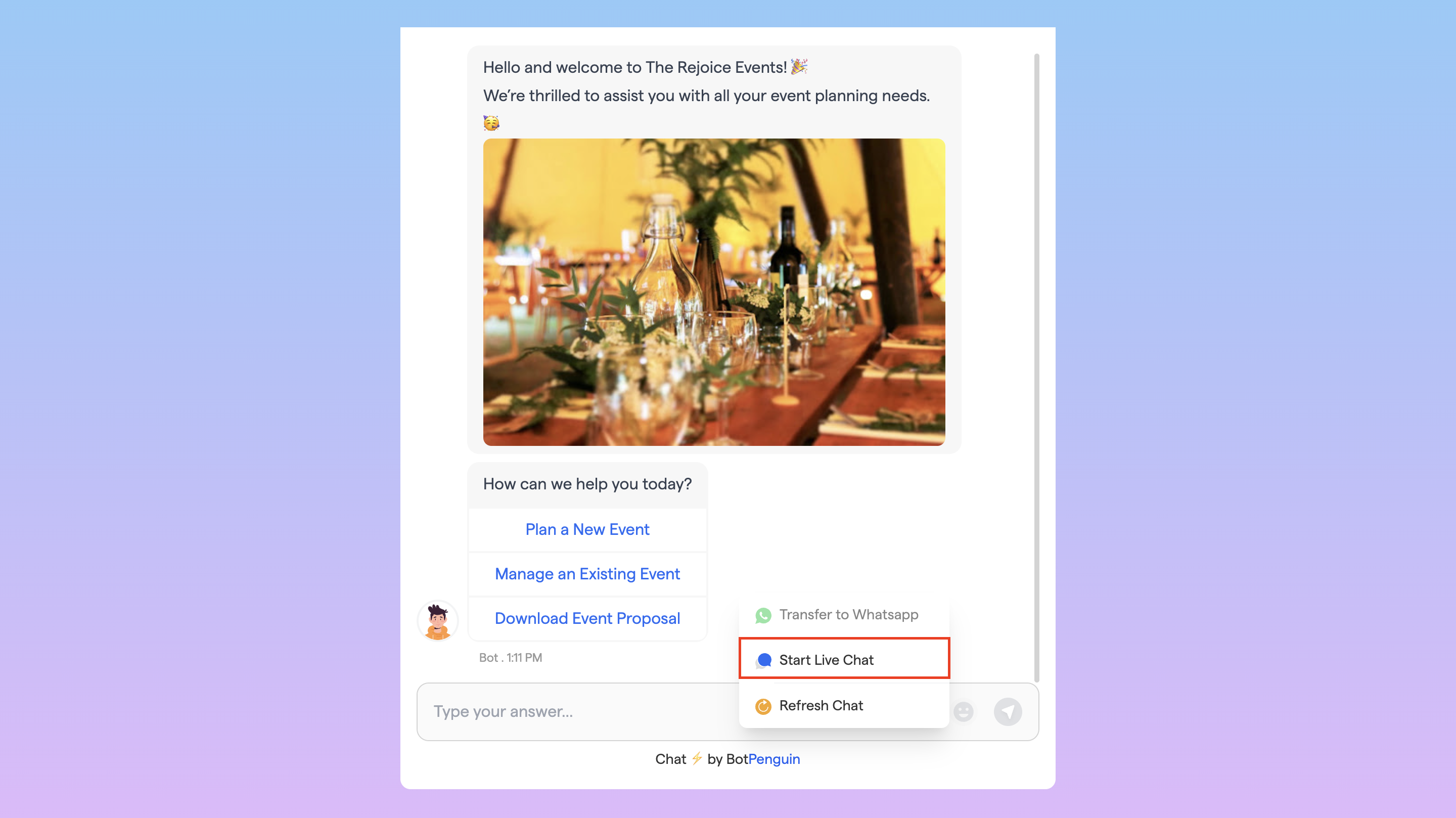
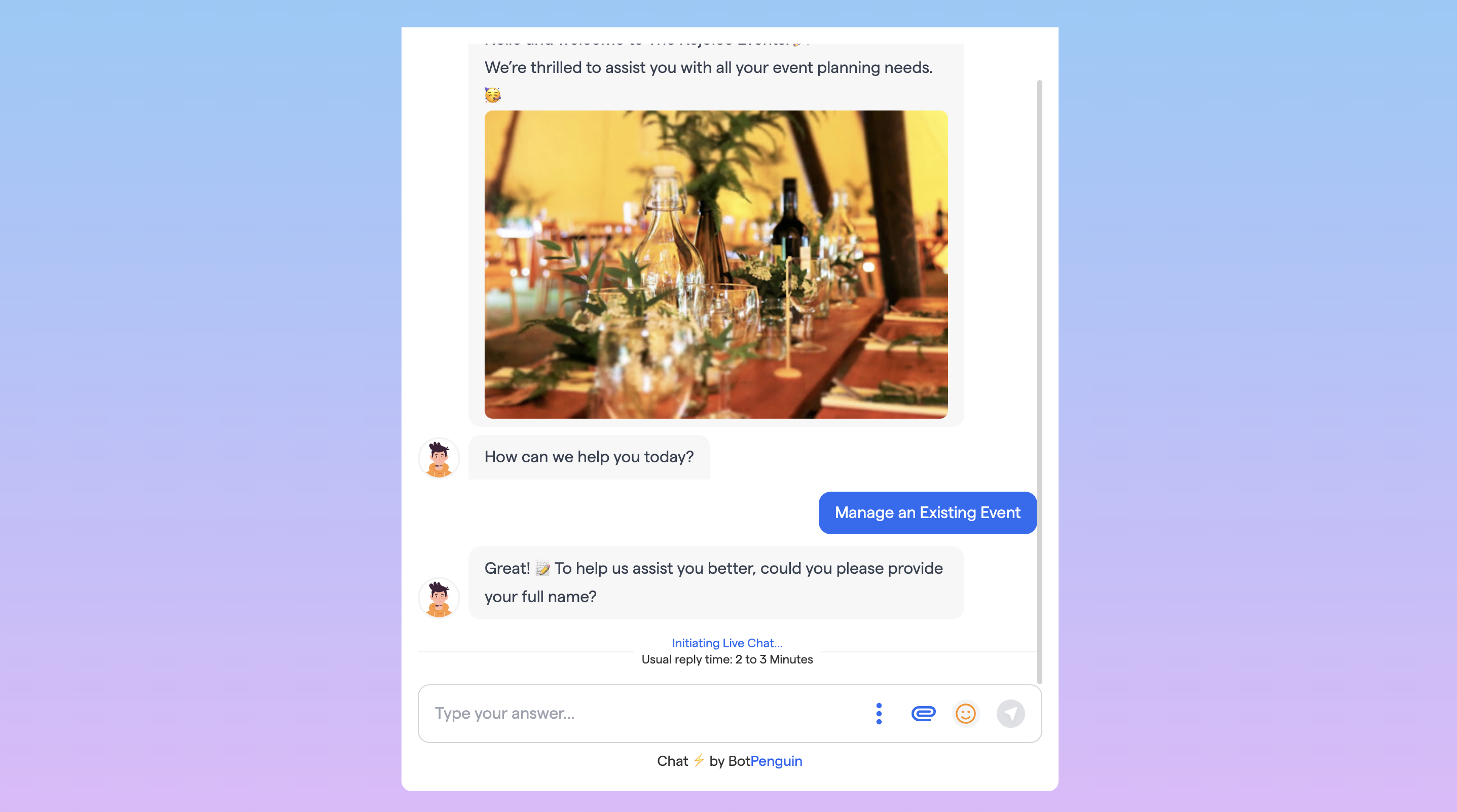
6. Click on Start Live chat option triggering the Agent to live Chat
### Step-by-Step: How to Transfer a Chat to Another Agent
#### Step 1: Open the Inbox
1. Log in to your **BotPenguin Dashboard**
2. Click on **Inbox** from the left-hand menu
3. Go to the **Chats** tab
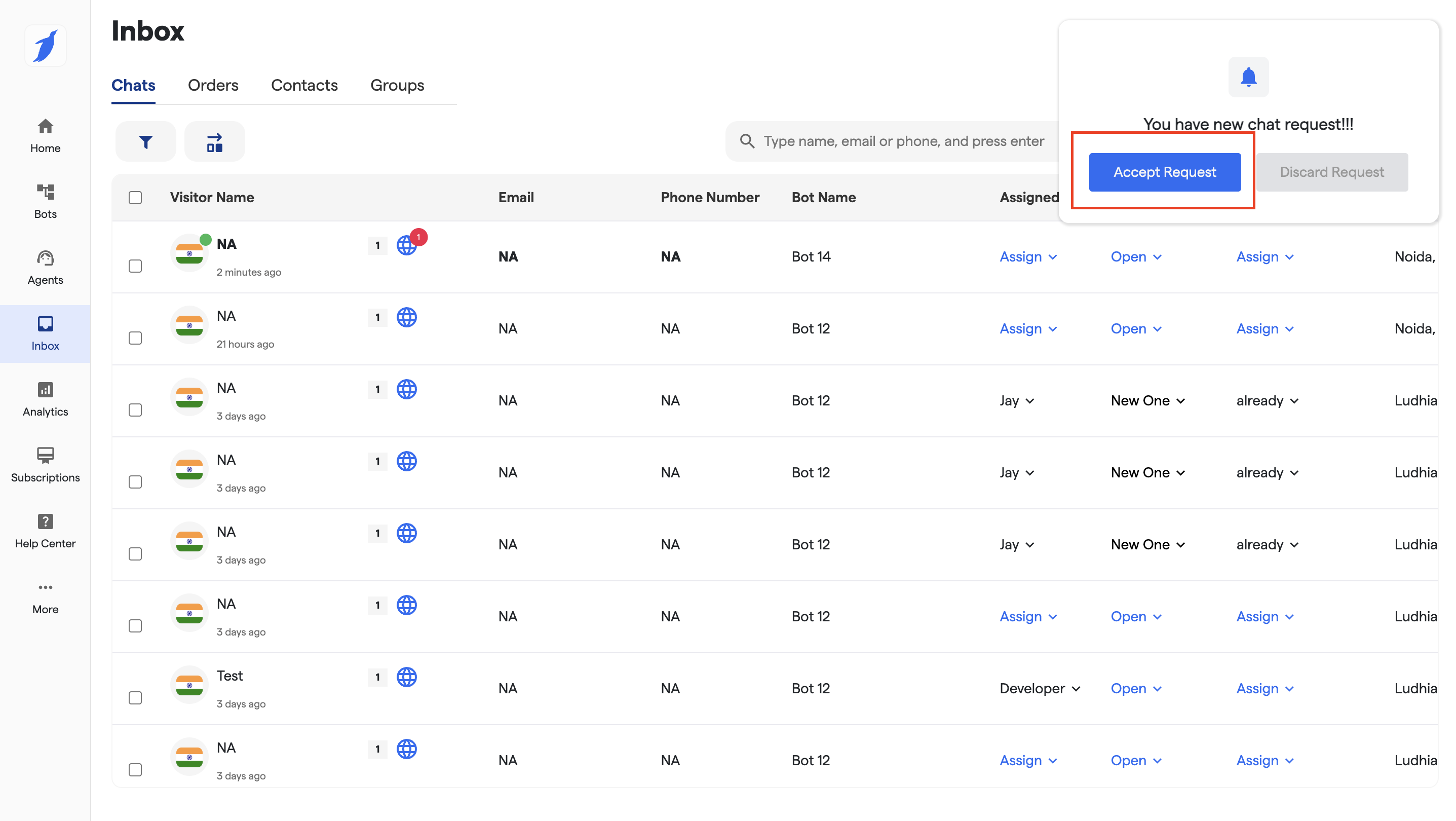
#### Step 2: Accept the Chat Request (If Not Already Accepted)
* When a new chat request arrives, you’ll see a notification at the top right
* Click **Accept Request** to take ownership of the chat
> ⚠️ Only accepted chats can be transferred.
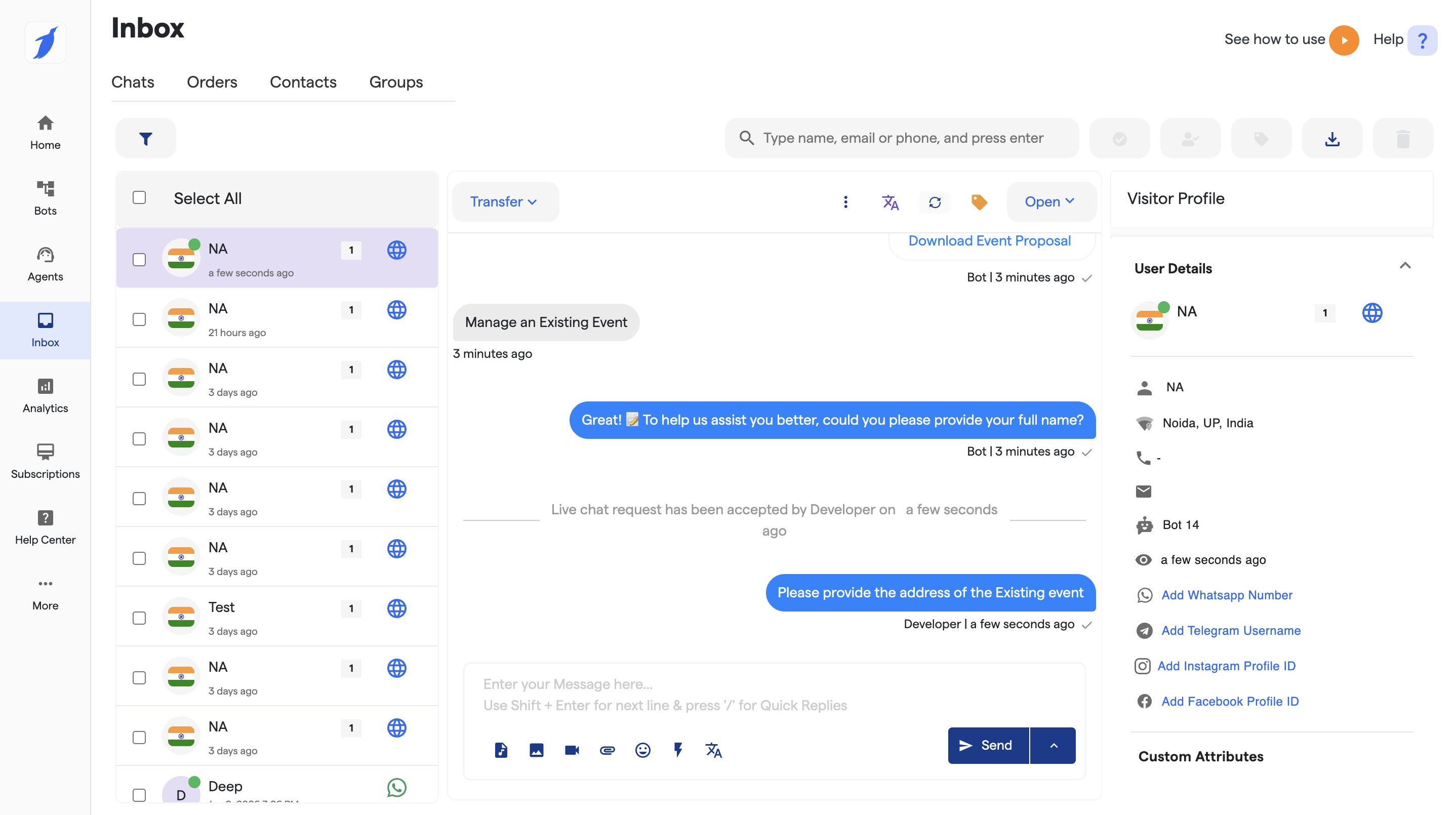
#### Step 3: Open the Conversation
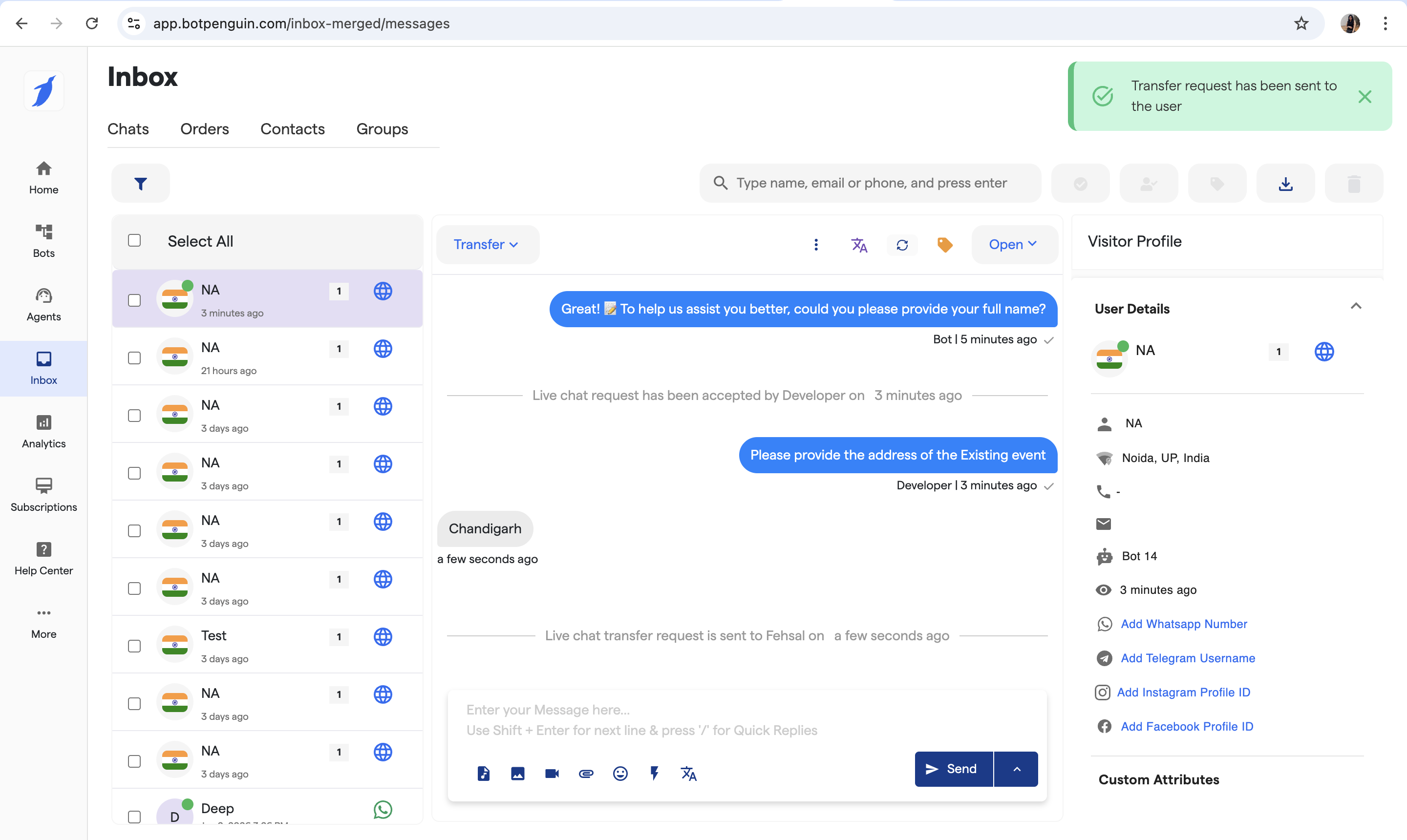
* From the chat list, click on the customer conversation you want to transfer
* The chat window will open in the center panel
* Chat is in the live flow
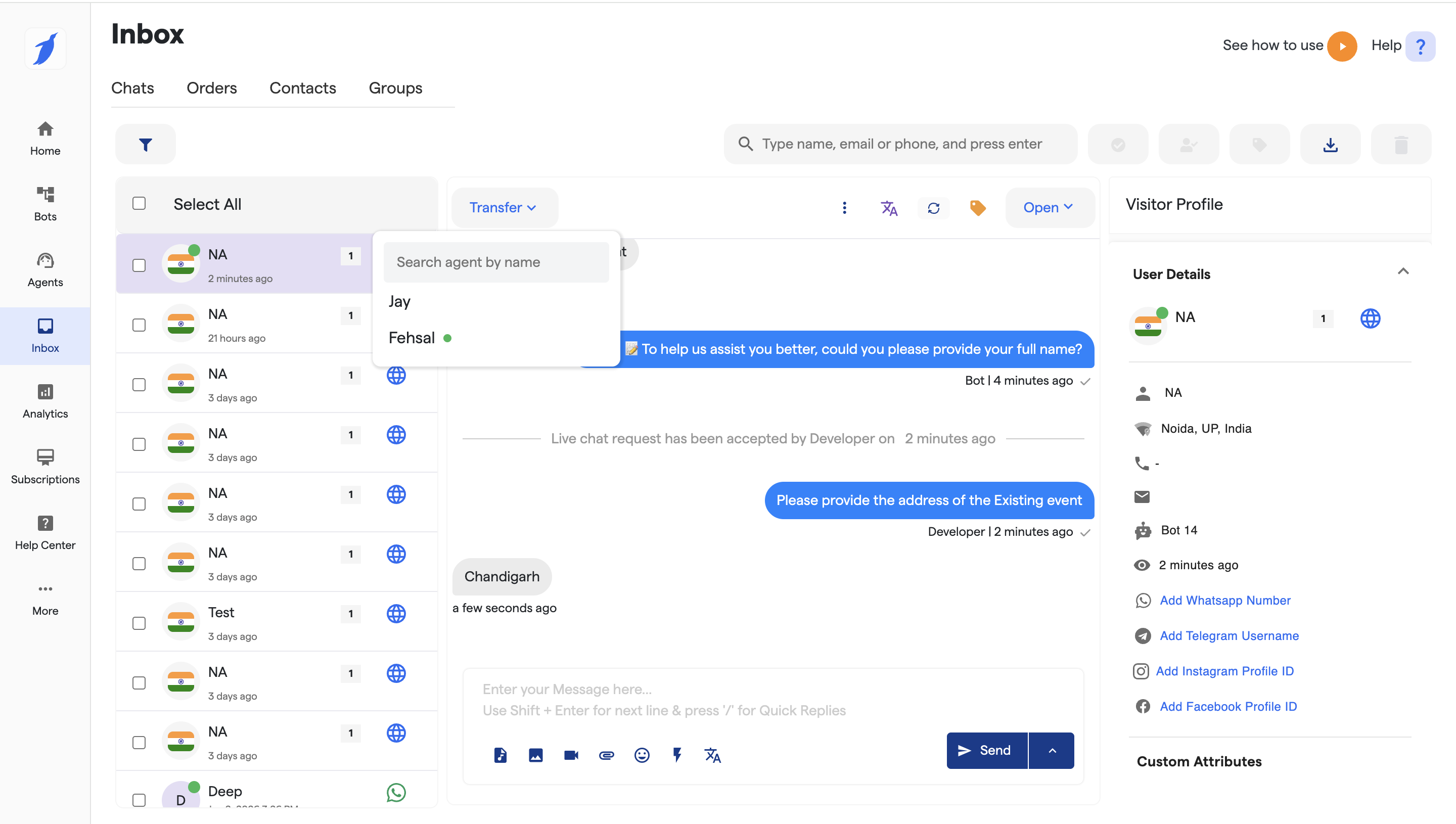
#### Step 4: Click on the Transfer Option
* At the top of the chat window, click on the **Transfer** button.
* A dropdown or modal will appear showing the list of available agents.
#### Step 5: Select the Agent
* Choose the agent you want to transfer the chat to.
#### Step 6: Chat Successfully Transferred
* The chat is now assigned to the selected agent
* You will no longer be able to send messages in that conversation
* The new agent can continue the chat seamlessly with full history
### What Happens After Transfer?
* The customer remains in the same conversation (no disruption)
* Full chat history is visible to the new agent
* Ownership of the chat changes instantly
* The transfer is logged for tracking and accountability
***
### Important Notes
* A chat can be assigned to **only one agent at a time**
* You cannot transfer a closed conversation
* If the agent is offline, the transfer may fail
* Admins can reassign chats if required
***
### Troubleshooting
**Transfer button not visible?**
* Make sure the chat is accepted
* Check if you have agent permissions
**Target agent not listed?**
* Ensure the agent is active and added to the workspace
**Unable to send messages after transfer?**
* This is expected behavior once the chat is reassigned
***
### Need Help?
If you face issues while transferring chats, contact **BotPenguin Support** with:
* Bot Name
* Chat ID (if available)
* Agent email or name
We’ll help you resolve it quickly.