> For the complete documentation index, see [llms.txt](https://help.botpenguin.com/llms.txt). Markdown versions of documentation pages are available by appending `.md` to page URLs; this page is available as [Markdown](https://help.botpenguin.com/bots/whatsapp-bot/manage-chatflow/how-to-copy-a-whatsapp-bot-from-one-account-to-another.md).
# How to Copy a WhatsApp Bot from One Account to Another
Step to Step Guide to copy a Whatsapp Bot from one account to another.
WhatsApp bots cannot be directly transferred between accounts. However, you can **copy the bot’s chat flow** by exporting it as a **JSON file** from one account and importing it into another account.
***
### Prerequisites
* Access to both **source** and **target** accounts
* WhatsApp bot created in both accounts
* Chat flow available in the source bot
***
### Conditions to Import a Chat Flow
Before importing a WhatsApp chat flow JSON file, please ensure the following conditions are met:
1. **Flow Name Must Be Unique**
* The flow name in the JSON file **must not match** any existing flow name in the target bot’s **Chat Flows** list.
* If a flow with the same name already exists, the import will fail.
2. **WhatsApp Flow Is Bot-Specific**
* A WhatsApp chat flow should **not be imported into a different bot** by default.
* Each WhatsApp flow is designed to work with its original bot configuration.
3. **Extreme Case – Importing into a Different Bot**\
If you must import a WhatsApp chat flow JSON into another bot:
* Ensure that **all chat flow components** used in the downloaded flow (messages, buttons, variables, integrations, etc.) **already exist** in the target bot.
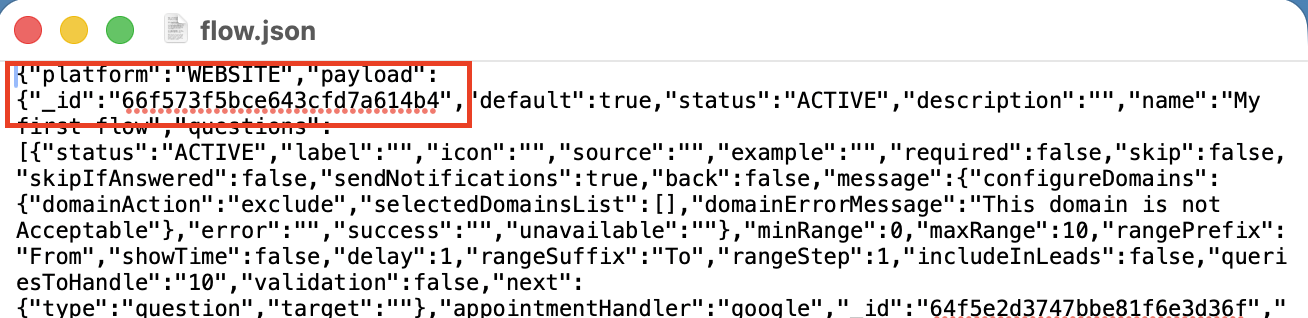
* Open the JSON file and **update the "platform": "Bot name"** to match the target bot.
* Save the changes and then proceed with the import.
> ⚠️ Importing a WhatsApp flow into a different bot without meeting the above conditions may cause flow errors or incomplete execution.
### Step 1: Download the Chat Flow from Source Account
1. Log in to the **source account**.
2. Open the **WhatsApp Bot** you want to copy.
3. Navigate to **Chat Flows**.
4. Locate the flow you want to copy.
5. Click the **three-dot (⋮) menu** under **Actions**.
6. Select **Download Flow**.
📥 The chat flow will be downloaded in **JSON format**.
{% file src="/files/RxUJc3DURDqjhJbKzVew" %}
Downloaded Json
{% endfile %}
***
### Step 2: Create a New WhatsApp Bot in Target Account
1. Log in to the **Target account.**
2. Click **Create Bot**.
3. Select **WhatsApp** as the channel.
4. Complete the basic bot setup (name, number, onboarding) using this document.
{% content-ref url="/pages/pxSWeWYx518vNBPVfEoU" %}
[Bot Setup](/bots/whatsapp-bot/bot-setup.md)
{% endcontent-ref %}
***
### Step 3: Import the Chat Flow into the New Bot
1. Open the newly created **WhatsApp bot**.
2. Navigate to **Chat Flows**.
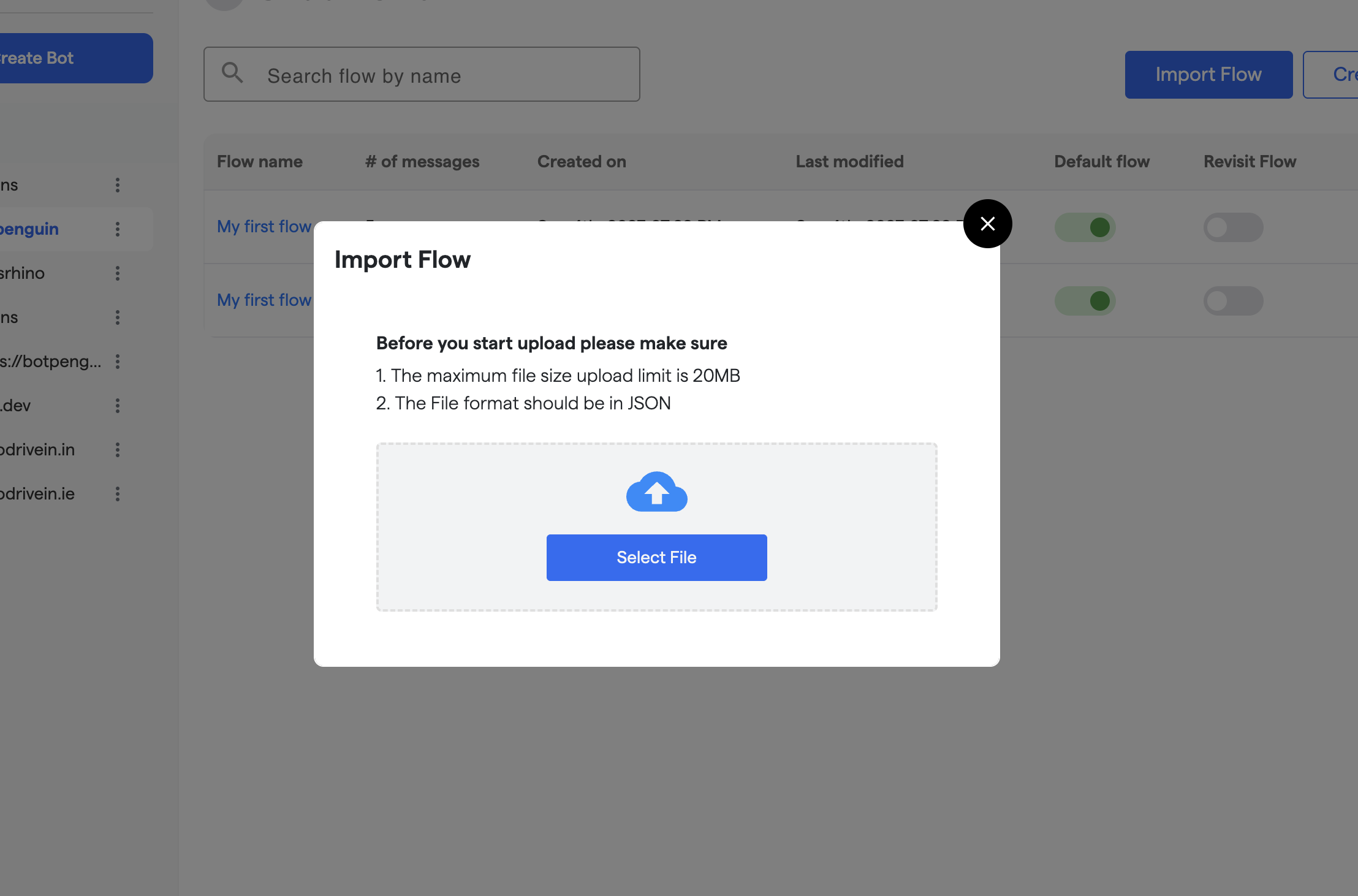
3. Click **Import Flow**.
4. In the import popup:
* Click **Select File**
* Upload the **JSON file** downloaded earlier
1. Ensure:
* File format is **JSON**
* File size is **under 20MB**
2. Confirm the upload.
***
### Step 4: Verify the Imported Flow
1. Once uploaded, the flow will appear in the **Chat Flows list**.
2. Open the flow and review:
* Messages
* Conditions
* Buttons
* Variables
3. Set the flow as **Default Flow** if required.
4. Save and publish the bot.
***
### Important Notes
* Only **chat flows** are copied (logic & messages)
* WhatsApp number **cannot be copied**
* Templates must be **approved again** if required
* Integrations and webhooks may need reconfiguration
* Media files should be rechecked after import