> For the complete documentation index, see [llms.txt](https://help.botpenguin.com/llms.txt). Markdown versions of documentation pages are available by appending `.md` to page URLs; this page is available as [Markdown](https://help.botpenguin.com/ai-agents/creating-ai-agents-in-botpenguin/agent-settings/web-platform.md).
# Web Platform
The Web Platforms section of Agent Settings is where you define how your chatbot behaves on your website or landing page.
### What Is the Web Platforms Settings Section?
The **Web Platforms** section of Agent Settings is where you define how your chatbot behaves on your website or landing page. It governs the session logic, widget visuals, user interaction experience, and even advanced technical behavior like custom CSS or triggers. This ensures a consistent and high-conversion deployment across your web-based digital platforms.
***
### Why It Matters
* **Consistency**: Ensure uniform behavior across all web platforms
* **Flexibility**: Adapt the agent to your business logic and user flow
* **Branding Control**: Match widget styling with brand guidelines
* **Performance Optimization**: Fine-tune trigger delays and session handling
* **Compliance**: Enforce location and URL-based rules to meet regulatory needs
***
### How to Access
1. Log into your **BotPenguin** dashboard.
2. Navigate to the **Agents** sidebar.
3. Select the agent you wish to configure.
4. Click on **Agent Settings**.
5. Under Agent Settings, choose the **Web Platforms** sub-tab.
You will now see five distinct configuration sections for Web Platforms:
* Settings
* Chat Screen
* Language & Default Text
* Layout
* Advanced
***
### Configuration Sections
#### 1. **Settings** (Web Platforms)
This section configures the default behavioral logic for your website or landing page deployment.
* **Session Timeout**: Set how long a user session remains active (e.g., 10 minutes or 1 hour).
* **Time Zone**: Align timestamps with your target geography.
* **Message History**: Choose whether to persist conversation data for just the session or indefinitely.
* **Agent Appearance Sound**: Select audio feedback for when the chatbot appears (*e.g., Bottle, Tap, None*).
* **Sound for Team Users**: Notification sounds for internal staff (*e.g., Doorbell, System Notification*).
* **Sound for End Users**: Notification sounds for users interacting with the bot (*e.g., Achievement, Beep*).
* **Session Summary Email**: Enable/disable emails sent to end users summarizing their session.
* Configure the **email subject**
* Toggle **returning user email notifications**
**Actions Available:**
* Reset to Default
* Update
* Update & Next
***
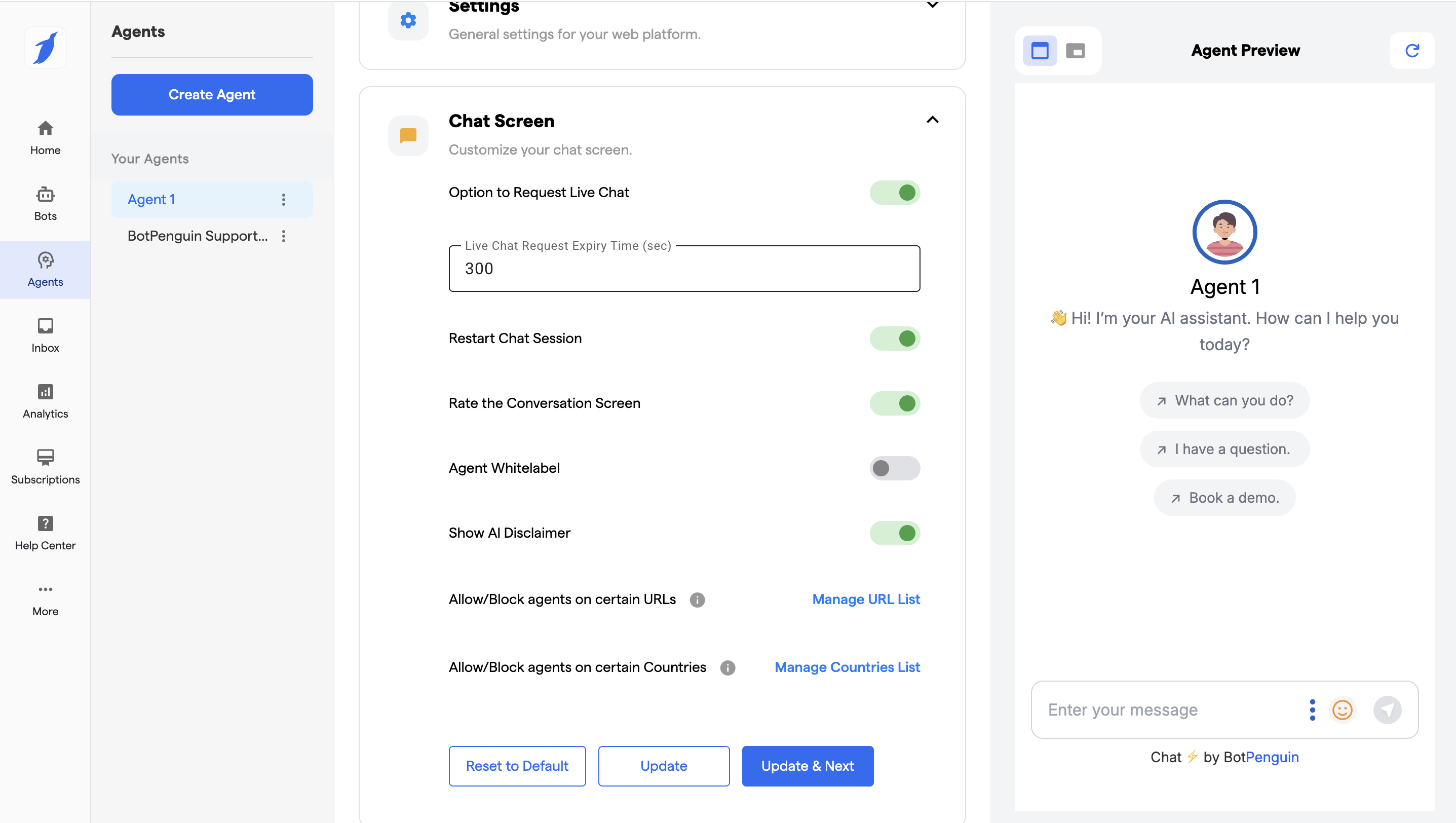
#### 2. **Chat Screen** (Web Platforms)
Control how your website chatbot behaves during active user interactions.
* **Live Chat Request Toggle**: Allow users to initiate live chat manually.
* **Live Chat Request Expiry**: Define how long a live chat request stays valid.
* **Restart Chat Toggle**: Let users restart the conversation session.
* **Conversation Rating Toggle**: Enable feedback collection post-chat.
* **Show AI Disclaimer option:** Enable this toggle to display an AI Disclaimer, informing users that responses are generated by AI.
* **Manage URL List**:
* Define which URLs the bot is **allowed** or **blocked** from appearing on
* Add multiple entries dynamically using the **+** icon
* **Manage Country List**:
* Control access based on geographic regions (allow/block logic)
**Actions Available:**
* Reset to Default
* Update
* Update & Next
***
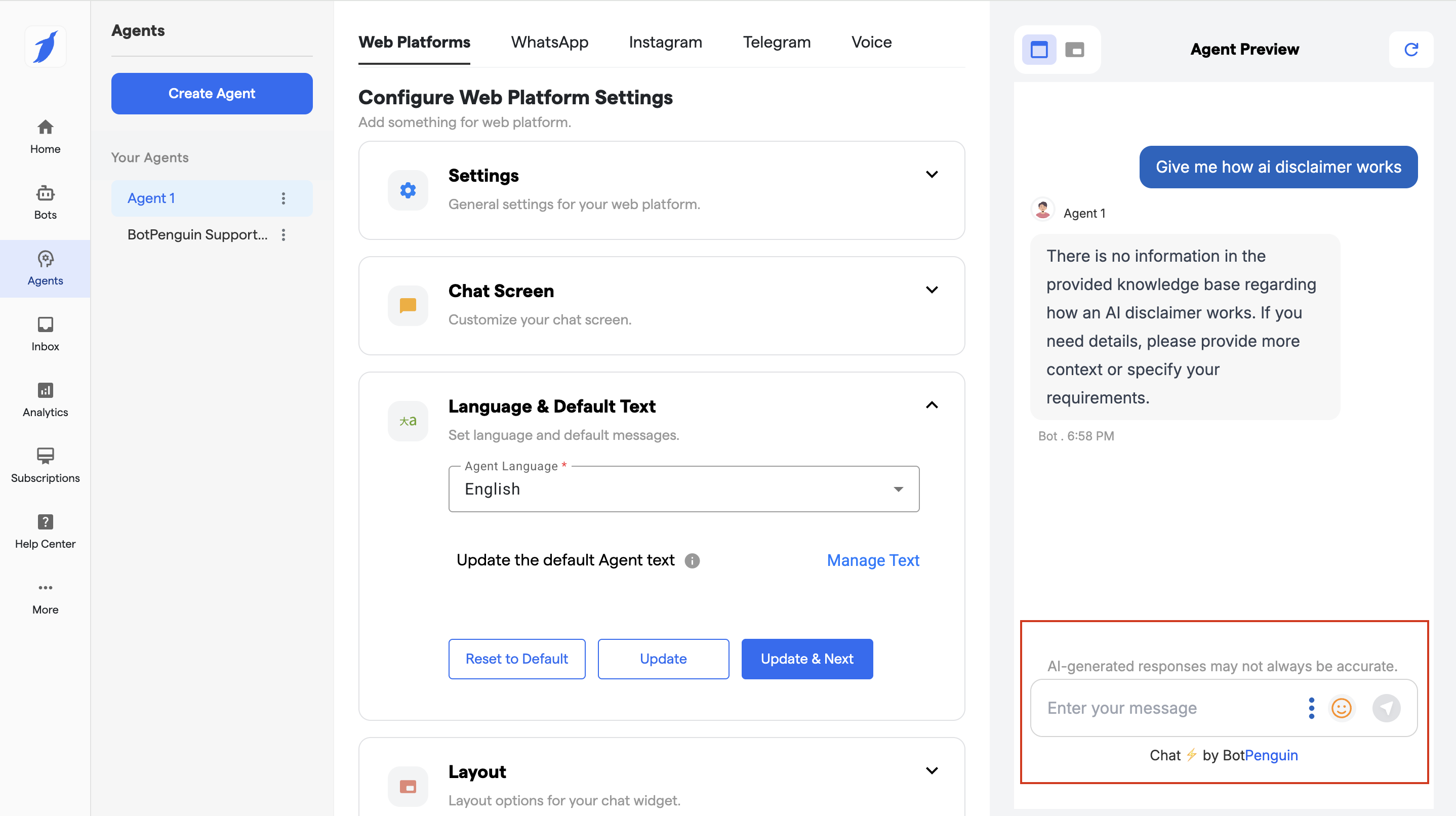
#### 3. **Language & Default Text** (Web Platforms)
Manage how the chatbot communicates by default across your web deployments.
* **Default Language**: Set the language of your chatbot UI (English, Hindi, French, etc.)
* **Manage Default Agent Text**: Click on manage text option.
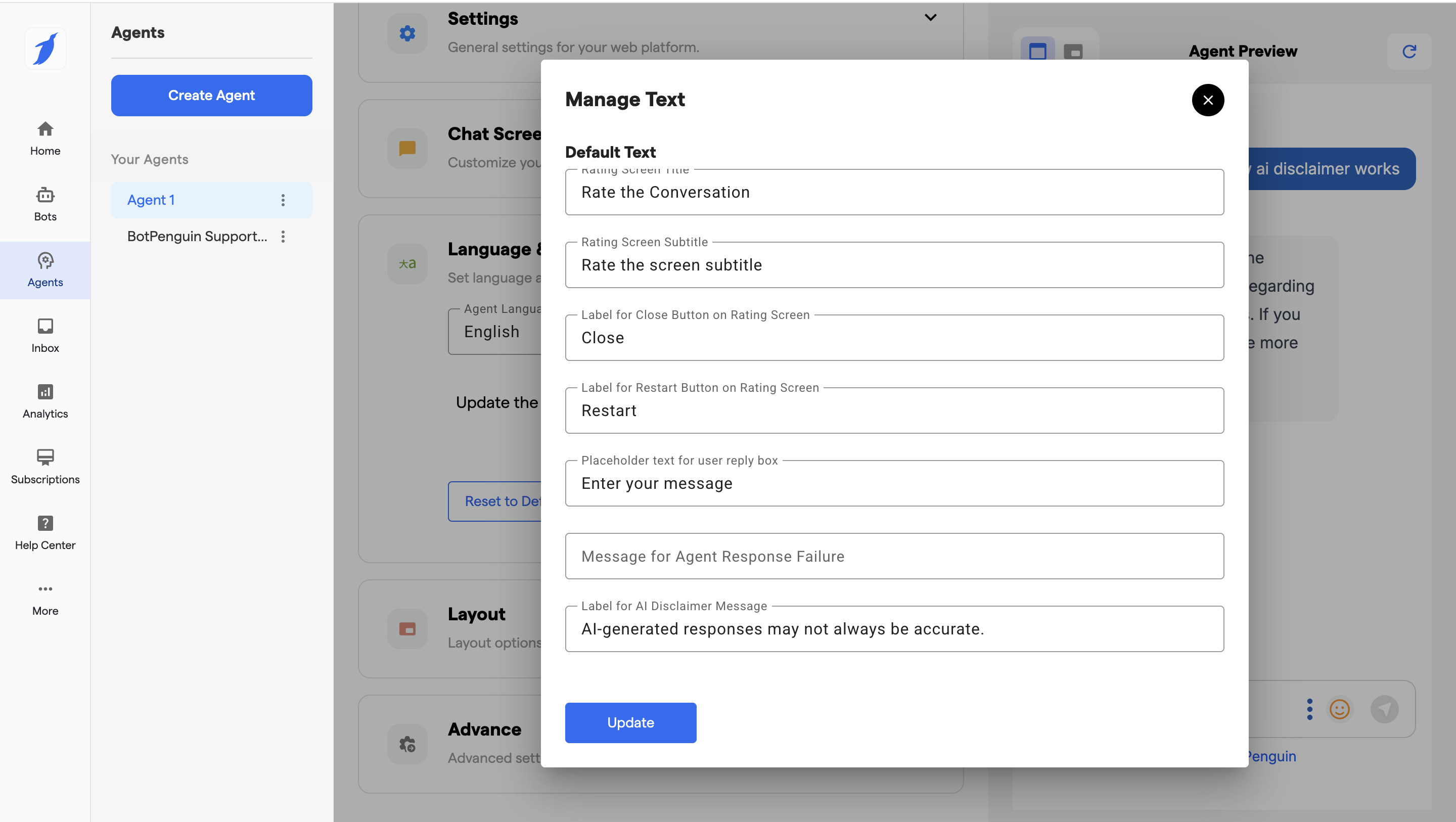
#### What is the Manage Text Screen?
The **Manage Text** screen allows you to customize all the visible text shown in your AI Agent’s chat interface. This helps you match your brand tone, improve user clarity, and localize content for different audiences.
***
#### Where to Find It
1. Go to **Agents**
2. Select your **Agent**
3. Open **Settings**
4. Navigate to **Chat Screen**
5. Click **Manage Text**
***
#### What You Can Customize
**🗨️ Rating Screen Text**
* **Rating Screen Title**\
Text shown at the top of the rating screen.
* **Rating Screen Subtitle**\
Supporting message shown below the title.
* **Close Button Label**\
Text for the close action on the rating screen.
* **Restart Button Label**\
Text for restarting the conversation after rating.
***
**💬 Chat Input Text**
* **User Reply Placeholder**\
Placeholder text inside the message input box (e.g., *“Enter your message”*).
***
**⚠️ Error Message**
* **Agent Response Failure Message**\
Message shown when the agent fails to respond due to an error or timeout.
***
**🤖 AI Disclaimer Message**
* **Label for AI Disclaimer Message**\
Text displayed to inform users that the agent responses are AI-generated and may not always be accurate.
**Example:**\
*“This assistant uses AI and may generate inaccurate or incomplete responses. Please verify important information.”*
***
#### How to Update Text
1. Edit the required text fields
2. Click **Update**
3. Changes will reflect instantly in the Agent Preview
***
#### Reset to Default
Use the **Reset to Default** option to restore all texts to their original system-defined values.
***
#### Best Practices
* Keep messages **short and clear**
* Maintain a **friendly and consistent tone**
* Avoid misleading or absolute claims
* Use simple language for better user understanding
***
#### Who Should Use This?
* Teams customizing chatbot language
* Businesses localizing chat text
* Brands aligning chatbot messaging with tone guidelines
* Compliance teams adding AI transparency messaging
***
#### 4. **Layout** (Web Platforms)
Design the look and feel of the chatbot widget across devices.
* **Window Size**: Choose between pre-set sizes (S to 2XL) or define custom width/height in PX
* **Widget Positioning**:
* Configure separate placements for **Desktop** and **Mobile**
* Available positions: Bottom Right, Top Left, Center Right, etc.
**Actions Available:**
* Reset to Default
* Update
* Update & Next
***
#### 5. **Advanced** (Web Platforms)
Developer-grade settings for full control over widget behavior and UI visibility.
* **Custom CSS for Chat Window**
* **Custom CSS for Launcher Icon**
* **Toggle Controls**:
* Capture IP
* Capture Page Source
* Auto-disable triggers on Desktop and Mobile
* **Trigger Timing**:
* Auto open delay (in seconds) post-user action
* Trigger after user closes chat, after set seconds, always, or never
* **Supported Devices**: Select device types for deployment
* **Bot Icon Position**: Left or Top
* **UI Visibility Toggles**:
* Hide agent profile + welcome note (Landing Page)
* Hide agent header (Landing Page)
* Hide CTA (Website Widget)
* **CTA Configuration**:
* Define position (Top or Left)
* Customize CTA text
**Actions Available:**
* Reset to Default
* Update
***
### Need Help?
If your agent doesn’t show up after installation or you encounter code-related issues, contact us at [**support@botpenguin.com**](mailto:support@botpenguin.com) or reach out directly via the WhatsApp Support option. We typically respond within 48 business hours.